

Is Monsear.xyz virus a serious threat?
Most likely, you may encounter Monsear.xyz virus when you are searching for a new search engine. However, you should not fall for the deceptive appearance of this browsing tool. It does not conceal the fact that it is a browser hijacker. Any sample of this kind functions for the purpose to secretly invade computer systems. After it succeeds in that, it makes necessary changes in the registry system. As a consequence, some users may encounter problems deleting the PUP. Therefore, brush away the idea of setting this browser hijacker as your primary search engine. Instead, concentrate on Monsear.xyz removal. FortectIntego will assist you to do that properly.
The most unusual feature of this hijacker is related to its domain address. It promotes Start4u search engine, which also happens to be a browser hijacker, though the URL address is Monsear.xyz. This queer address should already cause doubts about the reliability of this browsing tool. Moreover, though the PUP uses Goggle database, the list of search results is enhanced with the links to advertising domains. It is likely that you may soon be bothered by Monsear.xyz redirect once you enter any of the mentioned search targets. The possible outcome of this phenomenon is that you might find yourself unwillingly in a domain full of distracting banners, hyperlinks, fake download buttons, and ads. Avoid clicking any of them because you might unintentionally install a virus. On the other hand, try to exit similar domains as soon as possible.
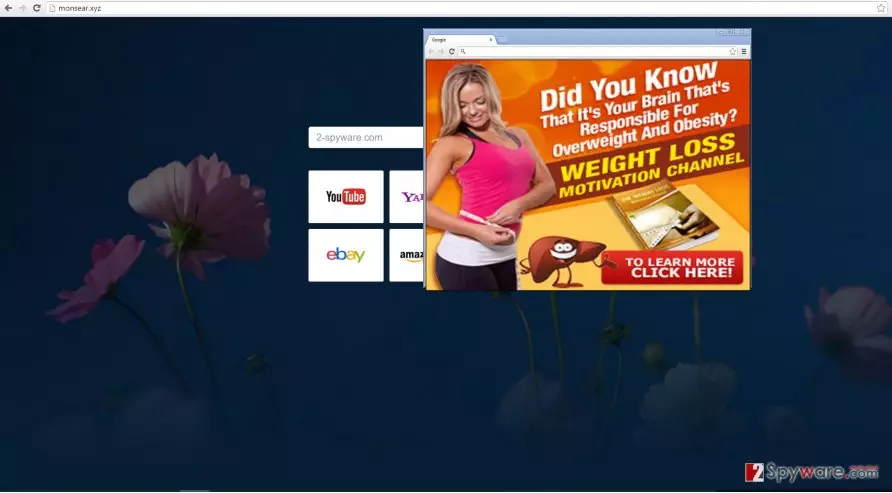
In addition, you should know that Monsear hijacker can spy on your online activities. It employs cookies, files, which record and store the information what domains you visit and with what frequency. Because there is no privacy policy provided, you are not given any guarantees that the collected information is not traded with advertising companies. In that case, get prepared for the attack of personalized advertisements. These arguments should convince to remove Monsear.xyz as soon as possible.
When did the hijacker occupy my PC?
Using free programs as a disguise, the hijacker often successfully invades computers. You might admit that reading either Terms of Use or carefully looking through the installation wizard is a rare phenomenon. Thus, as a result of this prevalent vice, Monsear.xyz usually escapes the attention of countless of users. It is a matter of fact when the hijack occurs. If you are willing to stop the hijacker before it attempts to slither past the system security, you should follow these recommendations. Before launching the installation of a downloaded program, choose “Advanced” option. Afterward, carefully look through all the settings to detect any pre-checked boxes of optional programs. If they happen to be questionable search engines or browser plug-ins, unmark them without a doubt.
How can I remove Monsear.xyz efficiently?
Finally, we have reached the essential part. Eliminate the hijacker with the help of malware removal program. It will perform Monsear.xyz removal within few minutes. You can be sure that no related files nor programs are left after the scan. In general, such program should be present on the PC because it reduces the risk of the attack of highly destructive viruses. Alternatively, if you are used to doing the things in your own way, you can successfully delete the PUP with the help of manual guidelines. On the positive note, remember that your cautiousness by avoiding questionable domains and carefully installing new programs might also serve as contribution to the security of your operating system.
Uninstall from Windows
Uninstall from Windows 10/8:
- Type Control Panel into the Windows search box and open the result.
- Under Programs, select Uninstall a program.


Uninstall from Windows 7/XP:
- Click on Windows Start > Control Panel (Windows XP users should click on Add/Remove Programs).
- In Control Panel, select Programs > Uninstall a program.


Remove the unwanted program:
- In the Programs and Features window, look for any recently installed suspicious entries, select them, and click Uninstall.
- If User Account Control appears, click Yes to confirm, then complete the removal.


Delete from macOS
Remove the unwanted application:
- From the menu bar, select Go > Applications.
- In the Applications folder, look for any suspicious entries, then drag them to Trash (or right-click and pick Move to Trash).


Delete leftover files and folders:
- Select Go > Go to Folder.
- Enter /Library/Application Support and remove any suspicious folders related to the unwanted program.
- Repeat the same check in the /Library/LaunchAgents and /Library/LaunchDaemons folders, deleting any suspicious entries.

- Finally, empty the Trash to permanently remove the leftovers.

Remove from Microsoft Edge
Delete unwanted extensions from MS Edge:
- Select Menu (three horizontal dots at the top-right of the browser window) and pick Extensions.
- From the list, pick the extension and click on the Gear icon.
- Click Remove.


Clear cookies and other browser data:
- Click on the Menu (three horizontal dots at the top-right of the browser window) and select Settings > Privacy, search, and services..
- Under Clear browsing data, pick Choose what to clear.
- Select Cookies and other site data and Cached images and files. (apart from passwords, although you might want to include Media licenses as well, if applicable) and click on Clear.


Restore new tab and homepage settings:
- Click the menu icon and choose Settings.
- Then find On startup section.
- Click Remove next to any suspicious startup page.
Reset MS Edge if the above steps did not work:
- Press on Ctrl + Shift + Esc to open Task Manager.
- Click on More details arrow at the bottom of the window.
- Select Details tab.
- Now scroll down and locate every entry with Microsoft Edge name in it. Right-click on each of them and select End Task to stop MS Edge from running.


Instructions for Chromium-based Edge
Delete extensions from MS Edge (Chromium):
- Open Edge and click select Settings > Extensions.
- Delete unwanted extensions by clicking Remove.


Clear cache and site data:
- Click on Menu and go to Settings.
- Select Privacy, search and services.
- Under Clear browsing data, pick Choose what to clear.
- Under Time range, pick All time.
- Select Clear now.


Reset Chromium-based MS Edge:
- Click on Menu and select Settings.
- On the left side, pick Reset settings.
- Select Restore settings to their default values.
- Confirm with Reset.
- This will disable extensions and reset startup pages but will not delete bookmarks, saved passwords, or browsing history.


Remove from Mozilla Firefox (FF)
Remove dangerous extensions:
- Open Mozilla Firefox browser and click on the Menu (three horizontal lines at the top-right of the window).
- Select Add-ons.
- In here, select the unwanted extension and click Remove.


Reset the homepage:
- Click three horizontal lines at the top right corner to open the menu.
- Choose Settings.
- Under Home, set your preferred homepage and new tab settings.
Clear cookies and site data:
- Click Menu and pick Settings.
- Go to Privacy & Security section.
- Scroll down to locate Cookies and Site Data.
- Click on Clear Data...
- Select Cookies and Site Data and Temporary cached files and pages, then click Clear.


Reset Mozilla Firefox
If clearing the browser as explained above did not help, reset Mozilla Firefox:
- Open Mozilla Firefox browser and click the Menu.
- Go to Help and then choose Troubleshooting Information.

- Under Give Firefox a tune up section, click on Refresh Firefox...
- Once the pop-up shows up, confirm the action by pressing on Refresh Firefox.



Remove from Google Chrome
Delete malicious extensions from Google Chrome:
- Open Google Chrome, click on the Menu (three vertical dots at the top-right corner) and select More tools > Extensions.
- In the newly opened window, you will see all the installed extensions. Uninstall all suspicious extensions related to the unwanted program by clicking Remove.


Clear cache and web data from Chrome:
- Click on Menu and pick Settings.
- Under Privacy and security, select Clear browsing data.
- Select Browsing history, Cookies and other site data, as well as Cached images and files.
- Click Clear data.


Change your homepage:
- Click menu and choose Settings.
- Look for a suspicious site in the On startup section.
- Click on Open a specific or set of pages and click on three dots to find the Remove option.
Reset Google Chrome:
If the previous methods did not help you, reset Google Chrome to eliminate all the unwanted components:
- Click on Menu and select Settings.
- In the Settings, scroll down and click Advanced.
- Scroll down and locate Reset and clean up section.
- Now click Restore settings to their original defaults.
- Confirm with Reset settings.


Delete from Safari
Remove dangerous extensions:
- Open Safari, click Safari in the menu at the top-left of the screen, and select Preferences.
- Go to the Extensions tab, look for any suspicious entries, and click Uninstall to remove them.


Clear history and website data:
- Click Safari in the menu and pick Clear History.
- Set Clear to all history and confirm with Clear History.


Reset Safari:
- Click Safari in the menu and select Preferences > Advanced.
- Enable Show Develop menu in menu bar.
- From the menu bar, click Develop and select Empty Caches.


Did this guide help?
3 comments
Hugo
Minor pest.
Kim
Luckily, there is no trouble removing it.
Cassandra
Thank you for the instructions.