
Newtontanrec.casa ads: what it is and how to remove it
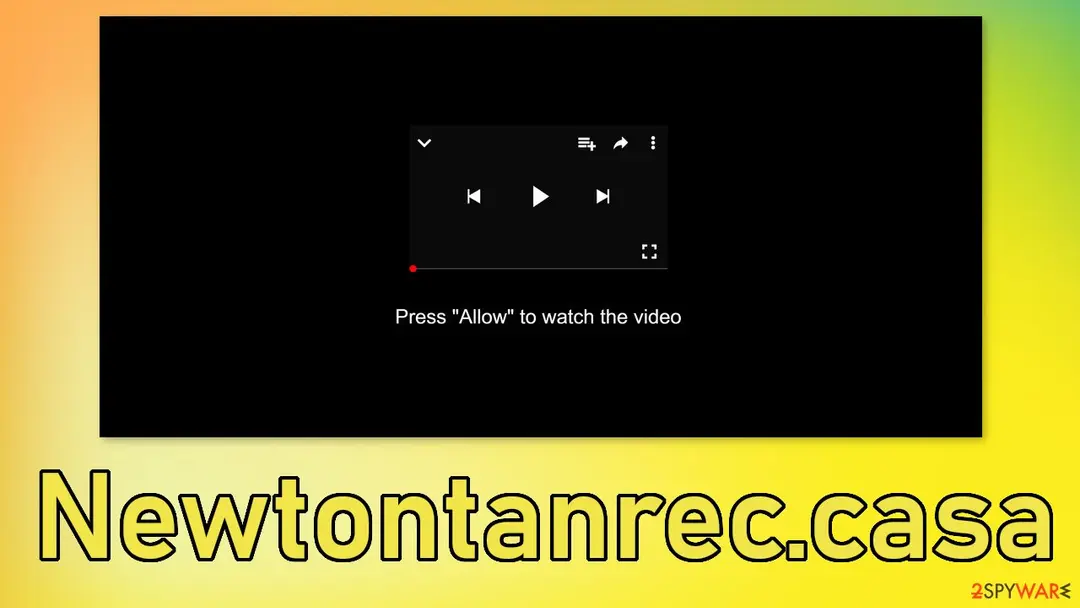
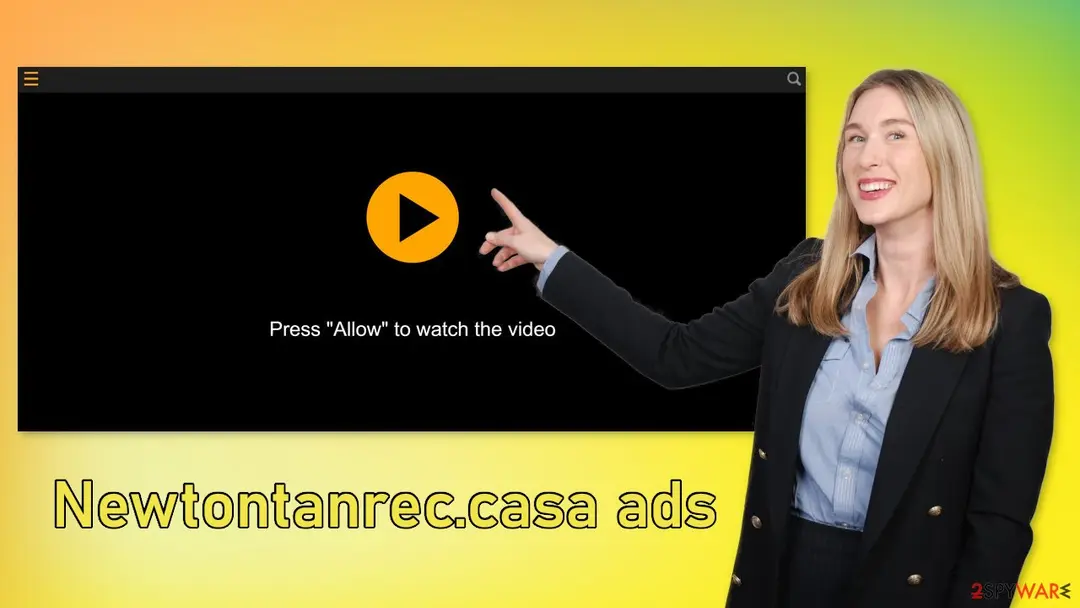
Newtontanrec.casa is a dubious site that starts sending push notifications straight to users' screens after they click the "Allow" button. It displays a deceiving message to get users to perform the action.
Facts checked October 6, 2026. Removal steps tested on Windows 11 (26H2) and checked against Microsoft's and the browser makers' current documentation. Sections marked as our earlier report are the original text: they describe the threat as it was then and have not been reviewed since. The 2026 status, the removal steps and the questions are current.
Automatic
Get a free scan and check if your PC is infected.
Fortect finds malware, unwanted programs and the Windows damage they leave behind, and repairs it in one pass.
An automatic scan checks installed programs, startup items and browser extensions for anything that came with Newtontanrec.casa.
Do it yourself · free Remove Newtontanrec.casa ads yourself 5 steps, about 15 minutes, no software needed.
Start the steps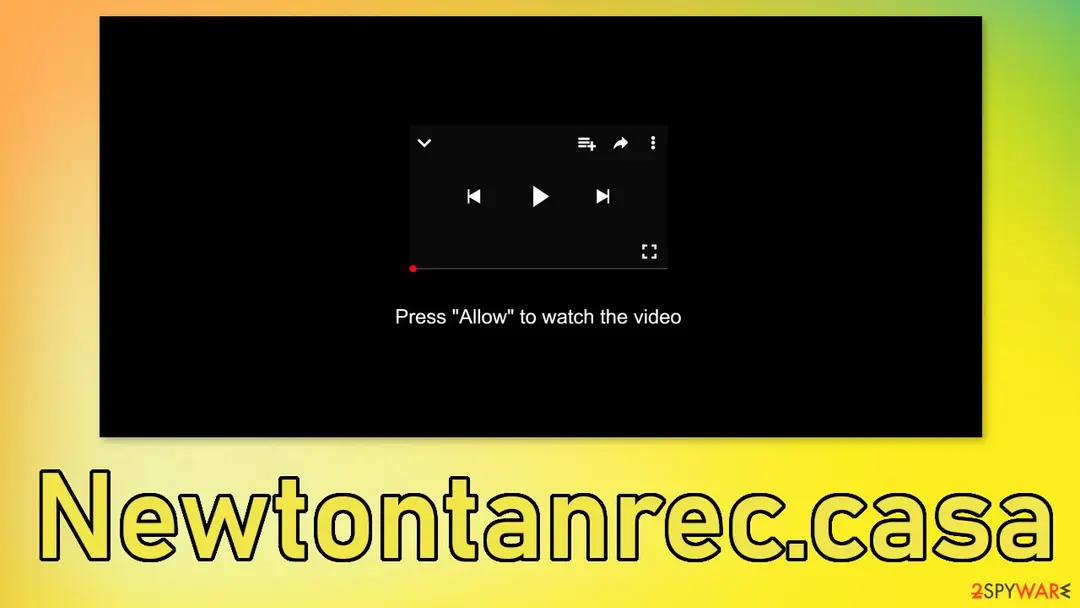
Newtontanrec.casa ads: summary
| Distribution | Shady websites, deceptive ads, freeware installations |
|---|---|
| NAME | Newtontanrec.casa |
| TYPE | Push notification spam; adware |
| SYMPTOMS | Annoying pop-up ads start appearing in the corner of the screen once the user presses "Allow" |
| DANGERS | Links in the pop-ups can lead users to dangerous websites where they can suffer from monetary losses and identity theft if they provide their personal information |
| Detection names | No Microsoft detection name is known |
| Removal | Scan the PC with security software to find and remove the malware and anything installed with it. Fortect scans Windows for malware and repairs the system files and settings it damaged. Remove it nowTo use the full-featured product, you have to purchase a license for Fortect. The scan is free. |
Show 8 more facts
| Damage | Not recorded in the old report |
|---|---|
| Name | Newtontanrec.casa |
| Type | Ad-supported program |
| Symptoms | An unknown program in Installed apps |
| Evidence | 4 write-ups by security sites; details still limited |
| Program | Newtontanrec.casa |
| First seen | 7 December 2021 |
| Facts checked | 6 October 2026 |
Is Newtontanrec.casa ads dangerous?
From our report of Dec 2021 · not reviewed since
Newtontanrec.casa displays deceptive messages and images to trick people into clicking the "Allow" button
Newtontanrec.casa is a dubious site that starts sending push notifications straight to users' screens after they click the "Allow" button.
It displays a deceiving message to get users to perform the action. In recent years, we have seen a rise in pages that use pay-per-click advertising to generate revenue.
The developers of such websites do not care about user privacy or security so the pop-ups can contain links leading to dangerous websites that use social engineering tactics to lure out users' personal information or trick them into downloading PUPs (potentially unwanted programs) or malware.
Unfortunately, the appearance of push notification spam pages is usually the user's own fault. Why? Because users fail to follow the guidelines laid out by security experts.
You see, people rarely find pages like this in their search results. These pages are advertised on other shady websites that are full of deceptive ads and redirects.
As we mentioned above, the authors of the page use deception to get users to click the "Allow" button which enables the website to spam people with pop-ups. The most common messages you might see on sites like this are:
These messages look familiar to common security practices implemented by some websites. However, during a legitimate captcha verification process, you do not have to click the "Allow" button. Usually, users are asked to click on images with crosswalks, or street lights in them or just check a box.
If people want to access adult content or an article about sensitive topics, sometimes websites ask to confirm their age, but they have to click "Yes" or "No" and not "Allow." That is why it is so important to read everything fully and not rush while you are surfing the web.
Be especially careful on sites that engage in illegal activities, like illegal streaming platforms because they are filled with fake "Download" and "Play" buttons that open new tabs in ads in them. If a page opens asking to press the "Allow" button to continue watching, it is not hard to see how someone would get fooled.
However, you should know that pages like Newtontanrec.casa are not associated with the streaming platforms and just purchase ad space in them because they are normally unregulated. Next time a new tab opens up randomly, check if the URL is the same.
You can also search for a Privacy Policy because by the GDPR law websites are required to have it and most pages created for spam do not bother to create one.
From our report of Dec 2021 · not reviewed since
Stop pop-up ads from appearing
To block site permissions, you have to do it manually via browser settings.
Almost every website you visit uses cookies to track your browsing activity, like the pages you visit, links you click on, and purchases you make. They create your profile and later sell it to advertising networks that use it to target you with more advertisements.
The removal guide for the most popular browsers is below:
Google Chrome (desktop):
Google Chrome (Android):
MS Edge (Chromium):
- Open Google Chrome browser and go to Menu > Settings.
- Locate the Privacy and security section and pick Site Settings > Notifications.
- Look at the Allow section and look for a suspicious URL.
- Click the three vertical dots next to it and pick Block. This should remove unwanted notifications from Google Chrome.
- Open Google Chrome and tap on Settings (three vertical dots).
- Select Notifications.
- Locate the unwanted URL and toggle the button to the left (Off setting).
- Open Mozilla Firefox and go to Menu > Options.
- Click on Privacy & Security section.
- Under Permissions, you should be able to see Notifications. Click Settings button next to it.
- In the Settings – Notification Permissions window, click on the drop-down menu by the URL in question.
- Select Block and then click on Save Changes. This should remove unwanted notifications from Mozilla Firefox.
- Click on Safari > Preferences...
- Go to Websites tab and, under General, select Notifications.
- Select the web address in question, click the drop-down menu and select Deny.
- Open Microsoft Edge, and click the Settings and more button (three horizontal dots) at the top-right of the window.
- Select Settings and then go to Advanced.
- Under Website permissions, pick Manage permissions and select the URL in question.
- Toggle the switch to the left to turn notifications off on Microsoft Edge.
- Open Microsoft Edge, and go to Settings.
- Select Site permissions.
- Go to Notifications on the right.
- Under Allow, you will find the unwanted entry.
- Click on More actions and select Block.
- Open Internet Explorer, and click on the Gear icon at the top-right on the window.
- Select Internet options and go to Privacy tab.
- In the Pop-up Blocker section, click on Settings.
- Locate web address in question under Allowed sites and pick Remove.
From our report of Dec 2021 · not reviewed since
Adware can cause redirects to shady websites
If you performed the removal shown above but still experience symptoms like an increased amount of commercial content, banners, surveys, pop-ups, and redirects, you may have adware operating in your system. Most of the time, these kinds of applications get installed together with freeware, so we always suggest using only official sources to get your software from.
PUAs can perform various processes in the background without your knowledge. What is more, they can be disguised as handy tools, so they can be difficult to identify. The program could have any name and icon. If you know for sure which program is at fault, you can follow the instructions posted below for Windows and Mac systems:
- Enter Control Panel into Windows search box and hit Enter or click on the search result.
- Under Programs, select Uninstall a program.
- From the list, find the entry of the suspicious program.
- Right-click on the application and select Uninstall.
- If User Account Control shows up, click Yes.
- Wait till uninstallation process is complete and click OK.
- Click on Windows Start > Control Panel located on the right pane (if you are Windows XP user, click on Add/Remove Programs).
- In Control Panel, select Programs > Uninstall a program.
- Pick the unwanted application by clicking on it once.
- At the top, click Uninstall/Change.
- In the confirmation prompt, pick Yes.
- Click OK once the removal process is finished.
- From the menu bar, select Go > Applications.
- In the Applications folder, look for all related entries.
- Click on the app and drag it to Trash (or right-click and pick Move to Trash)
From our report of Dec 2021 · not reviewed since
More from our earlier report on Newtontanrec.casa
- Go to the browser settings and disable push notifications from the website
How to remove Newtontanrec.casa ads
Uninstall first, then remove what stays behind, so the ads do not come back after a restart.
Step 1: Uninstall Newtontanrec.casa
Open Settings > Apps > Installed apps in Windows 11, or Settings > Apps > Apps & features in Windows 10. Sort the list by install date and find Newtontanrec.casa, then choose Uninstall from the three-dot menu next to it (in Windows 10, click the entry and then Uninstall).
Remove anything else installed on the same day that you do not recognise, because such programs usually arrive together in one installer. If the uninstaller opens a browser page with an offer or a survey, close it: the program is removed either way.
Full procedure with screenshots: Uninstall a program or app in Windows On uGetFix
Step 2: Remove it from startup
Whatever Newtontanrec.casa installed usually starts with Windows. Open Task Manager with Ctrl + Shift + Esc, go to Startup apps in Windows 11 or the Startup tab in Windows 10, and disable what you do not know, starting with entries that have an empty Publisher column.
Open file location on the right-click menu shows the file, which helps you decide and tells you what to delete later. Disabling is safe: if something you need stops working, switch it back on.
Full procedure with screenshots: Stop apps from opening at startup On uGetFix
Step 3: Delete the folders left behind
What the uninstaller leaves behind is usually in the user folders. Open File Explorer, switch on View > Show > Hidden items (in Windows 10 View > Hidden items), and go through
%LocalAppData%,%AppData%, %ProgramData% and the two Program Files folders.Sort by Date modified and delete folders that appeared together with the problem and belong to no program you use. Folders with random names that hold
.exe,.dll, .js or .ps1 files are the strongest sign.Full procedure with screenshots: Remove what malware leaves behind in Windows
Step 4: Reset the browser
Finish the browser part with a reset, which puts the search engine, start page, new tab page and site permissions back to their defaults and switches extensions off. Chrome: Settings > Reset settings > Restore settings to their original defaults.
Edge: Settings > Reset settings. Firefox: Help > More troubleshooting information > Refresh Firefox, which also removes its extensions. Your bookmarks and saved passwords are kept, and the menus are the same on Windows 11 and Windows 10.
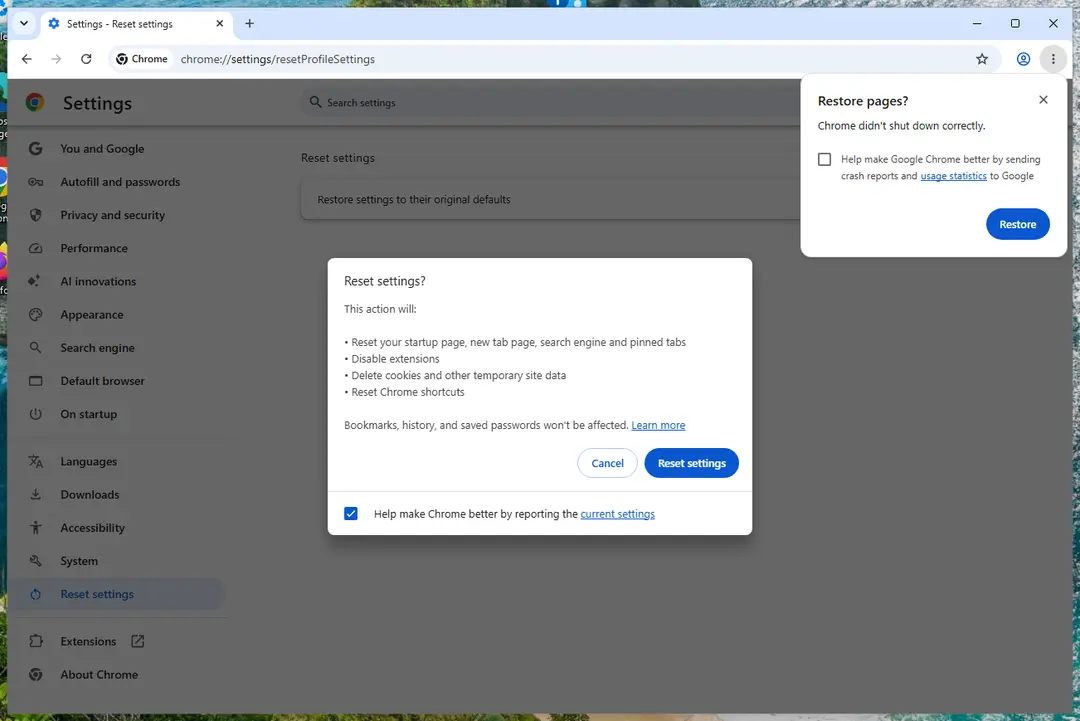
Chrome on Windows 11: Settings > Reset settings. Full procedure with screenshots: Reset a browser and fix a hijacked search engine
Step 5: Scan the PC, then run the offline scan
Open Windows Security > Virus & threat protection > Scan options, run a Full scan and remove everything it finds. Then select Microsoft Defender Antivirus (offline scan) and click Scan now: the PC restarts and scans before Windows loads, which finds files that hide while Windows runs.
Save your work first, because the offline scan takes about 15 minutes. Both scans are built into Windows 11 and Windows 10, and a second scanner from another vendor is a useful extra opinion.

Windows 11: Windows Security > Virus & threat protection > Scan options. Full procedure with screenshots: Run a Microsoft Defender Offline scan
Protect your privacy - employ a VPN
There are several ways how to make your online time more private - you can access an incognito tab.
However, there is no secret that even in this mode, you are tracked for advertising purposes. There is a way to add an extra layer of protection and create a completely anonymous web browsing practice with the help of VPN. This software reroutes traffic through different servers, thus leaving your IP address and geolocation in disguise.
Besides, it is based on a strict no-log policy, meaning that no data will be recorded, leaked, and available for both first and third parties. The combination of a secure web browser and VPN will let you browse the Internet without a feeling of being spied or targeted by criminals.
No backups? No problem. Use a data recovery tool
If you wonder how data loss can occur, you should not look any further for answers - human errors, malware attacks, hardware failures, power cuts, natural disasters, or even simple negligence.
In some cases, lost files are extremely important, and many straight out panic when such an unfortunate course of events happen. Due to this, you should always ensure that you prepare proper data backups on a regular basis.
If you were caught by surprise and did not have any backups to restore your files from, not everything is lost. is one of the leading file recovery solutions you can find on the market - it is likely to restore even lost emails or data located on an external device.
Questions about Newtontanrec.casa ads
Can I safely uninstall Newtontanrec.casa?
If you did not install Newtontanrec.casa yourself and it is not part of your hardware or a program you rely on, yes. Uninstalling an unwanted program does not harm Windows. Before you do, search the exact name and publisher to be sure it is not a driver tool, a printer utility or a game launcher with an odd name.
Then remove it from Settings, Apps, Installed apps. Ignore any offers or warnings in its uninstaller about losing protection or performance. Afterwards check Startup apps and your browsers for leftovers, and restart once to confirm that it does not reinstall itself.
Newtontanrec.casa came back after I uninstalled it. Why?
Something else is reinstalling it. Common causes are a second program from the same publisher, a scheduled task that downloads it again, or a browser extension that keeps prompting for it. Sort Installed apps by install date and uninstall each entry from the same day that you did not choose.
Then open Task Scheduler and look in the Task Scheduler Library for tasks with updater-style names that you do not recognise. Check Startup apps in Task Manager too. If Newtontanrec.casa still returns, start Windows in Safe Mode, uninstall it there and run a Microsoft Defender offline scan, which looks for loaders that ordinary scans can miss.
Is uninstalling Newtontanrec.casa enough?
Often, but not always. Uninstalling Newtontanrec.casa through Settings > Apps > Installed apps removes the main part. Ad-supported programs, however, frequently arrive together with others from the same installer, and some leave a scheduled task or a browser extension behind.
After uninstalling, sort the list of installed apps by date and look at what else appeared that day, check Task Manager > Startup apps, and open the extension page in every browser. A Microsoft Defender full scan at the end catches leftover files.
Why is my browser so slow since the ads started?
Each page now does extra work. An adware extension reads the page, decides where to put ads, loads them from ad servers and reports your visit, and that happens on every tab. Ad-supported programs add their own background activity.
Removing the extension or program usually makes the browser fast again at once. If it stays slow, open the browser's own task manager with Shift+Esc in Chrome or Edge and look for extensions using a lot of memory or processor time.
Did Newtontanrec.casa collect my data?
Adware typically collects what it needs to choose ads:
- the sites you visit
- search terms
- approximate location
- browser and system details
Extensions with permission to read and change data on all websites can technically see everything on those pages, including forms. That is a privacy problem rather than proof of theft.
If you typed card details or passwords while it was active, changing the most important passwords is a reasonable precaution. Clearing cookies after removal ends the tracking sessions it may have started.
My scan found nothing, but the ads continue. Why?
Because the source may not be a file a scanner looks for. Browser notifications are a permission stored in the browser, and many adware extensions are not flagged because they come from an official store.
Some ad-supported programs are only reported if you enable detection of potentially unwanted apps. So a clean scan does not mean the job is done. Check each browser's notification permissions and extension list by hand, and turn on Potentially unwanted app blocking in Windows Security before scanning again.
Can an adware pop-up infect my PC just by appearing?
No. A pop-up, a notification or a new tab is only a web page or a message. It cannot run programs on Windows by itself, provided the browser and Windows are up to date. Infection needs a step from you:
- running a downloaded file
- installing an extension
- giving a stranger remote access
That is why scam pages work so hard to make you click. Close such pages with the tab's X or by closing the browser, not with buttons inside the page, which may start a download.
I let a "support technician" from an ad connect to my PC. What should I do?
Act quickly but calmly. Disconnect the PC from the internet first, so the connection ends. Uninstall the remote access tool they asked you to install and check Installed apps for anything else added during the call.
Run a Microsoft Defender full scan and offline scan. From another device, change your e-mail and banking passwords and sign out of all sessions.
If you paid by card, bank transfer or gift card, contact your bank or the card issuer immediately, and report the scam to the police. Do not answer if they call back.
Will Fortect remove Newtontanrec.casa?
Fortect scans Windows for malware and unwanted programs and repairs the system files and settings they change, and its free scan shows what it finds on your PC before you decide anything.
For Newtontanrec.casa, follow the plan above as well: the browser steps take back permissions and settings that no scanner treats as a threat, and uninstalling the program that brought it removes the source.
Run Microsoft Defender's full scan and, if anything was found, its offline scan as a second opinion. If the symptoms are gone after the plan and both scans are clean, there is nothing more to do.
Sources
- IBM: Push notifications (read October 6, 2026)
- Wikipedia: Potentially unwanted program (read October 6, 2026)
- Malwarebytes: Adware (read October 6, 2026)
- Google Chrome Help: Use notifications to get alerts (no longer online) (read October 6, 2026)
- FTC: How to recognize, remove and avoid malware (read October 6, 2026)