

Reasons to remove Opinionfind.com from your browser and set a different one
Opinionfind.com virus discloses its presence by replacing victim’s homepage in web browsers with a simple web page that seems to be a regular search engine. Sadly, it isn’t, and users should stay away from it. First of all, Opinionfind.com is not a popular choice among computer users, and there is a reason why. It seems that this search engine concentrates on a promotion of affiliate websites rather than on providing quality services for users. It fills search results with questionable third-party links no matter what search query has been made. Clicking on these links is highly hazardous and can unexpectedly reroute you to malicious websites, so be careful! If you really want to use a different search engine than Google or Yahoo, better choose one that has a slightly better reputation than this one.
Another disadvantage of Opinionfind.com redirect virus is that it keeps track of user’s recent search queries, clicks, and browsing history. Although such information typically does not contain any personal information, you might not want some suspicious third-parties to find out what medicine you recently searched for, what questions you were trying to solve, or what third-party websites you have recently visited. Just imagine how much sensitive information this application can dig out just by tracking your search queries. Besides, it might use such information for marketing purposes or even share it with other third-parties. Typically, potentially unwanted programs collect such data to display relevant third-party ads for the user (in this case, via search results), and we doubt that you want someone else who uses your computer to see ads based on your browsing habits. Therefore, we recommend you to quickly remove Opinionfind.com browser hijacker. You can use automatic spyware removal tool, for instance, FortectIntego, or delete the virus manually using Opinionfind.com removal guide presented below.
How does Opinionfind.com hijacker get inside a computer?
Most likely Opinionfind.com hijack happened when you installed another free program without modifying its installation settings. You should always use Custom or Advanced settings to install computer software because only this way you can find out if your download contains some additional components that you haven’t been warned in advance. Just select these settings and then see if the setup suggests adding any suspicious search tools, apps, plug-ins and similar pieces of software. You do not need them, besides, in most cases they appear to be useless apps that simply disturb you. Contrary to users’ beliefs, Default or Standard installation option is not the best choice because either one or another fails to disclose information about bundled downloads. If you have encountered this hijacker already, please take a look at its removal instructions presented below.
Can I remove Opinionfind.com hijacker on my own?
You might be surprised how easy it is to remove Opinionfind.com virus. There are two methods to do it – you can either remove it manually, or you can do it automatically. Of course, the automatic Opinionfind.com removal methods required a special software. You can use anti-spyware or anti-malware program. If you do not have one, we suggest trying FortectIntego or SpyHunterCombo Cleaner. Simply run a system scan with it and wait until it detects spyware related to Opinionfind.com hijacker. Then eliminate it with a single click, as well as all other potentially dangerous programs alongside it. The manual removal guidelines are provided below (in case you do not want to use the automatic removal tool).
Uninstall from Windows
Uninstall from Windows 10/8:
- Type Control Panel into the Windows search box and open the result.
- Under Programs, select Uninstall a program.


Uninstall from Windows 7/XP:
- Click on Windows Start > Control Panel (Windows XP users should click on Add/Remove Programs).
- In Control Panel, select Programs > Uninstall a program.


Remove the unwanted program:
- In the Programs and Features window, look for any recently installed suspicious entries, select them, and click Uninstall.
- If User Account Control appears, click Yes to confirm, then complete the removal.


Delete from macOS
Remove the unwanted application:
- From the menu bar, select Go > Applications.
- In the Applications folder, look for any suspicious entries, then drag them to Trash (or right-click and pick Move to Trash).


Delete leftover files and folders:
- Select Go > Go to Folder.
- Enter /Library/Application Support and remove any suspicious folders related to the unwanted program.
- Repeat the same check in the /Library/LaunchAgents and /Library/LaunchDaemons folders, deleting any suspicious entries.

- Finally, empty the Trash to permanently remove the leftovers.

Reset Internet Explorer
Remove dangerous add-ons:
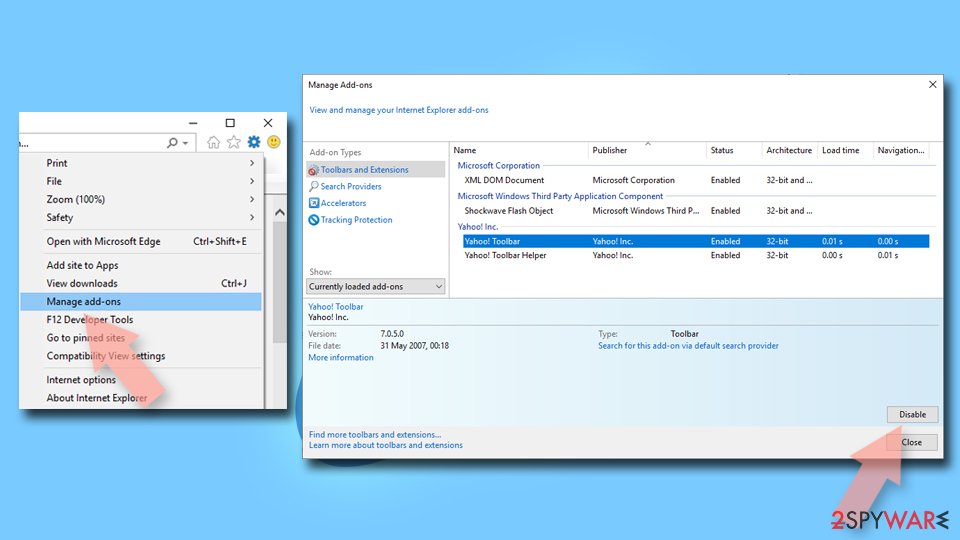
- Open Internet Explorer, click on the Gear icon (IE menu) on the top-right corner of the browser
- Pick Manage Add-ons.
- You will see a Manage Add-ons window. Here, look for suspicious plugins. Click on these entries and select Disable.

Change your homepage if it was altered:
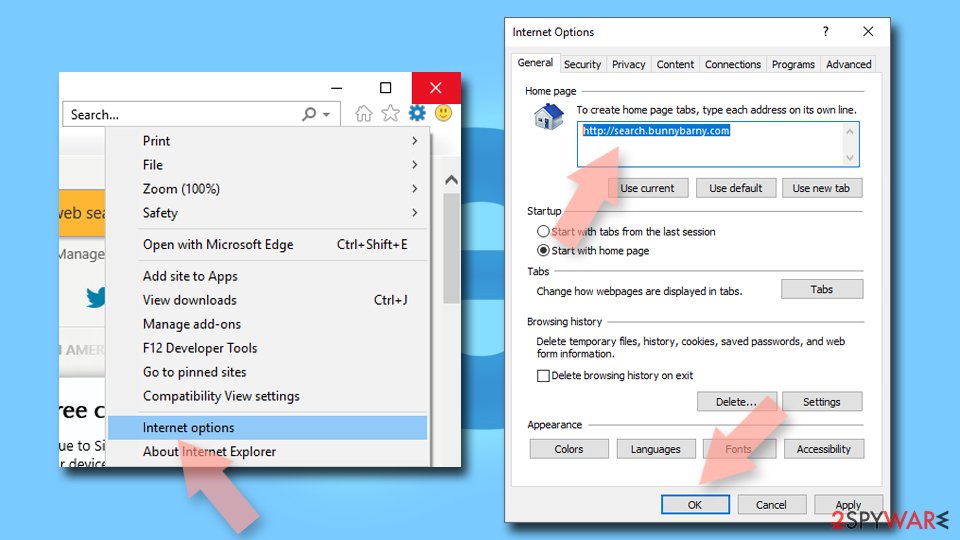
- Open IE and click on the Gear icon.
- Select Internet Options.
- In the General tab, delete the Home page address and replace it by your preferred one (for example, Google.com).
- Click Apply and then select OK.

Delete temporary files:
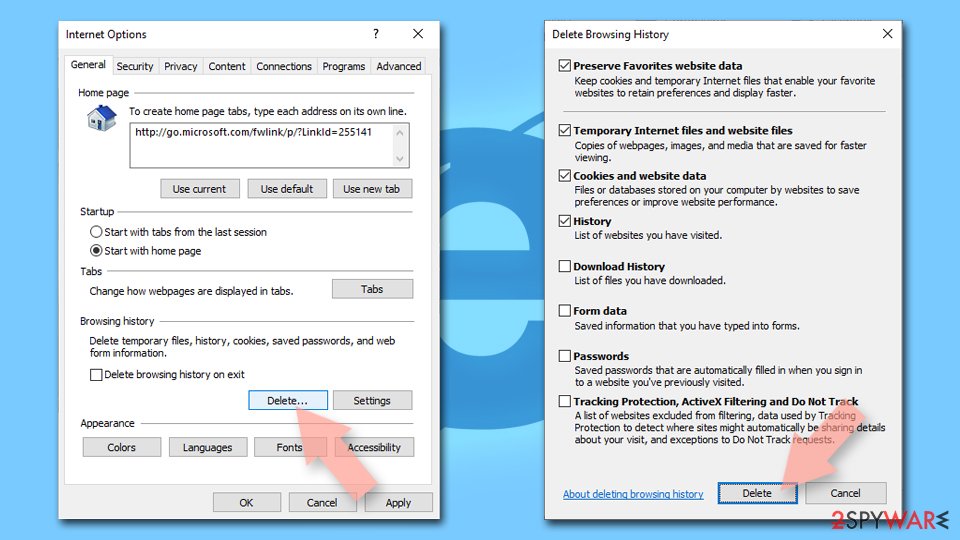
- Press on the Gear icon and select Internet Options.
- Under Browsing history, click Delete...
- Select relevant fields and press Delete.

Reset Internet Explorer:
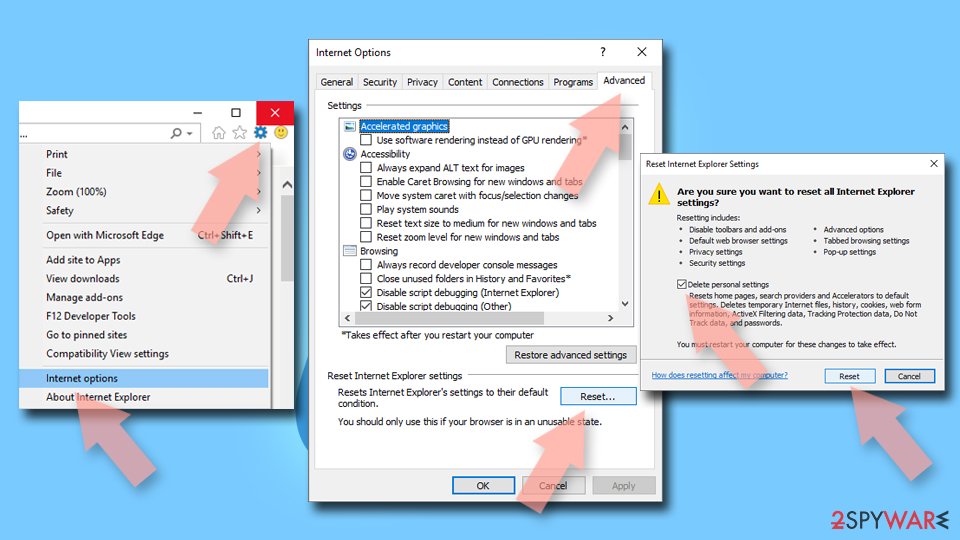
- Click on Gear icon > Internet options and select Advanced tab.
- Select Reset.
- In the new window, check Delete personal settings and select Reset.

Remove from Microsoft Edge
Delete unwanted extensions from MS Edge:
- Select Menu (three horizontal dots at the top-right of the browser window) and pick Extensions.
- From the list, pick the extension and click on the Gear icon.
- Click Remove.


Clear cookies and other browser data:
- Click on the Menu (three horizontal dots at the top-right of the browser window) and select Settings > Privacy, search, and services..
- Under Clear browsing data, pick Choose what to clear.
- Select Cookies and other site data and Cached images and files. (apart from passwords, although you might want to include Media licenses as well, if applicable) and click on Clear.


Restore new tab and homepage settings:
- Click the menu icon and choose Settings.
- Then find On startup section.
- Click Remove next to any suspicious startup page.
Reset MS Edge if the above steps did not work:
- Press on Ctrl + Shift + Esc to open Task Manager.
- Click on More details arrow at the bottom of the window.
- Select Details tab.
- Now scroll down and locate every entry with Microsoft Edge name in it. Right-click on each of them and select End Task to stop MS Edge from running.


Instructions for Chromium-based Edge
Delete extensions from MS Edge (Chromium):
- Open Edge and click select Settings > Extensions.
- Delete unwanted extensions by clicking Remove.


Clear cache and site data:
- Click on Menu and go to Settings.
- Select Privacy, search and services.
- Under Clear browsing data, pick Choose what to clear.
- Under Time range, pick All time.
- Select Clear now.


Reset Chromium-based MS Edge:
- Click on Menu and select Settings.
- On the left side, pick Reset settings.
- Select Restore settings to their default values.
- Confirm with Reset.
- This will disable extensions and reset startup pages but will not delete bookmarks, saved passwords, or browsing history.


Remove from Mozilla Firefox (FF)
Remove dangerous extensions:
- Open Mozilla Firefox browser and click on the Menu (three horizontal lines at the top-right of the window).
- Select Add-ons.
- In here, select the unwanted extension and click Remove.


Reset the homepage:
- Click three horizontal lines at the top right corner to open the menu.
- Choose Settings.
- Under Home, set your preferred homepage and new tab settings.
Clear cookies and site data:
- Click Menu and pick Settings.
- Go to Privacy & Security section.
- Scroll down to locate Cookies and Site Data.
- Click on Clear Data...
- Select Cookies and Site Data and Temporary cached files and pages, then click Clear.


Reset Mozilla Firefox
If clearing the browser as explained above did not help, reset Mozilla Firefox:
- Open Mozilla Firefox browser and click the Menu.
- Go to Help and then choose Troubleshooting Information.

- Under Give Firefox a tune up section, click on Refresh Firefox...
- Once the pop-up shows up, confirm the action by pressing on Refresh Firefox.



Remove from Google Chrome
Delete malicious extensions from Google Chrome:
- Open Google Chrome, click on the Menu (three vertical dots at the top-right corner) and select More tools > Extensions.
- In the newly opened window, you will see all the installed extensions. Uninstall all suspicious extensions related to the unwanted program by clicking Remove.


Clear cache and web data from Chrome:
- Click on Menu and pick Settings.
- Under Privacy and security, select Clear browsing data.
- Select Browsing history, Cookies and other site data, as well as Cached images and files.
- Click Clear data.


Change your homepage:
- Click menu and choose Settings.
- Look for a suspicious site in the On startup section.
- Click on Open a specific or set of pages and click on three dots to find the Remove option.
Reset Google Chrome:
If the previous methods did not help you, reset Google Chrome to eliminate all the unwanted components:
- Click on Menu and select Settings.
- In the Settings, scroll down and click Advanced.
- Scroll down and locate Reset and clean up section.
- Now click Restore settings to their original defaults.
- Confirm with Reset settings.


Delete from Safari
Remove dangerous extensions:
- Open Safari, click Safari in the menu at the top-left of the screen, and select Preferences.
- Go to the Extensions tab, look for any suspicious entries, and click Uninstall to remove them.


Clear history and website data:
- Click Safari in the menu and pick Clear History.
- Set Clear to all history and confirm with Clear History.


Reset Safari:
- Click Safari in the menu and select Preferences > Advanced.
- Enable Show Develop menu in menu bar.
- From the menu bar, click Develop and select Empty Caches.


Did this guide help?
4 comments
Rolla
Opinionfind.com virus is inn Chrome and I cant get it out of it... why
Sirens
Why my computer is not smart enough to block browser hijackers by itself. Ugh! now I gotta deal with this problem by myself cuz I dont have antimalware nd I dont plan to get it in the future
Jouie
Dude be careful there are thousands of ransomware viruses around the web you gotta be joking! at least create a backup or something
beatdropz
Thanks for explaining how to remove Opinionfind.com!