

Should I consider Questdns.com search service dangerous?
Questdns.com virus is a nasty computer program that is designed to hijack unprotected computers[1] and affect browsers installed on them. This pesky program aims to compromise web browsers to make them launch Questdns.com site at random times. Google Safe Browsing[2] feature identifies this URL as potentially dangerous, warns that it might contain harmful programs, and advises not to visit it. Your browsers might start redirecting you to the indicated website after installing a program called QuestDNS Desktop, which is known to be a potentially unwanted program (PUP), too. We decided to analyze legal documents provided on the site that this shady application promotes, and we found some very suspicious details about it. It turns out that Questdns.com hijacker collects user’s IP address[3], type of OS and browser used, a list of search queries and similar information. Such information allows authors of this browser hijacker determine what kind of content interests you. Using collected data, this browser hijacker might start generating targeted ads and send them to you in pop-up ads and banners, although the majority of sponsored content will be provided via Questdns.com search results.
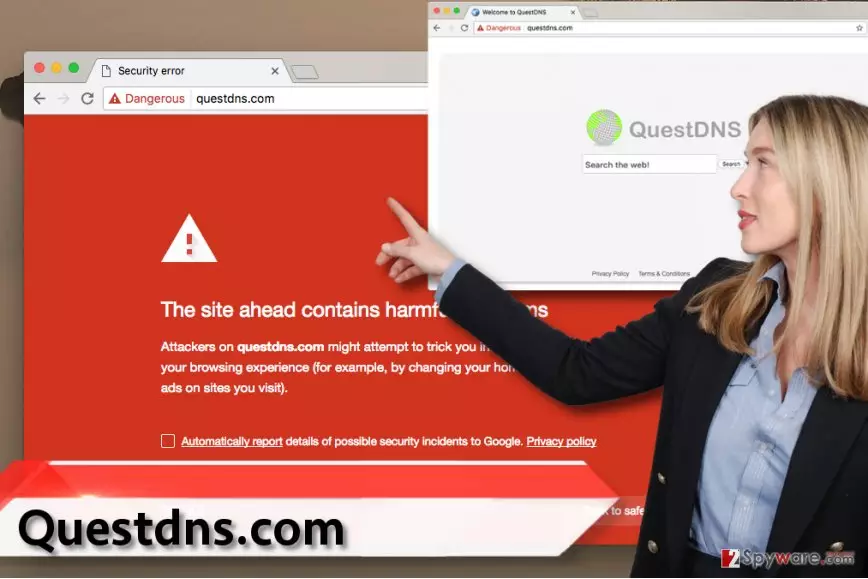
Please take note that Questdns.com malware authors claim no responsibility for anything that happens on external websites, so take this as a hint that the indicated search engine is untrustworthy. The creators of it aim to advertise third-parties but refuse to review content they upload, and we believe that it is not a professional behavior. Besides, you can quickly enter websites that you promised yourself to stay away from. These sites are likely to be filled with harmful content – the alert from Google Safe Browsing confirms that. Therefore, if privacy and computer protection[4] matters to you, better remove Questdns.com hijacker right away. Use anti-spyware program for that (such as FortectIntego), or rely on yourself and use Questdns.com removal instructions (provided below) to delete the infection.
Ways to get infected with a browser hijacker
There are numerous ways how browser hijackers can sneak into your computer. You can come across their official websites when exploring annoying ads and banners on third-party websites, or if you have an adware-type program installed on your PC. However, in the majority of cases, users install this browser hijacker without having any intentions to do it. It happens because it spreads in software packages that are also called software bundles[5]; almost every free program available online has several additional programs attached to it, and in order to install your selected piece of software without obtaining any extra programs, we suggest choosing Custom or Advanced settings when installing it on the system. This configuration will provide you with a list of extra items bundled with your download and will advise you to install all of them. Please, do not agree to do so! These extra items typically are highly annoying programs that can affect the way you use your PC on a daily basis. Once you deselect them, proceed with the installation.
What is the best way of removing Questdns.com hijacker?
You should definitely remove Questdns.com virus because it won’t let you browse the Internet safely, besides, it can cause other issues such as system slowdowns and similar problems. Another reason to get rid of it is the fact that it tracks your browsing habits and delivers targeted ads just to draw your attention and make you click on them. It seems that once you decide to click on them, Questdns.com redirect virus immediately opens a pre-determined website that it seeks to promote. As we said, such sites can be dangerous, so we can only advise you to stay away from them by removing the program that seeks to redirect you to them. To find and uninstall the problematic software, use Questdns.com removal instructions provided down below.
Uninstall from Windows
Uninstall from Windows 10/8:
- Type Control Panel into the Windows search box and open the result.
- Under Programs, select Uninstall a program.


Uninstall from Windows 7/XP:
- Click on Windows Start > Control Panel (Windows XP users should click on Add/Remove Programs).
- In Control Panel, select Programs > Uninstall a program.


Remove the unwanted program:
- In the Programs and Features window, look for any recently installed suspicious entries, select them, and click Uninstall.
- If User Account Control appears, click Yes to confirm, then complete the removal.


Delete from macOS
Remove the unwanted application:
- From the menu bar, select Go > Applications.
- In the Applications folder, look for any suspicious entries, then drag them to Trash (or right-click and pick Move to Trash).


Delete leftover files and folders:
- Select Go > Go to Folder.
- Enter /Library/Application Support and remove any suspicious folders related to the unwanted program.
- Repeat the same check in the /Library/LaunchAgents and /Library/LaunchDaemons folders, deleting any suspicious entries.

- Finally, empty the Trash to permanently remove the leftovers.

Reset Internet Explorer
Remove dangerous add-ons:
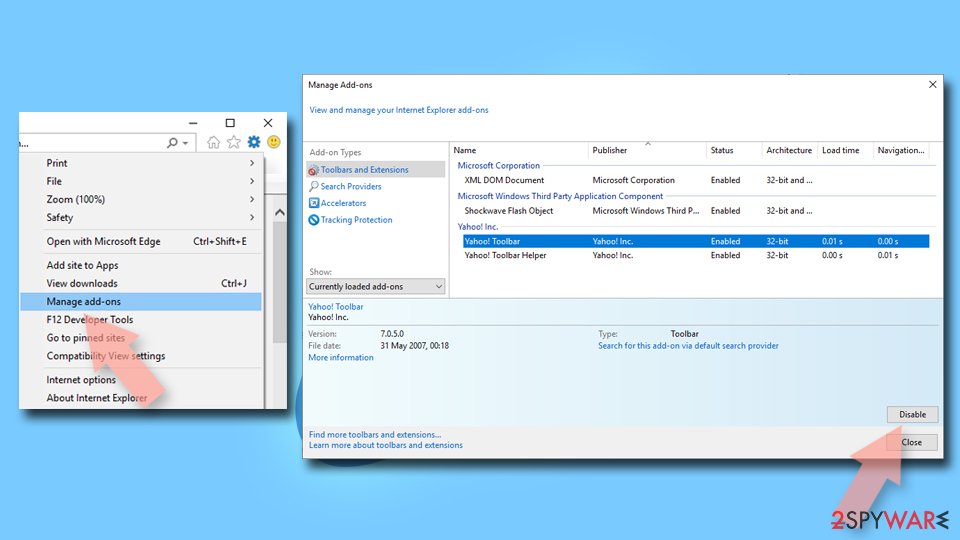
- Open Internet Explorer, click on the Gear icon (IE menu) on the top-right corner of the browser
- Pick Manage Add-ons.
- You will see a Manage Add-ons window. Here, look for suspicious plugins. Click on these entries and select Disable.

Change your homepage if it was altered:
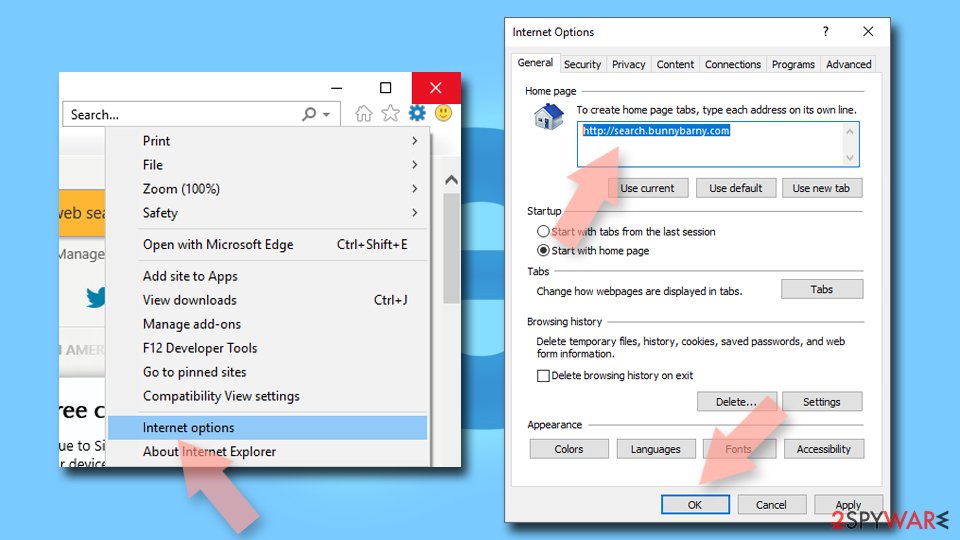
- Open IE and click on the Gear icon.
- Select Internet Options.
- In the General tab, delete the Home page address and replace it by your preferred one (for example, Google.com).
- Click Apply and then select OK.

Delete temporary files:
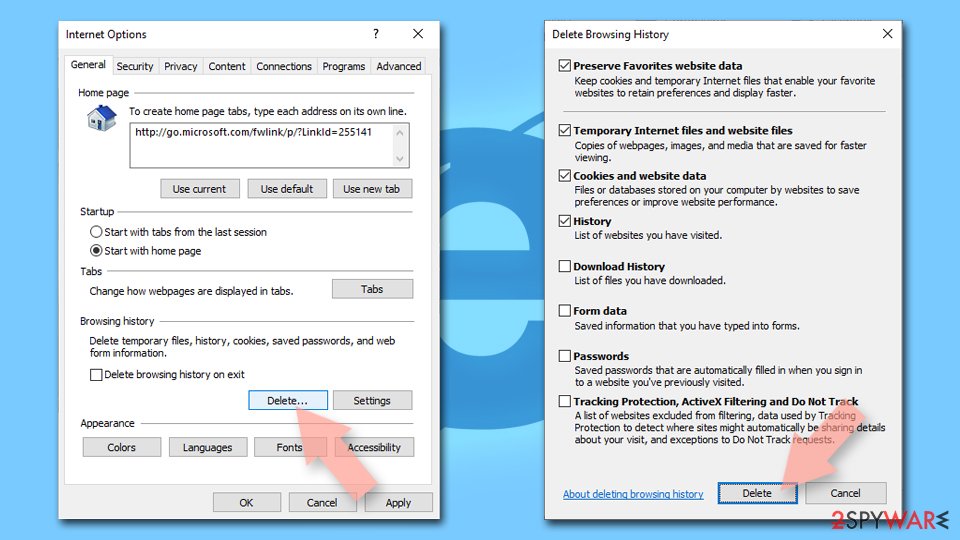
- Press on the Gear icon and select Internet Options.
- Under Browsing history, click Delete...
- Select relevant fields and press Delete.

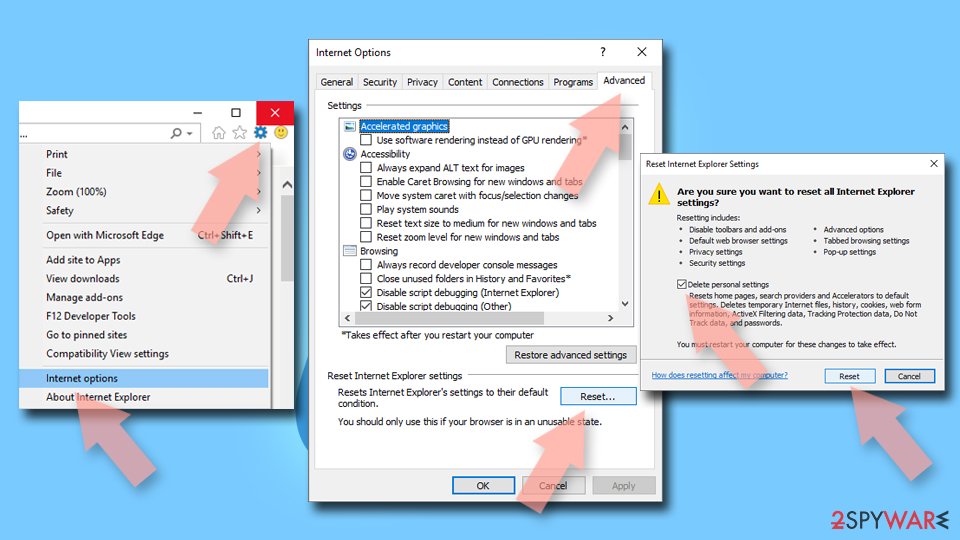
Reset Internet Explorer:
- Click on Gear icon > Internet options and select Advanced tab.
- Select Reset.
- In the new window, check Delete personal settings and select Reset.

Remove from Microsoft Edge
Delete unwanted extensions from MS Edge:
- Select Menu (three horizontal dots at the top-right of the browser window) and pick Extensions.
- From the list, pick the extension and click on the Gear icon.
- Click Remove.


Clear cookies and other browser data:
- Click on the Menu (three horizontal dots at the top-right of the browser window) and select Settings > Privacy, search, and services..
- Under Clear browsing data, pick Choose what to clear.
- Select Cookies and other site data and Cached images and files. (apart from passwords, although you might want to include Media licenses as well, if applicable) and click on Clear.


Restore new tab and homepage settings:
- Click the menu icon and choose Settings.
- Then find On startup section.
- Click Remove next to any suspicious startup page.
Reset MS Edge if the above steps did not work:
- Press on Ctrl + Shift + Esc to open Task Manager.
- Click on More details arrow at the bottom of the window.
- Select Details tab.
- Now scroll down and locate every entry with Microsoft Edge name in it. Right-click on each of them and select End Task to stop MS Edge from running.


Instructions for Chromium-based Edge
Delete extensions from MS Edge (Chromium):
- Open Edge and click select Settings > Extensions.
- Delete unwanted extensions by clicking Remove.


Clear cache and site data:
- Click on Menu and go to Settings.
- Select Privacy, search and services.
- Under Clear browsing data, pick Choose what to clear.
- Under Time range, pick All time.
- Select Clear now.


Reset Chromium-based MS Edge:
- Click on Menu and select Settings.
- On the left side, pick Reset settings.
- Select Restore settings to their default values.
- Confirm with Reset.
- This will disable extensions and reset startup pages but will not delete bookmarks, saved passwords, or browsing history.


Remove from Mozilla Firefox (FF)
Remove dangerous extensions:
- Open Mozilla Firefox browser and click on the Menu (three horizontal lines at the top-right of the window).
- Select Add-ons.
- In here, select the unwanted extension and click Remove.


Reset the homepage:
- Click three horizontal lines at the top right corner to open the menu.
- Choose Settings.
- Under Home, set your preferred homepage and new tab settings.
Clear cookies and site data:
- Click Menu and pick Settings.
- Go to Privacy & Security section.
- Scroll down to locate Cookies and Site Data.
- Click on Clear Data...
- Select Cookies and Site Data and Temporary cached files and pages, then click Clear.


Reset Mozilla Firefox
If clearing the browser as explained above did not help, reset Mozilla Firefox:
- Open Mozilla Firefox browser and click the Menu.
- Go to Help and then choose Troubleshooting Information.

- Under Give Firefox a tune up section, click on Refresh Firefox...
- Once the pop-up shows up, confirm the action by pressing on Refresh Firefox.



Remove from Google Chrome
Delete malicious extensions from Google Chrome:
- Open Google Chrome, click on the Menu (three vertical dots at the top-right corner) and select More tools > Extensions.
- In the newly opened window, you will see all the installed extensions. Uninstall all suspicious extensions related to the unwanted program by clicking Remove.


Clear cache and web data from Chrome:
- Click on Menu and pick Settings.
- Under Privacy and security, select Clear browsing data.
- Select Browsing history, Cookies and other site data, as well as Cached images and files.
- Click Clear data.


Change your homepage:
- Click menu and choose Settings.
- Look for a suspicious site in the On startup section.
- Click on Open a specific or set of pages and click on three dots to find the Remove option.
Reset Google Chrome:
If the previous methods did not help you, reset Google Chrome to eliminate all the unwanted components:
- Click on Menu and select Settings.
- In the Settings, scroll down and click Advanced.
- Scroll down and locate Reset and clean up section.
- Now click Restore settings to their original defaults.
- Confirm with Reset settings.


Delete from Safari
Remove dangerous extensions:
- Open Safari, click Safari in the menu at the top-left of the screen, and select Preferences.
- Go to the Extensions tab, look for any suspicious entries, and click Uninstall to remove them.


Clear history and website data:
- Click Safari in the menu and pick Clear History.
- Set Clear to all history and confirm with Clear History.


Reset Safari:
- Click Safari in the menu and select Preferences > Advanced.
- Enable Show Develop menu in menu bar.
- From the menu bar, click Develop and select Empty Caches.


Did this guide help?
4 comments
Ohio
I am afraid. QuestDNS.com virus is in my system!
summervibe
I deleted it seconds ago - thanks, 2-spyware. You provide very detailed tutorials! I love it.
Danszel
I no longer have arguments against using anti-spyware program. It seems that I need one...
juryj
very suspicious search engine, better try to evade it