

Quildwarium.com – a misleading website that abuses a legitimate browser feature to bring ads to users' screens
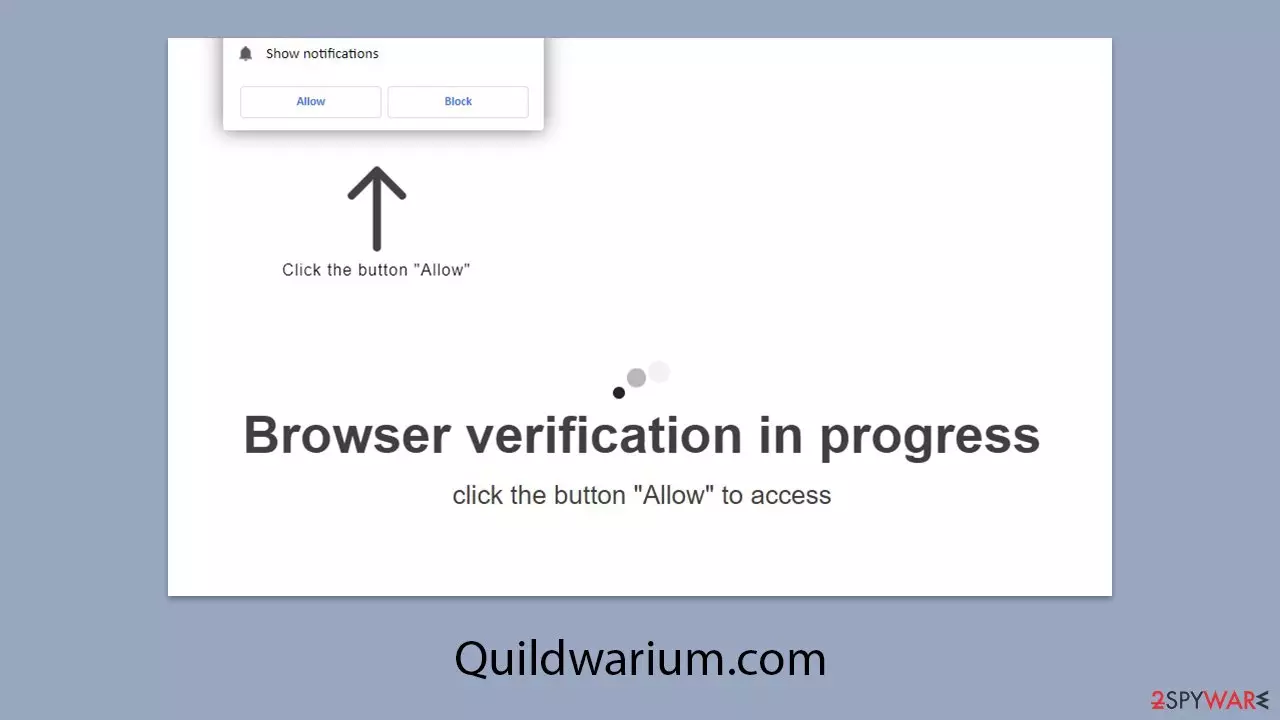
Quildwarium.com is yet another deceptive website created by malicious actors to exploit users for unlawful purposes. Visitors to this site, often arriving unintentionally due to adware or malware, are greeted with misleading prompts designed to trick them into clicking the “Allow” button, believing it's part of a common procedure they've encountered before.
Once users give permission, they will start receiving intrusive ads from Quildwarium.com as push notifications, either in the top-right or bottom-right corner of their screens, depending on their operating system. These notifications will persist as long as a web browser like Google Chrome, Mozilla Firefox, or Microsoft Edge remains open.
It is crucial to avoid engaging with any of the advertisements generated by Quildwarium.com. Clicking on these ads could result in the installation of unwanted software or even malware, the theft of personal information, or financial losses from purchasing unnecessary products. The next sections will explain how to remove these bothersome notifications and ensure your system is secure.
| Name | Quildwarium.com |
| Type | Push notifications, ads, pop-ups, scam |
| Distribution | Intrusive pop-ups can start showing up at some point after the “Allow” button is pressed within the notification prompt |
| Symptoms | Once enabled, notifications from malicious websites would bring misleading or other suspicious content to your screen. These links could lead to malware-laden, scam, phishing, or similar malicious sites |
| Risks | If you click on links provided by the website, you might end up infecting your system with malware/PUPs, disclosing your personal information to cybercriminals, or losing money for useless services |
| Termination | Access browser settings to stop intrusive push notifications. After that, make sure that your system is not infected with adware or malware – scan it with SpyHunterCombo Cleaner |
| Recovery | We recommend scanning the system with FortectIntego to clean browser caches and repair virus damage automatically after eliminating PUPs and malware |
What techniques are used by scammers?
The main aim of fraudulent websites like Quildwarium.com is to make money through advertisements. Unfortunately, dishonest individuals often turn to shady advertising networks, leading to a decline in the quality of ads displayed. This is why Quildwarium.com's push notifications begin to show users harmful or misleading content.
Scammers are motivated to use these rogue ad networks because they offer high payouts, benefiting everyone except the unsuspecting users. Since few people would willingly accept malicious ads appearing on their screens, scammers come up with tricks to make it happen. Typically, they use misleading messages to convince people to subscribe to notifications. Some examples include:
- Click “Allow” to confirm you're not a robot
- Click “Allow” to watch the video
- If you're over 18, click “Allow”
- Press “Allow” to start downloading
- Press “Allow” to claim your prize and redeem it in our shop!
However, pressing the “Allow” button is a significant mistake. It gives Quildwarium.com permission to send push notifications at any time, as long as the user's browser remains open.

Dangers of push notifications from malicious websites
Initially, users who allow push notifications from a site like Quildwarium.com might not notice any immediate changes. However, after a while, they will begin to see suspicious pop-ups in the bottom or top-right corner of their screen, depending on their operating system.
Since push notifications work at the system level, these pop-ups can appear even when the user isn't actively browsing the web. They can also interrupt full-screen activities, such as watching videos or playing games, which can be highly frustrating.
Quildwarium.com relies on insecure ad networks, exposing users to harmful, misleading, or inappropriate advertisements. These can include schemes like get-rich-quick scams, fake lotteries, or fraudulent tech support alerts. To avoid this, it is essential not to engage with any notifications coming from Quildwarium.com.
How to get rid of adware or other potential malware infection
Before removing the push notifications from Quildwarium.com, it’s important to check your system for possible infections, which are often caused by adware. Adware is a type of deceptive software that is widely spread, as it generates significant profit for its creators through aggressive ad campaigns, while appearing as semi-legitimate applications. These programs are frequently found on free software distribution sites.
Although some unwanted software can be manually removed by reviewing the installed browser extensions and programs, a lot of malicious files can go unnoticed by regular users. For this reason, it's recommended to scan your system using tools like SpyHunterCombo Cleaner or MalwarebytesMalwarebytes to detect and remove infections automatically.
To completely stop any unwanted tracking, it’s also essential to clean your web browsers by deleting cookies and other leftover files. For a quick and efficient solution, we suggest using FortectIntego, a PC repair and maintenance utility. This tool not only addresses malware-related damage but also resolves general computer issues that may affect system stability.
Remove Quildwarium.com ads for good
After eliminating any malware or potential threats, it's essential to stop Quildwarium.com ads by modifying your browser settings. While security tools can help remove malicious software, they cannot prevent push notifications from specific websites. You will need to manually block the URL of Quildwarium.com through your browser settings. Detailed instructions for this process will be provided later.
Google Chrome
- Open the Google Chrome browser and go to Menu > Settings.
- Scroll down and click on Advanced.
- Locate the Privacy and security section and pick Site Settings > Notifications.
- Look at the Allow section and look for a suspicious URL.
- Click the three vertical dots next to it and pick Block. This should remove unwanted notifications from Google Chrome.


Google Chrome (Android)
- Open Google Chrome and tap on Settings (three vertical dots).
- Select Notifications.
- Scroll down to the Sites section.
- Locate the unwanted URL and toggle the button to the left (Off position).


Mozilla Firefox
- Open Mozilla Firefox and go to Menu > Options.
- Click on Privacy & Security section.
- Under Permissions, you should be able to see Notifications. Click the Settings button next to it.
- In the Settings – Notification Permissions window, click on the drop-down menu by the URL in question.
- Select Block and then click on Save Changes. This should remove unwanted notifications from Mozilla Firefox.


Safari
- Click on Safari > Preferences…
- Go to the Websites tab and, under General, select Notifications.
- Select the web address in question, click the drop-down menu and select Deny.


MS Edge
- Open Microsoft Edge, and go to Settings.
- Select Site permissions.
- Go to Notifications on the right.
- Under Allow, you will find the unwanted entry.
- Click on More actions and select Block.


Internet Explorer
- Open Internet Explorer, and click on the Gear icon at the top-right of the window.
- Select Internet options and go to the Privacy tab.
- In the Pop-up Blocker section, click on Settings.

- Locate the web address in question under Allowed sites and pick Remove.

Did this guide help?
Be the first to comment