

Is Search.funtvpage.com browser hijacker dangerous?
Search.funtvpage.com virus is a browser hijacker which travels together with the FunTvPage extension. This extension supposedly allows the users to reach their favorite TV shows online instantly and enjoy live sports events. But when users install it on their browsers, a suspicious website suddenly appears instead of their regular search engine and homepage. This site offers search service and by its looks, does not differ from the popular search engines such as Google, Yahoo or Bing. Perhaps this is the main reason why so many users continue to use this website without even second-thinking it. However, using services that suddenly appear on your browser out of nowhere is really not the most security-conscious decision. If such situation ever occurs on your computer, we recommend taking care of the issue as soon as you can. In case you are infected with this hijacker, in particular, you can learn how to eliminate it from your computer at the end of this article. For a quicker Search.funtvpage.com removal solution, check out antivirus utilities, such as FortectIntego.
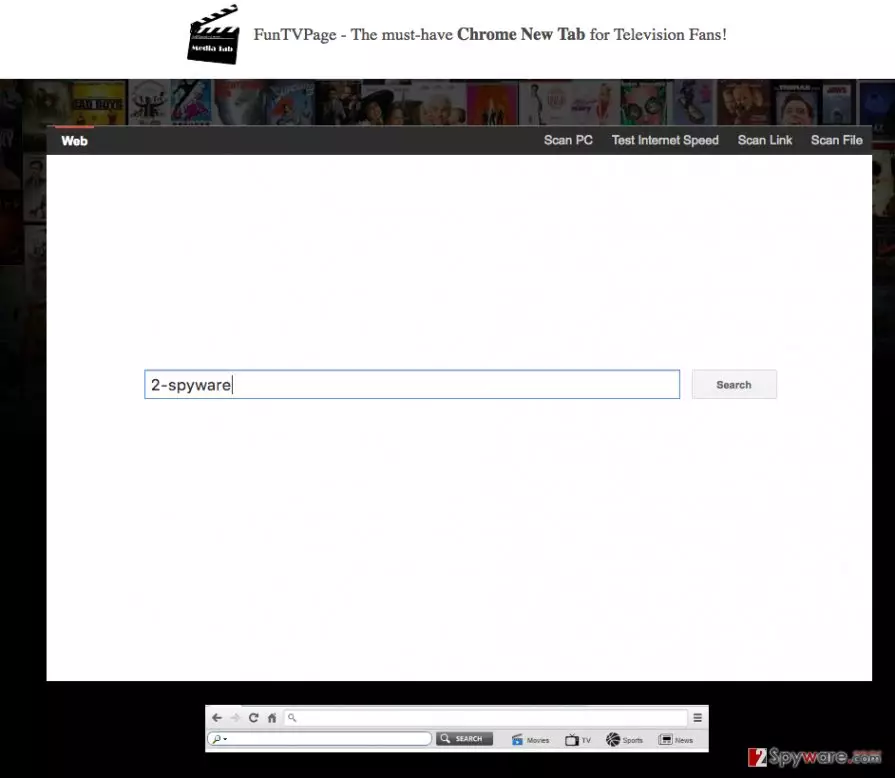
Once the FunTVPage hijack occurs, the virus will start altering your DNS settings forcing you to use the predetermined search website to search the Internet. This might be quite annoying and ever risky since the virus is ad-based, so the results it lists often contain links to various sponsored sites. There is no guarantee that there will be no malicious domains among them, and since this search engine does not have an in-built filter which would warn you before entering such sites, you may unknowingly have your computer contaminated with some extra parasites. What is more, the virus may disclose some of your information to some unreliable third-parties because all the non-personal information it collects and stores (supposedly, to provide you with a better search service) is fully in the virus creators hands and it is up to them where to use it next. We do not advice trusting such suspicious websites with any information and remove Search.funtvpage.com without much hesitation.
How did this browser hijacker end up on my PC?
Even though this hijacker usually comes with FunTVPage browser extension, there are numerous other legitimate programs, such as PDF converters, downloaders, video and music players which, in the hands of hackers, may become carriers of Search.funtvpage.com. There is not much to it, really. A potentially unwanted program is simply pinned to the legitimate one and forms a software package. This package can then be distributed under a title of the legitimate application, so the users would get tricked into installing it on their computers. The information about additional package components often fails to reach the users because it is cleverly hidden under the “Advanced” or “Custom” installation settings. If you choose “Quick” or “Recommended” ones instead, it is likely that you will install some extra software on your computer, you do not actually need. So, you should better use one of the previously mentioned advanced modes and prevent browser hijackers like Search.funtvpage.com popping up on your browser.
Search.funtvpage.com removal techniques and recommendations:
If you are looking for the best Search.funtvpage.com removal method, the one thing that the security experts unanimously suggest is automatic virus elimination. This method does not require a lot of computer skills to be successful, so it is highly recommended for those who have never dealt with viruses before and do not want to bother manually detecting and eliminating these cyber threats. However, for those who are more accustomed to dealing with viruses manually, we recommend taking a look at the detailed instructions provided at the end of this article. This detailed tutorial should help you remove Search.funtvpage.com from your computer self-assuredly.
Uninstall from Windows
Uninstall from Windows 10/8:
- Type Control Panel into the Windows search box and open the result.
- Under Programs, select Uninstall a program.


Uninstall from Windows 7/XP:
- Click on Windows Start > Control Panel (Windows XP users should click on Add/Remove Programs).
- In Control Panel, select Programs > Uninstall a program.


Remove the unwanted program:
- In the Programs and Features window, look for any recently installed suspicious entries, select them, and click Uninstall.
- If User Account Control appears, click Yes to confirm, then complete the removal.


Delete from macOS
Remove the unwanted application:
- From the menu bar, select Go > Applications.
- In the Applications folder, look for any suspicious entries, then drag them to Trash (or right-click and pick Move to Trash).


Delete leftover files and folders:
- Select Go > Go to Folder.
- Enter /Library/Application Support and remove any suspicious folders related to the unwanted program.
- Repeat the same check in the /Library/LaunchAgents and /Library/LaunchDaemons folders, deleting any suspicious entries.

- Finally, empty the Trash to permanently remove the leftovers.

Remove from Microsoft Edge
Delete unwanted extensions from MS Edge:
- Select Menu (three horizontal dots at the top-right of the browser window) and pick Extensions.
- From the list, pick the extension and click on the Gear icon.
- Click Remove.


Clear cookies and other browser data:
- Click on the Menu (three horizontal dots at the top-right of the browser window) and select Settings > Privacy, search, and services..
- Under Clear browsing data, pick Choose what to clear.
- Select Cookies and other site data and Cached images and files. (apart from passwords, although you might want to include Media licenses as well, if applicable) and click on Clear.


Restore new tab and homepage settings:
- Click the menu icon and choose Settings.
- Then find On startup section.
- Click Remove next to any suspicious startup page.
Reset MS Edge if the above steps did not work:
- Press on Ctrl + Shift + Esc to open Task Manager.
- Click on More details arrow at the bottom of the window.
- Select Details tab.
- Now scroll down and locate every entry with Microsoft Edge name in it. Right-click on each of them and select End Task to stop MS Edge from running.


Instructions for Chromium-based Edge
Delete extensions from MS Edge (Chromium):
- Open Edge and click select Settings > Extensions.
- Delete unwanted extensions by clicking Remove.


Clear cache and site data:
- Click on Menu and go to Settings.
- Select Privacy, search and services.
- Under Clear browsing data, pick Choose what to clear.
- Under Time range, pick All time.
- Select Clear now.


Reset Chromium-based MS Edge:
- Click on Menu and select Settings.
- On the left side, pick Reset settings.
- Select Restore settings to their default values.
- Confirm with Reset.
- This will disable extensions and reset startup pages but will not delete bookmarks, saved passwords, or browsing history.


Remove from Mozilla Firefox (FF)
Remove dangerous extensions:
- Open Mozilla Firefox browser and click on the Menu (three horizontal lines at the top-right of the window).
- Select Add-ons.
- In here, select the unwanted extension and click Remove.


Reset the homepage:
- Click three horizontal lines at the top right corner to open the menu.
- Choose Settings.
- Under Home, set your preferred homepage and new tab settings.
Clear cookies and site data:
- Click Menu and pick Settings.
- Go to Privacy & Security section.
- Scroll down to locate Cookies and Site Data.
- Click on Clear Data...
- Select Cookies and Site Data and Temporary cached files and pages, then click Clear.


Reset Mozilla Firefox
If clearing the browser as explained above did not help, reset Mozilla Firefox:
- Open Mozilla Firefox browser and click the Menu.
- Go to Help and then choose Troubleshooting Information.

- Under Give Firefox a tune up section, click on Refresh Firefox...
- Once the pop-up shows up, confirm the action by pressing on Refresh Firefox.



Remove from Google Chrome
Delete malicious extensions from Google Chrome:
- Open Google Chrome, click on the Menu (three vertical dots at the top-right corner) and select More tools > Extensions.
- In the newly opened window, you will see all the installed extensions. Uninstall all suspicious extensions related to the unwanted program by clicking Remove.


Clear cache and web data from Chrome:
- Click on Menu and pick Settings.
- Under Privacy and security, select Clear browsing data.
- Select Browsing history, Cookies and other site data, as well as Cached images and files.
- Click Clear data.


Change your homepage:
- Click menu and choose Settings.
- Look for a suspicious site in the On startup section.
- Click on Open a specific or set of pages and click on three dots to find the Remove option.
Reset Google Chrome:
If the previous methods did not help you, reset Google Chrome to eliminate all the unwanted components:
- Click on Menu and select Settings.
- In the Settings, scroll down and click Advanced.
- Scroll down and locate Reset and clean up section.
- Now click Restore settings to their original defaults.
- Confirm with Reset settings.


Delete from Safari
Remove dangerous extensions:
- Open Safari, click Safari in the menu at the top-left of the screen, and select Preferences.
- Go to the Extensions tab, look for any suspicious entries, and click Uninstall to remove them.


Clear history and website data:
- Click Safari in the menu and pick Clear History.
- Set Clear to all history and confirm with Clear History.


Reset Safari:
- Click Safari in the menu and select Preferences > Advanced.
- Enable Show Develop menu in menu bar.
- From the menu bar, click Develop and select Empty Caches.


Did this guide help?
3 comments
Breit45
Nothing much is different with the new browser hijackers... They have to think of something new because they are already getting boring
Evan Gellic
Wow! I though these instructions were just here for the show.. But their really work!
Rowan
I might buy a Reimage, where can I download?