

Search.heasyconverter.co is a browser hijacker that collects people's Search Data
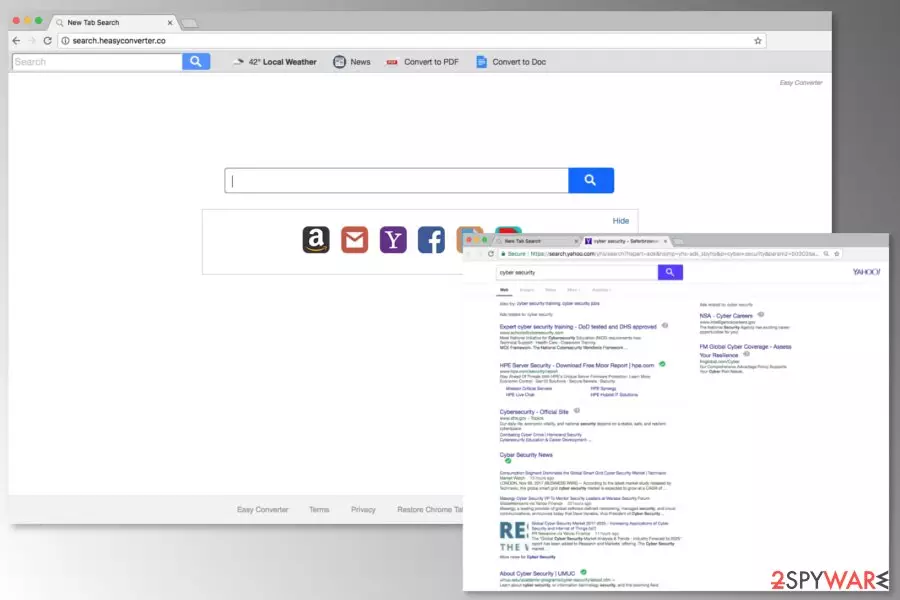
Search.heasyconverter.co is a search engine developed by Polarity Technologies Ltd. Despite its legitimate look, reputable security vendors have attributed it to potentially unwanted program (PUP)[1] and browser hijacker categories in November 2017. That's because the heasyconverter virus is actively distributed bundled with Easy Converter app in software package and participating in shady affiliate marketing campaigns. Upon successful infiltration, it takes over web browser's startup page, injects tracking cookies, and starts driving visitor's traffic to affiliate websites.
| Name | Search.heasyconverter.co |
|---|---|
| Type | Browser hijacker |
| AV detection | PUP or PUA |
| Main dangers | Can redirect to compromised websites, weaken system's security and prompt malware installation |
| Symptoms | Compromised web browser's settings (startup page set to Search.heasyconverter.co, search engine – heasyconverter). Continuous redirects to irrelevant websites, excessive amount of ads, etc. |
| The easiest way to get rid of browser hijackers is to run a scan with FortectIntego and then reset the browser. | |
The main sign of the heasyconverter hijack is new browser’s startup page and default search engine. The search tool looks legit and barely differs from the popular search providers. However, in-depth analysis conducted by malware researchers revealed that this search aims at promoting Cloudconvert services in particular, as well as foisting doubtful third-party products and services.
Search.heasyconverter start page includes quick access links to Amazon, Yahoo, Gmail, and Facebook. However, do not fall for clicking on them undeliberately as they can be linked to irrelevant websites filled with scam pop-ups, fake survey, and similar hoaxes.
You also risk exposing your PC to hacked domains by entering keywords to search box or browser’s address bar. The hijacker redirects to Yahoo. However, it doesn’t mean that it let you access useful websites. The hijacker might redirect you to sponsored third-party sites when you click on a search result. To prevent this from happening, you should remove heasyconverter virus from your PC without a delay.
Developers of the PUP generate revenue from this activity. However, you might be tricked into visiting phishing, scam or other potentially dangerous websites. That's one of the main reasons why people keep asking how to get rid of easy converter on mac almost every day.
Using this tool, you risk not only to suffer from scammers or malware developers but lose some personal information as well. The Privacy policy of the Search.heasyconverter.co virus tells that it might collect personally-identifiable (name, email, mailing address, etc.) and non-personally identifiable information (the type of the browser, operating system, IP address, geographic location and the domain name of the ISP, browsing history, search queries, etc.)
The biggest issue is that this data might be shared with affiliates, including advertising networks. Your browser, inbox, and mailbox might be flooded with undesired commercial content. However, you can never be sure if details about you won’t end up in the hands of cybercriminals. It’s better to protect yourself and remove heasyconverter from the device.
We recommend installing FortectIntego or another anti-malware for quick Search.heasyconverter.co removal. Scanning the system with reputable security software ensures that all suspicious entries are eliminated for good.

Installing freeware using Advanced settings helps to protect web browser from the hijacker
Search.heasyconverter.co virus cannot spread individually. It needs assistance from freeware and user’s permission to enter the system. Users often give PUPs what they want without even knowing about it. The hijack occurs when people download free programs using Quick/Standard/Recommended setup.
Keep in mind that these settings do not openly disclose about third-party components. When you use them, you give PUPs indirect permission to step inside the system. To avoid undesired changes on the browser[2] and installing potentially dangerous software, you should follow the simple guide by No Virus[3] security researchers:
- Use reliable download sources.
- Choose Advanced/Custom installation settings.
- Read Terms of Use, EULA, and Privacy Policy before installing freeware.
- During the installation unmark ticks from pre-selected third-party ads.
Heasyconverter.co removal tutorial
Search.heasyconverter.co removal might be complicated. Even though browser hijackers are not hazardous cyber threats, they can still alter settings and install helper objects to remain in the system as long as possible.
However, you can still remove heasyconverter either manually or automatically. Manual elimination guide is given below, but our team recommends opting for the automatic elimination which ensures that all hijacker-related entries are deleted entirely.
Uninstall from Windows
Uninstall from Windows 10/8:
- Type Control Panel into the Windows search box and open the result.
- Under Programs, select Uninstall a program.


Uninstall from Windows 7/XP:
- Click on Windows Start > Control Panel (Windows XP users should click on Add/Remove Programs).
- In Control Panel, select Programs > Uninstall a program.


Remove the unwanted program:
- In the Programs and Features window, look for any recently installed suspicious entries, select them, and click Uninstall.
- If User Account Control appears, click Yes to confirm, then complete the removal.


Delete from macOS
Remove the unwanted application:
- From the menu bar, select Go > Applications.
- In the Applications folder, look for any suspicious entries, then drag them to Trash (or right-click and pick Move to Trash).


Delete leftover files and folders:
- Select Go > Go to Folder.
- Enter /Library/Application Support and remove any suspicious folders related to the unwanted program.
- Repeat the same check in the /Library/LaunchAgents and /Library/LaunchDaemons folders, deleting any suspicious entries.

- Finally, empty the Trash to permanently remove the leftovers.

Reset Internet Explorer
Remove dangerous add-ons:
- Open Internet Explorer, click on the Gear icon (IE menu) on the top-right corner of the browser
- Pick Manage Add-ons.
- You will see a Manage Add-ons window. Here, look for suspicious plugins. Click on these entries and select Disable.


Change your homepage if it was altered:
- Open IE and click on the Gear icon.
- Select Internet Options.
- In the General tab, delete the Home page address and replace it by your preferred one (for example, Google.com).
- Click Apply and then select OK.


Delete temporary files:
- Press on the Gear icon and select Internet Options.
- Under Browsing history, click Delete...
- Select relevant fields and press Delete.


Reset Internet Explorer:
- Click on Gear icon > Internet options and select Advanced tab.
- Select Reset.
- In the new window, check Delete personal settings and select Reset.


Remove from Microsoft Edge
Delete unwanted extensions from MS Edge:
- Select Menu (three horizontal dots at the top-right of the browser window) and pick Extensions.
- From the list, pick the extension and click on the Gear icon.
- Click Remove.


Clear cookies and other browser data:
- Click on the Menu (three horizontal dots at the top-right of the browser window) and select Settings > Privacy, search, and services..
- Under Clear browsing data, pick Choose what to clear.
- Select Cookies and other site data and Cached images and files. (apart from passwords, although you might want to include Media licenses as well, if applicable) and click on Clear.


Restore new tab and homepage settings:
- Click the menu icon and choose Settings.
- Then find On startup section.
- Click Remove next to any suspicious startup page.
Reset MS Edge if the above steps did not work:
- Press on Ctrl + Shift + Esc to open Task Manager.
- Click on More details arrow at the bottom of the window.
- Select Details tab.
- Now scroll down and locate every entry with Microsoft Edge name in it. Right-click on each of them and select End Task to stop MS Edge from running.


Instructions for Chromium-based Edge
Delete extensions from MS Edge (Chromium):
- Open Edge and click select Settings > Extensions.
- Delete unwanted extensions by clicking Remove.


Clear cache and site data:
- Click on Menu and go to Settings.
- Select Privacy, search and services.
- Under Clear browsing data, pick Choose what to clear.
- Under Time range, pick All time.
- Select Clear now.


Reset Chromium-based MS Edge:
- Click on Menu and select Settings.
- On the left side, pick Reset settings.
- Select Restore settings to their default values.
- Confirm with Reset.
- This will disable extensions and reset startup pages but will not delete bookmarks, saved passwords, or browsing history.


Remove from Mozilla Firefox (FF)
Remove dangerous extensions:
- Open Mozilla Firefox browser and click on the Menu (three horizontal lines at the top-right of the window).
- Select Add-ons.
- In here, select the unwanted extension and click Remove.


Reset the homepage:
- Click three horizontal lines at the top right corner to open the menu.
- Choose Settings.
- Under Home, set your preferred homepage and new tab settings.
Clear cookies and site data:
- Click Menu and pick Settings.
- Go to Privacy & Security section.
- Scroll down to locate Cookies and Site Data.
- Click on Clear Data...
- Select Cookies and Site Data and Temporary cached files and pages, then click Clear.


Reset Mozilla Firefox
If clearing the browser as explained above did not help, reset Mozilla Firefox:
- Open Mozilla Firefox browser and click the Menu.
- Go to Help and then choose Troubleshooting Information.

- Under Give Firefox a tune up section, click on Refresh Firefox...
- Once the pop-up shows up, confirm the action by pressing on Refresh Firefox.



Remove from Google Chrome
Delete malicious extensions from Google Chrome:
- Open Google Chrome, click on the Menu (three vertical dots at the top-right corner) and select More tools > Extensions.
- In the newly opened window, you will see all the installed extensions. Uninstall all suspicious extensions related to the unwanted program by clicking Remove.


Clear cache and web data from Chrome:
- Click on Menu and pick Settings.
- Under Privacy and security, select Clear browsing data.
- Select Browsing history, Cookies and other site data, as well as Cached images and files.
- Click Clear data.


Change your homepage:
- Click menu and choose Settings.
- Look for a suspicious site in the On startup section.
- Click on Open a specific or set of pages and click on three dots to find the Remove option.
Reset Google Chrome:
If the previous methods did not help you, reset Google Chrome to eliminate all the unwanted components:
- Click on Menu and select Settings.
- In the Settings, scroll down and click Advanced.
- Scroll down and locate Reset and clean up section.
- Now click Restore settings to their original defaults.
- Confirm with Reset settings.


Delete from Safari
Remove dangerous extensions:
- Open Safari, click Safari in the menu at the top-left of the screen, and select Preferences.
- Go to the Extensions tab, look for any suspicious entries, and click Uninstall to remove them.


Clear history and website data:
- Click Safari in the menu and pick Clear History.
- Set Clear to all history and confirm with Clear History.


Reset Safari:
- Click Safari in the menu and select Preferences > Advanced.
- Enable Show Develop menu in menu bar.
- From the menu bar, click Develop and select Empty Caches.


Did this guide help?
Be the first to comment