

Search.hemailinboxlogin.com is a dubious application which can make unwanted changes to your browser
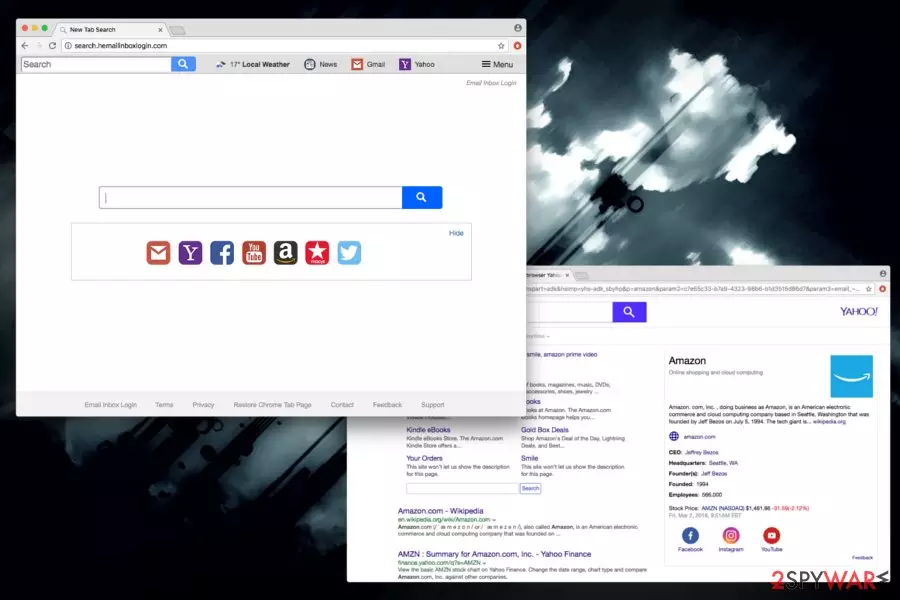
EmailInboxLogin virus is offered as a browser extension for Google Chrome, Internet Explorer, Mozilla Firefox or Safari browsers. This specific extension takes over the browser soon after PUP infiltration. However, it is not possible to obtain on any official web store. Hence, bundling method is used to distribute such software.
It is not surprising that individuals who own multiple email accounts might find Email Inbox Login useful – it offers links to various popular webmail providers, such as Hotmail, Yahoo Mail, Gmail, and others. However, do not risk the safety of your browser because of convenient quick access buttons. You can pick a safe browser and create links though favorites bar just as easy. So make sure you remove Emailinboxlogin as its usefulness is highly questionable, to say the least. The easiest way to do that is by employing a robust security tool, like FortectIntego.
Typically, developers of PUPs participate in what is known as pay-per-click or pay-per-install scheme. Thus, they do everything possible to expose victims to sponsored content. To achieve the goal, users are shown various ads and pop-ups, which offer deals from multiple (usually unknown) retailers. These ads conceal the content of legitimate websites and hinder users’ ability to see it. It is incredibly annoying to deal with and can drive even the most patient individuals mad.

However, annoyance should be the least of users’ worries. The main threat which Search.hemailinboxlogin.com virus exposes users to is redirecting. This malicious activity can open multiple new tabs at once and display content like porn, gambling, fake updates, illegal downloads and similar. Additionally, some of the hacked websites might contain malware and infect victims’ PCs.
Just like many other PUPs, Email Inbox Login tracks a considerable amount of non-personally identifiable information. The Privacy Policy states that the following information is gathered:
The type of browser you are using when using our Services, including your browser's “user agent” <…>
Your operating system type, whether Mac OS, or Windows, and which version of Windows; Your Internet protocol (IP) address and information about the version of any software comprising a portion of the Services that you use
Your geographic location and the domain name of your Internet service provider (ISP); the URLs and websites that you visit and have visited; your search queries on the web pages you visit <…>
And/or Diagnostic information which describes how our Services are operating on your system
The collected data might be used for marketing purposes. Additionally, all the personal information[2] you enter via hijacked engine might end up in the hands of cybercriminals. This could even lead to identity theft. Thus, do not ignore our warnings and proceed with Search.hemailinboxlogin.com removal.
Distribution methods of questionable programs
Security specialists[3] concluded, that users are often in a rush to install free software which they obtained online. They rush through the process, skip steps and not pay attention to any information provided. Developers of freeware are hugely aware that users behave like that quite often. Thus, they employ software bundling to distribute additional components.
Although this marketing technique is legal and widely used, we do not appreciate it as it merely tries to trick users into installing unwanted programs. We hope you think the same. Thus, we advise you never to rush software installation. Pick Advanced/Custom settings and untick any check marks which might be present. This way, you can avoid toolbars, add-ons, dubious search engines, fake utility tools and similar.
Do not delay Search.hemailinboxlogin.com removal as it can harm your computer
Emailinboxlogin removal can be performed either manually or automatically. Both methods are effective, and have been covered in this how-to guide. Nevertheless, we have always been urging our readers to pick automatic virus removal. This way, all the components of unwanted applications can be eliminated quickly and precisely. Thus, users do not have to worry about anything.
However, for those who would like to do without additional programs, we can offer an illustrated guide prepared by our security experts. The tutorial is designed to help you with every step; hence, follow it attentively. Otherwise, you will fail to remove Search.hemailinboxlogin.com virus from your PC entirely.
Uninstall from Windows
Uninstall from Windows 10/8:
- Type Control Panel into the Windows search box and open the result.
- Under Programs, select Uninstall a program.


Uninstall from Windows 7/XP:
- Click on Windows Start > Control Panel (Windows XP users should click on Add/Remove Programs).
- In Control Panel, select Programs > Uninstall a program.


Remove the unwanted program:
- In the Programs and Features window, look for any recently installed suspicious entries, select them, and click Uninstall.
- If User Account Control appears, click Yes to confirm, then complete the removal.


Delete from macOS
Remove the unwanted application:
- From the menu bar, select Go > Applications.
- In the Applications folder, look for any suspicious entries, then drag them to Trash (or right-click and pick Move to Trash).


Delete leftover files and folders:
- Select Go > Go to Folder.
- Enter /Library/Application Support and remove any suspicious folders related to the unwanted program.
- Repeat the same check in the /Library/LaunchAgents and /Library/LaunchDaemons folders, deleting any suspicious entries.

- Finally, empty the Trash to permanently remove the leftovers.

Reset Internet Explorer
Remove dangerous add-ons:
- Open Internet Explorer, click on the Gear icon (IE menu) on the top-right corner of the browser
- Pick Manage Add-ons.
- You will see a Manage Add-ons window. Here, look for suspicious plugins. Click on these entries and select Disable.


Change your homepage if it was altered:
- Open IE and click on the Gear icon.
- Select Internet Options.
- In the General tab, delete the Home page address and replace it by your preferred one (for example, Google.com).
- Click Apply and then select OK.


Delete temporary files:
- Press on the Gear icon and select Internet Options.
- Under Browsing history, click Delete...
- Select relevant fields and press Delete.


Reset Internet Explorer:
- Click on Gear icon > Internet options and select Advanced tab.
- Select Reset.
- In the new window, check Delete personal settings and select Reset.


Remove from Microsoft Edge
Delete unwanted extensions from MS Edge:
- Select Menu (three horizontal dots at the top-right of the browser window) and pick Extensions.
- From the list, pick the extension and click on the Gear icon.
- Click Remove.


Clear cookies and other browser data:
- Click on the Menu (three horizontal dots at the top-right of the browser window) and select Settings > Privacy, search, and services..
- Under Clear browsing data, pick Choose what to clear.
- Select Cookies and other site data and Cached images and files. (apart from passwords, although you might want to include Media licenses as well, if applicable) and click on Clear.


Restore new tab and homepage settings:
- Click the menu icon and choose Settings.
- Then find On startup section.
- Click Remove next to any suspicious startup page.
Reset MS Edge if the above steps did not work:
- Press on Ctrl + Shift + Esc to open Task Manager.
- Click on More details arrow at the bottom of the window.
- Select Details tab.
- Now scroll down and locate every entry with Microsoft Edge name in it. Right-click on each of them and select End Task to stop MS Edge from running.


Instructions for Chromium-based Edge
Delete extensions from MS Edge (Chromium):
- Open Edge and click select Settings > Extensions.
- Delete unwanted extensions by clicking Remove.


Clear cache and site data:
- Click on Menu and go to Settings.
- Select Privacy, search and services.
- Under Clear browsing data, pick Choose what to clear.
- Under Time range, pick All time.
- Select Clear now.


Reset Chromium-based MS Edge:
- Click on Menu and select Settings.
- On the left side, pick Reset settings.
- Select Restore settings to their default values.
- Confirm with Reset.
- This will disable extensions and reset startup pages but will not delete bookmarks, saved passwords, or browsing history.


Remove from Mozilla Firefox (FF)
Remove dangerous extensions:
- Open Mozilla Firefox browser and click on the Menu (three horizontal lines at the top-right of the window).
- Select Add-ons.
- In here, select the unwanted extension and click Remove.


Reset the homepage:
- Click three horizontal lines at the top right corner to open the menu.
- Choose Settings.
- Under Home, set your preferred homepage and new tab settings.
Clear cookies and site data:
- Click Menu and pick Settings.
- Go to Privacy & Security section.
- Scroll down to locate Cookies and Site Data.
- Click on Clear Data...
- Select Cookies and Site Data and Temporary cached files and pages, then click Clear.


Reset Mozilla Firefox
If clearing the browser as explained above did not help, reset Mozilla Firefox:
- Open Mozilla Firefox browser and click the Menu.
- Go to Help and then choose Troubleshooting Information.

- Under Give Firefox a tune up section, click on Refresh Firefox...
- Once the pop-up shows up, confirm the action by pressing on Refresh Firefox.



Remove from Google Chrome
Delete malicious extensions from Google Chrome:
- Open Google Chrome, click on the Menu (three vertical dots at the top-right corner) and select More tools > Extensions.
- In the newly opened window, you will see all the installed extensions. Uninstall all suspicious extensions related to the unwanted program by clicking Remove.


Clear cache and web data from Chrome:
- Click on Menu and pick Settings.
- Under Privacy and security, select Clear browsing data.
- Select Browsing history, Cookies and other site data, as well as Cached images and files.
- Click Clear data.


Change your homepage:
- Click menu and choose Settings.
- Look for a suspicious site in the On startup section.
- Click on Open a specific or set of pages and click on three dots to find the Remove option.
Reset Google Chrome:
If the previous methods did not help you, reset Google Chrome to eliminate all the unwanted components:
- Click on Menu and select Settings.
- In the Settings, scroll down and click Advanced.
- Scroll down and locate Reset and clean up section.
- Now click Restore settings to their original defaults.
- Confirm with Reset settings.


Delete from Safari
Remove dangerous extensions:
- Open Safari, click Safari in the menu at the top-left of the screen, and select Preferences.
- Go to the Extensions tab, look for any suspicious entries, and click Uninstall to remove them.


Clear history and website data:
- Click Safari in the menu and pick Clear History.
- Set Clear to all history and confirm with Clear History.


Reset Safari:
- Click Safari in the menu and select Preferences > Advanced.
- Enable Show Develop menu in menu bar.
- From the menu bar, click Develop and select Empty Caches.


Did this guide help?
Be the first to comment