

Reasons why Search.mynewswire.co cannot be called a trustworthy search tool
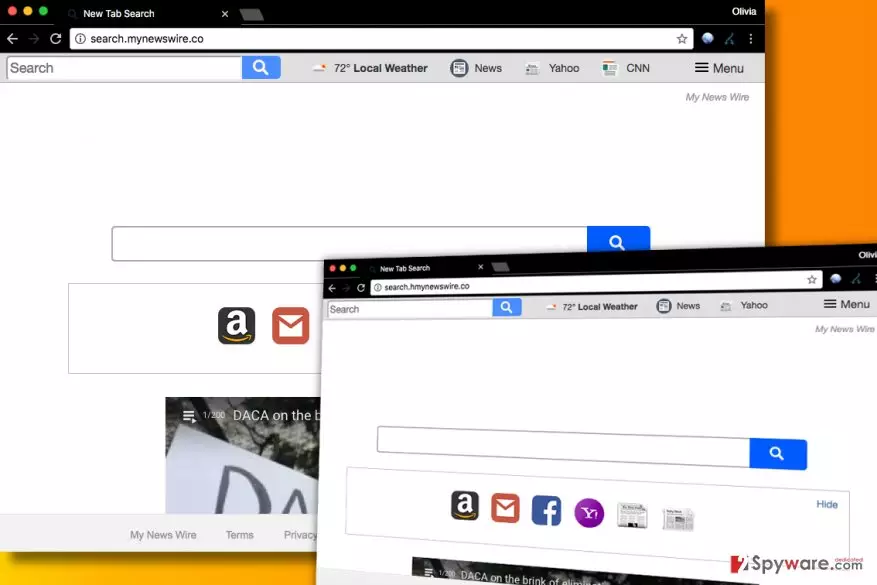
Search.mynewswire.co (by Polarity Technologies, Ltd.) is a potentially unwanted application[1] that you should not trust or use for your Internet searching because it is simply unreliable. Just like Search.hmynewswire.co, it hijacks browser's settings to set itself as default search provider and a start page. This way, it gets an opportunity to serve results filled with ads and redirect users to predetermined Internet sites.
This questionable search tool is propagated by a browser hijacker that sneaks into the system after being installed in tandem with freeware or shareware. It then replaces homepage with http://Search.mynewswire.co/ and assures that it becomes default search provider as well.
So what causes the security experts to categorize this program as a potentially unwanted one? First, Search.mynewswire.co hijacks computers using deceptive marketing techniques such as software bundling[2]. There is no doubt that creators of respectable and reliable programs would refrain from using such distribution methods to reach their audience. Unfortunately, MyNewsWire does.
It was also found that this search engine is interrelated with another notorious browser hijacker SaferBrowser to which My News Wire users are redirected every time they try to search something online. This means that it is not only the stealthy installation that makes this program potentially unwanted.
It is a browser hijacker as well and using it for Internet search can expose you to different security and privacy risks. Search.mynewswire.co removal is the best option to avoid these inconveniences. We suggest choosing FortectIntego or other professional antivirus utilities for the elimination.

If this website has appeared on your browser unexpectedly, and you have not heard about browser hijackers before, you may not even suspect that it might damage your computer. And in theory, it really can’t, but the actions this browser hijacker carries out on the infected computer can easily lead to it. For instance, viruses like Search.mynewswire.co redirect users to affiliate websites to generate the advertising revenue which they are initially designed to do.
However, these sites may not always be reputable and secure. This means that having MyNewsWire installed and using it for search can result in additional computer contamination with malware.
Besides, the virus affects the stability of the system as well by overusing its resources to generate sponsored links and ads, as well as to initiate redirects. Frankly, we do not see any reasons not to remove Search.mynewswire.co from the computer. There are many other, more reputable search engines that you can use instead.
The same developer releases Search.hmynewswire.co redirect virus
The developer of MyNewsWire search hijacker is known to be pushing identical copies of fake search engines with new names regularly. An example is Search.hmynewswire.co virus, which is an exact same copy of the described search engine. This shady search tool can become your browser's start page all of a sudden and force you to use its suspicious search services daily.
However, all that it takes to remove Search.hmynewswire.co is to delete extensions and programs associated with it. So far, the developer of this shady browser hijacker doesn't use aggressive marketing techniques such as browser shortcut hijacking, so you can delete it quite easily.
To prevent installation of this rogue search tool, we strongly suggest you to follow instructions provided below. You can also find some useful computer security tips on NoVirus.uk site[3]. Search.hmynewswire hijacker mostly spreads via software bundling, and you can easily prevent its installation with a simple workaround provide by our support team.
Ways to keep browser hijackers away
As we have already pointed out, MyNewsWire takes over users’ computers by deception. The bundling strategy which the virus creators use to spread this suspicious search engine around is the most common way the majority of browser hijacker programs sneak into the computer of unsuspecting users.
This means that you may inadvertently accept to make http:/.Search.mynewswire.co/ as your homepage or search engine when you are installing other software on your computer. Luckily, there is a rather simple way to make this process overt: you have to use “Advanced” installation settings every time you install some new software on your computer.
This software installation step is a must when avoiding potentially unwanted programs because it exposes additional software package contents and allows you to terminate their installation if you find them somewhat suspicious. This is when you can stop the Search.mynewswire.co from entering your computer.
Uninstall Search.mynewswire.co and related components from PC
It is not surprising that you are looking for a way to remove Search.mynewswire.co virus from your PC. When infected with a browser hijacker, it is natural the first thing you want to do is to eliminate it.
There are two ways you can carry out the Search.mynewswire.co removal. There is a manual approach, and the is an automatic virus elimination option. Though we always recommend the users not to waste their time with the virus removal and to allow automatic antivirus utilities to do the job instead, you can delete the infection yourself, too.
The guidelines needed for such an elimination are provided at the end of the article. But of course, a quicker and more efficient way to get rid of the unpleasant virus consequences is to remove MyNewsWire virus using automatic virus-fighting utilities.
Uninstall from Windows
Uninstall from Windows 10/8:
- Type Control Panel into the Windows search box and open the result.
- Under Programs, select Uninstall a program.


Uninstall from Windows 7/XP:
- Click on Windows Start > Control Panel (Windows XP users should click on Add/Remove Programs).
- In Control Panel, select Programs > Uninstall a program.


Remove the unwanted program:
- In the Programs and Features window, look for any recently installed suspicious entries, select them, and click Uninstall.
- If User Account Control appears, click Yes to confirm, then complete the removal.


Delete from macOS
Remove the unwanted application:
- From the menu bar, select Go > Applications.
- In the Applications folder, look for any suspicious entries, then drag them to Trash (or right-click and pick Move to Trash).


Delete leftover files and folders:
- Select Go > Go to Folder.
- Enter /Library/Application Support and remove any suspicious folders related to the unwanted program.
- Repeat the same check in the /Library/LaunchAgents and /Library/LaunchDaemons folders, deleting any suspicious entries.

- Finally, empty the Trash to permanently remove the leftovers.

Reset Internet Explorer
Remove dangerous add-ons:
- Open Internet Explorer, click on the Gear icon (IE menu) on the top-right corner of the browser
- Pick Manage Add-ons.
- You will see a Manage Add-ons window. Here, look for suspicious plugins. Click on these entries and select Disable.


Change your homepage if it was altered:
- Open IE and click on the Gear icon.
- Select Internet Options.
- In the General tab, delete the Home page address and replace it by your preferred one (for example, Google.com).
- Click Apply and then select OK.


Delete temporary files:
- Press on the Gear icon and select Internet Options.
- Under Browsing history, click Delete...
- Select relevant fields and press Delete.


Reset Internet Explorer:
- Click on Gear icon > Internet options and select Advanced tab.
- Select Reset.
- In the new window, check Delete personal settings and select Reset.


Remove from Microsoft Edge
Delete unwanted extensions from MS Edge:
- Select Menu (three horizontal dots at the top-right of the browser window) and pick Extensions.
- From the list, pick the extension and click on the Gear icon.
- Click Remove.


Clear cookies and other browser data:
- Click on the Menu (three horizontal dots at the top-right of the browser window) and select Settings > Privacy, search, and services..
- Under Clear browsing data, pick Choose what to clear.
- Select Cookies and other site data and Cached images and files. (apart from passwords, although you might want to include Media licenses as well, if applicable) and click on Clear.


Restore new tab and homepage settings:
- Click the menu icon and choose Settings.
- Then find On startup section.
- Click Remove next to any suspicious startup page.
Reset MS Edge if the above steps did not work:
- Press on Ctrl + Shift + Esc to open Task Manager.
- Click on More details arrow at the bottom of the window.
- Select Details tab.
- Now scroll down and locate every entry with Microsoft Edge name in it. Right-click on each of them and select End Task to stop MS Edge from running.


Instructions for Chromium-based Edge
Delete extensions from MS Edge (Chromium):
- Open Edge and click select Settings > Extensions.
- Delete unwanted extensions by clicking Remove.


Clear cache and site data:
- Click on Menu and go to Settings.
- Select Privacy, search and services.
- Under Clear browsing data, pick Choose what to clear.
- Under Time range, pick All time.
- Select Clear now.


Reset Chromium-based MS Edge:
- Click on Menu and select Settings.
- On the left side, pick Reset settings.
- Select Restore settings to their default values.
- Confirm with Reset.
- This will disable extensions and reset startup pages but will not delete bookmarks, saved passwords, or browsing history.


Remove from Mozilla Firefox (FF)
Remove dangerous extensions:
- Open Mozilla Firefox browser and click on the Menu (three horizontal lines at the top-right of the window).
- Select Add-ons.
- In here, select the unwanted extension and click Remove.


Reset the homepage:
- Click three horizontal lines at the top right corner to open the menu.
- Choose Settings.
- Under Home, set your preferred homepage and new tab settings.
Clear cookies and site data:
- Click Menu and pick Settings.
- Go to Privacy & Security section.
- Scroll down to locate Cookies and Site Data.
- Click on Clear Data...
- Select Cookies and Site Data and Temporary cached files and pages, then click Clear.


Reset Mozilla Firefox
If clearing the browser as explained above did not help, reset Mozilla Firefox:
- Open Mozilla Firefox browser and click the Menu.
- Go to Help and then choose Troubleshooting Information.

- Under Give Firefox a tune up section, click on Refresh Firefox...
- Once the pop-up shows up, confirm the action by pressing on Refresh Firefox.



Remove from Google Chrome
Delete malicious extensions from Google Chrome:
- Open Google Chrome, click on the Menu (three vertical dots at the top-right corner) and select More tools > Extensions.
- In the newly opened window, you will see all the installed extensions. Uninstall all suspicious extensions related to the unwanted program by clicking Remove.


Clear cache and web data from Chrome:
- Click on Menu and pick Settings.
- Under Privacy and security, select Clear browsing data.
- Select Browsing history, Cookies and other site data, as well as Cached images and files.
- Click Clear data.


Change your homepage:
- Click menu and choose Settings.
- Look for a suspicious site in the On startup section.
- Click on Open a specific or set of pages and click on three dots to find the Remove option.
Reset Google Chrome:
If the previous methods did not help you, reset Google Chrome to eliminate all the unwanted components:
- Click on Menu and select Settings.
- In the Settings, scroll down and click Advanced.
- Scroll down and locate Reset and clean up section.
- Now click Restore settings to their original defaults.
- Confirm with Reset settings.


Delete from Safari
Remove dangerous extensions:
- Open Safari, click Safari in the menu at the top-left of the screen, and select Preferences.
- Go to the Extensions tab, look for any suspicious entries, and click Uninstall to remove them.


Clear history and website data:
- Click Safari in the menu and pick Clear History.
- Set Clear to all history and confirm with Clear History.


Reset Safari:
- Click Safari in the menu and select Preferences > Advanced.
- Enable Show Develop menu in menu bar.
- From the menu bar, click Develop and select Empty Caches.


Did this guide help?
2 comments
Will
This family of viruses is especially broad! No wonder adware creators get nice money out of it
Apachi12
The search results are kind of lame, the extra features do not work. Overal, Id rate this program 1/10