

Why shouldn’t you let Search.mysofttoday.com stay on your computer?
Search.mysofttoday.com virus is an incredibly annoying cyber infection that targets Google Chrome, Edge, Internet Explored, Mozilla Firefox and, frankly, any other browser that you may have installed on your computer. While some people may not pay much attention to the sudden change of their regular search engine to MySoftToday, other, more security-oriented users will be immediately alerted about the potential malware infiltration. Otherwise, the first impression of this website does give much basis for doubting its legitimacy. On the opposite, the initial search page greets you with an inviting-looking, colorful background picture that can be changed on demand. You can also set the background to keep switching images automatically or alter the color of the outer frame. Unfortunately, these few functions are probably the best you can get from this suspicious search engine because MySoftToday is a browser hijacker, designed to benefit its creators financially, rather than provide a reliable search service. This search engine will take over your browser, forcing you to browse through the sponsored search results and making you deal with the Search.mysofttoday.com redirect issue on you own as well. Luckily, you do not necessarily have to struggle with this virus as FortectIntego can help you get rid of all of its malicious files in just a couple of minutes. For more tips on Search.mysofttoday.com removal, skip to the end of the article.
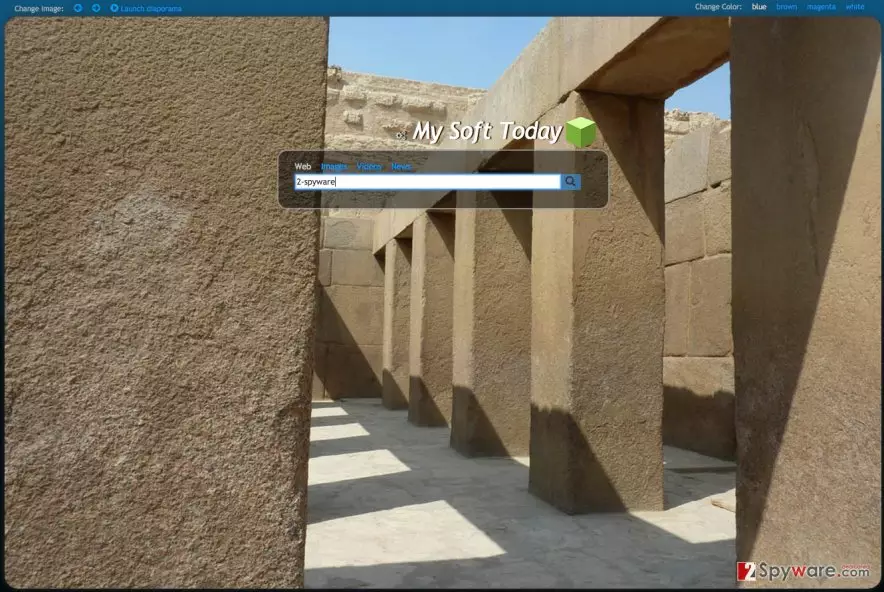
Apart from the stealthy system hijack, altered search results and redirects, it was also found that Search.mysofttoday.com malware is taking advantage of the user’s browsing information. The virus installs additional content, such as toolbars, browser extensions and add-ons to keep track of what websites you visit and the pages you view once there, also, what you search for online. This information can be used to personalize the advertised content, making it more appealing to the user. The more inviting the links and sponsored ads look, the more likely the users are to click on them. So, if the MySoftToday wants to generate advertising revenue, they have to appeal to the user or involve them into this business by deception. Sadly, the latter option is more common that is why this program is deemed as potentially unwanted. There are legitimate search engines that do not try to convince you into buying suspicious products or force you to visit potentially infectious domains, which is why it is better to remove Search.mysofttoday.com from your browser and switch to some safer option instead.
How does this browser hijacker spread?
Ever heard of a term “bundling”? Bundling, as the name suggests itself, refers to a process when several programs can be downloaded on the computer in a single software package and install simultaneously. Usually, such software packages consist of some popular freeware program (which initially work as bait) and other, often potentially unwanted programs that are hidden in the package under the “Advanced” or “Custom” installation settings, including the Search.mysofttoday.com virus as well. This means that if you are always installing your software using “Quick” or “Recommended” modes, you are probably not going to be informed about the additional and potentially dangerous content of the software package. If you are already infected, hurry to remove the virus and start thinking about changing your attitude towards cyber security. You do not want any more similar potentially unwanted programs on your computer, do you?
Can you remove Search.mysofttoday.com from the infected device manually?
Yes, manual Search.mysofttoday.com removal is one of the options you can choose to remove this potentially unwanted program from your computer. But it definitely not the most effective one. This approach does not take other potentially unwanted programs that might be hiding on your computer into consideration. There is not guarantee that after you remove Search.mysofttoday.com from your computer, your system will be completely virus-free. To ensure a more inclusive system investigation, we recommend scanning your computer with automatic virus detection software.
Uninstall from Windows
Uninstall from Windows 10/8:
- Type Control Panel into the Windows search box and open the result.
- Under Programs, select Uninstall a program.


Uninstall from Windows 7/XP:
- Click on Windows Start > Control Panel (Windows XP users should click on Add/Remove Programs).
- In Control Panel, select Programs > Uninstall a program.


Remove the unwanted program:
- In the Programs and Features window, look for any recently installed suspicious entries, select them, and click Uninstall.
- If User Account Control appears, click Yes to confirm, then complete the removal.


Delete from macOS
Remove the unwanted application:
- From the menu bar, select Go > Applications.
- In the Applications folder, look for any suspicious entries, then drag them to Trash (or right-click and pick Move to Trash).


Delete leftover files and folders:
- Select Go > Go to Folder.
- Enter /Library/Application Support and remove any suspicious folders related to the unwanted program.
- Repeat the same check in the /Library/LaunchAgents and /Library/LaunchDaemons folders, deleting any suspicious entries.

- Finally, empty the Trash to permanently remove the leftovers.

Remove from Microsoft Edge
Delete unwanted extensions from MS Edge:
- Select Menu (three horizontal dots at the top-right of the browser window) and pick Extensions.
- From the list, pick the extension and click on the Gear icon.
- Click Remove.


Clear cookies and other browser data:
- Click on the Menu (three horizontal dots at the top-right of the browser window) and select Settings > Privacy, search, and services..
- Under Clear browsing data, pick Choose what to clear.
- Select Cookies and other site data and Cached images and files. (apart from passwords, although you might want to include Media licenses as well, if applicable) and click on Clear.


Restore new tab and homepage settings:
- Click the menu icon and choose Settings.
- Then find On startup section.
- Click Remove next to any suspicious startup page.
Reset MS Edge if the above steps did not work:
- Press on Ctrl + Shift + Esc to open Task Manager.
- Click on More details arrow at the bottom of the window.
- Select Details tab.
- Now scroll down and locate every entry with Microsoft Edge name in it. Right-click on each of them and select End Task to stop MS Edge from running.


Instructions for Chromium-based Edge
Delete extensions from MS Edge (Chromium):
- Open Edge and click select Settings > Extensions.
- Delete unwanted extensions by clicking Remove.


Clear cache and site data:
- Click on Menu and go to Settings.
- Select Privacy, search and services.
- Under Clear browsing data, pick Choose what to clear.
- Under Time range, pick All time.
- Select Clear now.


Reset Chromium-based MS Edge:
- Click on Menu and select Settings.
- On the left side, pick Reset settings.
- Select Restore settings to their default values.
- Confirm with Reset.
- This will disable extensions and reset startup pages but will not delete bookmarks, saved passwords, or browsing history.


Remove from Mozilla Firefox (FF)
Remove dangerous extensions:
- Open Mozilla Firefox browser and click on the Menu (three horizontal lines at the top-right of the window).
- Select Add-ons.
- In here, select the unwanted extension and click Remove.


Reset the homepage:
- Click three horizontal lines at the top right corner to open the menu.
- Choose Settings.
- Under Home, set your preferred homepage and new tab settings.
Clear cookies and site data:
- Click Menu and pick Settings.
- Go to Privacy & Security section.
- Scroll down to locate Cookies and Site Data.
- Click on Clear Data...
- Select Cookies and Site Data and Temporary cached files and pages, then click Clear.


Reset Mozilla Firefox
If clearing the browser as explained above did not help, reset Mozilla Firefox:
- Open Mozilla Firefox browser and click the Menu.
- Go to Help and then choose Troubleshooting Information.

- Under Give Firefox a tune up section, click on Refresh Firefox...
- Once the pop-up shows up, confirm the action by pressing on Refresh Firefox.



Remove from Google Chrome
Delete malicious extensions from Google Chrome:
- Open Google Chrome, click on the Menu (three vertical dots at the top-right corner) and select More tools > Extensions.
- In the newly opened window, you will see all the installed extensions. Uninstall all suspicious extensions related to the unwanted program by clicking Remove.


Clear cache and web data from Chrome:
- Click on Menu and pick Settings.
- Under Privacy and security, select Clear browsing data.
- Select Browsing history, Cookies and other site data, as well as Cached images and files.
- Click Clear data.


Change your homepage:
- Click menu and choose Settings.
- Look for a suspicious site in the On startup section.
- Click on Open a specific or set of pages and click on three dots to find the Remove option.
Reset Google Chrome:
If the previous methods did not help you, reset Google Chrome to eliminate all the unwanted components:
- Click on Menu and select Settings.
- In the Settings, scroll down and click Advanced.
- Scroll down and locate Reset and clean up section.
- Now click Restore settings to their original defaults.
- Confirm with Reset settings.


Delete from Safari
Remove dangerous extensions:
- Open Safari, click Safari in the menu at the top-left of the screen, and select Preferences.
- Go to the Extensions tab, look for any suspicious entries, and click Uninstall to remove them.


Clear history and website data:
- Click Safari in the menu and pick Clear History.
- Set Clear to all history and confirm with Clear History.


Reset Safari:
- Click Safari in the menu and select Preferences > Advanced.
- Enable Show Develop menu in menu bar.
- From the menu bar, click Develop and select Empty Caches.


Did this guide help?
3 comments
Patric
Wow. You can change the background of your search engine! Really? Thats the silliest function that a information search engine can offer
John Billy
Yesss. The removal guide was great!
Alex Ringo
Oh come on, this site cannot be that bad... Its just a few ads