

The crucial facts about search.newtab-tvsearch.com
Search.newtab-tvsearch.com virus should not be mistaken for the ordinary search engine. It is a brand new creation of Imali Ltd, the company which is known for filling up the online market with browser hijackers. This PUP tries to attract victims with quick-access links to news, sports, shopping and entertainment websites. Such bait is a popular technique used by browser hijackers. However, the promoted qualities are overshadowed by the obvious drawbacks of the hijacker. If you are interested in how this PUP works or how to remove search.newtab-tvsearch.com, read the lower sections of the article.
Imali Ltd has established itself in the online market. You may find multiple search tools roaming in the virtual space. All of them have distinguishable traits: the identical front page design and the URL address tradition. Specifically, all of them start with “search..” and include “newtab” in them. Though it employs Yahoo database for delivering search results, you should still treat them with caution. Leave alone recent data leaks involving around Yahoo, the provided search results might contain damaging elements in them. Occasionally, search.newtab-tvsearch.com redirect prevents you from reaching wanted domains quickly. In other words, you might find yourself in an advertising or gaming website. Keep in mind that such redirect issues might result in an infected system since you can attract the attention of a cyber infection while reviewing the contents of the redirected web page. If you value effective performance of the device, you should proceed to search.newtab-tvsearch.com removal. FortectIntego speeds up the process.
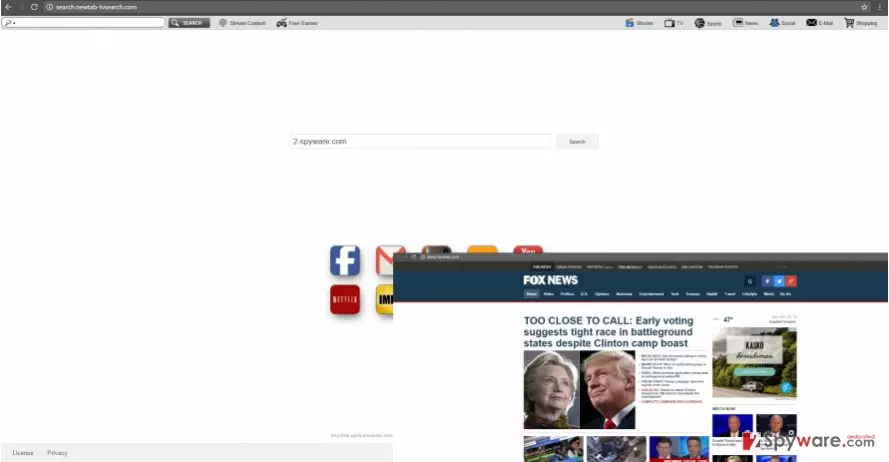
Redirect problem is not the only drawback of a hijacker. It applies its certain “layer” on the search results. With the help of it, it can display more advertising content of its partners. Taking a look at the privacy policy of any online program or web page might be a valuable habit since you might get an idea what kind of the tool it is and how it manages your personal data. Usually, browser hijackers are supported by third-parties. In exchange for their support, they must promote their websites and products users. Likewise, your screen gets piled up with pay-per-click ads which only diminish the processing capabilities of the browser. What is more, they distract you throughout the browsing sessions.
When did I come across the hijacker?
You might have accidentally installed the hijacker along with another app. Do you recall installing a download accelerator or image editing tool, perhaps? Then, search.newtab-tvsearch.com hijack might have occurred while you were rushing through the installation settings. As a result, you overlooked the attachment containing the hijacker. Likewise, within minutes, search.newtab-tvsearch.com hijack occurred. Usually, you can prevent such infiltration simply by choosing “Advanced” mode. Later on, remove the checkmarks from the optional applications to avoid getting infected by adware, malware or browser hijackers.
How can I get rid of search.newtab-tvsearch.com?
Search.newtab-tvsearch.com removal includes manual or automatic termination. You can perform them both for the extra guarantee. However, the latter method does not require any additional preparations as you can simply entrust the elimination to an anti-spyware software. It will remove search.newtab-tvsearch.com virus quickly and effectively. One of the key points in terminating the hijacker is the newest virus definitions. The tool must be updated to perform the proper removal. Lastly, users, looking for an alternative method, can find the instructions delivered below.
Uninstall from Windows
Uninstall from Windows 10/8:
- Type Control Panel into the Windows search box and open the result.
- Under Programs, select Uninstall a program.


Uninstall from Windows 7/XP:
- Click on Windows Start > Control Panel (Windows XP users should click on Add/Remove Programs).
- In Control Panel, select Programs > Uninstall a program.


Remove the unwanted program:
- In the Programs and Features window, look for any recently installed suspicious entries, select them, and click Uninstall.
- If User Account Control appears, click Yes to confirm, then complete the removal.


Delete from macOS
Remove the unwanted application:
- From the menu bar, select Go > Applications.
- In the Applications folder, look for any suspicious entries, then drag them to Trash (or right-click and pick Move to Trash).


Delete leftover files and folders:
- Select Go > Go to Folder.
- Enter /Library/Application Support and remove any suspicious folders related to the unwanted program.
- Repeat the same check in the /Library/LaunchAgents and /Library/LaunchDaemons folders, deleting any suspicious entries.

- Finally, empty the Trash to permanently remove the leftovers.

Reset Internet Explorer
Remove dangerous add-ons:
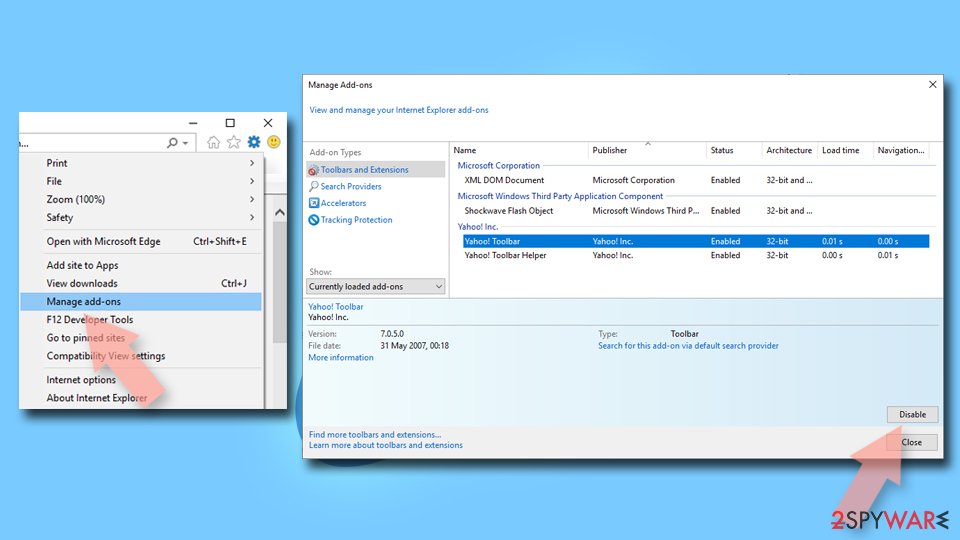
- Open Internet Explorer, click on the Gear icon (IE menu) on the top-right corner of the browser
- Pick Manage Add-ons.
- You will see a Manage Add-ons window. Here, look for suspicious plugins. Click on these entries and select Disable.

Change your homepage if it was altered:
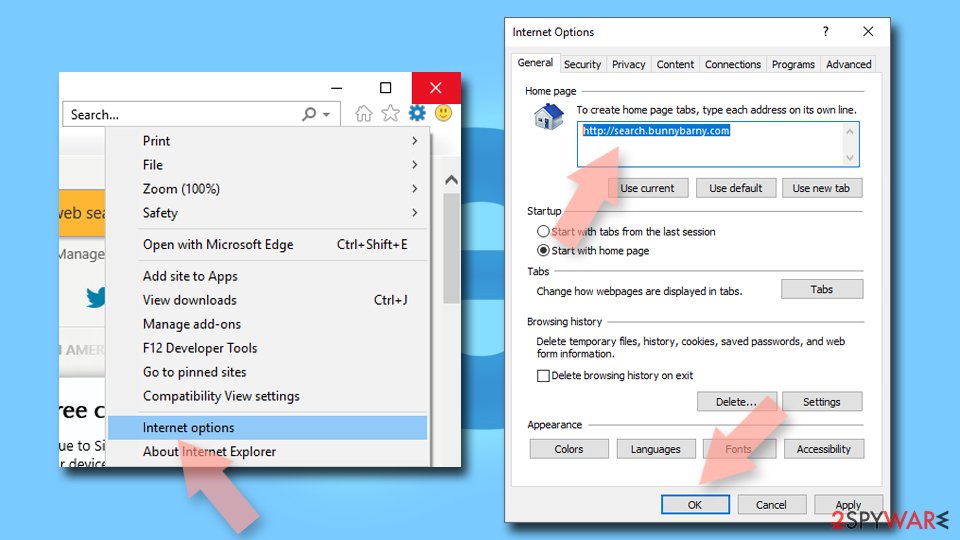
- Open IE and click on the Gear icon.
- Select Internet Options.
- In the General tab, delete the Home page address and replace it by your preferred one (for example, Google.com).
- Click Apply and then select OK.

Delete temporary files:
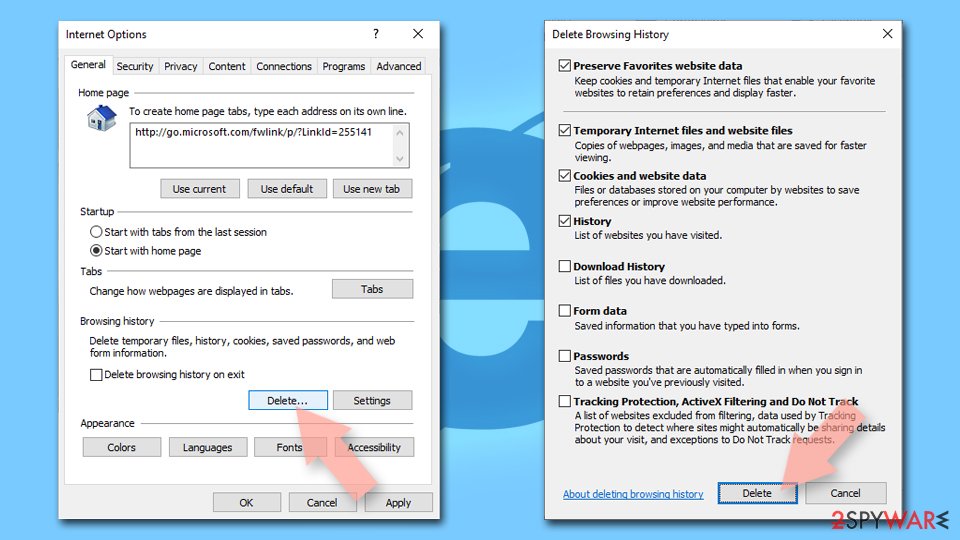
- Press on the Gear icon and select Internet Options.
- Under Browsing history, click Delete...
- Select relevant fields and press Delete.

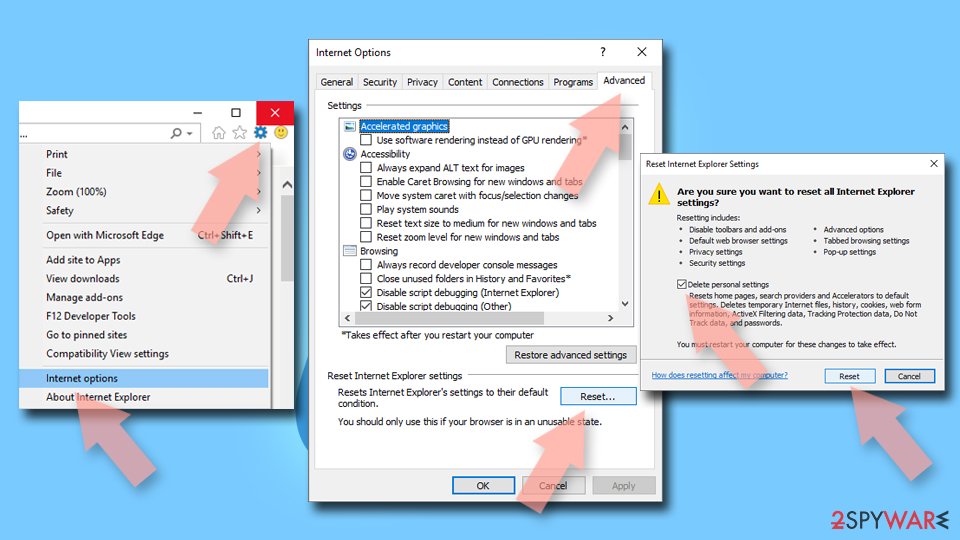
Reset Internet Explorer:
- Click on Gear icon > Internet options and select Advanced tab.
- Select Reset.
- In the new window, check Delete personal settings and select Reset.

Remove from Microsoft Edge
Delete unwanted extensions from MS Edge:
- Select Menu (three horizontal dots at the top-right of the browser window) and pick Extensions.
- From the list, pick the extension and click on the Gear icon.
- Click Remove.


Clear cookies and other browser data:
- Click on the Menu (three horizontal dots at the top-right of the browser window) and select Settings > Privacy, search, and services..
- Under Clear browsing data, pick Choose what to clear.
- Select Cookies and other site data and Cached images and files. (apart from passwords, although you might want to include Media licenses as well, if applicable) and click on Clear.


Restore new tab and homepage settings:
- Click the menu icon and choose Settings.
- Then find On startup section.
- Click Remove next to any suspicious startup page.
Reset MS Edge if the above steps did not work:
- Press on Ctrl + Shift + Esc to open Task Manager.
- Click on More details arrow at the bottom of the window.
- Select Details tab.
- Now scroll down and locate every entry with Microsoft Edge name in it. Right-click on each of them and select End Task to stop MS Edge from running.


Instructions for Chromium-based Edge
Delete extensions from MS Edge (Chromium):
- Open Edge and click select Settings > Extensions.
- Delete unwanted extensions by clicking Remove.


Clear cache and site data:
- Click on Menu and go to Settings.
- Select Privacy, search and services.
- Under Clear browsing data, pick Choose what to clear.
- Under Time range, pick All time.
- Select Clear now.


Reset Chromium-based MS Edge:
- Click on Menu and select Settings.
- On the left side, pick Reset settings.
- Select Restore settings to their default values.
- Confirm with Reset.
- This will disable extensions and reset startup pages but will not delete bookmarks, saved passwords, or browsing history.


Remove from Mozilla Firefox (FF)
Remove dangerous extensions:
- Open Mozilla Firefox browser and click on the Menu (three horizontal lines at the top-right of the window).
- Select Add-ons.
- In here, select the unwanted extension and click Remove.


Reset the homepage:
- Click three horizontal lines at the top right corner to open the menu.
- Choose Settings.
- Under Home, set your preferred homepage and new tab settings.
Clear cookies and site data:
- Click Menu and pick Settings.
- Go to Privacy & Security section.
- Scroll down to locate Cookies and Site Data.
- Click on Clear Data...
- Select Cookies and Site Data and Temporary cached files and pages, then click Clear.


Reset Mozilla Firefox
If clearing the browser as explained above did not help, reset Mozilla Firefox:
- Open Mozilla Firefox browser and click the Menu.
- Go to Help and then choose Troubleshooting Information.

- Under Give Firefox a tune up section, click on Refresh Firefox...
- Once the pop-up shows up, confirm the action by pressing on Refresh Firefox.



Remove from Google Chrome
Delete malicious extensions from Google Chrome:
- Open Google Chrome, click on the Menu (three vertical dots at the top-right corner) and select More tools > Extensions.
- In the newly opened window, you will see all the installed extensions. Uninstall all suspicious extensions related to the unwanted program by clicking Remove.


Clear cache and web data from Chrome:
- Click on Menu and pick Settings.
- Under Privacy and security, select Clear browsing data.
- Select Browsing history, Cookies and other site data, as well as Cached images and files.
- Click Clear data.


Change your homepage:
- Click menu and choose Settings.
- Look for a suspicious site in the On startup section.
- Click on Open a specific or set of pages and click on three dots to find the Remove option.
Reset Google Chrome:
If the previous methods did not help you, reset Google Chrome to eliminate all the unwanted components:
- Click on Menu and select Settings.
- In the Settings, scroll down and click Advanced.
- Scroll down and locate Reset and clean up section.
- Now click Restore settings to their original defaults.
- Confirm with Reset settings.


Delete from Safari
Remove dangerous extensions:
- Open Safari, click Safari in the menu at the top-left of the screen, and select Preferences.
- Go to the Extensions tab, look for any suspicious entries, and click Uninstall to remove them.


Clear history and website data:
- Click Safari in the menu and pick Clear History.
- Set Clear to all history and confirm with Clear History.


Reset Safari:
- Click Safari in the menu and select Preferences > Advanced.
- Enable Show Develop menu in menu bar.
- From the menu bar, click Develop and select Empty Caches.


Did this guide help?
2 comments
MaxRAM
Another boring hijacker...
glasgow5
I find the additional links to be quite useful...