

Problems with the Search.qroficce.com browser hijacker:
It’s a common misconception that Mac OS X are somehow innately protected from various cyber threats. In fact, there are viruses that are specifically designed and targeted towards OS X. One of such infections is the Search.qroficce.com virus. Although its main focus is Safari browsers, the virus can infect Google Chrome, Mozilla Firefox as well. Luckily, the Internet Explorer and Microsoft edge are still resistant to this infection, though it is only a matter of time when it will be adapted to Windows as well. So what does this virus do when it infiltrates the computer? First, it starts altering the browser’s settings. It assigns Qroficce to open as a default search engine and the homepage of the infected browser. With such behavior in mind, it is not difficult to see why this suspicious search engine is categorized as a browser hijacker. Even though browser hijackers are not on the top of potentially unwanted program’s list, they are still dangerous and should be removed from the computer without question. For the Search.qroficce.com removal, it is useful to obtain a reliable antivirus utility such as FortectIntego and run a system scan.
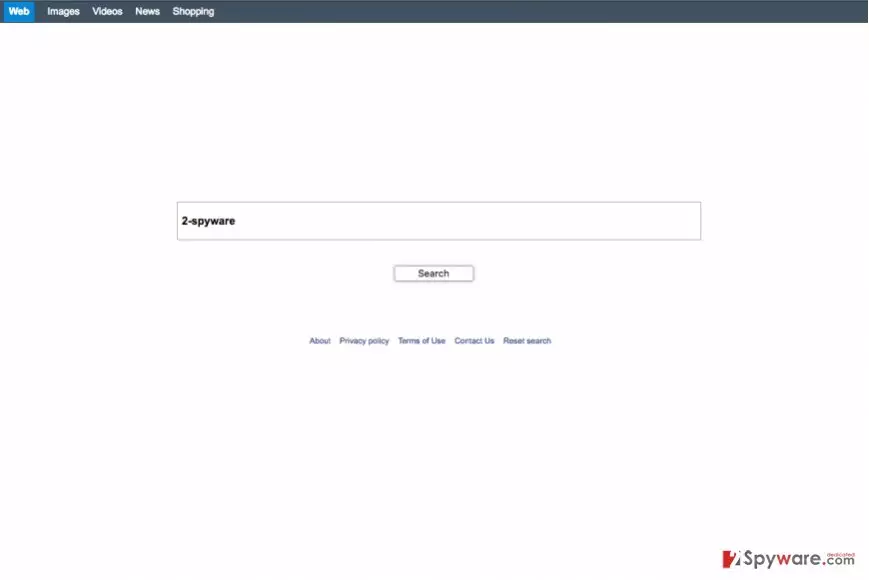
What is especially concerning about the browser hijackers is that they make an impression of a legitimate search engine, so the users rarely feel concerned or even notice the hijack has even occurred. During that time, the virus has a chance to carry out unauthorized activities on the infected computer. The virus may set your browser to redirect you to third-party websites. Also, additional software may be installed on your computer to have more power over your traffic. Finally, your online activity information can be easily accessible to this hijacker and, most likely, it will take some advantage out of it. It may use your IP address, search queries, site visitation statistics and other data for online marketing purposes. This means that you will receive even more targeted ads and your browsing experience may get worse. Do not let untrusted parties mess with your browser and ruin your browsing. Remove search.qroficce.com from your device and choose acknowledged search engines instead.
Can Search.qroficce.com be suspended from your PC?
As soon as Search.qroficce.com takes over computer problems start to emerge. It is unfortunate that people sometimes install such programs willingly because simply because they fall for the false advertising. However, instead of improving their browsing experience, the users are exposed to redirects, intrusive advertising, system malfunction and similar inconveniences. More commonly, though, Search.qroficce.com enters computers together with other free programs after the users fail to notice an additional component added to the downloaded software package. To avoid such unexpected hijacks, we recommend to install new software using advanced setup settings, opting out the suspicious software package components.
How to deal with the Search.qroficce.com removal?
To stop the virus from taking over the control of your computer completely, we recommend you to remove Search.qroficce.com from the infected device without delay. For that, you will have to locate virus-related junk files and eliminate them. Of course, it may all seem like searching for a needle in a haystack if you do not know what to look for exactly. In such a case, it is better to employ automatic virus-detection software and scan your computer with it. Or, you can also follow the Search.qroficce.com removal instructions provided at the end of this article to remove the infection manually.
Delete from macOS
Remove the unwanted application:
- From the menu bar, select Go > Applications.
- In the Applications folder, look for any suspicious entries, then drag them to Trash (or right-click and pick Move to Trash).


Delete leftover files and folders:
- Select Go > Go to Folder.
- Enter /Library/Application Support and remove any suspicious folders related to the unwanted program.
- Repeat the same check in the /Library/LaunchAgents and /Library/LaunchDaemons folders, deleting any suspicious entries.

- Finally, empty the Trash to permanently remove the leftovers.

Remove from Mozilla Firefox (FF)
Remove dangerous extensions:
- Open Mozilla Firefox browser and click on the Menu (three horizontal lines at the top-right of the window).
- Select Add-ons.
- In here, select the unwanted extension and click Remove.


Reset the homepage:
- Click three horizontal lines at the top right corner to open the menu.
- Choose Settings.
- Under Home, set your preferred homepage and new tab settings.
Clear cookies and site data:
- Click Menu and pick Settings.
- Go to Privacy & Security section.
- Scroll down to locate Cookies and Site Data.
- Click on Clear Data...
- Select Cookies and Site Data and Temporary cached files and pages, then click Clear.


Reset Mozilla Firefox
If clearing the browser as explained above did not help, reset Mozilla Firefox:
- Open Mozilla Firefox browser and click the Menu.
- Go to Help and then choose Troubleshooting Information.

- Under Give Firefox a tune up section, click on Refresh Firefox...
- Once the pop-up shows up, confirm the action by pressing on Refresh Firefox.



Remove from Google Chrome
Delete malicious extensions from Google Chrome:
- Open Google Chrome, click on the Menu (three vertical dots at the top-right corner) and select More tools > Extensions.
- In the newly opened window, you will see all the installed extensions. Uninstall all suspicious extensions related to the unwanted program by clicking Remove.


Clear cache and web data from Chrome:
- Click on Menu and pick Settings.
- Under Privacy and security, select Clear browsing data.
- Select Browsing history, Cookies and other site data, as well as Cached images and files.
- Click Clear data.


Change your homepage:
- Click menu and choose Settings.
- Look for a suspicious site in the On startup section.
- Click on Open a specific or set of pages and click on three dots to find the Remove option.
Reset Google Chrome:
If the previous methods did not help you, reset Google Chrome to eliminate all the unwanted components:
- Click on Menu and select Settings.
- In the Settings, scroll down and click Advanced.
- Scroll down and locate Reset and clean up section.
- Now click Restore settings to their original defaults.
- Confirm with Reset settings.


Delete from Safari
Remove dangerous extensions:
- Open Safari, click Safari in the menu at the top-left of the screen, and select Preferences.
- Go to the Extensions tab, look for any suspicious entries, and click Uninstall to remove them.


Clear history and website data:
- Click Safari in the menu and pick Clear History.
- Set Clear to all history and confirm with Clear History.


Reset Safari:
- Click Safari in the menu and select Preferences > Advanced.
- Enable Show Develop menu in menu bar.
- From the menu bar, click Develop and select Empty Caches.


Did this guide help?
2 comments
Adrianne
I dont even know what to think. I am currently infected.. What should I do??:(
Follie Ankle
Reimage is sure a wonder! It removed the virus in just a couple of minutes!