

Search.search4ppl2.com is a browser hijacker that acts like a legit search tool
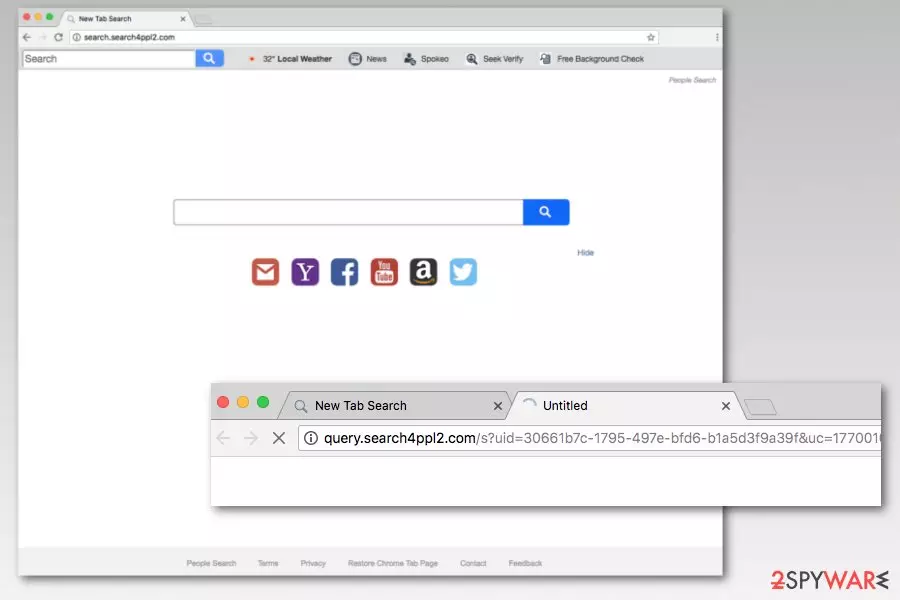
Search.search4ppl2.com is a Yahoo-based search engine created by Polarity Technologies. Despite its quite legit look, it is categorized as a browser hijacker[1] because it can get into the system unnoticed and alter browser’s settings without asking user’s permission.
| Summary | |
| Name | Search.search4ppl2.com |
| Developer | Polarity Technologies Ltd. |
| Type | Browser hijacker |
| Danger level | Medium. Cannot damage the system but takes control over a web browser |
| Symptoms | Changed browser's homepage, search engine, and new tab URL address, an increased amount of ads, inability to set preferred homepage/search engine. |
| Distribution methods | Software bundling |
| To remove Search.search4ppl2.com, install FortectIntego and run a full system scan | |
So-called Search.search4ppl2.com virus spreads as People Search extension in freeware or shareware bundles. Hence, users who do not pay attention to installation process are the ones who get their browsers hijacked.
After the Search.search4ppl2.com hijack, Google Chrome, Mozilla Firefox, Internet Explorer, and other web browsers might face these changes:
- homepage, search engine, and new tab URL address changed to http://search.search4ppl2.com/ or http://query.search4ppl2.com;
- search redirects to Yahoo;
- redirects to third-party sites after clicking a search link or other content;
- aggressive pop-ups disturbing browsing sessions;
- more banners and ads appearing on visited websites;
- inability to remove Search.search4ppl2.com and replace it with another search tool.
The latter issue is the most annoying. Search.search4ppl2.com removal might be troublesome due to hijacker’s ability to alter Windows Registry and browser’s shortcuts. Hence, in order to get rid of this browser virus, you should use anti-malware[2] software, like FortectIntego. This tool can not only clean this cyber threat but fix damage to the system.
Of course, you can delete Search.search4ppl2.com manually too. However, it might be a complicated task. However, if you are willing to do it, you should not hesitate and scroll down to the end of the article where you can find our prepared uninstall guide.
We want to urge you to get rid of this cyber threat as soon as possible because the hijacker might trick you into visiting high-risk websites and track information about you. While Search.search4ppl2.com redirect tendencies might lead to computer infection, data collection might put your privacy at risk.
The Privacy Policy of Search.search4ppl2.com reveals that this tool can collect various information about with the help of cookies and other tracking technologies. Additionally, they allow third-party data tracking as well. What is worse, information about your location, operating system and browser, browsing history and other behavioral information might be shared with third-parties, which are typically advertising networks.
Therefore, the longer you keep the hijacker installed, the more ads you will see. Keep in mind that they might be misleading and redirect to phishing, scam or other fraudulent sites. We highly recommend staying away from pop-ups and banners after the hijack. Though, the best idea is to get rid of search.search4ppl2.com immediately.

Software bundling helps to spread browser hijacker
You won’t be able to find People Search extension on any legit app store. The application is spread bundled with free programs that you can download from the internet. If you choose Quick/Recommended settings for freeware installation, you might unintentionally install even worse programs than a browser hijacker, security specialists from utanvirus.se[3] says.
These settings do not openly disclose about third-party apps that are included in the same software package. Thus, if you use this setup, you give indirect permission to install the whole package. However, you should use Advanced/Custom settings which allow “unpacking” freeware download and opt out “additional” apps.
Get rid of Search.search4ppl2.com virus
One of the ways to remove Search.search4ppl2.com from your browser is to uninstall questionable programs and browser extensions and resetting affected browser. The guide below will help you to complete this task. However, if you leave some malicious components or you want to speed up this procedure, you should take advantage of the anti-malware software.
Automatic Search.search4ppl2.com removal requires scanning the system with an up-to-date program. After the scan, you will be offered to clean detected cyber threats. Then, you should reset affected browsers to get rid of tracking cookies.
Uninstall from Windows
Uninstall from Windows 10/8:
- Type Control Panel into the Windows search box and open the result.
- Under Programs, select Uninstall a program.


Uninstall from Windows 7/XP:
- Click on Windows Start > Control Panel (Windows XP users should click on Add/Remove Programs).
- In Control Panel, select Programs > Uninstall a program.


Remove the unwanted program:
- In the Programs and Features window, look for any recently installed suspicious entries, select them, and click Uninstall.
- If User Account Control appears, click Yes to confirm, then complete the removal.


Delete from macOS
Remove the unwanted application:
- From the menu bar, select Go > Applications.
- In the Applications folder, look for any suspicious entries, then drag them to Trash (or right-click and pick Move to Trash).


Delete leftover files and folders:
- Select Go > Go to Folder.
- Enter /Library/Application Support and remove any suspicious folders related to the unwanted program.
- Repeat the same check in the /Library/LaunchAgents and /Library/LaunchDaemons folders, deleting any suspicious entries.

- Finally, empty the Trash to permanently remove the leftovers.

Reset Internet Explorer
Remove dangerous add-ons:
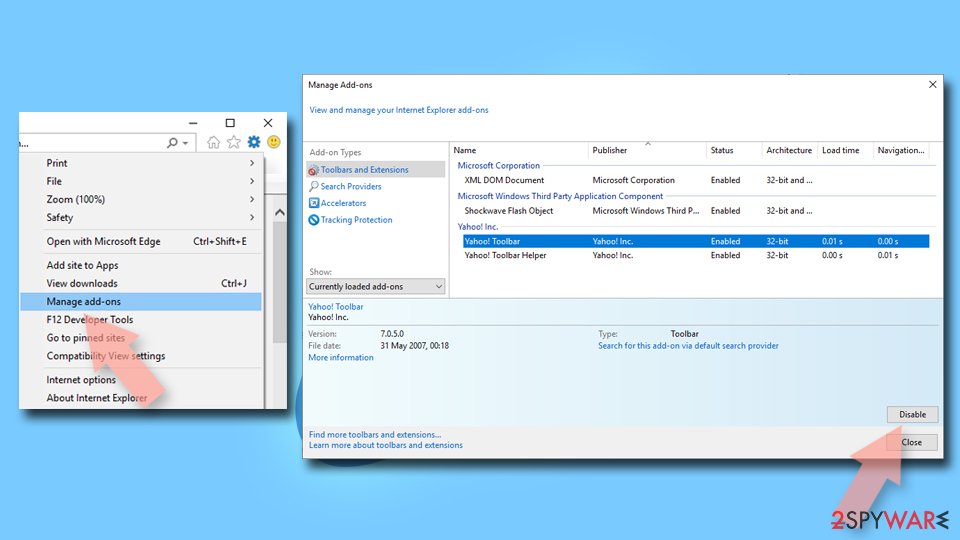
- Open Internet Explorer, click on the Gear icon (IE menu) on the top-right corner of the browser
- Pick Manage Add-ons.
- You will see a Manage Add-ons window. Here, look for suspicious plugins. Click on these entries and select Disable.

Change your homepage if it was altered:
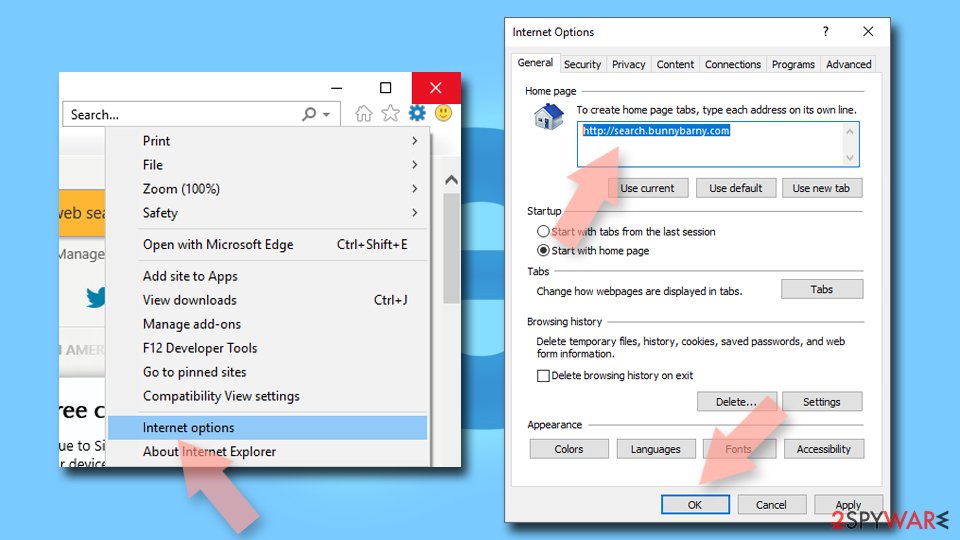
- Open IE and click on the Gear icon.
- Select Internet Options.
- In the General tab, delete the Home page address and replace it by your preferred one (for example, Google.com).
- Click Apply and then select OK.

Delete temporary files:
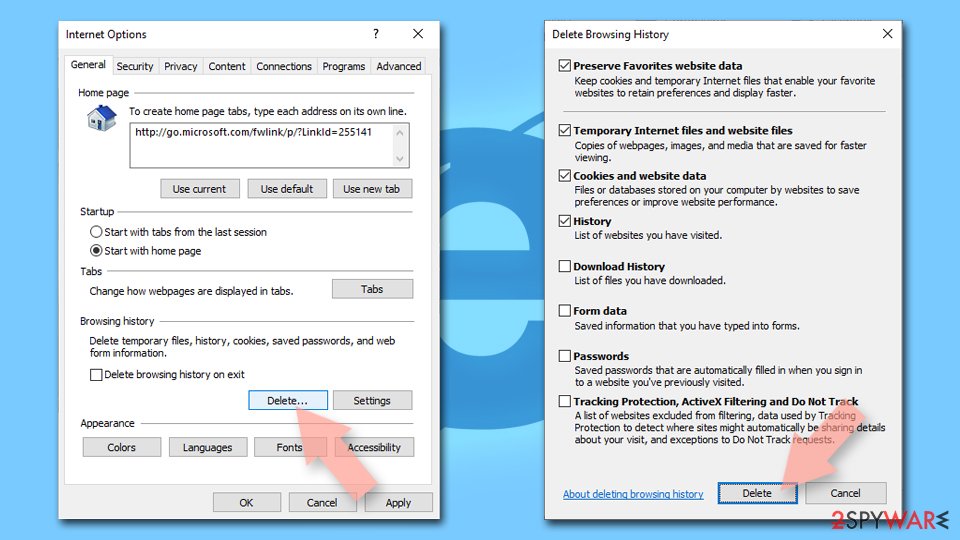
- Press on the Gear icon and select Internet Options.
- Under Browsing history, click Delete...
- Select relevant fields and press Delete.

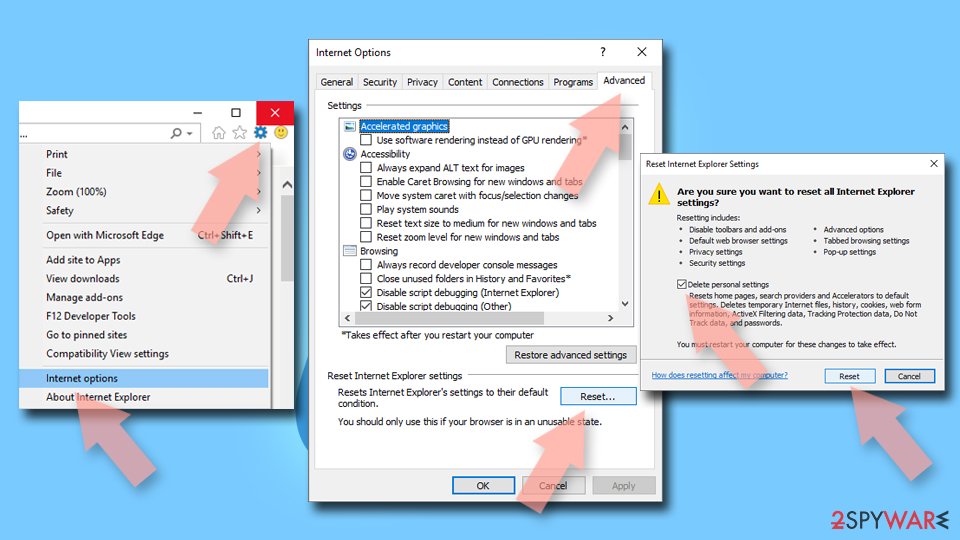
Reset Internet Explorer:
- Click on Gear icon > Internet options and select Advanced tab.
- Select Reset.
- In the new window, check Delete personal settings and select Reset.

Remove from Microsoft Edge
Delete unwanted extensions from MS Edge:
- Select Menu (three horizontal dots at the top-right of the browser window) and pick Extensions.
- From the list, pick the extension and click on the Gear icon.
- Click Remove.


Clear cookies and other browser data:
- Click on the Menu (three horizontal dots at the top-right of the browser window) and select Settings > Privacy, search, and services..
- Under Clear browsing data, pick Choose what to clear.
- Select Cookies and other site data and Cached images and files. (apart from passwords, although you might want to include Media licenses as well, if applicable) and click on Clear.


Restore new tab and homepage settings:
- Click the menu icon and choose Settings.
- Then find On startup section.
- Click Remove next to any suspicious startup page.
Reset MS Edge if the above steps did not work:
- Press on Ctrl + Shift + Esc to open Task Manager.
- Click on More details arrow at the bottom of the window.
- Select Details tab.
- Now scroll down and locate every entry with Microsoft Edge name in it. Right-click on each of them and select End Task to stop MS Edge from running.


Instructions for Chromium-based Edge
Delete extensions from MS Edge (Chromium):
- Open Edge and click select Settings > Extensions.
- Delete unwanted extensions by clicking Remove.


Clear cache and site data:
- Click on Menu and go to Settings.
- Select Privacy, search and services.
- Under Clear browsing data, pick Choose what to clear.
- Under Time range, pick All time.
- Select Clear now.


Reset Chromium-based MS Edge:
- Click on Menu and select Settings.
- On the left side, pick Reset settings.
- Select Restore settings to their default values.
- Confirm with Reset.
- This will disable extensions and reset startup pages but will not delete bookmarks, saved passwords, or browsing history.


Remove from Mozilla Firefox (FF)
Remove dangerous extensions:
- Open Mozilla Firefox browser and click on the Menu (three horizontal lines at the top-right of the window).
- Select Add-ons.
- In here, select the unwanted extension and click Remove.


Reset the homepage:
- Click three horizontal lines at the top right corner to open the menu.
- Choose Settings.
- Under Home, set your preferred homepage and new tab settings.
Clear cookies and site data:
- Click Menu and pick Settings.
- Go to Privacy & Security section.
- Scroll down to locate Cookies and Site Data.
- Click on Clear Data...
- Select Cookies and Site Data and Temporary cached files and pages, then click Clear.


Reset Mozilla Firefox
If clearing the browser as explained above did not help, reset Mozilla Firefox:
- Open Mozilla Firefox browser and click the Menu.
- Go to Help and then choose Troubleshooting Information.

- Under Give Firefox a tune up section, click on Refresh Firefox...
- Once the pop-up shows up, confirm the action by pressing on Refresh Firefox.



Remove from Google Chrome
Delete malicious extensions from Google Chrome:
- Open Google Chrome, click on the Menu (three vertical dots at the top-right corner) and select More tools > Extensions.
- In the newly opened window, you will see all the installed extensions. Uninstall all suspicious extensions related to the unwanted program by clicking Remove.


Clear cache and web data from Chrome:
- Click on Menu and pick Settings.
- Under Privacy and security, select Clear browsing data.
- Select Browsing history, Cookies and other site data, as well as Cached images and files.
- Click Clear data.


Change your homepage:
- Click menu and choose Settings.
- Look for a suspicious site in the On startup section.
- Click on Open a specific or set of pages and click on three dots to find the Remove option.
Reset Google Chrome:
If the previous methods did not help you, reset Google Chrome to eliminate all the unwanted components:
- Click on Menu and select Settings.
- In the Settings, scroll down and click Advanced.
- Scroll down and locate Reset and clean up section.
- Now click Restore settings to their original defaults.
- Confirm with Reset settings.


Delete from Safari
Remove dangerous extensions:
- Open Safari, click Safari in the menu at the top-left of the screen, and select Preferences.
- Go to the Extensions tab, look for any suspicious entries, and click Uninstall to remove them.


Clear history and website data:
- Click Safari in the menu and pick Clear History.
- Set Clear to all history and confirm with Clear History.


Reset Safari:
- Click Safari in the menu and select Preferences > Advanced.
- Enable Show Develop menu in menu bar.
- From the menu bar, click Develop and select Empty Caches.


Did this guide help?
Be the first to comment