

Search.searcheeh.com virus: what can you expect from it?
Search.searcheeh.com virus may deceive you into thinking that it is a trustful search engine like another search provider’s, let’s say, Google. Your hopes might be shattered after finding out that this browsing tool is deemed as a browser hijacker. Thus, it will bring no benefits other than irritation and dissatisfaction with its performance. The most negative peculiarities of this hijacker come as search.searcheeh.com redirect and the display of commercial offers. In addition, the hijacker does not deliver the same search results as other search providers. Thus, if you are looking for a reliable and objective search results, this PUP is certainly the wrong choice. Therefore, the best thing to do right now is to remove search.searcheeh.com virus immediately. Employ FortectIntego to help you.
If you have recently installed Get Maps Fast or another program created by Safer Browser Ltd, do not get surprised that search.searcheeh.com hijacks your browser. It is linked with other numerous search engines “manufactured” by this online company. Moreover, if you have installed Email Enhanced application, which is adware, there is also a high probability that the hijacker pops up shortly on your browser. Though the creators aim to make their “products” as much appealing as possible by offering instant access to sports, news channels or email accounts, they are not useful at all. Search.searcheeh.com browser hijacker also grants you the chance to enter your Hotmail, Gmail or Yahoo account right from the homepage.
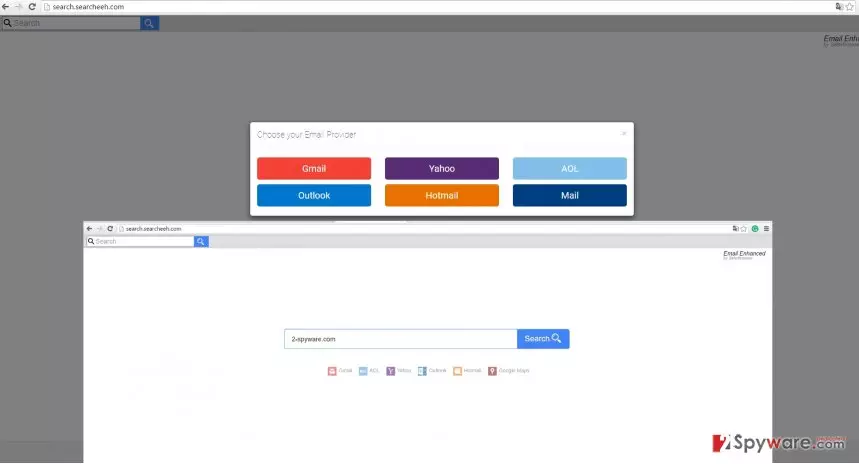
Furthermore, if you have an attentive eye, you might spot that the search results slightly differ from the ones delivered by official and legitimate search engines. The first positions are occupied by advertising websites while your requested page is pushed down below. Moreover, when you enter the page of your interest, you may not succeed in reaching from the first try. In other words, search.searcheeh.com redirect prevents you from doing it. The hijacker might forcefully lead you to sponsored informational web pages. Keep in mind that they may not be safe. Thus, you should not delay search.searcheeh.com removal to reduce the risk of getting infected by the malware possibly hiding in those redirect domains.
How did I get infected with this hijacker?
As we have mentioned above, it is not surprising that Searcheeh sneaked into the PC if you have been using Email Enhanced application or one of the search engines created by Safer Browser. Alternatively, the hijacker may have slithered into the PC when you installed a new design modeling tool or audio converter. In order to understand how Search.searcheeh.com hijack happened, you should try to recall whether there were any add-ons pre-checked when you rushed through the installation stages. Since you committed the same mistake as the majority of users by recklessly finishing the installation guide, the hijacker easily entered the computer. Next time you are about to install a new application, select “Custom” settings and then watch for any add-ons which might be of any suspicion to you.
Search.searcheeh.com removal guidelines
It is possible to eliminate the hijacker manually and automatically. We recommend using the latter method since an anti-spyware program saves you time and energy dealing with Search.searcheeh.com virus. The program also performs the role of an invaluable guardian of the operating system. The software will be able to block any minor or more aggressive malware. In addition, you can remove search.searcheeh.com manually. Feel free to use the ones provided by our specialists. Do not miss any detail in order not to get hijacked by any Safer Browser PUP.
Uninstall from Windows
Uninstall from Windows 10/8:
- Type Control Panel into the Windows search box and open the result.
- Under Programs, select Uninstall a program.


Uninstall from Windows 7/XP:
- Click on Windows Start > Control Panel (Windows XP users should click on Add/Remove Programs).
- In Control Panel, select Programs > Uninstall a program.


Remove the unwanted program:
- In the Programs and Features window, look for any recently installed suspicious entries, select them, and click Uninstall.
- If User Account Control appears, click Yes to confirm, then complete the removal.


Delete from macOS
Remove the unwanted application:
- From the menu bar, select Go > Applications.
- In the Applications folder, look for any suspicious entries, then drag them to Trash (or right-click and pick Move to Trash).


Delete leftover files and folders:
- Select Go > Go to Folder.
- Enter /Library/Application Support and remove any suspicious folders related to the unwanted program.
- Repeat the same check in the /Library/LaunchAgents and /Library/LaunchDaemons folders, deleting any suspicious entries.

- Finally, empty the Trash to permanently remove the leftovers.

Remove from Microsoft Edge
Delete unwanted extensions from MS Edge:
- Select Menu (three horizontal dots at the top-right of the browser window) and pick Extensions.
- From the list, pick the extension and click on the Gear icon.
- Click Remove.


Clear cookies and other browser data:
- Click on the Menu (three horizontal dots at the top-right of the browser window) and select Settings > Privacy, search, and services..
- Under Clear browsing data, pick Choose what to clear.
- Select Cookies and other site data and Cached images and files. (apart from passwords, although you might want to include Media licenses as well, if applicable) and click on Clear.


Restore new tab and homepage settings:
- Click the menu icon and choose Settings.
- Then find On startup section.
- Click Remove next to any suspicious startup page.
Reset MS Edge if the above steps did not work:
- Press on Ctrl + Shift + Esc to open Task Manager.
- Click on More details arrow at the bottom of the window.
- Select Details tab.
- Now scroll down and locate every entry with Microsoft Edge name in it. Right-click on each of them and select End Task to stop MS Edge from running.


Instructions for Chromium-based Edge
Delete extensions from MS Edge (Chromium):
- Open Edge and click select Settings > Extensions.
- Delete unwanted extensions by clicking Remove.


Clear cache and site data:
- Click on Menu and go to Settings.
- Select Privacy, search and services.
- Under Clear browsing data, pick Choose what to clear.
- Under Time range, pick All time.
- Select Clear now.


Reset Chromium-based MS Edge:
- Click on Menu and select Settings.
- On the left side, pick Reset settings.
- Select Restore settings to their default values.
- Confirm with Reset.
- This will disable extensions and reset startup pages but will not delete bookmarks, saved passwords, or browsing history.


Remove from Mozilla Firefox (FF)
Remove dangerous extensions:
- Open Mozilla Firefox browser and click on the Menu (three horizontal lines at the top-right of the window).
- Select Add-ons.
- In here, select the unwanted extension and click Remove.


Reset the homepage:
- Click three horizontal lines at the top right corner to open the menu.
- Choose Settings.
- Under Home, set your preferred homepage and new tab settings.
Clear cookies and site data:
- Click Menu and pick Settings.
- Go to Privacy & Security section.
- Scroll down to locate Cookies and Site Data.
- Click on Clear Data...
- Select Cookies and Site Data and Temporary cached files and pages, then click Clear.


Reset Mozilla Firefox
If clearing the browser as explained above did not help, reset Mozilla Firefox:
- Open Mozilla Firefox browser and click the Menu.
- Go to Help and then choose Troubleshooting Information.

- Under Give Firefox a tune up section, click on Refresh Firefox...
- Once the pop-up shows up, confirm the action by pressing on Refresh Firefox.



Remove from Google Chrome
Delete malicious extensions from Google Chrome:
- Open Google Chrome, click on the Menu (three vertical dots at the top-right corner) and select More tools > Extensions.
- In the newly opened window, you will see all the installed extensions. Uninstall all suspicious extensions related to the unwanted program by clicking Remove.


Clear cache and web data from Chrome:
- Click on Menu and pick Settings.
- Under Privacy and security, select Clear browsing data.
- Select Browsing history, Cookies and other site data, as well as Cached images and files.
- Click Clear data.


Change your homepage:
- Click menu and choose Settings.
- Look for a suspicious site in the On startup section.
- Click on Open a specific or set of pages and click on three dots to find the Remove option.
Reset Google Chrome:
If the previous methods did not help you, reset Google Chrome to eliminate all the unwanted components:
- Click on Menu and select Settings.
- In the Settings, scroll down and click Advanced.
- Scroll down and locate Reset and clean up section.
- Now click Restore settings to their original defaults.
- Confirm with Reset settings.


Delete from Safari
Remove dangerous extensions:
- Open Safari, click Safari in the menu at the top-left of the screen, and select Preferences.
- Go to the Extensions tab, look for any suspicious entries, and click Uninstall to remove them.


Clear history and website data:
- Click Safari in the menu and pick Clear History.
- Set Clear to all history and confirm with Clear History.


Reset Safari:
- Click Safari in the menu and select Preferences > Advanced.
- Enable Show Develop menu in menu bar.
- From the menu bar, click Develop and select Empty Caches.


Did this guide help?
3 comments
Jockey
Safer Browser Ltd. is surely working hard.
Brandy
I already have the immunity against this sort of malware.
David
That was unexpected hijack...