

Should you be terrified of search.searchgmf.com virus?
Tired of Safer Browser hijackers? Muster your patience as this company has released another browser hijacker – search.searchgmf.com virus. Like the rest of the group, this potentially fraudulent search engine will try to lead you to unknown websites and bombard you with highly annoying advertisements. What is more, it watches your every step made in the virtual world as it collects your non-personally identifiable information (NPII). If you do not want to remain under constant watch, then, it is time for search.searchgmf.com removal.
The owners of Safer Browser might be praised for their creativeness. They try to come up with exceptional browser hijacker every time. For example, one search engine, such as search.yourtelevisionnow.com, provides instant access to movie streaming website, another – search.fc-cmf.com – lets you reach your email accounts just with one click. The current PUP is more entertainment-based. Search.searchgmf.com delivers the ability to access quickly the websites concerning one or another American celebrity. The advertisement platforms offer to visit web pages about Miss Universe or obtain Jitterbug cell phones. On the top of the browser hijacker, you can visit the different maps: Google, Bing, Yahoo Maps.
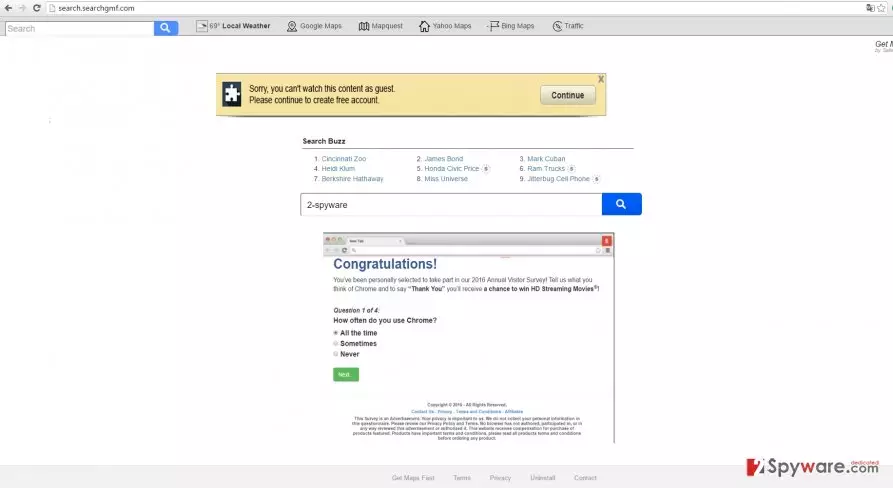
Certainly, such ad-supported search engine will not be as reliable as a legitimate one. In addition, within a short while, search.searchgmf.com redirect might become a bothering issue since you cannot reach the wanted domains from the first attempt. Furthermore, the web pages, you find yourself in, turn out to be either advertising or even pornographic websites. What is more, they do not only irritate you with disturbing content but they might hide viruses which aim to infect your operating system.
In order to ward the viruses off, it is of crucial importance to have a powerful anti-spyware program, FortectIntego, for instance. Lastly, there is a second reason why you should remove search.searchgmf.com. The hijacker might misuse your NPII, which includes your browsing history, frequent search entries, and IP address, by transferring it to third parties. They disclaim any liability if this data contains your personal information. As a result of their “trade” with supportive companies, your browser will be loaded with relevant advertisements designed according to your preferences.
How does Searchgmf infect computers?
If you happen to download new software frequently, then, it is not surprising that your computer has been infected with this hijacker. If you are interested in when search.searchgmf.com hijack occurred, you should recall how the installation process went. After you had initiated the installation wizard, you overlooked the add-ons which came along with your primary programs. Since the attachment carrying search.searchgmf.com browser hijacker was already pre-checked, the PUP got installed as well. If you do not want to get infected with similar malware, remember these tips we are about to give you. Select “Custom” settings. After that, unmark all attachments which seem irrelevant.
How can I quickly remove search.searchgmf.com?
It is not difficult to get rid of search.searchgmf.com virus if you install an anti-spyware program. It will serve as irreplaceable protector of the operating system. If you update this program regularly, you can be sure that it will guard you against various sorts of malware. Alternatively, you can complete search.searchgmf.com removal manually as well. Go through the guidelines carefully so that you would not miss any important detail. Lastly, it is always useful to check the official publisher and “Terms of Use” of the program you about to install.
Uninstall from Windows
Uninstall from Windows 10/8:
- Type Control Panel into the Windows search box and open the result.
- Under Programs, select Uninstall a program.


Uninstall from Windows 7/XP:
- Click on Windows Start > Control Panel (Windows XP users should click on Add/Remove Programs).
- In Control Panel, select Programs > Uninstall a program.


Remove the unwanted program:
- In the Programs and Features window, look for any recently installed suspicious entries, select them, and click Uninstall.
- If User Account Control appears, click Yes to confirm, then complete the removal.


Delete from macOS
Remove the unwanted application:
- From the menu bar, select Go > Applications.
- In the Applications folder, look for any suspicious entries, then drag them to Trash (or right-click and pick Move to Trash).


Delete leftover files and folders:
- Select Go > Go to Folder.
- Enter /Library/Application Support and remove any suspicious folders related to the unwanted program.
- Repeat the same check in the /Library/LaunchAgents and /Library/LaunchDaemons folders, deleting any suspicious entries.

- Finally, empty the Trash to permanently remove the leftovers.

Remove from Microsoft Edge
Delete unwanted extensions from MS Edge:
- Select Menu (three horizontal dots at the top-right of the browser window) and pick Extensions.
- From the list, pick the extension and click on the Gear icon.
- Click Remove.


Clear cookies and other browser data:
- Click on the Menu (three horizontal dots at the top-right of the browser window) and select Settings > Privacy, search, and services..
- Under Clear browsing data, pick Choose what to clear.
- Select Cookies and other site data and Cached images and files. (apart from passwords, although you might want to include Media licenses as well, if applicable) and click on Clear.


Restore new tab and homepage settings:
- Click the menu icon and choose Settings.
- Then find On startup section.
- Click Remove next to any suspicious startup page.
Reset MS Edge if the above steps did not work:
- Press on Ctrl + Shift + Esc to open Task Manager.
- Click on More details arrow at the bottom of the window.
- Select Details tab.
- Now scroll down and locate every entry with Microsoft Edge name in it. Right-click on each of them and select End Task to stop MS Edge from running.


Instructions for Chromium-based Edge
Delete extensions from MS Edge (Chromium):
- Open Edge and click select Settings > Extensions.
- Delete unwanted extensions by clicking Remove.


Clear cache and site data:
- Click on Menu and go to Settings.
- Select Privacy, search and services.
- Under Clear browsing data, pick Choose what to clear.
- Under Time range, pick All time.
- Select Clear now.


Reset Chromium-based MS Edge:
- Click on Menu and select Settings.
- On the left side, pick Reset settings.
- Select Restore settings to their default values.
- Confirm with Reset.
- This will disable extensions and reset startup pages but will not delete bookmarks, saved passwords, or browsing history.


Remove from Mozilla Firefox (FF)
Remove dangerous extensions:
- Open Mozilla Firefox browser and click on the Menu (three horizontal lines at the top-right of the window).
- Select Add-ons.
- In here, select the unwanted extension and click Remove.


Reset the homepage:
- Click three horizontal lines at the top right corner to open the menu.
- Choose Settings.
- Under Home, set your preferred homepage and new tab settings.
Clear cookies and site data:
- Click Menu and pick Settings.
- Go to Privacy & Security section.
- Scroll down to locate Cookies and Site Data.
- Click on Clear Data...
- Select Cookies and Site Data and Temporary cached files and pages, then click Clear.


Reset Mozilla Firefox
If clearing the browser as explained above did not help, reset Mozilla Firefox:
- Open Mozilla Firefox browser and click the Menu.
- Go to Help and then choose Troubleshooting Information.

- Under Give Firefox a tune up section, click on Refresh Firefox...
- Once the pop-up shows up, confirm the action by pressing on Refresh Firefox.



Remove from Google Chrome
Delete malicious extensions from Google Chrome:
- Open Google Chrome, click on the Menu (three vertical dots at the top-right corner) and select More tools > Extensions.
- In the newly opened window, you will see all the installed extensions. Uninstall all suspicious extensions related to the unwanted program by clicking Remove.


Clear cache and web data from Chrome:
- Click on Menu and pick Settings.
- Under Privacy and security, select Clear browsing data.
- Select Browsing history, Cookies and other site data, as well as Cached images and files.
- Click Clear data.


Change your homepage:
- Click menu and choose Settings.
- Look for a suspicious site in the On startup section.
- Click on Open a specific or set of pages and click on three dots to find the Remove option.
Reset Google Chrome:
If the previous methods did not help you, reset Google Chrome to eliminate all the unwanted components:
- Click on Menu and select Settings.
- In the Settings, scroll down and click Advanced.
- Scroll down and locate Reset and clean up section.
- Now click Restore settings to their original defaults.
- Confirm with Reset settings.


Delete from Safari
Remove dangerous extensions:
- Open Safari, click Safari in the menu at the top-left of the screen, and select Preferences.
- Go to the Extensions tab, look for any suspicious entries, and click Uninstall to remove them.


Clear history and website data:
- Click Safari in the menu and pick Clear History.
- Set Clear to all history and confirm with Clear History.


Reset Safari:
- Click Safari in the menu and select Preferences > Advanced.
- Enable Show Develop menu in menu bar.
- From the menu bar, click Develop and select Empty Caches.


Did this guide help?
3 comments
Brandon
You cannot expect anything proper from the owners of Safer Browser...
Kirk
Thanks for the tips.
Debbie
Guys, its time to update your security apps.