

Search.searchswift.co – a fake search engine that looks more useful than it is
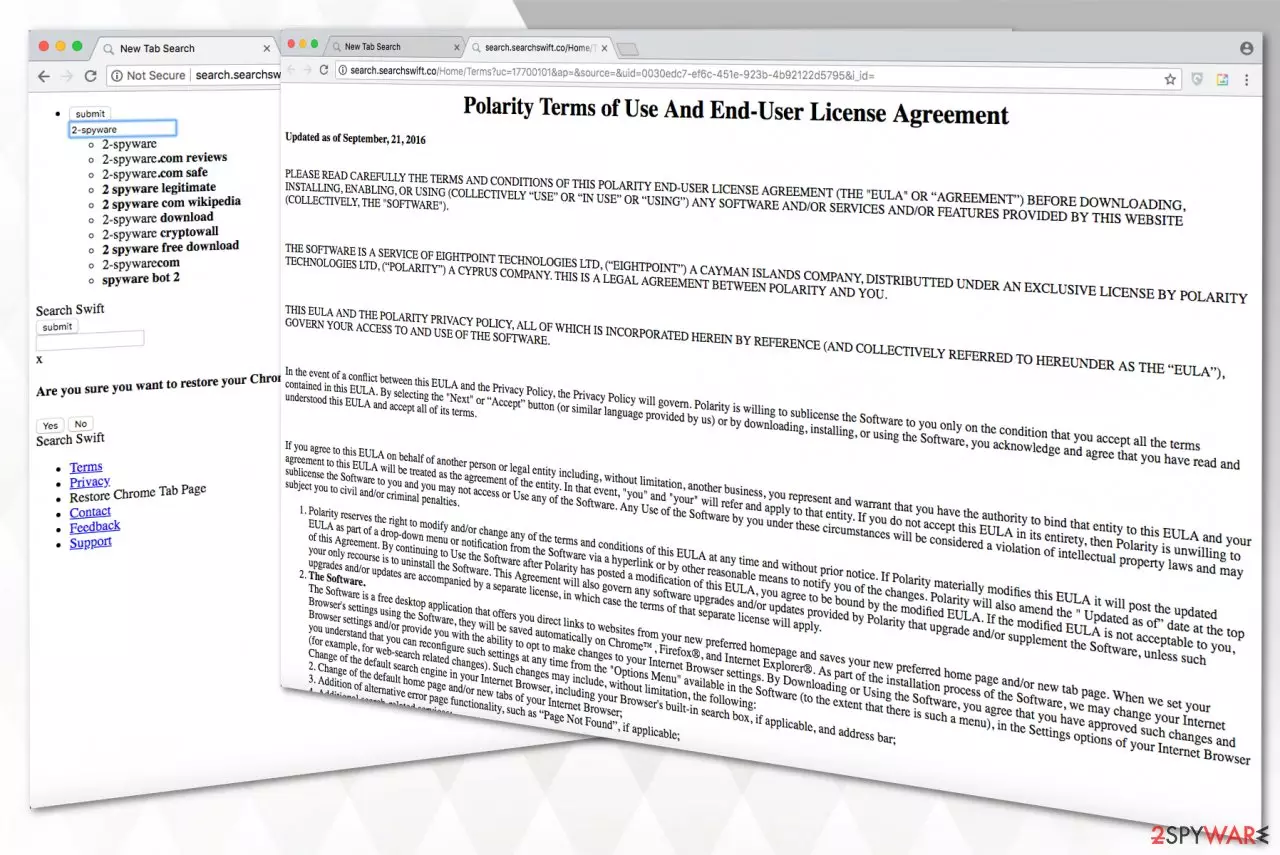
Search.searchswift.co is a potentially unwanted program (PUP)[1] that disguises itself as a legitimate search engine. According to developers, it can enhance the browsing experience with improved results. Lead alone on the appearance of this site, it can seem authorized and useful.
However, it can make your daily browsing almost unbearable. This browser hijacker changes your browser settings (new tab, homepage, default search engine) so every time you open a new tab or input a search inquire into the URL bar, you're redirected through Search.searchswift.co to Yahoo Search.
| Name | Search.searchswift.co |
|---|---|
| Type | Browser hijacker |
| Distribution | Hides inside the installers of shareware |
| Danger Level | Medium |
| Symptoms | It forces to perform searches through the unreliable search engine and prevents from bringing the browser to the primary state |
| Elimination | Additional components of the PUP might make its removal complicated. Thus, use reliable security tools for its removal |
| System fix | After you remove all threats, run system diagnostics with the FortectIntego app to ensure a stable working environment |
A developer of this browser hijacker – Polarity Technologies Ltd., promotes it bundled up with other PUPs. Thus, people might not even recognize when the hijacker takes over most popular browsers, like Google Chrome, Mozilla Firefox, Internet Explorer, etc.
As mentioned before, the browser hijacker also modifies homepage and new tab URL by assigning them to their own. As long as these changes are done, and the program is on the computer, users are unable to reverse them, and the removal of Search.searchswift.co becomes difficult.
The PUP also might cause redirects to questionable websites. This diminishes the quality of the time its users spend online. Moreover, once a search query is performed, people end up on the customized Yahoo search engine injected with ads.

And lastly, the article's culprit records various data from the browsers' history. Unfortunately, collected IP addresses, URLs, visited pages, and search queries usually may include personal information. This data can later be used by third parties who generate advertisements and other commercial content.
The ads make the browsing experience into a vicious circle of redirects, and people become eager to remove Search.searchswift.co to make their browsing experience pleasant again. You can quickly clean your computer from potentially unwanted programs with security apps such as MalwarebytesMalwarebytes or SpyHunterCombo Cleaner. Afterward, use PC repair software like the FortectIntego app to fix all system-related errors.
Rushed downloads lead to cyber infections
People tend to skip through significant steps even when downloading and installing the necessary software. This careless behavior is causing the installation of free additional programs to a computer system via bundling technique[2] used by developers.
When choosing Advanced or Custom options during installation processes, you can “unpack” those additional programs and de-select the boxes that allow the PUP to enter the system. This way, you would only download the software you need without any browser hijackers or other potentially dangerous programs.
However, the PUP might reach your computer in other ways as well. For example, we always recommend staying away from various forms of ads, including pop-ups, banners, etc. Some of them might be designed to infiltrate your computer with unwanted programs automatically.
Therefore, you need to pay attention to where you are searching the web and be aware of any changes in your browser. It is essential to track unknown installations and eliminate all components that have been installed without your consent. It includes extensions, plug-ins, toolbars since they can often be established arbitrarily and be potentially dangerous to your system and browser.
Search.searchswift.co removal is essential to avoid more dangerous infections
Search.searchswift.co virus is not an actual high-risk cyber threat, but you need to eliminate it to prevent more significant infections and actual malware. Experts from Bedynet.ru[3] warn that usually, the activity of potentially unwanted programs might expose your system's vulnerabilities and help infiltrate it with malware.
Be aware that most of those fake search engine websites seem legitimate. Still, often they take you to gambling, adult dating, pornography, and other dubious sites that are filled with advertisements. Remove the threat and related toolbars from your browser to enjoy browsing again.
If you encounter any suspicious ads, delete all suspicious extensions and plug-ins from your browser. Avoid clicking on any advertisement, banners, and pop-ups. Furthermore, you can do all of this with only one click if you employ a legitimate tool for Search.searchswift.co removal.
Uninstall from Windows
Uninstall from Windows 10/8:
- Type Control Panel into the Windows search box and open the result.
- Under Programs, select Uninstall a program.


Uninstall from Windows 7/XP:
- Click on Windows Start > Control Panel (Windows XP users should click on Add/Remove Programs).
- In Control Panel, select Programs > Uninstall a program.


Remove the unwanted program:
- In the Programs and Features window, look for any recently installed suspicious entries, select them, and click Uninstall.
- If User Account Control appears, click Yes to confirm, then complete the removal.


Delete from macOS
Remove the unwanted application:
- From the menu bar, select Go > Applications.
- In the Applications folder, look for any suspicious entries, then drag them to Trash (or right-click and pick Move to Trash).


Delete leftover files and folders:
- Select Go > Go to Folder.
- Enter /Library/Application Support and remove any suspicious folders related to the unwanted program.
- Repeat the same check in the /Library/LaunchAgents and /Library/LaunchDaemons folders, deleting any suspicious entries.

- Finally, empty the Trash to permanently remove the leftovers.

Remove from Microsoft Edge
Delete unwanted extensions from MS Edge:
- Select Menu (three horizontal dots at the top-right of the browser window) and pick Extensions.
- From the list, pick the extension and click on the Gear icon.
- Click Remove.


Clear cookies and other browser data:
- Click on the Menu (three horizontal dots at the top-right of the browser window) and select Settings > Privacy, search, and services..
- Under Clear browsing data, pick Choose what to clear.
- Select Cookies and other site data and Cached images and files. (apart from passwords, although you might want to include Media licenses as well, if applicable) and click on Clear.


Restore new tab and homepage settings:
- Click the menu icon and choose Settings.
- Then find On startup section.
- Click Remove next to any suspicious startup page.
Reset MS Edge if the above steps did not work:
- Press on Ctrl + Shift + Esc to open Task Manager.
- Click on More details arrow at the bottom of the window.
- Select Details tab.
- Now scroll down and locate every entry with Microsoft Edge name in it. Right-click on each of them and select End Task to stop MS Edge from running.


Instructions for Chromium-based Edge
Delete extensions from MS Edge (Chromium):
- Open Edge and click select Settings > Extensions.
- Delete unwanted extensions by clicking Remove.


Clear cache and site data:
- Click on Menu and go to Settings.
- Select Privacy, search and services.
- Under Clear browsing data, pick Choose what to clear.
- Under Time range, pick All time.
- Select Clear now.


Reset Chromium-based MS Edge:
- Click on Menu and select Settings.
- On the left side, pick Reset settings.
- Select Restore settings to their default values.
- Confirm with Reset.
- This will disable extensions and reset startup pages but will not delete bookmarks, saved passwords, or browsing history.


Remove from Mozilla Firefox (FF)
Remove dangerous extensions:
- Open Mozilla Firefox browser and click on the Menu (three horizontal lines at the top-right of the window).
- Select Add-ons.
- In here, select the unwanted extension and click Remove.


Reset the homepage:
- Click three horizontal lines at the top right corner to open the menu.
- Choose Settings.
- Under Home, set your preferred homepage and new tab settings.
Clear cookies and site data:
- Click Menu and pick Settings.
- Go to Privacy & Security section.
- Scroll down to locate Cookies and Site Data.
- Click on Clear Data...
- Select Cookies and Site Data and Temporary cached files and pages, then click Clear.


Reset Mozilla Firefox
If clearing the browser as explained above did not help, reset Mozilla Firefox:
- Open Mozilla Firefox browser and click the Menu.
- Go to Help and then choose Troubleshooting Information.

- Under Give Firefox a tune up section, click on Refresh Firefox...
- Once the pop-up shows up, confirm the action by pressing on Refresh Firefox.



Remove from Google Chrome
Delete malicious extensions from Google Chrome:
- Open Google Chrome, click on the Menu (three vertical dots at the top-right corner) and select More tools > Extensions.
- In the newly opened window, you will see all the installed extensions. Uninstall all suspicious extensions related to the unwanted program by clicking Remove.


Clear cache and web data from Chrome:
- Click on Menu and pick Settings.
- Under Privacy and security, select Clear browsing data.
- Select Browsing history, Cookies and other site data, as well as Cached images and files.
- Click Clear data.


Change your homepage:
- Click menu and choose Settings.
- Look for a suspicious site in the On startup section.
- Click on Open a specific or set of pages and click on three dots to find the Remove option.
Reset Google Chrome:
If the previous methods did not help you, reset Google Chrome to eliminate all the unwanted components:
- Click on Menu and select Settings.
- In the Settings, scroll down and click Advanced.
- Scroll down and locate Reset and clean up section.
- Now click Restore settings to their original defaults.
- Confirm with Reset settings.


Delete from Safari
Remove dangerous extensions:
- Open Safari, click Safari in the menu at the top-left of the screen, and select Preferences.
- Go to the Extensions tab, look for any suspicious entries, and click Uninstall to remove them.


Clear history and website data:
- Click Safari in the menu and pick Clear History.
- Set Clear to all history and confirm with Clear History.


Reset Safari:
- Click Safari in the menu and select Preferences > Advanced.
- Enable Show Develop menu in menu bar.
- From the menu bar, click Develop and select Empty Caches.


Did this guide help?
Be the first to comment