

Why Search.searchtnr.com is not a trustworthy search engine?
If you are looking for a reliable and functional search engine, Search.searchtnr.com is definitely not it. In fact, it is a browser hijacker virus that you should look out for if you want to maintain your browsing uninterrupted with ads, unpredictable redirects, and different browser errors. The mentioned category of viruses is not regarded as particularly malicious, yet the cyber security experts still put it on the list of potentially unwanted programs. Just like the majority of browser hijackers that settle on the user’s computers against their owner’s will, this supposedly legitimate-looking search service does not deserve to stay as your homepage or a default search engine. You can remove Search.searchtnr.com without even second-thinking it because this program will not benefit your browsing experience at all. We should note that this virus is capable of infecting both, Windows and Mac OS X operating systems and all the installed browsers. So, if you Google Chrome, Mozilla Firefox or Internet Explorer show any signs of infection, scan your computer with FortectIntego anti-malware utility. In case the virus has taken over your Safari browser, use FortectIntego antivirus software.
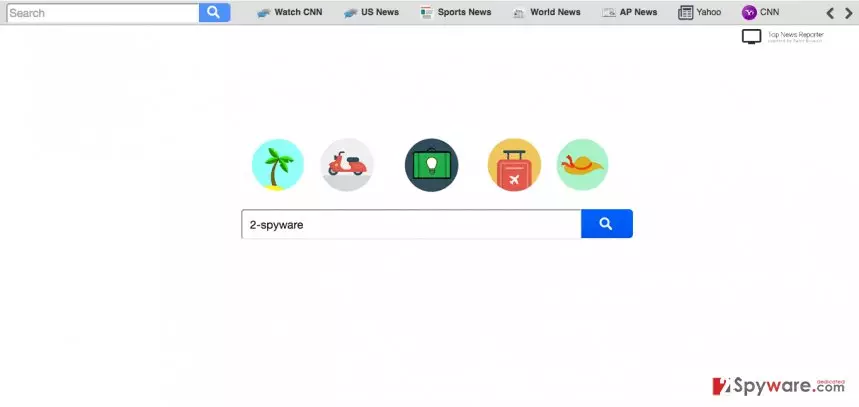
Malware hijack can not only be annoying but dangerous as well. Bogus search engines can redirect you to questionable domains, display deceptive ads, generally decreasing the information accessibility. We should also point out that Search.searchtnr.com is not an original search engine either. It generates its results using the default Yahoo search engine, bringing out the sponsored links and advertisements to the top. This way, you spend more time looking for the really important data. Since browser hijacker viruses are highly unpredictable, you also risk clicking on some potentially infectious ads or links as well. Besides, you may also find that you are being tracked and different deals you are being offered closely relate to your search queries or visited websites. Do not be deceived; it is just a trick to get you involved in the pay-per-click business this browser hijacker leads. You should not let the virus take hold of your computer and proceed with the Search.searchtnr.com removal without wasting time.
How does a browser hijacker take over your browser?
Search.searchtnr.com can take over the control over the browsers without much trouble. Luckily for the malware creators and unfortunately for the users, the main vulnerability allowing the potentially unwanted programs to sneak into the computer is one simple step the users often skip during the new software setup. Often they push aside the Advanced or the Custom setup modes to achieve a quicker installation. What they are often unaware of, though, is that today software usually travels in packages, which means that you might be up for some very unpleasant surprises if you do not inspect what software you are actually allowing on your PC. Opting for the mentioned Advanced or Custom setting is the key step in exposing all the optional content of the software package. So take your time and make sure you do not accidentally install Search.searchtnr.com as a homepage or the default search engine of your browser.
How do I remove Search.searchtnr.com from my computer?
Browser hijackers can be rather difficult to get rid of, so it is no wonder that the users who have been infected are looking for Search.searchtnr.com removal advice. If you are one of those people, you’ve come to the right place as we have prepared a comprehensive step-by-step tutorial, which you can use to remove Search.searchtnr.com from your computer quickly and confidently. Automatic elimination is also a possible and advisable option you can go for dealing with potentially unwanted programs. There are a variety of anti-malware solutions you can choose from depending on your the type of your operating system and its capacities.
Uninstall from Windows
Uninstall from Windows 10/8:
- Type Control Panel into the Windows search box and open the result.
- Under Programs, select Uninstall a program.


Uninstall from Windows 7/XP:
- Click on Windows Start > Control Panel (Windows XP users should click on Add/Remove Programs).
- In Control Panel, select Programs > Uninstall a program.


Remove the unwanted program:
- In the Programs and Features window, look for any recently installed suspicious entries, select them, and click Uninstall.
- If User Account Control appears, click Yes to confirm, then complete the removal.


Delete from macOS
Remove the unwanted application:
- From the menu bar, select Go > Applications.
- In the Applications folder, look for any suspicious entries, then drag them to Trash (or right-click and pick Move to Trash).


Delete leftover files and folders:
- Select Go > Go to Folder.
- Enter /Library/Application Support and remove any suspicious folders related to the unwanted program.
- Repeat the same check in the /Library/LaunchAgents and /Library/LaunchDaemons folders, deleting any suspicious entries.

- Finally, empty the Trash to permanently remove the leftovers.

Remove from Microsoft Edge
Delete unwanted extensions from MS Edge:
- Select Menu (three horizontal dots at the top-right of the browser window) and pick Extensions.
- From the list, pick the extension and click on the Gear icon.
- Click Remove.


Clear cookies and other browser data:
- Click on the Menu (three horizontal dots at the top-right of the browser window) and select Settings > Privacy, search, and services..
- Under Clear browsing data, pick Choose what to clear.
- Select Cookies and other site data and Cached images and files. (apart from passwords, although you might want to include Media licenses as well, if applicable) and click on Clear.


Restore new tab and homepage settings:
- Click the menu icon and choose Settings.
- Then find On startup section.
- Click Remove next to any suspicious startup page.
Reset MS Edge if the above steps did not work:
- Press on Ctrl + Shift + Esc to open Task Manager.
- Click on More details arrow at the bottom of the window.
- Select Details tab.
- Now scroll down and locate every entry with Microsoft Edge name in it. Right-click on each of them and select End Task to stop MS Edge from running.


Instructions for Chromium-based Edge
Delete extensions from MS Edge (Chromium):
- Open Edge and click select Settings > Extensions.
- Delete unwanted extensions by clicking Remove.


Clear cache and site data:
- Click on Menu and go to Settings.
- Select Privacy, search and services.
- Under Clear browsing data, pick Choose what to clear.
- Under Time range, pick All time.
- Select Clear now.


Reset Chromium-based MS Edge:
- Click on Menu and select Settings.
- On the left side, pick Reset settings.
- Select Restore settings to their default values.
- Confirm with Reset.
- This will disable extensions and reset startup pages but will not delete bookmarks, saved passwords, or browsing history.


Remove from Mozilla Firefox (FF)
Remove dangerous extensions:
- Open Mozilla Firefox browser and click on the Menu (three horizontal lines at the top-right of the window).
- Select Add-ons.
- In here, select the unwanted extension and click Remove.


Reset the homepage:
- Click three horizontal lines at the top right corner to open the menu.
- Choose Settings.
- Under Home, set your preferred homepage and new tab settings.
Clear cookies and site data:
- Click Menu and pick Settings.
- Go to Privacy & Security section.
- Scroll down to locate Cookies and Site Data.
- Click on Clear Data...
- Select Cookies and Site Data and Temporary cached files and pages, then click Clear.


Reset Mozilla Firefox
If clearing the browser as explained above did not help, reset Mozilla Firefox:
- Open Mozilla Firefox browser and click the Menu.
- Go to Help and then choose Troubleshooting Information.

- Under Give Firefox a tune up section, click on Refresh Firefox...
- Once the pop-up shows up, confirm the action by pressing on Refresh Firefox.



Remove from Google Chrome
Delete malicious extensions from Google Chrome:
- Open Google Chrome, click on the Menu (three vertical dots at the top-right corner) and select More tools > Extensions.
- In the newly opened window, you will see all the installed extensions. Uninstall all suspicious extensions related to the unwanted program by clicking Remove.


Clear cache and web data from Chrome:
- Click on Menu and pick Settings.
- Under Privacy and security, select Clear browsing data.
- Select Browsing history, Cookies and other site data, as well as Cached images and files.
- Click Clear data.


Change your homepage:
- Click menu and choose Settings.
- Look for a suspicious site in the On startup section.
- Click on Open a specific or set of pages and click on three dots to find the Remove option.
Reset Google Chrome:
If the previous methods did not help you, reset Google Chrome to eliminate all the unwanted components:
- Click on Menu and select Settings.
- In the Settings, scroll down and click Advanced.
- Scroll down and locate Reset and clean up section.
- Now click Restore settings to their original defaults.
- Confirm with Reset settings.


Delete from Safari
Remove dangerous extensions:
- Open Safari, click Safari in the menu at the top-left of the screen, and select Preferences.
- Go to the Extensions tab, look for any suspicious entries, and click Uninstall to remove them.


Clear history and website data:
- Click Safari in the menu and pick Clear History.
- Set Clear to all history and confirm with Clear History.


Reset Safari:
- Click Safari in the menu and select Preferences > Advanced.
- Enable Show Develop menu in menu bar.
- From the menu bar, click Develop and select Empty Caches.


Did this guide help?
2 comments
Harold Ringo
Can it spy on your emails, too??
jacob
What a waste of computer space! I deleted it immediately after installing. Even though I shoulda probably not installed it in the first place...haha