

Key facts why you should install search.shockmute.com
If you are looking for a way to liven up your browsing, Search.shockmute.com virus might attract your attention. It looks like an ordinary search engine. Nonetheless, when you start to use it, you might notice that a series of annoying outcomes start to appear. Your hopes for a speedy and efficient browsing might be shattered by occasional redirects to sponsored domains and excessive advertising. Such phenomena are not surprising taking into account that this website happens to be a browser hijacker [1]. Therefore, we recommend you to remove search.shockmute.com. If you are unsure how to do it, let FortectIntego help you.
The category of browser hijackers presents a number of vivid and intriguing search engines. They vary by design, the number of delivered search results, and effectiveness. Some of them do not take extra measures to catch your attention, while others intrusively bombard you with offers in every website. While using this browser hijacker, you may often get bothered by search.shockmute.com redirect. As a result, you may get directed to the domain which was not your initial destination. Likewise, you might get carried away to a web page containing corrupted links or other malevolent content [2]. Redirect happens because the developers of this website cooperate with third-parties in exchange for their support. Due to such bargain, they collect information about users‘ browsing habits. According to the privacy policy, Shock Mute might share your non-personal information with third parties. Even if you happen to be a very patient user and continuous ads do not bother, you might still get frustrated when your secret holiday shopping gets public [3]. In relation to this, poorly protected information might also fall into the hands of scammers which exploit technical information about your OS for their hacking techniques [4].
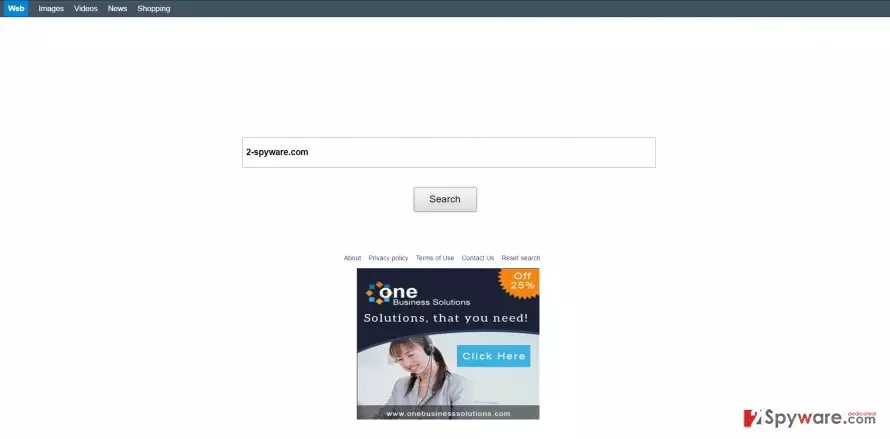
Search.shockmute.com hijacker may also attach unwanted toolbars and extensions to supposedly improve your browsing experience. What is more, “helper elements” also happen to be an integral part of this browsing tool. Specifically, they ensure that you would not get rid of the hijacker easily. These files also monitor the activity of related extensions. It is common sense that the more extensions overcrowd your browser, the slower it gets. That is why we recommend proceeding to search.shockmute.com removal right away.
The distribution preferences of the hijacker
Commonly, you might spot it bundled with free applications. Even Skype, Adobe Reader or Flash Player might contain “bonus’ applications which remain unnoticed during the installation process. Internet safety does not only depend on having a security program but on your personal vigilance as well [5]. In order to avoid Search.shockmute.com hijack in the future, we recommend changing your habits while installing new programs. In short, when you intend to install any application, firstly, choose “Advanced” settings. Afterward, carefully advance through each stage to spot optional tools. Unmark the unnecessary ones and only then hit “Install.”
Effective Search.shockmute.com elimination
You can successfully get rid of the hijacker using either manual or automatic Search.shockmute.com removal method. If you are in a rush or simply do not intend to waste time on dealing with PUPs, entrust the termination process to an anti-spyware program. It also comes in handy dealing with more aggressive threats, for instance, trojans, rootkits or backdoors. There is also an alternative solution to remove Search.shockmute.com virus. For that, you need to carefully go through the following instructions. You will find guidelines for all major browser types. On the final note, skimming trough privacy policies might give you an idea how reliable one or another application might be.
Uninstall from Windows
Uninstall from Windows 10/8:
- Type Control Panel into the Windows search box and open the result.
- Under Programs, select Uninstall a program.


Uninstall from Windows 7/XP:
- Click on Windows Start > Control Panel (Windows XP users should click on Add/Remove Programs).
- In Control Panel, select Programs > Uninstall a program.


Remove the unwanted program:
- In the Programs and Features window, look for any recently installed suspicious entries, select them, and click Uninstall.
- If User Account Control appears, click Yes to confirm, then complete the removal.


Delete from macOS
Remove the unwanted application:
- From the menu bar, select Go > Applications.
- In the Applications folder, look for any suspicious entries, then drag them to Trash (or right-click and pick Move to Trash).


Delete leftover files and folders:
- Select Go > Go to Folder.
- Enter /Library/Application Support and remove any suspicious folders related to the unwanted program.
- Repeat the same check in the /Library/LaunchAgents and /Library/LaunchDaemons folders, deleting any suspicious entries.

- Finally, empty the Trash to permanently remove the leftovers.

Reset Internet Explorer
Remove dangerous add-ons:
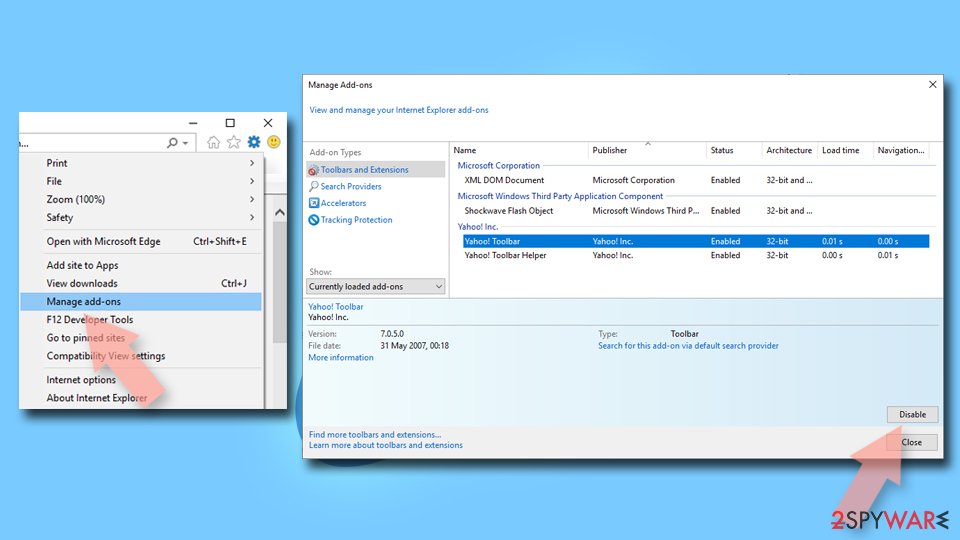
- Open Internet Explorer, click on the Gear icon (IE menu) on the top-right corner of the browser
- Pick Manage Add-ons.
- You will see a Manage Add-ons window. Here, look for suspicious plugins. Click on these entries and select Disable.

Change your homepage if it was altered:
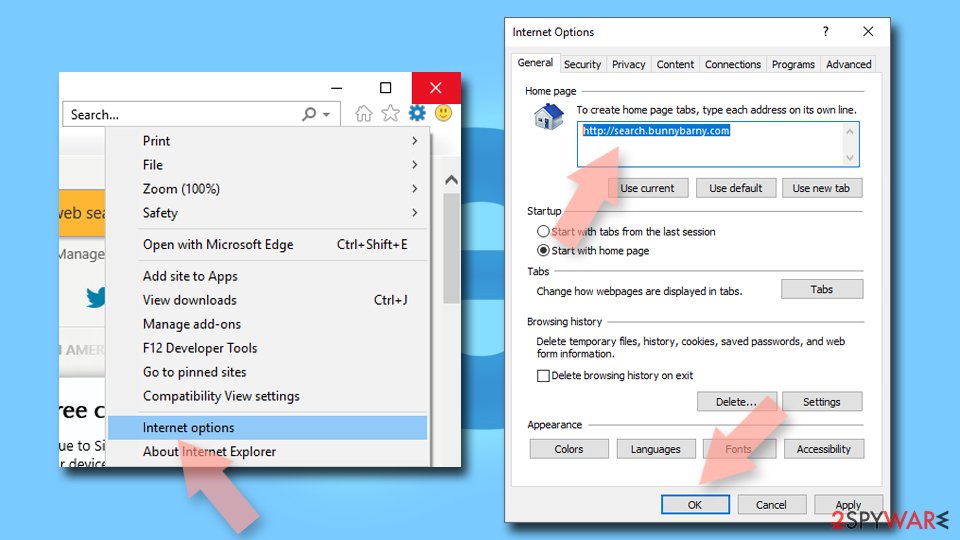
- Open IE and click on the Gear icon.
- Select Internet Options.
- In the General tab, delete the Home page address and replace it by your preferred one (for example, Google.com).
- Click Apply and then select OK.

Delete temporary files:
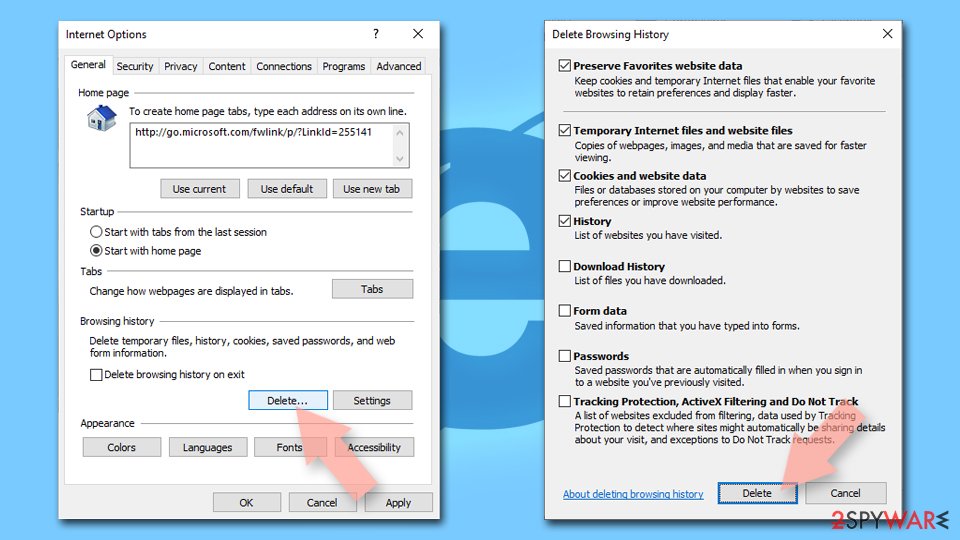
- Press on the Gear icon and select Internet Options.
- Under Browsing history, click Delete...
- Select relevant fields and press Delete.

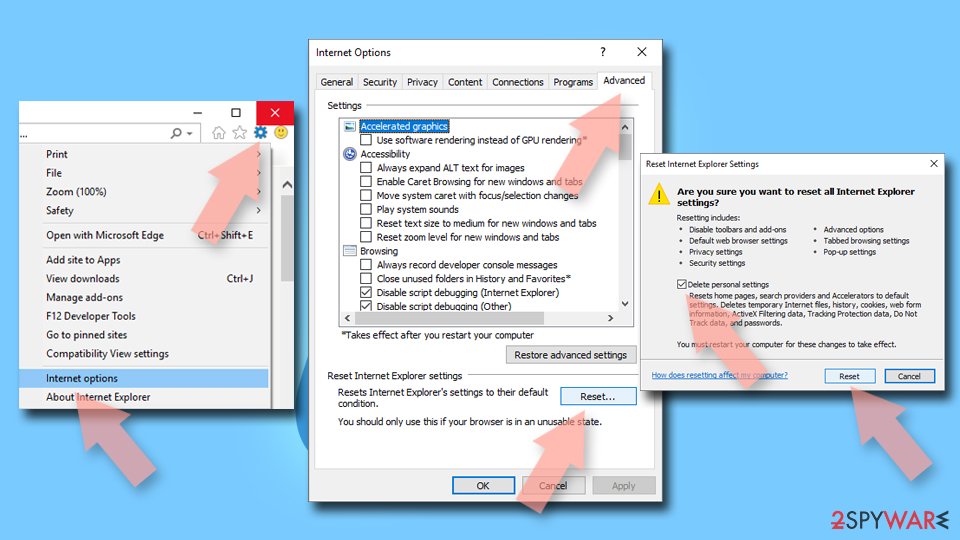
Reset Internet Explorer:
- Click on Gear icon > Internet options and select Advanced tab.
- Select Reset.
- In the new window, check Delete personal settings and select Reset.

Remove from Microsoft Edge
Delete unwanted extensions from MS Edge:
- Select Menu (three horizontal dots at the top-right of the browser window) and pick Extensions.
- From the list, pick the extension and click on the Gear icon.
- Click Remove.


Clear cookies and other browser data:
- Click on the Menu (three horizontal dots at the top-right of the browser window) and select Settings > Privacy, search, and services..
- Under Clear browsing data, pick Choose what to clear.
- Select Cookies and other site data and Cached images and files. (apart from passwords, although you might want to include Media licenses as well, if applicable) and click on Clear.


Restore new tab and homepage settings:
- Click the menu icon and choose Settings.
- Then find On startup section.
- Click Remove next to any suspicious startup page.
Reset MS Edge if the above steps did not work:
- Press on Ctrl + Shift + Esc to open Task Manager.
- Click on More details arrow at the bottom of the window.
- Select Details tab.
- Now scroll down and locate every entry with Microsoft Edge name in it. Right-click on each of them and select End Task to stop MS Edge from running.


Instructions for Chromium-based Edge
Delete extensions from MS Edge (Chromium):
- Open Edge and click select Settings > Extensions.
- Delete unwanted extensions by clicking Remove.


Clear cache and site data:
- Click on Menu and go to Settings.
- Select Privacy, search and services.
- Under Clear browsing data, pick Choose what to clear.
- Under Time range, pick All time.
- Select Clear now.


Reset Chromium-based MS Edge:
- Click on Menu and select Settings.
- On the left side, pick Reset settings.
- Select Restore settings to their default values.
- Confirm with Reset.
- This will disable extensions and reset startup pages but will not delete bookmarks, saved passwords, or browsing history.


Remove from Mozilla Firefox (FF)
Remove dangerous extensions:
- Open Mozilla Firefox browser and click on the Menu (three horizontal lines at the top-right of the window).
- Select Add-ons.
- In here, select the unwanted extension and click Remove.


Reset the homepage:
- Click three horizontal lines at the top right corner to open the menu.
- Choose Settings.
- Under Home, set your preferred homepage and new tab settings.
Clear cookies and site data:
- Click Menu and pick Settings.
- Go to Privacy & Security section.
- Scroll down to locate Cookies and Site Data.
- Click on Clear Data...
- Select Cookies and Site Data and Temporary cached files and pages, then click Clear.


Reset Mozilla Firefox
If clearing the browser as explained above did not help, reset Mozilla Firefox:
- Open Mozilla Firefox browser and click the Menu.
- Go to Help and then choose Troubleshooting Information.

- Under Give Firefox a tune up section, click on Refresh Firefox...
- Once the pop-up shows up, confirm the action by pressing on Refresh Firefox.



Remove from Google Chrome
Delete malicious extensions from Google Chrome:
- Open Google Chrome, click on the Menu (three vertical dots at the top-right corner) and select More tools > Extensions.
- In the newly opened window, you will see all the installed extensions. Uninstall all suspicious extensions related to the unwanted program by clicking Remove.


Clear cache and web data from Chrome:
- Click on Menu and pick Settings.
- Under Privacy and security, select Clear browsing data.
- Select Browsing history, Cookies and other site data, as well as Cached images and files.
- Click Clear data.


Change your homepage:
- Click menu and choose Settings.
- Look for a suspicious site in the On startup section.
- Click on Open a specific or set of pages and click on three dots to find the Remove option.
Reset Google Chrome:
If the previous methods did not help you, reset Google Chrome to eliminate all the unwanted components:
- Click on Menu and select Settings.
- In the Settings, scroll down and click Advanced.
- Scroll down and locate Reset and clean up section.
- Now click Restore settings to their original defaults.
- Confirm with Reset settings.


Delete from Safari
Remove dangerous extensions:
- Open Safari, click Safari in the menu at the top-left of the screen, and select Preferences.
- Go to the Extensions tab, look for any suspicious entries, and click Uninstall to remove them.


Clear history and website data:
- Click Safari in the menu and pick Clear History.
- Set Clear to all history and confirm with Clear History.


Reset Safari:
- Click Safari in the menu and select Preferences > Advanced.
- Enable Show Develop menu in menu bar.
- From the menu bar, click Develop and select Empty Caches.


Did this guide help?
2 comments
freddie2
Luckily, got rid of it in a moment.
mushroom54
Thanks for the tutorial.