

Search.so-v.com virus: good or bad?
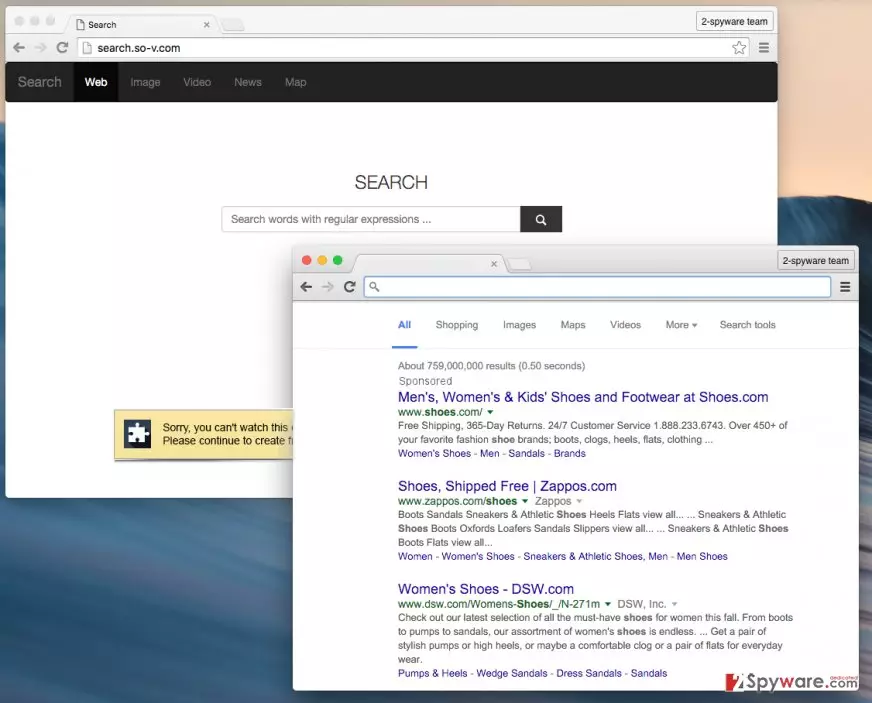
If you are trying to remove Search.so-v.com virus from your web browsers and cannot do that, you may think that you are dealing with a virus. In reality, it’s a browser hijacker, which spreads as an optional component of the free software. If you don’t like monitoring installation of the freeware, you can end up with this search engine without expecting that. Fortunately, the developers of such programs let people prevent infiltration of browser hijackers, adware-type programs, and similar PUPs. More information about that is given below the picture of Search.so-v.com. What’s next? We should warn you that it can show you unreliable search results that are seeking a simple aim – redirect you to related pages. Unfortunately, but there is no guarantee that such websites are safe. You can find yourself on a normal domain, but you can also be redirected to a malicious page. According to 2-spyware.com team, there is no doubt that you have to remove Search.so-v.com from your computer if you want to prevent redirects to unknown and sometimes even suspicious websites. The easiest way to do that is to download a reliable anti-spyware, update it and run a full system scan.
To avoid ending up with unfamiliar programs, such as Search.so-v.com virus, you have to investigate the Privacy Policy, End User’s License Agreement, installation wizard and similar information provided to you during the installation of the freeware. If you can see that everything seems right, you MUST opt for Advanced or Custom installation mode to see whether your selected application does promote third-party software or not. If it is used to lead people to Search.so-v.com hijack, you should uncheck these suggestions.
What is the purpose of Search.so-v.com program:
You may ask – why does Search.so-v.com app seek to enter my computer silently, without asking my permission in a direct way? Well, it does seek to enter the computer silently because it is a shady program that can hardly be useful for the computer user. It tries to pretend to be a reliable search engine while, in reality, it displays sponsored search results. You should not trust this search service because it will never deliver search results that would be helpful or informative.
This search engine delivers normal-looking search outcomes, but you should know that some of them might carry misleading links attached to them. For example, if you click on a search result that should lead you to a shopping website, it might redirect you to a completely different web page, for example, gambling site. Keep in mind that Search.so-v.com redirect can end you up on safe websites, too; however, the most of these redirects can end you up on high-risk websites. Do not risk your computer safety – remove this hijacker now. You can do that with a help of an anti-spyware program (SpyHunter), but you can also remove it manually. The manual Search.so-v.com removal instructions are provided on page 2.
Search.so-v.com removal FAQ:
Question: Search.so-v.com browser parasite won’t go away. I tried to change the homepage, but it keeps coming back again and again. Every time I turn my computer on and launch any web browser, the first web page that shows up is Search.so-v.com. I do not want to keep it; I want to change it to another one. What should I do?
Answer: Browser hijackers are known to have one particular software component that is supposed to spy whether you have changed the homepage or not. If you do, this software component (which is a .exe file) sets Search.so-v.com as the main browser page again. To eliminate this browser hijacker and all of this components, you have to remove Search.so-v.com virus from your system. You can do that manually (manual Search.so-v.com removal guide is provided below) or automatically (use SpyHunter or any other spyware removal tool).
Uninstall from Windows
Uninstall from Windows 10/8:
- Type Control Panel into the Windows search box and open the result.
- Under Programs, select Uninstall a program.


Uninstall from Windows 7/XP:
- Click on Windows Start > Control Panel (Windows XP users should click on Add/Remove Programs).
- In Control Panel, select Programs > Uninstall a program.


Remove the unwanted program:
- In the Programs and Features window, look for any recently installed suspicious entries, select them, and click Uninstall.
- If User Account Control appears, click Yes to confirm, then complete the removal.


Delete from macOS
Remove the unwanted application:
- From the menu bar, select Go > Applications.
- In the Applications folder, look for any suspicious entries, then drag them to Trash (or right-click and pick Move to Trash).


Delete leftover files and folders:
- Select Go > Go to Folder.
- Enter /Library/Application Support and remove any suspicious folders related to the unwanted program.
- Repeat the same check in the /Library/LaunchAgents and /Library/LaunchDaemons folders, deleting any suspicious entries.

- Finally, empty the Trash to permanently remove the leftovers.

Remove from Microsoft Edge
Delete unwanted extensions from MS Edge:
- Select Menu (three horizontal dots at the top-right of the browser window) and pick Extensions.
- From the list, pick the extension and click on the Gear icon.
- Click Remove.


Clear cookies and other browser data:
- Click on the Menu (three horizontal dots at the top-right of the browser window) and select Settings > Privacy, search, and services..
- Under Clear browsing data, pick Choose what to clear.
- Select Cookies and other site data and Cached images and files. (apart from passwords, although you might want to include Media licenses as well, if applicable) and click on Clear.


Restore new tab and homepage settings:
- Click the menu icon and choose Settings.
- Then find On startup section.
- Click Remove next to any suspicious startup page.
Reset MS Edge if the above steps did not work:
- Press on Ctrl + Shift + Esc to open Task Manager.
- Click on More details arrow at the bottom of the window.
- Select Details tab.
- Now scroll down and locate every entry with Microsoft Edge name in it. Right-click on each of them and select End Task to stop MS Edge from running.


Instructions for Chromium-based Edge
Delete extensions from MS Edge (Chromium):
- Open Edge and click select Settings > Extensions.
- Delete unwanted extensions by clicking Remove.


Clear cache and site data:
- Click on Menu and go to Settings.
- Select Privacy, search and services.
- Under Clear browsing data, pick Choose what to clear.
- Under Time range, pick All time.
- Select Clear now.


Reset Chromium-based MS Edge:
- Click on Menu and select Settings.
- On the left side, pick Reset settings.
- Select Restore settings to their default values.
- Confirm with Reset.
- This will disable extensions and reset startup pages but will not delete bookmarks, saved passwords, or browsing history.


Remove from Mozilla Firefox (FF)
Remove dangerous extensions:
- Open Mozilla Firefox browser and click on the Menu (three horizontal lines at the top-right of the window).
- Select Add-ons.
- In here, select the unwanted extension and click Remove.


Reset the homepage:
- Click three horizontal lines at the top right corner to open the menu.
- Choose Settings.
- Under Home, set your preferred homepage and new tab settings.
Clear cookies and site data:
- Click Menu and pick Settings.
- Go to Privacy & Security section.
- Scroll down to locate Cookies and Site Data.
- Click on Clear Data...
- Select Cookies and Site Data and Temporary cached files and pages, then click Clear.


Reset Mozilla Firefox
If clearing the browser as explained above did not help, reset Mozilla Firefox:
- Open Mozilla Firefox browser and click the Menu.
- Go to Help and then choose Troubleshooting Information.

- Under Give Firefox a tune up section, click on Refresh Firefox...
- Once the pop-up shows up, confirm the action by pressing on Refresh Firefox.



Remove from Google Chrome
Delete malicious extensions from Google Chrome:
- Open Google Chrome, click on the Menu (three vertical dots at the top-right corner) and select More tools > Extensions.
- In the newly opened window, you will see all the installed extensions. Uninstall all suspicious extensions related to the unwanted program by clicking Remove.


Clear cache and web data from Chrome:
- Click on Menu and pick Settings.
- Under Privacy and security, select Clear browsing data.
- Select Browsing history, Cookies and other site data, as well as Cached images and files.
- Click Clear data.


Change your homepage:
- Click menu and choose Settings.
- Look for a suspicious site in the On startup section.
- Click on Open a specific or set of pages and click on three dots to find the Remove option.
Reset Google Chrome:
If the previous methods did not help you, reset Google Chrome to eliminate all the unwanted components:
- Click on Menu and select Settings.
- In the Settings, scroll down and click Advanced.
- Scroll down and locate Reset and clean up section.
- Now click Restore settings to their original defaults.
- Confirm with Reset settings.


Delete from Safari
Remove dangerous extensions:
- Open Safari, click Safari in the menu at the top-left of the screen, and select Preferences.
- Go to the Extensions tab, look for any suspicious entries, and click Uninstall to remove them.


Clear history and website data:
- Click Safari in the menu and pick Clear History.
- Set Clear to all history and confirm with Clear History.


Reset Safari:
- Click Safari in the menu and select Preferences > Advanced.
- Enable Show Develop menu in menu bar.
- From the menu bar, click Develop and select Empty Caches.


Did this guide help?
4 comments
tinna
Stupid cyber hackers always find ways to distribute their filthy applications. I just wanted to say that Search.so-v.com virus is a pain in a particular body spot and you should remove from your PC as soon as possible. Yeez
Smores
i almost lost my patience trying to figure out how to replace my homepage. just could not understand what was the problem! luckily, this browser virus is gone and i can enjoy normal browsing speed again. thank u.
2833
You cannot imagine how much time it took to remove Search.so-v.com manually. I was always worrying if i am doing everything in the right way...
Affliction
hey everyone, I am also one of those who chose the manual removal option! for me, it was easier to remove this parasite with my own hands. luckily, it is gone!