

Things you should know about the Search2.searchgst.com virus:
Search2.searchgst.com site is one of the many browser hijackers that travel in bundles together with other software and often install on the computer without its owner’s permission. A slogan “Get Speed Tester by SaferBrowser” added to the top-right corner of this search engine’s page suggest that it is yet another dubious program from the SaferBrowser family, designed to promote particular products and websites for the sake of profit-making. Initially, the site looks legitimate and seems to contain some handy features, such as local weather temperature, tips for increasing the Internet speed and Speed Test function, supposedly allowing to measure your Internet speed. However, all of these additional features do not outweigh the fact that the search results this engine provides are useless and full of irrelevant links. But the stealthy hijack and intrusive advertising are just the tip of the iceberg. Once this virus infects the computer, there will be a lot of other issues that follow afterward. You should not wait for it to start showing its true colors and remove Search2.searchgst.com at once, using FortectIntego.
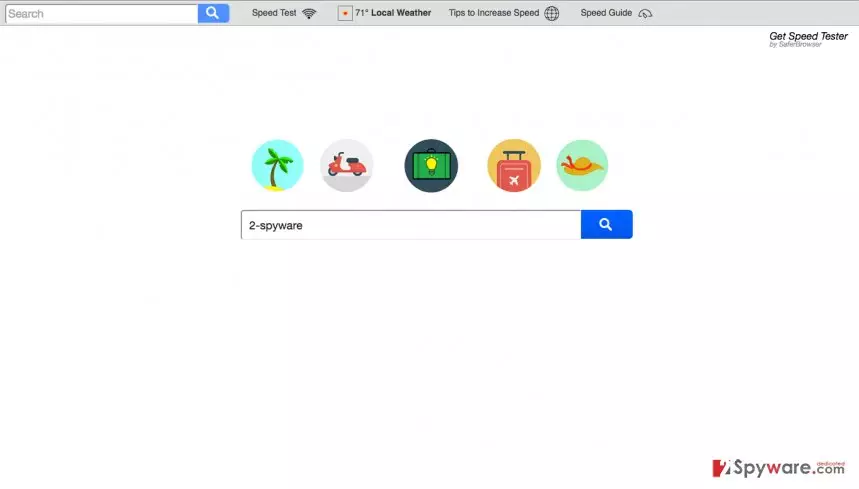
We should point out that none of the browsers are safe from the Search2.searchgst.com infection. Your Edge, Google Chrome, Mozilla Firefox and other browsers might be affected. Luckily, most of the users notice that something is off right after the hijack and safely get rid of the virus. If Search2.searchgst.com removal is not carried out in time, though, the virus may proceed to the phase two and start collecting your browsing data. The information about your search history visited websites and viewed pages can be used for further advertising by the hijacker itself or sold to unknown third-parties. Such irresponsible attitude towards the users’ data may even lead to identity theft or trigger some other privacy or security issues. Thus, you should not think twice about the Search2.searchgst.com removal and get over with it ASAP.
Protection against browser hijackers:
It does not take much to protect your computer from a browser hijacker like Search2.searchgst.com. Unlike what most people think, you do not necessarily need sophisticated antivirus software or other virus-fighting utilities to be able to fend off potentially unwanted programs. You simply need to be a little bit more patient and inspect what you agree to install on your computer carefully. Always get acquainted with EULA and other documents that might be added to the software’s setup before you install it on your computer. Opting for the advanced installation mode in the setup also helps to disclose components potentially hidden in the software package. You can then easily cancel their installation.
Recommendations for a quick Search2.searchgst.com removal:
Nobody can deny that it is essential to maintain your device safe from spyware and malware. Although Search2.searchgst.com is not a major virus and does not even compare to more serious viruses these days, it is still a program which may bring more problems that benefit to your computer. We recommend you to remove Search2.searchgst.com virus using a professional anti-malware software. For the manual virus removal instructions, please scroll below.
Uninstall from Windows
Uninstall from Windows 10/8:
- Type Control Panel into the Windows search box and open the result.
- Under Programs, select Uninstall a program.


Uninstall from Windows 7/XP:
- Click on Windows Start > Control Panel (Windows XP users should click on Add/Remove Programs).
- In Control Panel, select Programs > Uninstall a program.


Remove the unwanted program:
- In the Programs and Features window, look for any recently installed suspicious entries, select them, and click Uninstall.
- If User Account Control appears, click Yes to confirm, then complete the removal.


Delete from macOS
Remove the unwanted application:
- From the menu bar, select Go > Applications.
- In the Applications folder, look for any suspicious entries, then drag them to Trash (or right-click and pick Move to Trash).


Delete leftover files and folders:
- Select Go > Go to Folder.
- Enter /Library/Application Support and remove any suspicious folders related to the unwanted program.
- Repeat the same check in the /Library/LaunchAgents and /Library/LaunchDaemons folders, deleting any suspicious entries.

- Finally, empty the Trash to permanently remove the leftovers.

Remove from Microsoft Edge
Delete unwanted extensions from MS Edge:
- Select Menu (three horizontal dots at the top-right of the browser window) and pick Extensions.
- From the list, pick the extension and click on the Gear icon.
- Click Remove.


Clear cookies and other browser data:
- Click on the Menu (three horizontal dots at the top-right of the browser window) and select Settings > Privacy, search, and services..
- Under Clear browsing data, pick Choose what to clear.
- Select Cookies and other site data and Cached images and files. (apart from passwords, although you might want to include Media licenses as well, if applicable) and click on Clear.


Restore new tab and homepage settings:
- Click the menu icon and choose Settings.
- Then find On startup section.
- Click Remove next to any suspicious startup page.
Reset MS Edge if the above steps did not work:
- Press on Ctrl + Shift + Esc to open Task Manager.
- Click on More details arrow at the bottom of the window.
- Select Details tab.
- Now scroll down and locate every entry with Microsoft Edge name in it. Right-click on each of them and select End Task to stop MS Edge from running.


Instructions for Chromium-based Edge
Delete extensions from MS Edge (Chromium):
- Open Edge and click select Settings > Extensions.
- Delete unwanted extensions by clicking Remove.


Clear cache and site data:
- Click on Menu and go to Settings.
- Select Privacy, search and services.
- Under Clear browsing data, pick Choose what to clear.
- Under Time range, pick All time.
- Select Clear now.


Reset Chromium-based MS Edge:
- Click on Menu and select Settings.
- On the left side, pick Reset settings.
- Select Restore settings to their default values.
- Confirm with Reset.
- This will disable extensions and reset startup pages but will not delete bookmarks, saved passwords, or browsing history.


Remove from Mozilla Firefox (FF)
Remove dangerous extensions:
- Open Mozilla Firefox browser and click on the Menu (three horizontal lines at the top-right of the window).
- Select Add-ons.
- In here, select the unwanted extension and click Remove.


Reset the homepage:
- Click three horizontal lines at the top right corner to open the menu.
- Choose Settings.
- Under Home, set your preferred homepage and new tab settings.
Clear cookies and site data:
- Click Menu and pick Settings.
- Go to Privacy & Security section.
- Scroll down to locate Cookies and Site Data.
- Click on Clear Data...
- Select Cookies and Site Data and Temporary cached files and pages, then click Clear.


Reset Mozilla Firefox
If clearing the browser as explained above did not help, reset Mozilla Firefox:
- Open Mozilla Firefox browser and click the Menu.
- Go to Help and then choose Troubleshooting Information.

- Under Give Firefox a tune up section, click on Refresh Firefox...
- Once the pop-up shows up, confirm the action by pressing on Refresh Firefox.



Remove from Google Chrome
Delete malicious extensions from Google Chrome:
- Open Google Chrome, click on the Menu (three vertical dots at the top-right corner) and select More tools > Extensions.
- In the newly opened window, you will see all the installed extensions. Uninstall all suspicious extensions related to the unwanted program by clicking Remove.


Clear cache and web data from Chrome:
- Click on Menu and pick Settings.
- Under Privacy and security, select Clear browsing data.
- Select Browsing history, Cookies and other site data, as well as Cached images and files.
- Click Clear data.


Change your homepage:
- Click menu and choose Settings.
- Look for a suspicious site in the On startup section.
- Click on Open a specific or set of pages and click on three dots to find the Remove option.
Reset Google Chrome:
If the previous methods did not help you, reset Google Chrome to eliminate all the unwanted components:
- Click on Menu and select Settings.
- In the Settings, scroll down and click Advanced.
- Scroll down and locate Reset and clean up section.
- Now click Restore settings to their original defaults.
- Confirm with Reset settings.


Delete from Safari
Remove dangerous extensions:
- Open Safari, click Safari in the menu at the top-left of the screen, and select Preferences.
- Go to the Extensions tab, look for any suspicious entries, and click Uninstall to remove them.


Clear history and website data:
- Click Safari in the menu and pick Clear History.
- Set Clear to all history and confirm with Clear History.


Reset Safari:
- Click Safari in the menu and select Preferences > Advanced.
- Enable Show Develop menu in menu bar.
- From the menu bar, click Develop and select Empty Caches.


Did this guide help?
3 comments
Jannet2444
Not too clever of me to keep using this site after it popped on my browser out of the blue... I hope I wont get tricked like this again
Tyrion Jillian
THANKS! The removal tutorial was great!
Cole
Nice overview thanks