

Is Searchboro.com a reliable search engine?
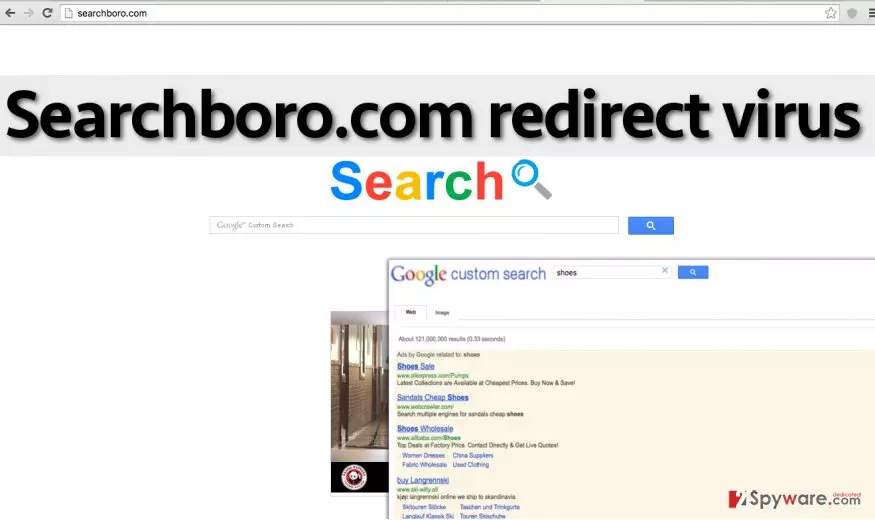
Searchboro.com virus is a term that might come to your mind after experiencing problems related to your browsing, such as redirects to unknown websites, the appearance of annoying pop-up ads, slow downs on your web browser and similar. While it is known that viruses have nothing to do with this search engine, it is obvious that keeping it on your computer can cause lots of issues. Technically, Searchboro.com should be called as a browser hijacker and a potentially unwanted program. If infected, you can remove it with a reliable anti-spyware program.
As as have already mentioned, this hijacker is not malicious. However, its functionality is questionable and can hardly be trusted. After testing it, we can claim that it delivers sponsored search results among the traditional ones. No matter that it states that it serves “Google Custom Search” results, it definitely adjusts them to meet users’ interests. This can be achieved quite easily by tracking the victim and collecting browsing-related information. Once Searchboro.com virus a required amount of information, it summarizes such data and decides which ads it wants to inject into its results page. Beware that each click generates pay-per-click revenue for the authors of this browser hijacker and that there is no guarantee that they won’t redirect you to an infected domain. These redirects can be stopped only if you remove Searchboro.com from your computer. We highly recommend you to avoid clicking on anything that seems at least a bit suspicious to you. Also, do not download unknown apps and updates, and avoid providing personal information. However, it is better to think about Searchboro.com removal now if you do not want to face such issues. A reliable anti-spyware application like FortectIntego can help you to eliminate it without the stress.
How can this program hijack my PC?
As we have stated before, this suspicious page can pop-up on your browser and start interrupting you with Searchboro.com redirect activity after installing a software bundle. It is known that this browser hijacker spreads together with various free programs, so make sure you dedicate an appropriate amount of time for the installation of a new program from the Internet which is charge-free. It is essential to set Custom or Advanced settings for the setup to see what additional components are inside the freeware and prevent Searchboro.com hijack. Computer users often make a big mistake by leaving auto-selected installation options such as Default, Standard, or Express. Make sure you skip these options if you do not want to end up with suspicious pieces of software, such as this one.
Ways to remove Searchboro from my computer entirely?
Searchboro.com virus might seem very dangerous, but in our opinion, it can cause more annoyance than danger to you. This spyware variant is not as complicated as the majority of malware examples, so it means you can try to uninstall it manually. Searchboro.com removal instructions are already prepared for you, so scroll down the page to see them. If you are not in a mood for manual removal method, then you can opt for the automatic removal option, which requires a good anti-spyware software. If you do not have one, then download and install one of our recommended programs:
Uninstall from Windows
Uninstall from Windows 10/8:
- Type Control Panel into the Windows search box and open the result.
- Under Programs, select Uninstall a program.


Uninstall from Windows 7/XP:
- Click on Windows Start > Control Panel (Windows XP users should click on Add/Remove Programs).
- In Control Panel, select Programs > Uninstall a program.


Remove the unwanted program:
- In the Programs and Features window, look for any recently installed suspicious entries, select them, and click Uninstall.
- If User Account Control appears, click Yes to confirm, then complete the removal.


Delete from macOS
Remove the unwanted application:
- From the menu bar, select Go > Applications.
- In the Applications folder, look for any suspicious entries, then drag them to Trash (or right-click and pick Move to Trash).


Delete leftover files and folders:
- Select Go > Go to Folder.
- Enter /Library/Application Support and remove any suspicious folders related to the unwanted program.
- Repeat the same check in the /Library/LaunchAgents and /Library/LaunchDaemons folders, deleting any suspicious entries.

- Finally, empty the Trash to permanently remove the leftovers.

Remove from Microsoft Edge
Delete unwanted extensions from MS Edge:
- Select Menu (three horizontal dots at the top-right of the browser window) and pick Extensions.
- From the list, pick the extension and click on the Gear icon.
- Click Remove.


Clear cookies and other browser data:
- Click on the Menu (three horizontal dots at the top-right of the browser window) and select Settings > Privacy, search, and services..
- Under Clear browsing data, pick Choose what to clear.
- Select Cookies and other site data and Cached images and files. (apart from passwords, although you might want to include Media licenses as well, if applicable) and click on Clear.


Restore new tab and homepage settings:
- Click the menu icon and choose Settings.
- Then find On startup section.
- Click Remove next to any suspicious startup page.
Reset MS Edge if the above steps did not work:
- Press on Ctrl + Shift + Esc to open Task Manager.
- Click on More details arrow at the bottom of the window.
- Select Details tab.
- Now scroll down and locate every entry with Microsoft Edge name in it. Right-click on each of them and select End Task to stop MS Edge from running.


Instructions for Chromium-based Edge
Delete extensions from MS Edge (Chromium):
- Open Edge and click select Settings > Extensions.
- Delete unwanted extensions by clicking Remove.


Clear cache and site data:
- Click on Menu and go to Settings.
- Select Privacy, search and services.
- Under Clear browsing data, pick Choose what to clear.
- Under Time range, pick All time.
- Select Clear now.


Reset Chromium-based MS Edge:
- Click on Menu and select Settings.
- On the left side, pick Reset settings.
- Select Restore settings to their default values.
- Confirm with Reset.
- This will disable extensions and reset startup pages but will not delete bookmarks, saved passwords, or browsing history.


Remove from Mozilla Firefox (FF)
Remove dangerous extensions:
- Open Mozilla Firefox browser and click on the Menu (three horizontal lines at the top-right of the window).
- Select Add-ons.
- In here, select the unwanted extension and click Remove.


Reset the homepage:
- Click three horizontal lines at the top right corner to open the menu.
- Choose Settings.
- Under Home, set your preferred homepage and new tab settings.
Clear cookies and site data:
- Click Menu and pick Settings.
- Go to Privacy & Security section.
- Scroll down to locate Cookies and Site Data.
- Click on Clear Data...
- Select Cookies and Site Data and Temporary cached files and pages, then click Clear.


Reset Mozilla Firefox
If clearing the browser as explained above did not help, reset Mozilla Firefox:
- Open Mozilla Firefox browser and click the Menu.
- Go to Help and then choose Troubleshooting Information.

- Under Give Firefox a tune up section, click on Refresh Firefox...
- Once the pop-up shows up, confirm the action by pressing on Refresh Firefox.



Remove from Google Chrome
Delete malicious extensions from Google Chrome:
- Open Google Chrome, click on the Menu (three vertical dots at the top-right corner) and select More tools > Extensions.
- In the newly opened window, you will see all the installed extensions. Uninstall all suspicious extensions related to the unwanted program by clicking Remove.


Clear cache and web data from Chrome:
- Click on Menu and pick Settings.
- Under Privacy and security, select Clear browsing data.
- Select Browsing history, Cookies and other site data, as well as Cached images and files.
- Click Clear data.


Change your homepage:
- Click menu and choose Settings.
- Look for a suspicious site in the On startup section.
- Click on Open a specific or set of pages and click on three dots to find the Remove option.
Reset Google Chrome:
If the previous methods did not help you, reset Google Chrome to eliminate all the unwanted components:
- Click on Menu and select Settings.
- In the Settings, scroll down and click Advanced.
- Scroll down and locate Reset and clean up section.
- Now click Restore settings to their original defaults.
- Confirm with Reset settings.


Delete from Safari
Remove dangerous extensions:
- Open Safari, click Safari in the menu at the top-left of the screen, and select Preferences.
- Go to the Extensions tab, look for any suspicious entries, and click Uninstall to remove them.


Clear history and website data:
- Click Safari in the menu and pick Clear History.
- Set Clear to all history and confirm with Clear History.


Reset Safari:
- Click Safari in the menu and select Preferences > Advanced.
- Enable Show Develop menu in menu bar.
- From the menu bar, click Develop and select Empty Caches.


Did this guide help?
4 comments
Paul
I have been redirected a few times, to similar sites both times. They didnt seem trustworthy to me. I dont even know what to say. I wouldnt say that searchboro is reliable.
Coinz
Thanks for providing these easy instructions. much appreciate!
Marilyn
Thank goodness this was not a severe virus.
Dan28
It seems to hard to remove it manually... I might give this antispyware a chance to prove me that it can be useful. I hope.