

Searchfindit.com – a PUP capable of compromising browsers without the user's permission
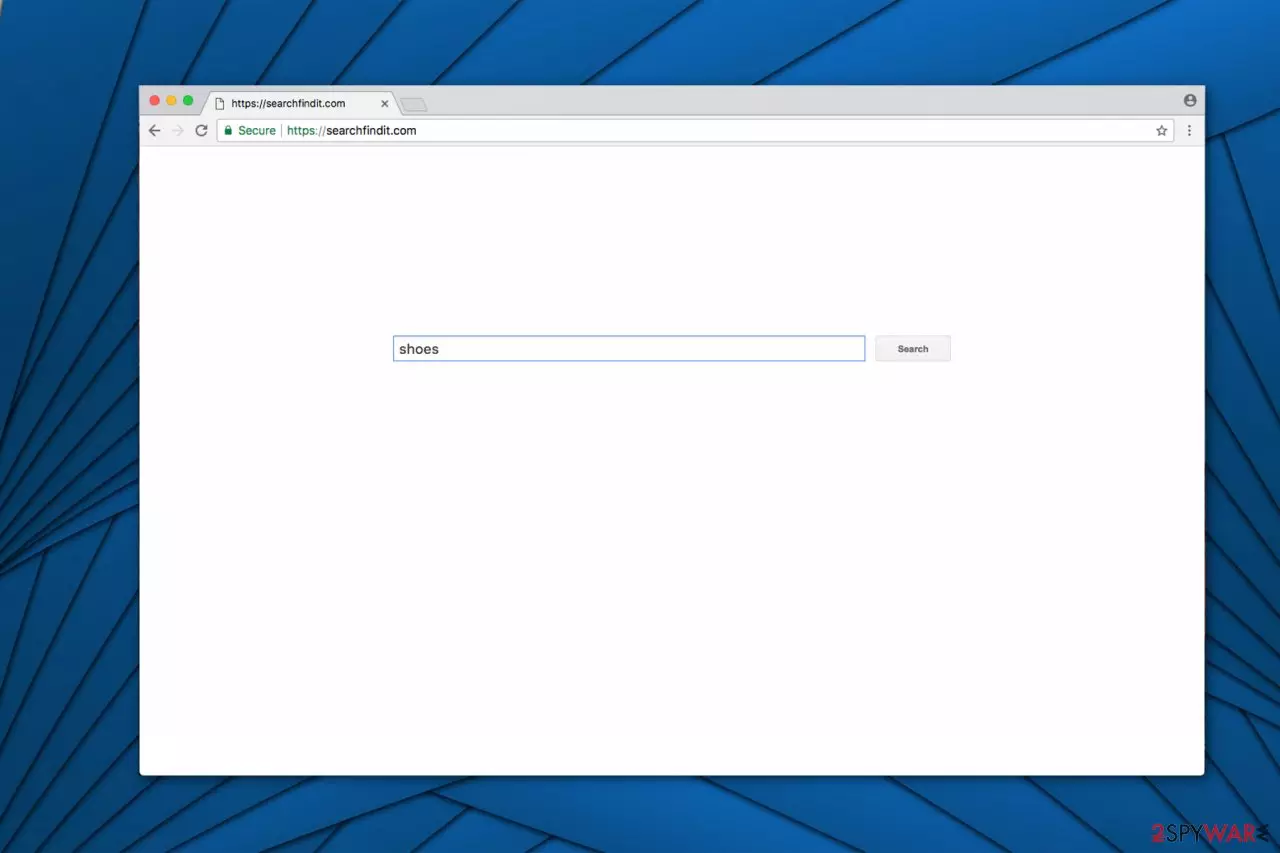
Searchfindit.com is not a trustworthy search engine, so you should avoid it. Beware that it's known for the arbitrary activity that is performed on regular browsers, including Google Chrome, Mozilla Firefox, or Internet Explorer. Among IT experts, it is classified as a browser hijacker.
First of all, this search engine lures people into installing it by infiltrating the system as a free “gift”. This procedure is known as bundling. Then, it alters browser settings shortly after the installation. Even if it looks legitimate, you should be aware of its ability to redirect users to sponsored websites that can be infected with malware.
| name | Searchfindit.com |
|---|---|
| Type | Browser hijacker, redirect virus |
| Symptoms of infection | Browser settings are modified without your direct consent; search results contain deceptive ads and when clicked redirect to dangerous pages |
| Risks | Malware infections, privacy loss |
| Distribution | Deceptive ads, software bundles |
| Elimination | Remove the browser hijacker with proper anti-malware software |
| System health | Repair system damages from the PUP by using the FortectIntego PC repair tool |
In comparison with other browsing engines, the article's culprit does not stand out much. Its plain design does not attract much attention, so it's almost clear why its developers have started using bundling for its distribution. On the other hand, such a design might appeal to those who have been looking for a tool providing relevant search results.
Yes, it is not crammed with pop-ups or other unwanted ads. However, if you expect to acquire search results that can be considered trustworthy, you can be disappointed right away because, in reality, its search results are sponsored. The virus assigns the https://searchfindit.com/ attribute to the browser settings mentioned earlier. Moreover, it installs additional plug-ins that do not allow you to change the parameters to the previous state.
As a result, the developers of this hijacker make sure that you will submit your queries only on this search engine and it will get a chance to show you their sponsored content. Be aware that the Internet is full of such programs, so we highly recommend sticking to the most known ones.
Clearly, the developers of the PUP benefit from their illegal actions. In the meanwhile, computer users are put at risk. Security experts have already warned them that clicking on sponsored ads increases the risk of computer infections. Therefore, we assure you that Searchfindit.com removal is the best option to protect your system. For that, you can use SpyHunterCombo Cleaner or MalwarebytesMalwarebytes.
According to NoVirus.uk[1] analysis, this kind of potentially unwanted programs (PUPs) redirect users to other unknown domains. While the browsing tool resides on the computer, you might notice a number of suspicious toolbars and extensions. Overall, they do not boost up your browsing performance but, on the contrary, negatively affect it.
In addition, users who are extremely self-cautious about their privacy on the Internet should note that browser hijackers collect information about their browsing experience and habits. If you fail to remove Search.SearchFindIt.com from the system, it will use its cookies and other tracking technologies to collect information about you.
Though it denies transferring such data to external parties, there is such a risk as Web of Trust and similar well-known companies have already been caught selling collected information to third parties behind users' back.[2]. In general, privacy is becoming a fragile matter[3]. Thus after removing the PUP, use the FortectIntego PC repair tool to clean all tracking cookies and resolve system-related issues.

Freeware bundles distribute various PUPs
Developers try their best to spread the hijackers worldwide. Therefore, they bundle them together with free applications that you might download online. Bundling is described as the installation of the potentially unwanted program (PUP) while installing regular software.
To avoid PUPs, next time you are about to install a new program, opt for Custom or Advanced settings. Afterward, unmark all additional applications and proceed with the installation guide. Additionally, stay away from sponsored ads since they might trigger an automatic infiltration of high-risk computer infections as well.
Simple instructions to remove Searchfindit.com
You should not tolerate the arbitrary activity of the browser hijacker. Do not hesitate to remove Searchfindit.com virus since you can get rid of it within seconds by using a professional antivirus program.
You should start the removal process from:
- Picking a reputable security software;
- Downloading it from verified developers;
- Scanning your system thoroughly and letting it get rid of the hijacker.
Alternatively, there is a way to eliminate the potentially unwanted program (PUP) manually as well. Follow the guidelines to eradicate all elements of the hijacker.
Uninstall from Windows
Uninstall from Windows 10/8:
- Type Control Panel into the Windows search box and open the result.
- Under Programs, select Uninstall a program.


Uninstall from Windows 7/XP:
- Click on Windows Start > Control Panel (Windows XP users should click on Add/Remove Programs).
- In Control Panel, select Programs > Uninstall a program.


Remove the unwanted program:
- In the Programs and Features window, look for any recently installed suspicious entries, select them, and click Uninstall.
- If User Account Control appears, click Yes to confirm, then complete the removal.


Delete from macOS
Remove the unwanted application:
- From the menu bar, select Go > Applications.
- In the Applications folder, look for any suspicious entries, then drag them to Trash (or right-click and pick Move to Trash).


Delete leftover files and folders:
- Select Go > Go to Folder.
- Enter /Library/Application Support and remove any suspicious folders related to the unwanted program.
- Repeat the same check in the /Library/LaunchAgents and /Library/LaunchDaemons folders, deleting any suspicious entries.

- Finally, empty the Trash to permanently remove the leftovers.

Remove from Microsoft Edge
Delete unwanted extensions from MS Edge:
- Select Menu (three horizontal dots at the top-right of the browser window) and pick Extensions.
- From the list, pick the extension and click on the Gear icon.
- Click Remove.


Clear cookies and other browser data:
- Click on the Menu (three horizontal dots at the top-right of the browser window) and select Settings > Privacy, search, and services..
- Under Clear browsing data, pick Choose what to clear.
- Select Cookies and other site data and Cached images and files. (apart from passwords, although you might want to include Media licenses as well, if applicable) and click on Clear.


Restore new tab and homepage settings:
- Click the menu icon and choose Settings.
- Then find On startup section.
- Click Remove next to any suspicious startup page.
Reset MS Edge if the above steps did not work:
- Press on Ctrl + Shift + Esc to open Task Manager.
- Click on More details arrow at the bottom of the window.
- Select Details tab.
- Now scroll down and locate every entry with Microsoft Edge name in it. Right-click on each of them and select End Task to stop MS Edge from running.


Instructions for Chromium-based Edge
Delete extensions from MS Edge (Chromium):
- Open Edge and click select Settings > Extensions.
- Delete unwanted extensions by clicking Remove.


Clear cache and site data:
- Click on Menu and go to Settings.
- Select Privacy, search and services.
- Under Clear browsing data, pick Choose what to clear.
- Under Time range, pick All time.
- Select Clear now.


Reset Chromium-based MS Edge:
- Click on Menu and select Settings.
- On the left side, pick Reset settings.
- Select Restore settings to their default values.
- Confirm with Reset.
- This will disable extensions and reset startup pages but will not delete bookmarks, saved passwords, or browsing history.


Remove from Mozilla Firefox (FF)
Remove dangerous extensions:
- Open Mozilla Firefox browser and click on the Menu (three horizontal lines at the top-right of the window).
- Select Add-ons.
- In here, select the unwanted extension and click Remove.


Reset the homepage:
- Click three horizontal lines at the top right corner to open the menu.
- Choose Settings.
- Under Home, set your preferred homepage and new tab settings.
Clear cookies and site data:
- Click Menu and pick Settings.
- Go to Privacy & Security section.
- Scroll down to locate Cookies and Site Data.
- Click on Clear Data...
- Select Cookies and Site Data and Temporary cached files and pages, then click Clear.


Reset Mozilla Firefox
If clearing the browser as explained above did not help, reset Mozilla Firefox:
- Open Mozilla Firefox browser and click the Menu.
- Go to Help and then choose Troubleshooting Information.

- Under Give Firefox a tune up section, click on Refresh Firefox...
- Once the pop-up shows up, confirm the action by pressing on Refresh Firefox.



Remove from Google Chrome
Delete malicious extensions from Google Chrome:
- Open Google Chrome, click on the Menu (three vertical dots at the top-right corner) and select More tools > Extensions.
- In the newly opened window, you will see all the installed extensions. Uninstall all suspicious extensions related to the unwanted program by clicking Remove.


Clear cache and web data from Chrome:
- Click on Menu and pick Settings.
- Under Privacy and security, select Clear browsing data.
- Select Browsing history, Cookies and other site data, as well as Cached images and files.
- Click Clear data.


Change your homepage:
- Click menu and choose Settings.
- Look for a suspicious site in the On startup section.
- Click on Open a specific or set of pages and click on three dots to find the Remove option.
Reset Google Chrome:
If the previous methods did not help you, reset Google Chrome to eliminate all the unwanted components:
- Click on Menu and select Settings.
- In the Settings, scroll down and click Advanced.
- Scroll down and locate Reset and clean up section.
- Now click Restore settings to their original defaults.
- Confirm with Reset settings.


Delete from Safari
Remove dangerous extensions:
- Open Safari, click Safari in the menu at the top-left of the screen, and select Preferences.
- Go to the Extensions tab, look for any suspicious entries, and click Uninstall to remove them.


Clear history and website data:
- Click Safari in the menu and pick Clear History.
- Set Clear to all history and confirm with Clear History.


Reset Safari:
- Click Safari in the menu and select Preferences > Advanced.
- Enable Show Develop menu in menu bar.
- From the menu bar, click Develop and select Empty Caches.


Did this guide help?
2 comments
brdf44
Found the quick way how to delete it!
iron-bear
The hijack happened so quickly that I even couldnt figure it out what just happened.