

What can you do to prevent searchonlineusa.com virus?
Searchonlineusa.com virus might infect your computer at any time despite if you daily or rarely use the Internet. Though it looks as an eye-catchy search engine, do not get carried away and avoid installing it. After IT specialists have tested it, they concluded that it is a potentially malicious browser hijacker. If you use this search engine for a longer time, you device might be filled not only with mere adware and annoying toolbars but with more serious viruses. In addition, searchonlineusa.com virus causes annoying redirects to advertising and the domains with disturbing content. The idea of being under constant watch by this PUP may not look attractive for the majority of users as well. If you happen to be one of them, then it is high time you initiated searchonlineusa.com removal. FortectIntego will help you in this endeavor.
According to the design of this browser hijacker, it has a striking resemblance to search123now.net. Moreover, the privacy policies are identical as well. Moreover, it seems that there are more similar browser hijackers roaming around. Search-nowlive700.com is another PUP of the same group. It seems that scammers, who are behind these hijackers, did not overstrain themselves by making up a new design for each hijacker. They all look the same with only different titles.
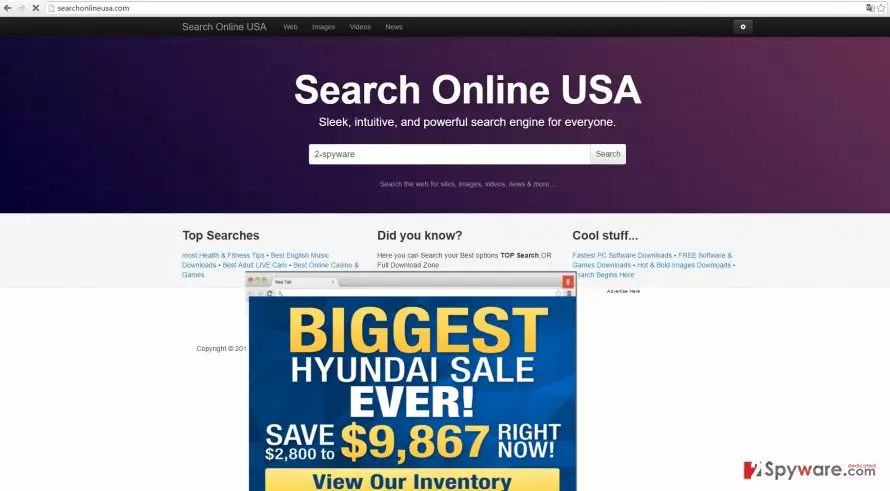
Moving on, besides this hijacker being useless, it might cause some security damage as well. Particularly, searchonlineusa.com redirect is at fault. Since this PUP is supported by questionable third-parties, you might occasionally find yourself in their redirect domains which might be “enhanced” with highly maleficent content. It includes hyperlinks and advertisements leading to potentially infected web pages. If you care for your operating system, remove searchonlineusa.com before it causes more unpleasant domains.
You do not need extra time and effort to notice the ineffectiveness of Search Online USA. It delivers significantly fewer search results in comparison with the browsing tools, such as Google. Moreover, the search results are far from reliable and objective. Since this malware is supported by third-parties which offer access to music download, adult content websites, health-related web pages and gaming domains, do not get surprised if the list of search targets is complemented with the respective domains. This behavior should not be tolerated. Instead, it should be regarded as a hint to remove searchonlineusa.com from the device.
When did the hijack slip into the PC?
Searchonlineusa.com took over your computer when you recklessly installed a new video converter or movie streaming application. Few users are willing to spend a little of their time reading the installation instructions. Crooks are aware of this common vice and exploit it for their own purposes. Likewise, you were among the majority of users who hop through the installation settings clicking “Next” button. This resulted in searchonlineusa.com hijack. In order to prevent it in the future, keep in mind these tips we are about to tell you. First of all, choose “Advanced” installation mode. Later on, watch for any add-ons which might be of any suspicion. Only after you unmark all their checkboxes, start installing the primary program.
Searchonlineusa.com removal guidelines
It is not a tricky task to eliminate the hijacker if you employ a malware removal tool. The program quickly gets rid of the hijacker and all its secondary files and plug-ins. Moreover, it is an efficient tool in eliminating other threats that might have appeared on the operating system while Searchonlineusa inhabits the system. There is also an alternative way to put an end to the PUP. You can remove searchonlineusa.com with the help of manual elimination instructions. Follow each step carefully to ensure that not files are left.
Uninstall from Windows
Uninstall from Windows 10/8:
- Type Control Panel into the Windows search box and open the result.
- Under Programs, select Uninstall a program.


Uninstall from Windows 7/XP:
- Click on Windows Start > Control Panel (Windows XP users should click on Add/Remove Programs).
- In Control Panel, select Programs > Uninstall a program.


Remove the unwanted program:
- In the Programs and Features window, look for any recently installed suspicious entries, select them, and click Uninstall.
- If User Account Control appears, click Yes to confirm, then complete the removal.


Delete from macOS
Remove the unwanted application:
- From the menu bar, select Go > Applications.
- In the Applications folder, look for any suspicious entries, then drag them to Trash (or right-click and pick Move to Trash).


Delete leftover files and folders:
- Select Go > Go to Folder.
- Enter /Library/Application Support and remove any suspicious folders related to the unwanted program.
- Repeat the same check in the /Library/LaunchAgents and /Library/LaunchDaemons folders, deleting any suspicious entries.

- Finally, empty the Trash to permanently remove the leftovers.

Remove from Microsoft Edge
Delete unwanted extensions from MS Edge:
- Select Menu (three horizontal dots at the top-right of the browser window) and pick Extensions.
- From the list, pick the extension and click on the Gear icon.
- Click Remove.


Clear cookies and other browser data:
- Click on the Menu (three horizontal dots at the top-right of the browser window) and select Settings > Privacy, search, and services..
- Under Clear browsing data, pick Choose what to clear.
- Select Cookies and other site data and Cached images and files. (apart from passwords, although you might want to include Media licenses as well, if applicable) and click on Clear.


Restore new tab and homepage settings:
- Click the menu icon and choose Settings.
- Then find On startup section.
- Click Remove next to any suspicious startup page.
Reset MS Edge if the above steps did not work:
- Press on Ctrl + Shift + Esc to open Task Manager.
- Click on More details arrow at the bottom of the window.
- Select Details tab.
- Now scroll down and locate every entry with Microsoft Edge name in it. Right-click on each of them and select End Task to stop MS Edge from running.


Instructions for Chromium-based Edge
Delete extensions from MS Edge (Chromium):
- Open Edge and click select Settings > Extensions.
- Delete unwanted extensions by clicking Remove.


Clear cache and site data:
- Click on Menu and go to Settings.
- Select Privacy, search and services.
- Under Clear browsing data, pick Choose what to clear.
- Under Time range, pick All time.
- Select Clear now.


Reset Chromium-based MS Edge:
- Click on Menu and select Settings.
- On the left side, pick Reset settings.
- Select Restore settings to their default values.
- Confirm with Reset.
- This will disable extensions and reset startup pages but will not delete bookmarks, saved passwords, or browsing history.


Remove from Mozilla Firefox (FF)
Remove dangerous extensions:
- Open Mozilla Firefox browser and click on the Menu (three horizontal lines at the top-right of the window).
- Select Add-ons.
- In here, select the unwanted extension and click Remove.


Reset the homepage:
- Click three horizontal lines at the top right corner to open the menu.
- Choose Settings.
- Under Home, set your preferred homepage and new tab settings.
Clear cookies and site data:
- Click Menu and pick Settings.
- Go to Privacy & Security section.
- Scroll down to locate Cookies and Site Data.
- Click on Clear Data...
- Select Cookies and Site Data and Temporary cached files and pages, then click Clear.


Reset Mozilla Firefox
If clearing the browser as explained above did not help, reset Mozilla Firefox:
- Open Mozilla Firefox browser and click the Menu.
- Go to Help and then choose Troubleshooting Information.

- Under Give Firefox a tune up section, click on Refresh Firefox...
- Once the pop-up shows up, confirm the action by pressing on Refresh Firefox.



Remove from Google Chrome
Delete malicious extensions from Google Chrome:
- Open Google Chrome, click on the Menu (three vertical dots at the top-right corner) and select More tools > Extensions.
- In the newly opened window, you will see all the installed extensions. Uninstall all suspicious extensions related to the unwanted program by clicking Remove.


Clear cache and web data from Chrome:
- Click on Menu and pick Settings.
- Under Privacy and security, select Clear browsing data.
- Select Browsing history, Cookies and other site data, as well as Cached images and files.
- Click Clear data.


Change your homepage:
- Click menu and choose Settings.
- Look for a suspicious site in the On startup section.
- Click on Open a specific or set of pages and click on three dots to find the Remove option.
Reset Google Chrome:
If the previous methods did not help you, reset Google Chrome to eliminate all the unwanted components:
- Click on Menu and select Settings.
- In the Settings, scroll down and click Advanced.
- Scroll down and locate Reset and clean up section.
- Now click Restore settings to their original defaults.
- Confirm with Reset settings.


Delete from Safari
Remove dangerous extensions:
- Open Safari, click Safari in the menu at the top-left of the screen, and select Preferences.
- Go to the Extensions tab, look for any suspicious entries, and click Uninstall to remove them.


Clear history and website data:
- Click Safari in the menu and pick Clear History.
- Set Clear to all history and confirm with Clear History.


Reset Safari:
- Click Safari in the menu and select Preferences > Advanced.
- Enable Show Develop menu in menu bar.
- From the menu bar, click Develop and select Empty Caches.


Did this guide help?
3 comments
Rem
There is malware in that website.
Bonnie
Another lesson: watch what you are installing. It seems that you cant trust anything on the Internet these days.
Tyler
Now I need to install another program to delete the hijacker?...what a drag.