

Searchthatup.com: is it a reliable search engine alternative?
You should not regard searchthatup.com virus as a trustworthy browsing tool because IT experts classify it as a browser hijacker. Though it is less annoying than other samples of this kind, it might quickly disappoint you if you expect it to lift your browsing to a new level. It would be wise to remove searchthatup.com before it makes you lose the temper. One of the most annoying features is that it tends to redirect you to a commercial domain prior your expected destination. Secondly, while you are using this hijacker, barely useful toolbars and browser extensions might settle on the computer. To avoid such effects, start searchthatup.com removal at once.
ClientConnect Ltd seems to fortify its position in the website market since it comes with another browser hijacker. Lately, it has published already several similar search engines. All of them bear, at first glance, ordinary domain address names. However, such strategy is common among browser hijacker developers. They try to lure users by random and seemingly simple catch lines to convince them of the credibility of such browsing tools. Do not get deluded by such cheap tactics. Within a short while, you will realize that this hijacker activates certain “layer” which enables to display more sponsored search results in comparison with a legitimate search engine. Therefore, while searching the information about a particular topic, you might notice more advertising websites rather than informational domains.
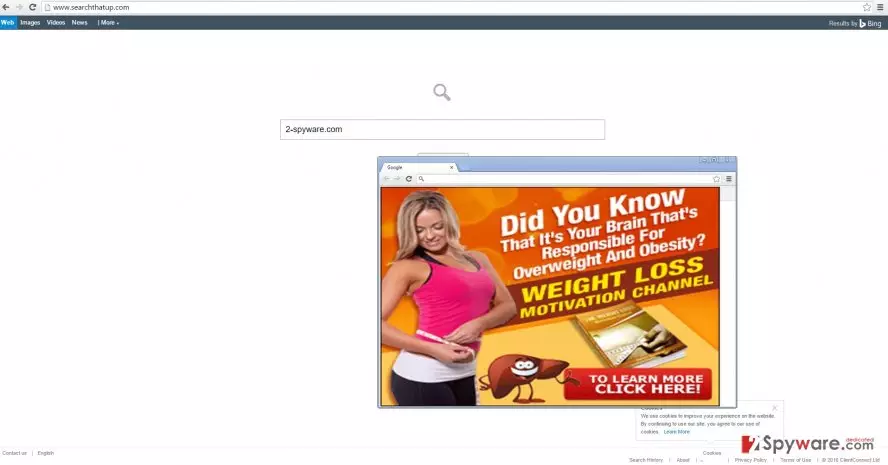
While browsing, you might experience the negative peculiarities of searchthatup.com redirect phenomenon. Popping questionable domains offering to purchase a new product or play poker prevent you from quickly accessing the required domain. Curiously peeking in those redirects might also have a damaging effect on the computer. Similar websites often harbor a series of viruses. Thus, the longer you stay there, the higher is the probability to get infected with one of the lurking cyber pests. Therefore, it would be wise to remove Search That Up hijacker as soon as possible. You can do it quickly and effectively with FortectIntego.
The distribution techniques of the hijacker
Frequently, it prefers spreading via free applications. It clings to pdf viewers, download managers or file converters. After users choose “Recommended” settings, they often overlook the additional programs. Rarely, they are of use. To prevent Searchthatup.com hijack in the future and avoid any PUP, before starting the installation, select “Custom” mode. Check whether there are any potentially malicious add-ons pre-marked. After unmarking, install the primary program. Lastly, develop a habit installing programs only from official sources and read users reviews before choosing a new search engine.
Searchthatup.com uninstallation steps
Remove searchthatup.com virus either manually or automatically. We suggest choosing the latter option because an anti-spyware application guarantees that your computer is clean from cyber threats. Unless you install a questionable tool intentionally, the program will safeguard the computer from any hijackers attempting to invade the device. Alternatively, there is a manual searchthatup.com removal method. Follow each stage attentively to perform complete elimination. Taking a look at the privacy policy provisions provides valuable information which helps you identify whether this or another website is safe to use.
Uninstall from Windows
Uninstall from Windows 10/8:
- Type Control Panel into the Windows search box and open the result.
- Under Programs, select Uninstall a program.


Uninstall from Windows 7/XP:
- Click on Windows Start > Control Panel (Windows XP users should click on Add/Remove Programs).
- In Control Panel, select Programs > Uninstall a program.


Remove the unwanted program:
- In the Programs and Features window, look for any recently installed suspicious entries, select them, and click Uninstall.
- If User Account Control appears, click Yes to confirm, then complete the removal.


Delete from macOS
Remove the unwanted application:
- From the menu bar, select Go > Applications.
- In the Applications folder, look for any suspicious entries, then drag them to Trash (or right-click and pick Move to Trash).


Delete leftover files and folders:
- Select Go > Go to Folder.
- Enter /Library/Application Support and remove any suspicious folders related to the unwanted program.
- Repeat the same check in the /Library/LaunchAgents and /Library/LaunchDaemons folders, deleting any suspicious entries.

- Finally, empty the Trash to permanently remove the leftovers.

Remove from Microsoft Edge
Delete unwanted extensions from MS Edge:
- Select Menu (three horizontal dots at the top-right of the browser window) and pick Extensions.
- From the list, pick the extension and click on the Gear icon.
- Click Remove.


Clear cookies and other browser data:
- Click on the Menu (three horizontal dots at the top-right of the browser window) and select Settings > Privacy, search, and services..
- Under Clear browsing data, pick Choose what to clear.
- Select Cookies and other site data and Cached images and files. (apart from passwords, although you might want to include Media licenses as well, if applicable) and click on Clear.


Restore new tab and homepage settings:
- Click the menu icon and choose Settings.
- Then find On startup section.
- Click Remove next to any suspicious startup page.
Reset MS Edge if the above steps did not work:
- Press on Ctrl + Shift + Esc to open Task Manager.
- Click on More details arrow at the bottom of the window.
- Select Details tab.
- Now scroll down and locate every entry with Microsoft Edge name in it. Right-click on each of them and select End Task to stop MS Edge from running.


Instructions for Chromium-based Edge
Delete extensions from MS Edge (Chromium):
- Open Edge and click select Settings > Extensions.
- Delete unwanted extensions by clicking Remove.


Clear cache and site data:
- Click on Menu and go to Settings.
- Select Privacy, search and services.
- Under Clear browsing data, pick Choose what to clear.
- Under Time range, pick All time.
- Select Clear now.


Reset Chromium-based MS Edge:
- Click on Menu and select Settings.
- On the left side, pick Reset settings.
- Select Restore settings to their default values.
- Confirm with Reset.
- This will disable extensions and reset startup pages but will not delete bookmarks, saved passwords, or browsing history.


Remove from Mozilla Firefox (FF)
Remove dangerous extensions:
- Open Mozilla Firefox browser and click on the Menu (three horizontal lines at the top-right of the window).
- Select Add-ons.
- In here, select the unwanted extension and click Remove.


Reset the homepage:
- Click three horizontal lines at the top right corner to open the menu.
- Choose Settings.
- Under Home, set your preferred homepage and new tab settings.
Clear cookies and site data:
- Click Menu and pick Settings.
- Go to Privacy & Security section.
- Scroll down to locate Cookies and Site Data.
- Click on Clear Data...
- Select Cookies and Site Data and Temporary cached files and pages, then click Clear.


Reset Mozilla Firefox
If clearing the browser as explained above did not help, reset Mozilla Firefox:
- Open Mozilla Firefox browser and click the Menu.
- Go to Help and then choose Troubleshooting Information.

- Under Give Firefox a tune up section, click on Refresh Firefox...
- Once the pop-up shows up, confirm the action by pressing on Refresh Firefox.



Remove from Google Chrome
Delete malicious extensions from Google Chrome:
- Open Google Chrome, click on the Menu (three vertical dots at the top-right corner) and select More tools > Extensions.
- In the newly opened window, you will see all the installed extensions. Uninstall all suspicious extensions related to the unwanted program by clicking Remove.


Clear cache and web data from Chrome:
- Click on Menu and pick Settings.
- Under Privacy and security, select Clear browsing data.
- Select Browsing history, Cookies and other site data, as well as Cached images and files.
- Click Clear data.


Change your homepage:
- Click menu and choose Settings.
- Look for a suspicious site in the On startup section.
- Click on Open a specific or set of pages and click on three dots to find the Remove option.
Reset Google Chrome:
If the previous methods did not help you, reset Google Chrome to eliminate all the unwanted components:
- Click on Menu and select Settings.
- In the Settings, scroll down and click Advanced.
- Scroll down and locate Reset and clean up section.
- Now click Restore settings to their original defaults.
- Confirm with Reset settings.


Delete from Safari
Remove dangerous extensions:
- Open Safari, click Safari in the menu at the top-left of the screen, and select Preferences.
- Go to the Extensions tab, look for any suspicious entries, and click Uninstall to remove them.


Clear history and website data:
- Click Safari in the menu and pick Clear History.
- Set Clear to all history and confirm with Clear History.


Reset Safari:
- Click Safari in the menu and select Preferences > Advanced.
- Enable Show Develop menu in menu bar.
- From the menu bar, click Develop and select Empty Caches.


Did this guide help?
3 comments
jerry
Not again a browser hijacker...
David
The good thing is that it is easy to delete the virus.
Harry00
Do they really make a profit creating these search engines?