

Review of searchtopresults.com
Searchtopresults.com virus operates as a browser hijacker which targets users worldwide. It may as well infect Windows or Mac OS systems and any browser. At the moment, the website has fallen under the attention of virus experts. As a result, not all users may access the main page of this hijacker. Some anti-virus utilities also alert users about possible infections in this website. The most annoying feature of this potentially unwanted program is its redirects to other web pages and display of bothersome advertisements. What is more, this website tracks users online activity by initiating many tasks on the Task Manager. It would be better to initiate Searchtopresults.com removal right away. For that reason, you may install FortectIntego and run the scan.
According to the insights of the netizen known as HeartOfDivias, this hijacker seemed to have entrered the cyber space already last year. Its main IP address leads to the location in Germany. What is more, the PUP is just one sample along with multiple browser hijackers released by this company. It earns quite a delicate yearly profit from all monitored domains. However, such business often results in a number of browsing problems and even users‘ privacy violation [1]. Leaked personal data might not only help advertisers obtain crucial information about consumers‘ interests and preferences but might eventually fall into the hands of gearheads. Likewise, personal data might serve as valuable material for developing more penetrating and destructive hacking techniques. This might be the key argument why you should remove searchtopresults.com.
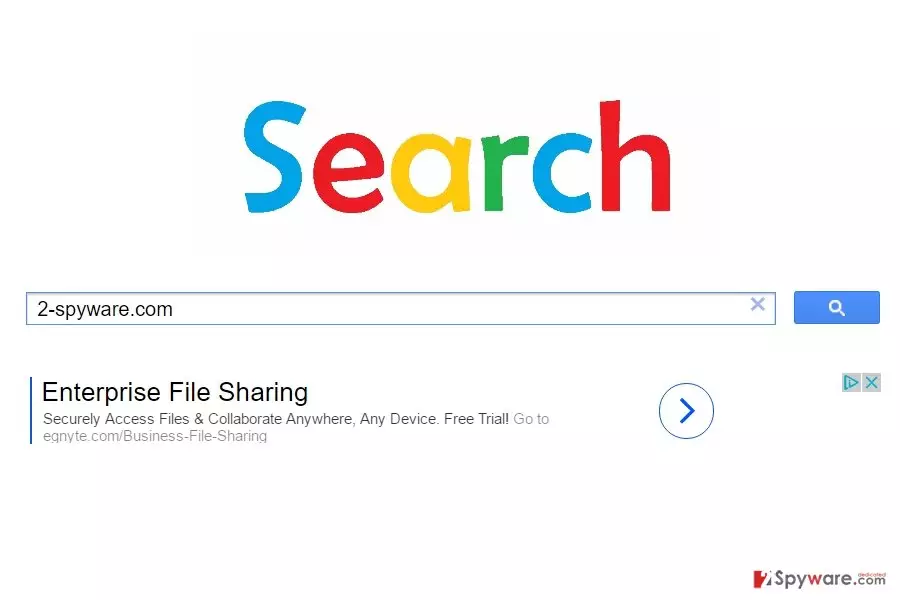
Once the hijacker gets into a computer, it causes a series of unpleasant outcomes. One of the most annoying is the display of bothersome advertisements. They distract attention and annoy users with offers to purchase a variety of goods or services. However, in some cases, clicking on ad might result in getting caught in adware felony [2] or download highly malicious content [3]. Thus, once you notice redirects to shady websites, it is time for you to act. Ignoring searchtopresults.com redirect might lead you to get infected with more aggressive malware. However, the very website is already compromised.
When does the hijacker enter a PC?
You might be surprised that you have installed the hijacker on your won. It might have sneaked into the device when you installed a new application. Unfortunately, it is a common mistake to dash through the settings. As a result, you might overlook the attachments which often bear shady toolbars, browser hijackers, and adware programs. In order to prevent searchtopresults.com hijack and other soimilar PUPs from tiptoeing into your operating system, you need to follow these steps. Before clicking on the “Install” button, select “Custom” settings. Unmark all suspicious attachments and proceed further.
Eliminating the PUP
Remove searchtopresults.com virus either manually or automatically. For more guarantees, choose automatic elimination. An anti-spyware application ensures that no related elements remain on the system. Searchtopresults.com removal usually does not take long and lasts only a couple of minutes. The following manual instructions are provided for those users, who are interested in eliminating the hijacker the usual way. Lastly, update your security applications often. As more and more users use mobile devices than regular PCs. Naturally, hackers target system vulnerabilities in mobile phones [4] and even vehicles. Updating software system might be fatal to your security [5].
Uninstall from Windows
Uninstall from Windows 10/8:
- Type Control Panel into the Windows search box and open the result.
- Under Programs, select Uninstall a program.


Uninstall from Windows 7/XP:
- Click on Windows Start > Control Panel (Windows XP users should click on Add/Remove Programs).
- In Control Panel, select Programs > Uninstall a program.


Remove the unwanted program:
- In the Programs and Features window, look for any recently installed suspicious entries, select them, and click Uninstall.
- If User Account Control appears, click Yes to confirm, then complete the removal.


Delete from macOS
Remove the unwanted application:
- From the menu bar, select Go > Applications.
- In the Applications folder, look for any suspicious entries, then drag them to Trash (or right-click and pick Move to Trash).


Delete leftover files and folders:
- Select Go > Go to Folder.
- Enter /Library/Application Support and remove any suspicious folders related to the unwanted program.
- Repeat the same check in the /Library/LaunchAgents and /Library/LaunchDaemons folders, deleting any suspicious entries.

- Finally, empty the Trash to permanently remove the leftovers.

Reset Internet Explorer
Remove dangerous add-ons:
- Open Internet Explorer, click on the Gear icon (IE menu) on the top-right corner of the browser
- Pick Manage Add-ons.
- You will see a Manage Add-ons window. Here, look for suspicious plugins. Click on these entries and select Disable.


Change your homepage if it was altered:
- Open IE and click on the Gear icon.
- Select Internet Options.
- In the General tab, delete the Home page address and replace it by your preferred one (for example, Google.com).
- Click Apply and then select OK.


Delete temporary files:
- Press on the Gear icon and select Internet Options.
- Under Browsing history, click Delete...
- Select relevant fields and press Delete.


Reset Internet Explorer:
- Click on Gear icon > Internet options and select Advanced tab.
- Select Reset.
- In the new window, check Delete personal settings and select Reset.


Remove from Microsoft Edge
Delete unwanted extensions from MS Edge:
- Select Menu (three horizontal dots at the top-right of the browser window) and pick Extensions.
- From the list, pick the extension and click on the Gear icon.
- Click Remove.


Clear cookies and other browser data:
- Click on the Menu (three horizontal dots at the top-right of the browser window) and select Settings > Privacy, search, and services..
- Under Clear browsing data, pick Choose what to clear.
- Select Cookies and other site data and Cached images and files. (apart from passwords, although you might want to include Media licenses as well, if applicable) and click on Clear.


Restore new tab and homepage settings:
- Click the menu icon and choose Settings.
- Then find On startup section.
- Click Remove next to any suspicious startup page.
Reset MS Edge if the above steps did not work:
- Press on Ctrl + Shift + Esc to open Task Manager.
- Click on More details arrow at the bottom of the window.
- Select Details tab.
- Now scroll down and locate every entry with Microsoft Edge name in it. Right-click on each of them and select End Task to stop MS Edge from running.


Instructions for Chromium-based Edge
Delete extensions from MS Edge (Chromium):
- Open Edge and click select Settings > Extensions.
- Delete unwanted extensions by clicking Remove.


Clear cache and site data:
- Click on Menu and go to Settings.
- Select Privacy, search and services.
- Under Clear browsing data, pick Choose what to clear.
- Under Time range, pick All time.
- Select Clear now.


Reset Chromium-based MS Edge:
- Click on Menu and select Settings.
- On the left side, pick Reset settings.
- Select Restore settings to their default values.
- Confirm with Reset.
- This will disable extensions and reset startup pages but will not delete bookmarks, saved passwords, or browsing history.


Remove from Mozilla Firefox (FF)
Remove dangerous extensions:
- Open Mozilla Firefox browser and click on the Menu (three horizontal lines at the top-right of the window).
- Select Add-ons.
- In here, select the unwanted extension and click Remove.


Reset the homepage:
- Click three horizontal lines at the top right corner to open the menu.
- Choose Settings.
- Under Home, set your preferred homepage and new tab settings.
Clear cookies and site data:
- Click Menu and pick Settings.
- Go to Privacy & Security section.
- Scroll down to locate Cookies and Site Data.
- Click on Clear Data...
- Select Cookies and Site Data and Temporary cached files and pages, then click Clear.


Reset Mozilla Firefox
If clearing the browser as explained above did not help, reset Mozilla Firefox:
- Open Mozilla Firefox browser and click the Menu.
- Go to Help and then choose Troubleshooting Information.

- Under Give Firefox a tune up section, click on Refresh Firefox...
- Once the pop-up shows up, confirm the action by pressing on Refresh Firefox.



Remove from Google Chrome
Delete malicious extensions from Google Chrome:
- Open Google Chrome, click on the Menu (three vertical dots at the top-right corner) and select More tools > Extensions.
- In the newly opened window, you will see all the installed extensions. Uninstall all suspicious extensions related to the unwanted program by clicking Remove.


Clear cache and web data from Chrome:
- Click on Menu and pick Settings.
- Under Privacy and security, select Clear browsing data.
- Select Browsing history, Cookies and other site data, as well as Cached images and files.
- Click Clear data.


Change your homepage:
- Click menu and choose Settings.
- Look for a suspicious site in the On startup section.
- Click on Open a specific or set of pages and click on three dots to find the Remove option.
Reset Google Chrome:
If the previous methods did not help you, reset Google Chrome to eliminate all the unwanted components:
- Click on Menu and select Settings.
- In the Settings, scroll down and click Advanced.
- Scroll down and locate Reset and clean up section.
- Now click Restore settings to their original defaults.
- Confirm with Reset settings.


Delete from Safari
Remove dangerous extensions:
- Open Safari, click Safari in the menu at the top-left of the screen, and select Preferences.
- Go to the Extensions tab, look for any suspicious entries, and click Uninstall to remove them.


Clear history and website data:
- Click Safari in the menu and pick Clear History.
- Set Clear to all history and confirm with Clear History.


Reset Safari:
- Click Safari in the menu and select Preferences > Advanced.
- Enable Show Develop menu in menu bar.
- From the menu bar, click Develop and select Empty Caches.


Did this guide help?
2 comments
McMill791
Boring hijacker...
ooPErt
I find it no less dangerous as Google..