

What should you do when you see SoftPlanet Update Manager alerts?
The main behavior of SoftPlanet Update Manager virus is a tendency to generate related advertisements and notifications. Needless to say that constantly popping up messages highly diminish the overall browser performance. In fact, these alerts are generated by adware program[1]. Looking at technical specifications, adware-type programs do not pose a significant threat to a computer. Nonetheless, the longer they reside on the system, the more frustrated you might become. In other words, continuously emerging pop-ups bother your browser quickly and effectively. SoftPlanet Update Manager ads may also cause trouble by misinforming you about the state of your software. They might be the result of the program which takes care of software updates. Entrusting your system to a shady tool may cause more problems than bringing benefit. Therefore, we present the key cons of this app. Do not waste time and remove SoftPlanet Update Manager.
There are two explanations why you keep seeing “Ads by SoftPlanet Update Manager.” Firstly, you may have either previously installed the application known as Soft Planet Update Manager or your device has been corrupted with other potentially unwanted programs which promote this application. These ads [2] might be the result of the retargeting technique as well[3]. In short, the essence of this marketing technology lies in tracking potential customers with the help of spying tools[4]. These elements are placed in their browser which results in displaying relevant add-ons. The advertisers track users to other domains. Constantly appearing the same sort of commercial offers increases the risk of users clicking on them. Likewise, SoftPlanet Update Manager alerts might be bothering you as well.
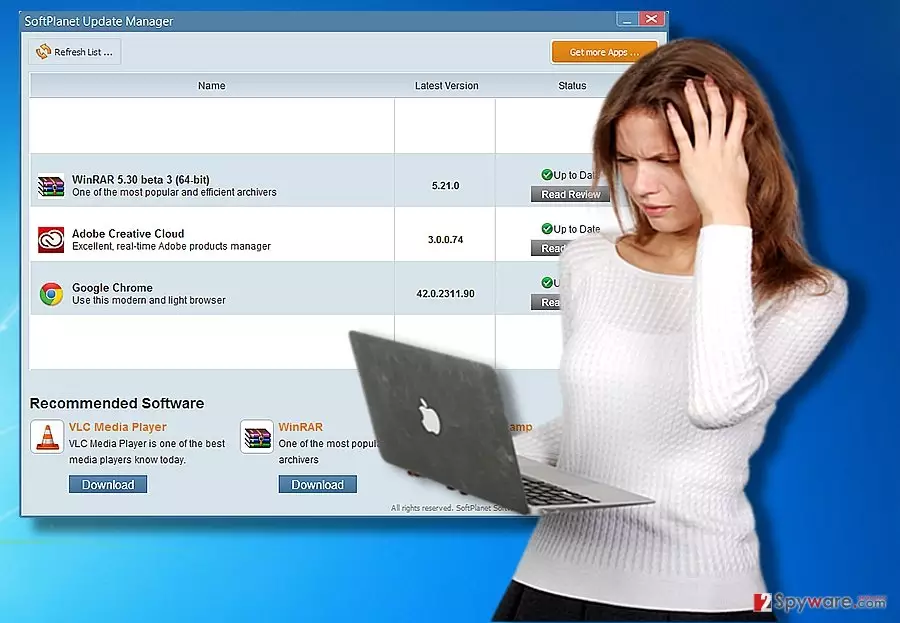
In most of the cases, they promote the program which supposedly manages the update processes of your crucial programs for you. Taking into consideration the origin and the key aim of this tool, it is questionable whether it can be meet your expectations. Since it is promoted in such intrusive way, there are also doubts what updates it may install. In short, it may falsely alert you with outdated programs and install unreliable or corrupted updates of legitimate software. Note that it may also promote the installation of other less-known products such as PC optimizers and registry repair tools. They hardly increase the productivity of your device but rather might make it more vulnerable to virtual threats. When SoftPlanet Update Manager redirect activates, exit all emerged windows. These redirect windows might mislead you to potentially insecure domains. Thus, concentrate on SoftPlanet Update Manager removal. Install FortectIntego to help you delete it.
When did this adware settle on my PC?
If you are wondering when or how SoftPlanet Update Manager hijack took place, let us briefly introduce how such adware occupies your device. Potentially unwanted programs pave their way into netizens’ devices when they install free applications. It is common sense that few users pay attention to the installation wizard. As a result, they miss add-ons placed under “Recommended” settings. Despite what program you download, select “Custom” settings and then remove the checkmarks from all unwanted add-ons. Likewise, you will be able to evade installing insecure and even fraudulent programs.
Quick SoftPlanet Update Manager elimination solution
There are two ways to remove SoftPlanet Update Manager virus. Eliminate it manually or with the assistance of an anti-spyware application. The latter method is more convenient and less time-consuming since the program locates all elements of the adware and then deletes. Manual SoftPlanet Update Manager removal takes more time since you have to go through the steps by yourself. Precisely follow each command not to leave any important detail. Once in a while, review the list of your system applications and browser plug-ins[5].
Uninstall from Windows
Uninstall from Windows 10/8:
- Type Control Panel into the Windows search box and open the result.
- Under Programs, select Uninstall a program.


Uninstall from Windows 7/XP:
- Click on Windows Start > Control Panel (Windows XP users should click on Add/Remove Programs).
- In Control Panel, select Programs > Uninstall a program.


Remove the unwanted program:
- In the Programs and Features window, look for any recently installed suspicious entries, select them, and click Uninstall.
- If User Account Control appears, click Yes to confirm, then complete the removal.


Delete from macOS
Remove the unwanted application:
- From the menu bar, select Go > Applications.
- In the Applications folder, look for any suspicious entries, then drag them to Trash (or right-click and pick Move to Trash).


Delete leftover files and folders:
- Select Go > Go to Folder.
- Enter /Library/Application Support and remove any suspicious folders related to the unwanted program.
- Repeat the same check in the /Library/LaunchAgents and /Library/LaunchDaemons folders, deleting any suspicious entries.

- Finally, empty the Trash to permanently remove the leftovers.

Reset Internet Explorer
Remove dangerous add-ons:
- Open Internet Explorer, click on the Gear icon (IE menu) on the top-right corner of the browser
- Pick Manage Add-ons.
- You will see a Manage Add-ons window. Here, look for suspicious plugins. Click on these entries and select Disable.


Change your homepage if it was altered:
- Open IE and click on the Gear icon.
- Select Internet Options.
- In the General tab, delete the Home page address and replace it by your preferred one (for example, Google.com).
- Click Apply and then select OK.


Delete temporary files:
- Press on the Gear icon and select Internet Options.
- Under Browsing history, click Delete...
- Select relevant fields and press Delete.


Reset Internet Explorer:
- Click on Gear icon > Internet options and select Advanced tab.
- Select Reset.
- In the new window, check Delete personal settings and select Reset.


Remove from Microsoft Edge
Delete unwanted extensions from MS Edge:
- Select Menu (three horizontal dots at the top-right of the browser window) and pick Extensions.
- From the list, pick the extension and click on the Gear icon.
- Click Remove.


Clear cookies and other browser data:
- Click on the Menu (three horizontal dots at the top-right of the browser window) and select Settings > Privacy, search, and services..
- Under Clear browsing data, pick Choose what to clear.
- Select Cookies and other site data and Cached images and files. (apart from passwords, although you might want to include Media licenses as well, if applicable) and click on Clear.


Restore new tab and homepage settings:
- Click the menu icon and choose Settings.
- Then find On startup section.
- Click Remove next to any suspicious startup page.
Reset MS Edge if the above steps did not work:
- Press on Ctrl + Shift + Esc to open Task Manager.
- Click on More details arrow at the bottom of the window.
- Select Details tab.
- Now scroll down and locate every entry with Microsoft Edge name in it. Right-click on each of them and select End Task to stop MS Edge from running.


Instructions for Chromium-based Edge
Delete extensions from MS Edge (Chromium):
- Open Edge and click select Settings > Extensions.
- Delete unwanted extensions by clicking Remove.


Clear cache and site data:
- Click on Menu and go to Settings.
- Select Privacy, search and services.
- Under Clear browsing data, pick Choose what to clear.
- Under Time range, pick All time.
- Select Clear now.


Reset Chromium-based MS Edge:
- Click on Menu and select Settings.
- On the left side, pick Reset settings.
- Select Restore settings to their default values.
- Confirm with Reset.
- This will disable extensions and reset startup pages but will not delete bookmarks, saved passwords, or browsing history.


Remove from Mozilla Firefox (FF)
Remove dangerous extensions:
- Open Mozilla Firefox browser and click on the Menu (three horizontal lines at the top-right of the window).
- Select Add-ons.
- In here, select the unwanted extension and click Remove.


Reset the homepage:
- Click three horizontal lines at the top right corner to open the menu.
- Choose Settings.
- Under Home, set your preferred homepage and new tab settings.
Clear cookies and site data:
- Click Menu and pick Settings.
- Go to Privacy & Security section.
- Scroll down to locate Cookies and Site Data.
- Click on Clear Data...
- Select Cookies and Site Data and Temporary cached files and pages, then click Clear.


Reset Mozilla Firefox
If clearing the browser as explained above did not help, reset Mozilla Firefox:
- Open Mozilla Firefox browser and click the Menu.
- Go to Help and then choose Troubleshooting Information.

- Under Give Firefox a tune up section, click on Refresh Firefox...
- Once the pop-up shows up, confirm the action by pressing on Refresh Firefox.



Remove from Google Chrome
Delete malicious extensions from Google Chrome:
- Open Google Chrome, click on the Menu (three vertical dots at the top-right corner) and select More tools > Extensions.
- In the newly opened window, you will see all the installed extensions. Uninstall all suspicious extensions related to the unwanted program by clicking Remove.


Clear cache and web data from Chrome:
- Click on Menu and pick Settings.
- Under Privacy and security, select Clear browsing data.
- Select Browsing history, Cookies and other site data, as well as Cached images and files.
- Click Clear data.


Change your homepage:
- Click menu and choose Settings.
- Look for a suspicious site in the On startup section.
- Click on Open a specific or set of pages and click on three dots to find the Remove option.
Reset Google Chrome:
If the previous methods did not help you, reset Google Chrome to eliminate all the unwanted components:
- Click on Menu and select Settings.
- In the Settings, scroll down and click Advanced.
- Scroll down and locate Reset and clean up section.
- Now click Restore settings to their original defaults.
- Confirm with Reset settings.


Delete from Safari
Remove dangerous extensions:
- Open Safari, click Safari in the menu at the top-left of the screen, and select Preferences.
- Go to the Extensions tab, look for any suspicious entries, and click Uninstall to remove them.


Clear history and website data:
- Click Safari in the menu and pick Clear History.
- Set Clear to all history and confirm with Clear History.


Reset Safari:
- Click Safari in the menu and select Preferences > Advanced.
- Enable Show Develop menu in menu bar.
- From the menu bar, click Develop and select Empty Caches.


Did this guide help?
Be the first to comment