

Can you trust startjoytabsearch.com?
If you intend to liven up your browsing experience, startjoytabsearch.com virus might attract your attention. However, there is one huge “but.” IT professionals classify it as a browser hijacker. Even though it looks like a search engine, it might not satisfy your expectations. Specifically, the front page is overcrowded with the links to additional websites which might not be properly protected from outside infections. What is more, soon you get bothered by redirects to various domains. The browser may also persuade you into downloading futile add-ons which only slower the browser [1]. Thus, we recommend you to start startjoytabsearch.com removal right away. FortectIntego helps you do it properly.
At first glance, browser hijackers do not differ much from ordinary search engines. Their initial goal is to attract users’ attention with colorful designs and seemingly useful features. The category of these potentially unwanted programs is vivid as it is daily updated with new samples. Some of them are quite harmless while others get compromised due to the redirects to malevolent domains. Likewise, it made the security giant Malwarebytes to label certain PUPs as malware [2]. Speaking of search engines, you can also encounter quite an aggressive one which bombards with offers to install it. Start Joy Tab Search hijacker is created by Imali Ltd. This company has already published a series of browser hijackers. All of them bear similar URL addresses.
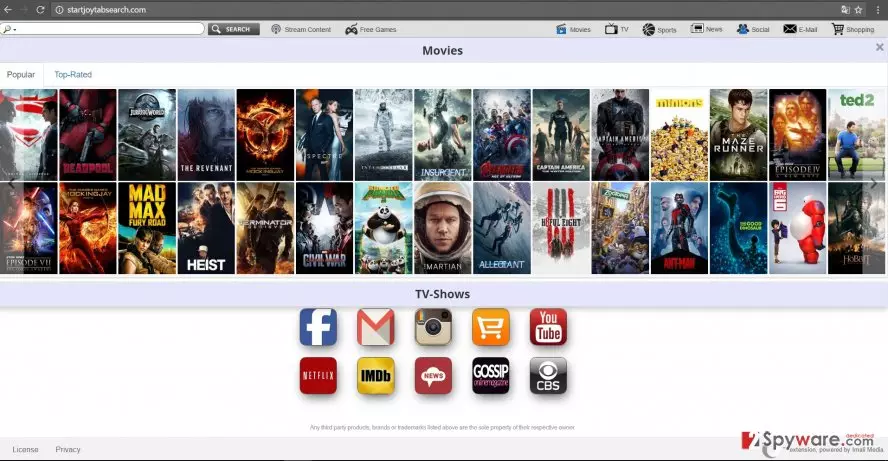
What is more, they try to appeal to users by offering quick access to movie streaming websites, shopping domains or web pages disclosing intricate details of private celebrity life. Such features have their own negative drawbacks. Due to such advertising, startjoytabsearch.com redirect might become a troublesome phenomenon as it hinders speedy browsing sessions. Though browser hijackers are not regarded as virtual threats, some of them might lead to viruses. Earning money from a high traffic of a website leads authors to use shady or poor web page protection measures. Thus, if you get misguided to a website “decorated” with flickering ads, there is a risk of encountering a domain infected with an exploit kit [3] or another virus which steals personal credentials [4]. What is more, you should be cautious of promoted web pages which provide the ability to watch movies for free. The case of PopcornTime virus reveals that cyber criminals even disguise a cyber menace under a popular movie streaming application [5]. Thus, we encourage you to remove startjoytabsearch.com.
The transmission tendencies of the PUP
If you are wondering when and how this search engine infected your device, let us explain everything in detail. Usually, such search engines are distributed via the “bundling” strategy. Specifically, users enable startjoytabsearch.com hijack themselves after they initiate the removal process of a newly downloaded application without spotting optional tools. Hoping through the steps and hitting “Next” only accelerates the installation of unwanted elements. Next time when you are about to install new software, choose “Advanced” settings. Unmark all unnecessary tools and proceed with the installation guide.
Startjoytabsearch.com elimination steps
There are two ways how you can remove startjoytabsearch.com virus from the computer. If you are used to eliminating PUPs on your own, the manual method might be a convenient solution. Keep in mind that this method needs precision and attention. In case this method is not an option, opt for automatic startjoytabsearch.com removal. For that, you will need to install an anti-spyware application. The updated version will eliminate all components of a hijacker. On the final note, cautiousness while surfing online plays a significant role since in some cases you might escape a virus which is not recorded in a security app database yet.
Uninstall from Windows
Uninstall from Windows 10/8:
- Type Control Panel into the Windows search box and open the result.
- Under Programs, select Uninstall a program.


Uninstall from Windows 7/XP:
- Click on Windows Start > Control Panel (Windows XP users should click on Add/Remove Programs).
- In Control Panel, select Programs > Uninstall a program.


Remove the unwanted program:
- In the Programs and Features window, look for any recently installed suspicious entries, select them, and click Uninstall.
- If User Account Control appears, click Yes to confirm, then complete the removal.


Delete from macOS
Remove the unwanted application:
- From the menu bar, select Go > Applications.
- In the Applications folder, look for any suspicious entries, then drag them to Trash (or right-click and pick Move to Trash).


Delete leftover files and folders:
- Select Go > Go to Folder.
- Enter /Library/Application Support and remove any suspicious folders related to the unwanted program.
- Repeat the same check in the /Library/LaunchAgents and /Library/LaunchDaemons folders, deleting any suspicious entries.

- Finally, empty the Trash to permanently remove the leftovers.

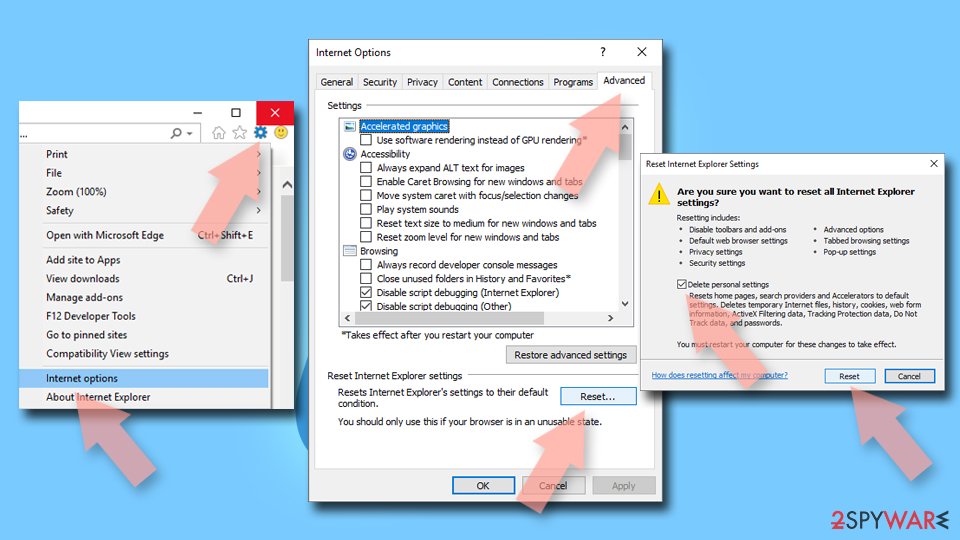
Reset Internet Explorer
Remove dangerous add-ons:
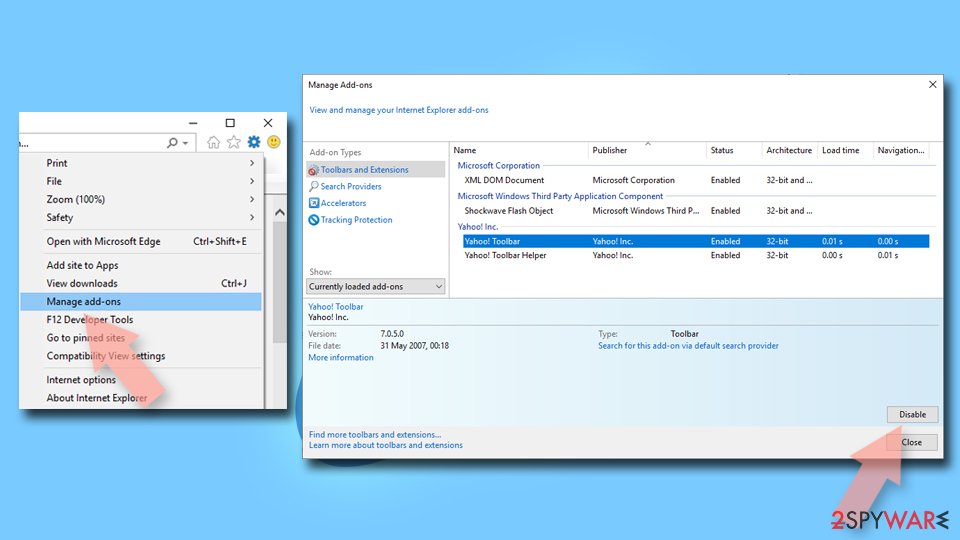
- Open Internet Explorer, click on the Gear icon (IE menu) on the top-right corner of the browser
- Pick Manage Add-ons.
- You will see a Manage Add-ons window. Here, look for suspicious plugins. Click on these entries and select Disable.

Change your homepage if it was altered:
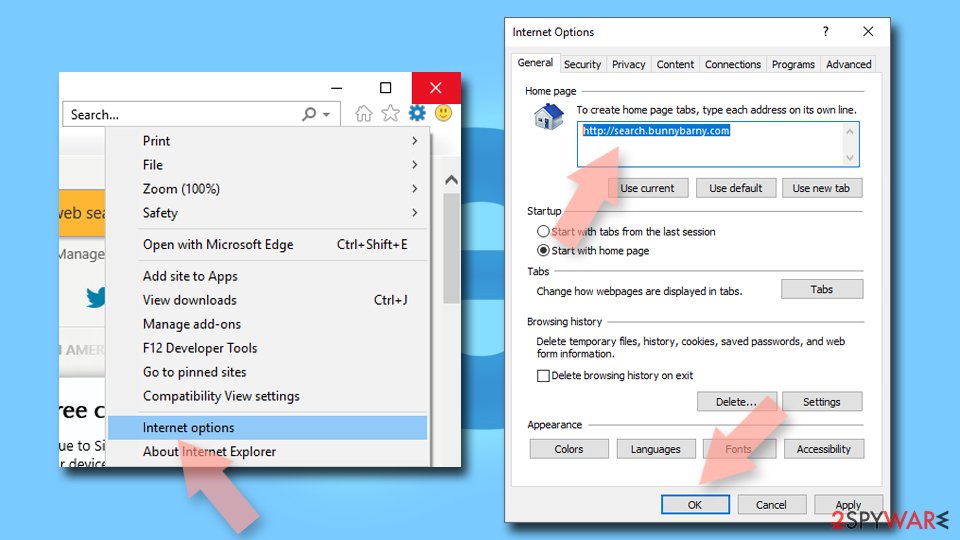
- Open IE and click on the Gear icon.
- Select Internet Options.
- In the General tab, delete the Home page address and replace it by your preferred one (for example, Google.com).
- Click Apply and then select OK.

Delete temporary files:
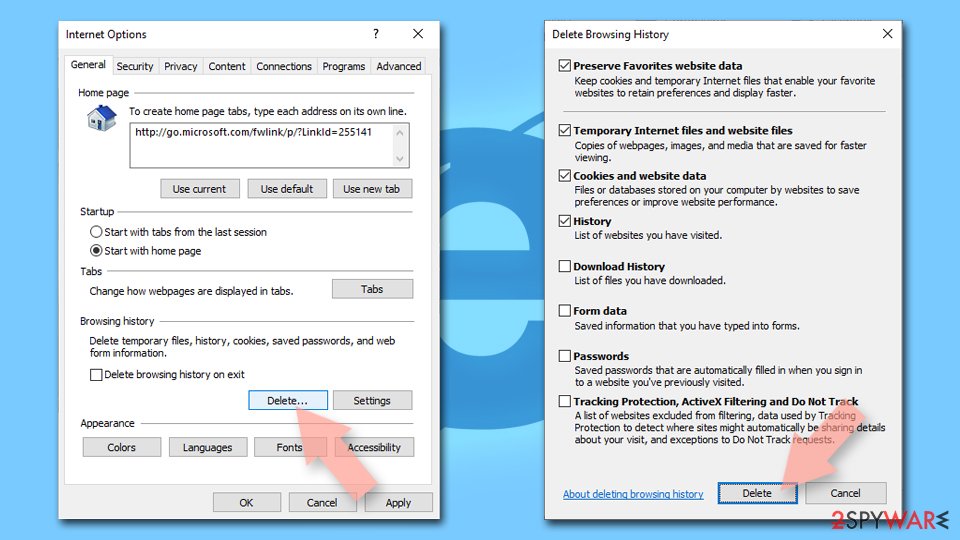
- Press on the Gear icon and select Internet Options.
- Under Browsing history, click Delete...
- Select relevant fields and press Delete.

Reset Internet Explorer:
- Click on Gear icon > Internet options and select Advanced tab.
- Select Reset.
- In the new window, check Delete personal settings and select Reset.

Remove from Microsoft Edge
Delete unwanted extensions from MS Edge:
- Select Menu (three horizontal dots at the top-right of the browser window) and pick Extensions.
- From the list, pick the extension and click on the Gear icon.
- Click Remove.


Clear cookies and other browser data:
- Click on the Menu (three horizontal dots at the top-right of the browser window) and select Settings > Privacy, search, and services..
- Under Clear browsing data, pick Choose what to clear.
- Select Cookies and other site data and Cached images and files. (apart from passwords, although you might want to include Media licenses as well, if applicable) and click on Clear.


Restore new tab and homepage settings:
- Click the menu icon and choose Settings.
- Then find On startup section.
- Click Remove next to any suspicious startup page.
Reset MS Edge if the above steps did not work:
- Press on Ctrl + Shift + Esc to open Task Manager.
- Click on More details arrow at the bottom of the window.
- Select Details tab.
- Now scroll down and locate every entry with Microsoft Edge name in it. Right-click on each of them and select End Task to stop MS Edge from running.


Instructions for Chromium-based Edge
Delete extensions from MS Edge (Chromium):
- Open Edge and click select Settings > Extensions.
- Delete unwanted extensions by clicking Remove.


Clear cache and site data:
- Click on Menu and go to Settings.
- Select Privacy, search and services.
- Under Clear browsing data, pick Choose what to clear.
- Under Time range, pick All time.
- Select Clear now.


Reset Chromium-based MS Edge:
- Click on Menu and select Settings.
- On the left side, pick Reset settings.
- Select Restore settings to their default values.
- Confirm with Reset.
- This will disable extensions and reset startup pages but will not delete bookmarks, saved passwords, or browsing history.


Remove from Mozilla Firefox (FF)
Remove dangerous extensions:
- Open Mozilla Firefox browser and click on the Menu (three horizontal lines at the top-right of the window).
- Select Add-ons.
- In here, select the unwanted extension and click Remove.


Reset the homepage:
- Click three horizontal lines at the top right corner to open the menu.
- Choose Settings.
- Under Home, set your preferred homepage and new tab settings.
Clear cookies and site data:
- Click Menu and pick Settings.
- Go to Privacy & Security section.
- Scroll down to locate Cookies and Site Data.
- Click on Clear Data...
- Select Cookies and Site Data and Temporary cached files and pages, then click Clear.


Reset Mozilla Firefox
If clearing the browser as explained above did not help, reset Mozilla Firefox:
- Open Mozilla Firefox browser and click the Menu.
- Go to Help and then choose Troubleshooting Information.

- Under Give Firefox a tune up section, click on Refresh Firefox...
- Once the pop-up shows up, confirm the action by pressing on Refresh Firefox.



Remove from Google Chrome
Delete malicious extensions from Google Chrome:
- Open Google Chrome, click on the Menu (three vertical dots at the top-right corner) and select More tools > Extensions.
- In the newly opened window, you will see all the installed extensions. Uninstall all suspicious extensions related to the unwanted program by clicking Remove.


Clear cache and web data from Chrome:
- Click on Menu and pick Settings.
- Under Privacy and security, select Clear browsing data.
- Select Browsing history, Cookies and other site data, as well as Cached images and files.
- Click Clear data.


Change your homepage:
- Click menu and choose Settings.
- Look for a suspicious site in the On startup section.
- Click on Open a specific or set of pages and click on three dots to find the Remove option.
Reset Google Chrome:
If the previous methods did not help you, reset Google Chrome to eliminate all the unwanted components:
- Click on Menu and select Settings.
- In the Settings, scroll down and click Advanced.
- Scroll down and locate Reset and clean up section.
- Now click Restore settings to their original defaults.
- Confirm with Reset settings.


Delete from Safari
Remove dangerous extensions:
- Open Safari, click Safari in the menu at the top-left of the screen, and select Preferences.
- Go to the Extensions tab, look for any suspicious entries, and click Uninstall to remove them.


Clear history and website data:
- Click Safari in the menu and pick Clear History.
- Set Clear to all history and confirm with Clear History.


Reset Safari:
- Click Safari in the menu and select Preferences > Advanced.
- Enable Show Develop menu in menu bar.
- From the menu bar, click Develop and select Empty Caches.


Did this guide help?
2 comments
AmandaBynes
Ive seen it in some funny place...
Stony78@sea
Yeah, right as if Im dumb enough to install such thing.