
SupTab (MiuiTab) ads: what it is and how to remove it
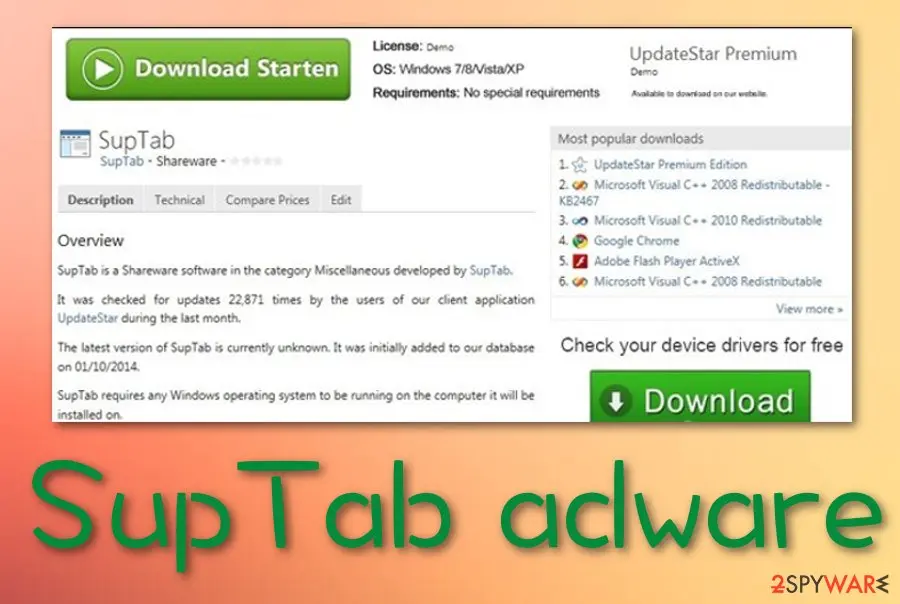
SupTab (MiuiTab) is a questionable program that can distract the user from computing work by loading intrusive ads and provoking redirects. When received from a bundle, the adware initiates multiple changes on web browsers.
Facts checked October 6, 2026. Removal steps tested on Windows 11 (26H2) and checked against Microsoft's and the browser makers' current documentation. Sections marked as our earlier report are the original text: they describe the threat as it was then and have not been reviewed since. The 2026 status, the removal steps and the questions are current.
Automatic
Get a free scan and check if your PC is infected.
Fortect finds malware, unwanted programs and the Windows damage they leave behind, and repairs it in one pass.
A scan of the PC is a quick way to confirm that nothing installed is behind the awesomehp.com redirects.
Do it yourself · free Remove SupTab (MiuiTab) ads yourself 4 steps, about 12 minutes, no software needed.
Start the steps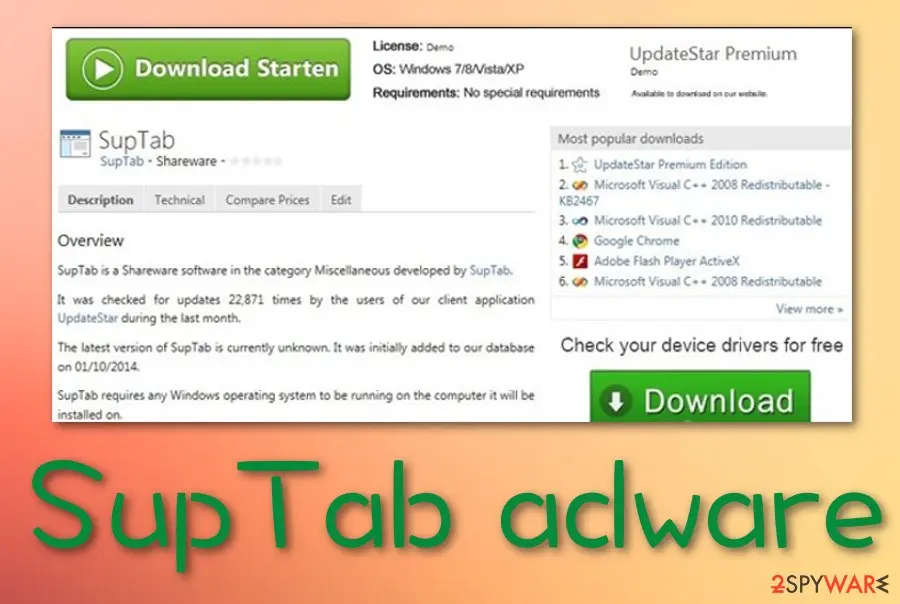
SupTab (MiuiTab) ads: summary
| Name | SupTab (MiuiTab) |
|---|---|
| Type | Ad-supported application/PUP |
| Related file | Once the adware appears on the computer system, it installs the HpUI.exe process in the Windows Task Manager. This executable allows executing and running the third-party app |
| Appearance | Software bundles are the most popular way how the ad-supported application ends up on the targeted computer system. The program can abuse weak downloading settings such as the Recommended ones. Also, the app can infiltrate the machine through third-party downloading sources such as cnet.com, download.com, softonic.com, and soft32.com |
| Changes | When the potentially unwanted program places itself on your web browser, you are likely to expect changes on your browser's homepage and new tab URL zone |
| Detection names | No Microsoft detection name is known |
| Removal | Scan the PC with security software to find and remove the malware and anything installed with it. Fortect scans Windows for malware and repairs the system files and settings it damaged. Remove it nowTo use the full-featured product, you have to purchase a license for Fortect. The scan is free. |
Show 9 more facts
| Distribution | Not recorded in the old report |
|---|---|
| Damage | Not recorded in the old report |
| Symptoms | Redirects to an unknown domain |
| Evidence | 5 write-ups by security sites; details still limited |
| Domains | awesomehp.com |
| Ads shown as | Redirects through ad pages |
| Browsers | Chrome, Edge and Firefox |
| First seen | 16 January 2020 |
| Facts checked | 6 October 2026 |
Is SupTab (MiuiTab) ads dangerous?
From our report of Jan 2020 · not reviewed since
SupTab - a third-party app that includes rogue extensions into web browser apps without the user's consent
SupTab (MiuiTab) is a questionable program that can distract the user from computing work by loading intrusive ads and provoking redirects.
When received from a bundle, the adware initiates multiple changes on web browsers. It can modify the homepage, new tab URL zone, and inject suspicious add-ons to the browser settings. These extensions are responsible for the advertising and redirecting that you are likely to receive while infected with this PUP.
SupTab virus can drop inconvenient deals and offers that will be expected to be clicked and generate income. In addition, the adware virus includes the HpUI.exe process in the Windows Task Manager that is the main task for launching the bogus app. The executable should be properly disabled and eliminated while completing the SupTab removal process.
Additionally, the PUP is known to be spread by a browser hijacker named Awesomehp.com. If you receive this third-party product, note that your web browsers, Windows Task Manager, and Windows Registry are likely to be filled with questionable content.
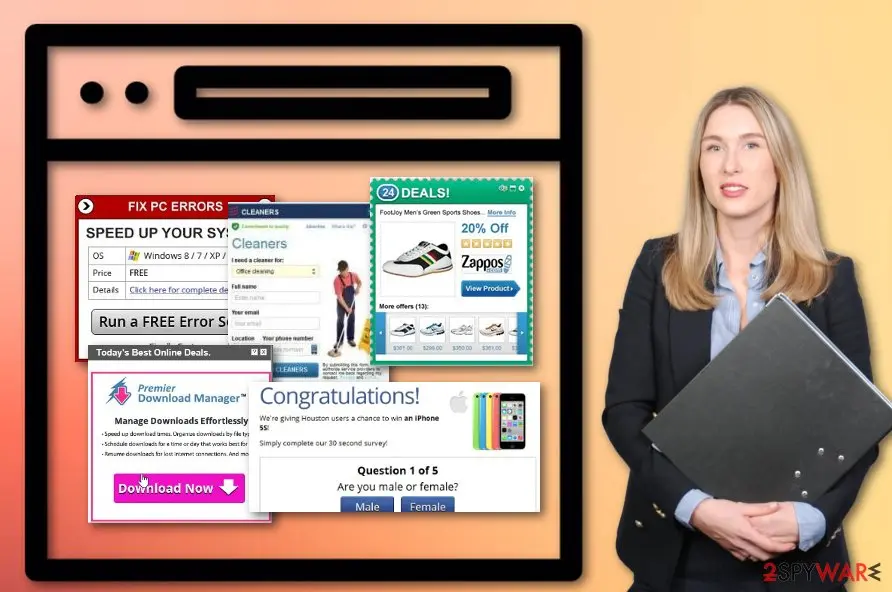
One of the most annoying activities that are promoted by SupTab is advertising. this type of task interrupts browsing sessions and loads the user with irrelevant offers and deals that the person is encouraged to check out. However, some of these ads might sponsor completely useless products and services for an inadequate price. The adware might advertise rogue security software and other fake protection services.
What is more, SupTab can load you with unexpected scams, scareware, and surveys. If you are prompted to enter some personal details about yourself or any credential information, do not do that as some hacker might be able to easily access the sensitive data, steal your identity, or wipe out money from your banking account. Better click the "x" button for every advertisement that appears from this app.
Redirecting is another problem related to SupTab. This PUP can throw you to sponsored domains that are filled with additional attractive-looking offers but do not hold any true value. If you ever land on such a location, you should be careful with content that is placed there as you might have landed on a potentially malicious website. If this is the case, you can experience a secret malware installation.
We have made a thorough investigation of SupTab and discovered that this ad-supported application can redirect the user to a wide range of third-party domains. Some of the websites include the following ones:
Continuously, SupTab might fill your web browsers with cookies, beacons, or pixels. These products aim to track the user's browsing history and record information that is related to the user's online sessions. The adware developers might target details such as commonly visited websites and networks, hyperlinks, advertisements, and other locations that you have entered, your IP address, geolocation, browser type, etc.
This type of information is mostly used in advertising campaigns so that the developers can target a wide range of users by finding out their preferred deals. However, these types of offers might also be misleading and seek to pull out money from the person's pocket. Furthermore, SupTab developers might share the collected browsing information with other third-parties for receiving even more monetary income.
SupTab malware is a name attached to this adware due to all the suspicious activities that are promoted by the app. All of the advertising and redirecting tasks combined together create a bit of a heavy load for a weaker computer processor to carry.
As a result, you might discover that the power of your CPU is constantly rising and that some of your software and the system has become more sluggish than ever before.
If you have been recently facing such a problem, you should remove SupTab from your Windows or macOS computer system with the help of antimalware products or manual instructions (we have provided some guiding steps at the end of our article). Also, if the adware has brought other suspicious software and products that might have compromised some areas in your system, try fixing them with a tool such as .
Note that SupTab might also appear on your web browser if you are currently visiting an unsafe website. If the lack of protection is the reason why you have been dealing with ads from this app lately, you should get a reliable antimalware tool that will prevent you from visiting unsecured pages. Also, install an adblocker such as Adblock Plus that will stop the incoming notifications during browsing sessions.
- mysites123.com;
- mylucky123.com;
- nuesearch.com;
- yoursearching.com;
- yoursites123.com;
- omniboxes.com;
- istartpageing.com.
From our report of Jan 2020 · not reviewed since
The infiltration process of adware programs
Users often install these types of potentially unwanted programs without even knowing about them.
In fact, there are tens of many freeware, shareware and other third-party programs that are used to spread adware apps. These questionable products can come from secondary downloading networks such as download.com, cnet.com, softonic.com, and soft32.com. Free programs are filled with questionable extensions for a very simple reason - monetization.
However, you can do something for preventing their infiltration. The first thing that you should take in your own hands when installing doubtful programs is reading the terms of the agreement.
By doing so, you will have a better understanding of what program you are installing and what comes attached to it. In addition, select the advanced installation method and follow the entire process, step by step. During this stage, unmark all unwanted accessories.
According to experts from Virusai.lt, it is strongly advisable to employ an antivirus program that includes as many protective features as possible. The tool will scan your entire system once in a while and announce to you the security state of your computer. Also, it will likely warn you when you are trying to enter a potentially malicious website.
From our report of Jan 2020 · not reviewed since
More from our earlier report on SupTab (MiuiTab)
- If you have discovered any compromised areas on your computer, you can try restoring them with the help of software such as
Check your browser and PC
- Address:
awesomehp.com
How to remove SupTab (MiuiTab) ads
How to remove the SupTab (MiuiTab) extension
Do the browser steps in every browser and profile on the PC, then check Windows for the program that installed the extension.
Step 1: Remove extensions you did not add
In Chrome open
chrome://extensions, in Edgeedge://extensions, and in Firefox the menu > Extensions and themes.Remove every extension you do not remember adding, especially search, new tab, coupon, PDF, weather or video downloader add-ons. Check every browser and every profile, because each keeps its own list.
If an extension has no Remove button or comes back, a browser policy holds it (see "Managed by your organization" in the procedure below). The pages are the same on Windows 11 and Windows 10.
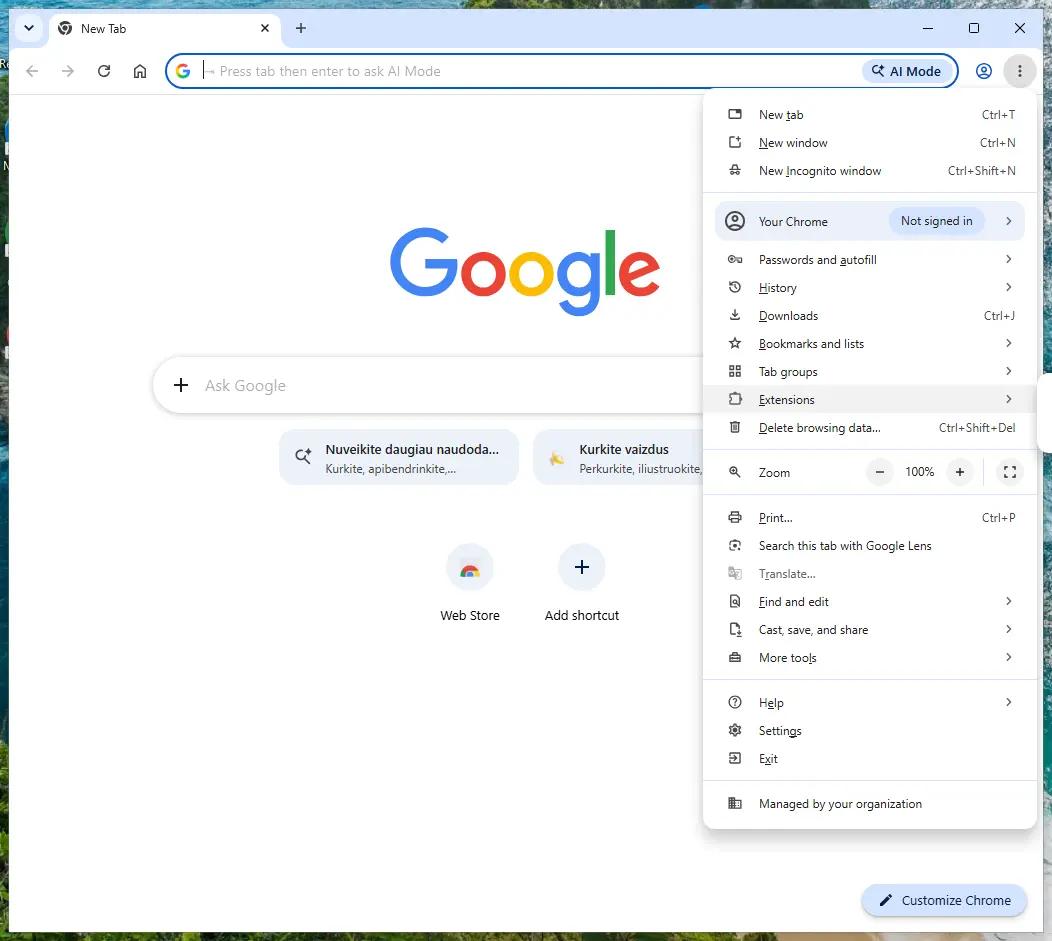
Chrome on Windows 11: More > Extensions > Manage extensions. Full procedure with screenshots: Remove a browser extension
Step 2: Uninstall programs you did not mean to install
SupTab (MiuiTab) rarely comes alone: it is usually installed by, or together with, a free program. In Windows 11 open Settings > Apps > Installed apps, in Windows 10 Settings > Apps > Apps & features, and sort by install date.
Uninstall every entry from the day the trouble began that you did not install on purpose, for example a download manager, a converter or a browser you never chose.
Keep drivers and entries from Microsoft, Intel, AMD, NVIDIA or your PC's maker unless you are sure.
Full procedure with screenshots: Uninstall a program or app in Windows On uGetFix
Step 3: Reset the browser
A reset removes what the steps above could miss:
- changed start pages
- site permissions
- hidden settings
In Chrome open Settings > Reset settings > Restore settings to their original defaults; in Edge Settings > Reset settings; in Firefox Help > More troubleshooting information > Refresh Firefox.
Tip: Bookmarks and saved passwords stay, while extensions are turned off and the search engine and start page return to the defaults.
Reset every browser on the PC, including Edge, which Windows 11 and Windows 10 always have.
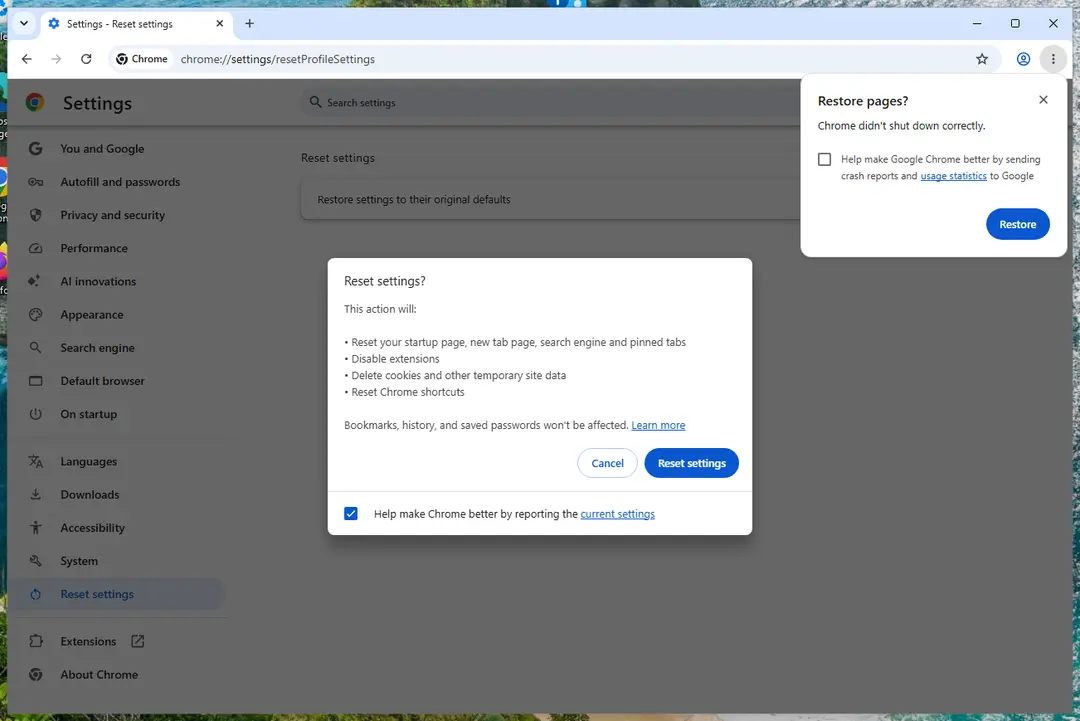
Chrome on Windows 11: Settings > Reset settings. Full procedure with screenshots: Reset a browser and fix a hijacked search engine
Step 4: Scan the PC, then run the offline scan
A scan finds the parts of SupTab (MiuiTab) that the manual steps cannot see. In Windows Security > Virus & threat protection > Scan options, start a Full scan and quarantine what it reports.
Follow it with Microsoft Defender Antivirus (offline scan) > Scan now, which restarts the PC and checks the disk while Windows and the malware are not running.
It takes about 15 minutes and works the same in Windows 11 and Windows 10. If either scan finds something, run the full scan again after removal until it comes back clean.

Windows 11: Windows Security > Virus & threat protection > Scan options. Full procedure with screenshots: Run a Microsoft Defender Offline scan
Instructions for each browser and system
The detailed steps for every browser and system this guide covers. Open the one you use.
Uninstall from Windows
To terminate trouble-causing applications from Windows and all the additional objects that were added by the adware, apply the following instructions:
Uninstall from Windows 10/8:
- Type Control Panel into the Windows search box and open the result.
- Under Programs, select Uninstall a program.
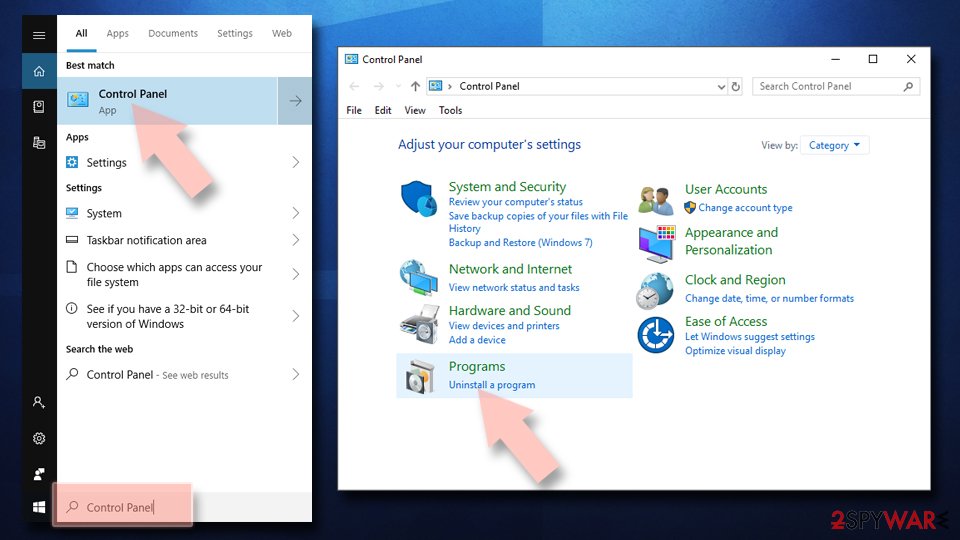
Uninstall from Windows 7/XP:
- Click on Windows Start > Control Panel (Windows XP users should click on Add/Remove Programs).
- In Control Panel, select Programs > Uninstall a program.
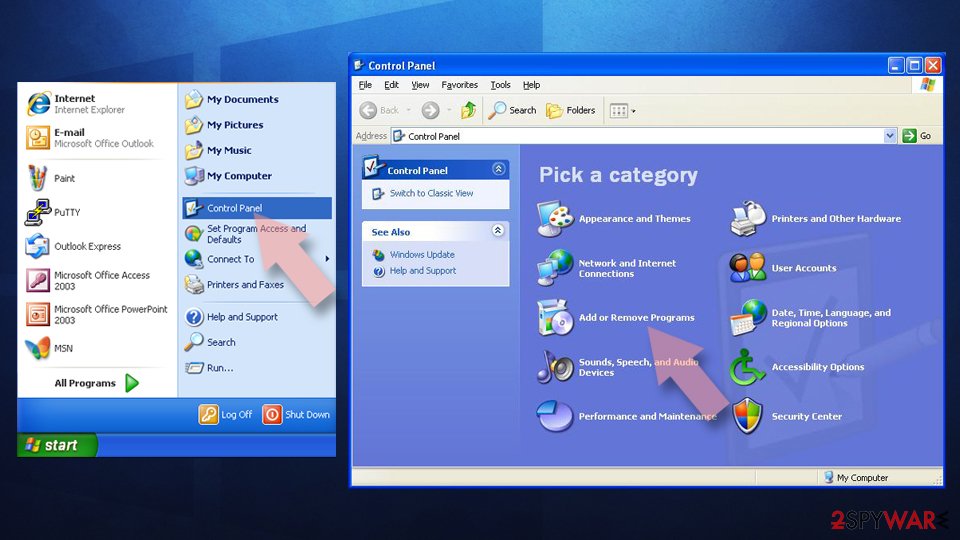
Remove the unwanted program:
- In the Programs and Features window, look for any recently installed suspicious entries, select them, and click Uninstall.
- If User Account Control appears, click Yes to confirm, then complete the removal.
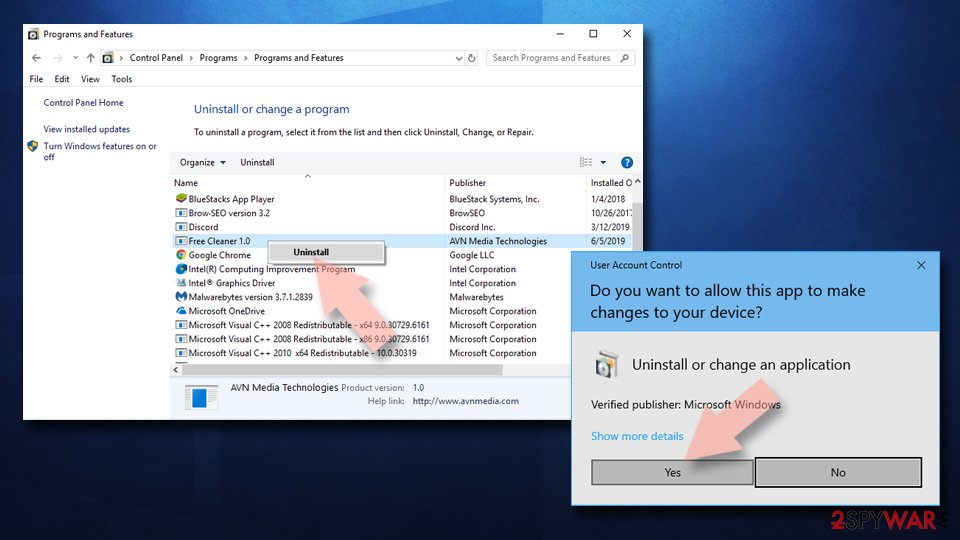
Remove from Google Chrome
To diminish all unwanted changes on your Google Chrome web browser app and delete all adware-added extensions, complete the following guiding steps:
Delete malicious extensions from Google Chrome:
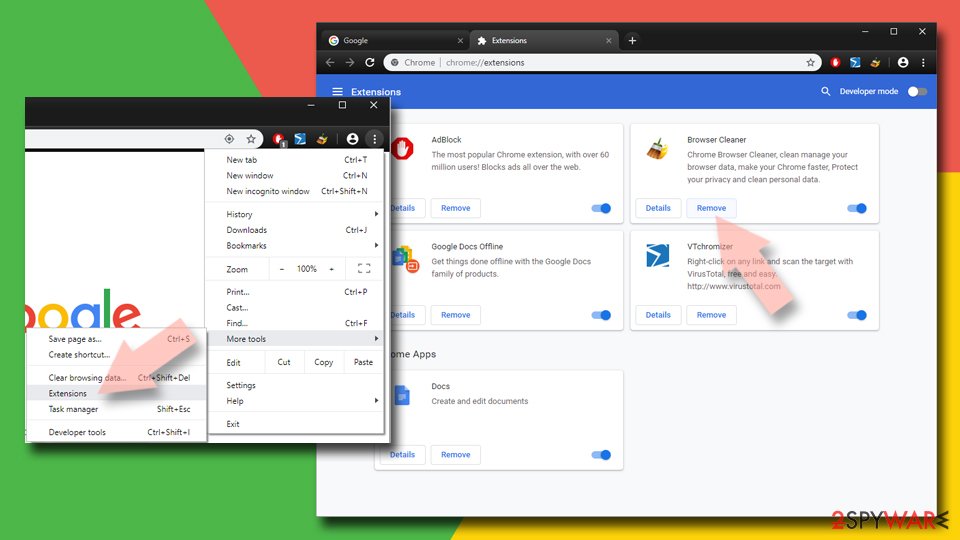
- Open Google Chrome, click on the Menu (three vertical dots at the top-right corner) and select More tools > Extensions.
- In the newly opened window, you will see all the installed extensions. Uninstall all suspicious extensions related to the unwanted program by clicking Remove.
Clear cache and web data from Chrome:
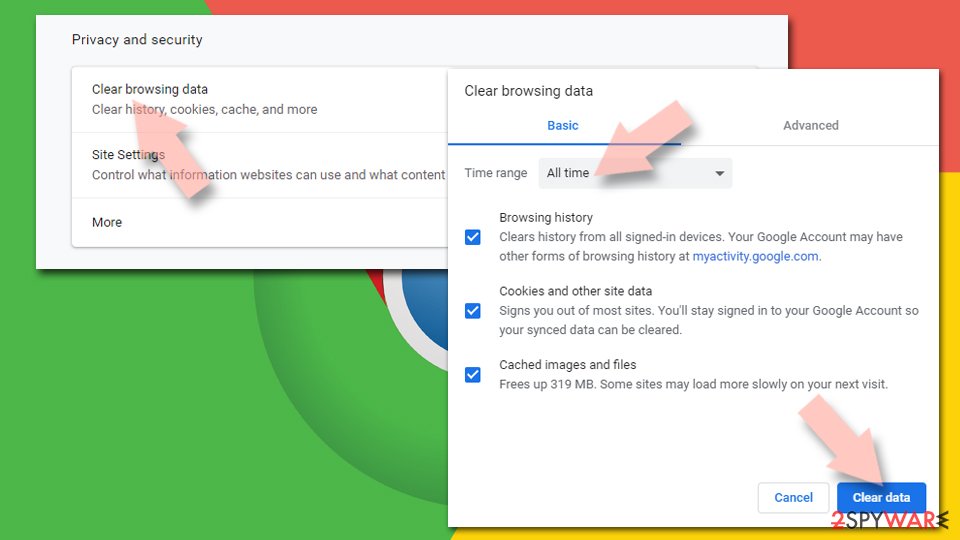
- Click on Menu and pick Settings.
- Under Privacy and security, select Clear browsing data.
- Select Browsing history, Cookies and other site data, as well as Cached images and files.
- Click Clear data.
Change your homepage:
- Click menu and choose Settings.
- Look for a suspicious site in the On startup section.
- Click on Open a specific or set of pages and click on three dots to find the Remove option.
Reset Google Chrome:
If the previous methods did not help you, reset Google Chrome to eliminate all the unwanted components:
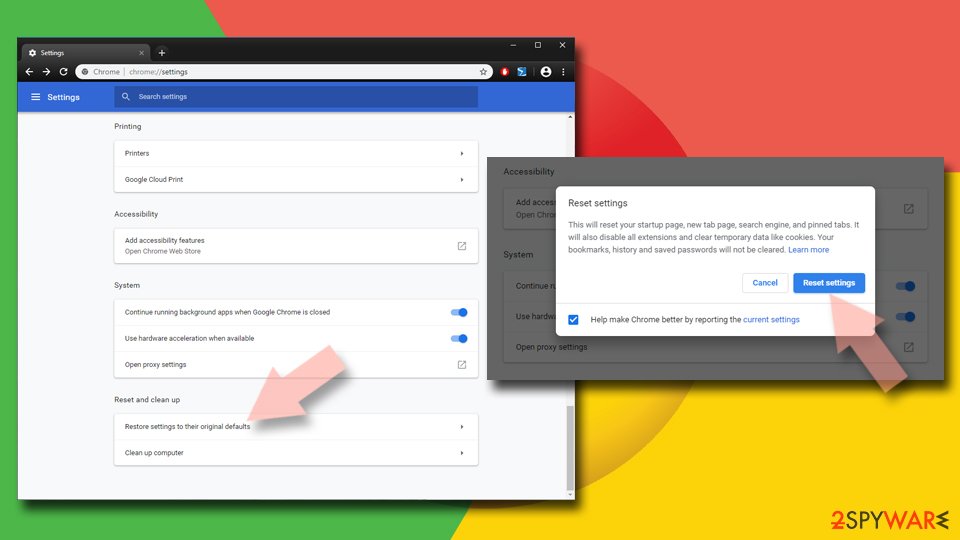
- Click on Menu and select Settings.
- In the Settings, scroll down and click Advanced.
- Scroll down and locate Reset and clean up section.
- Now click Restore settings to their original defaults.
- Confirm with Reset settings.
Remove from Microsoft Edge
Delete unwanted extensions from MS Edge:
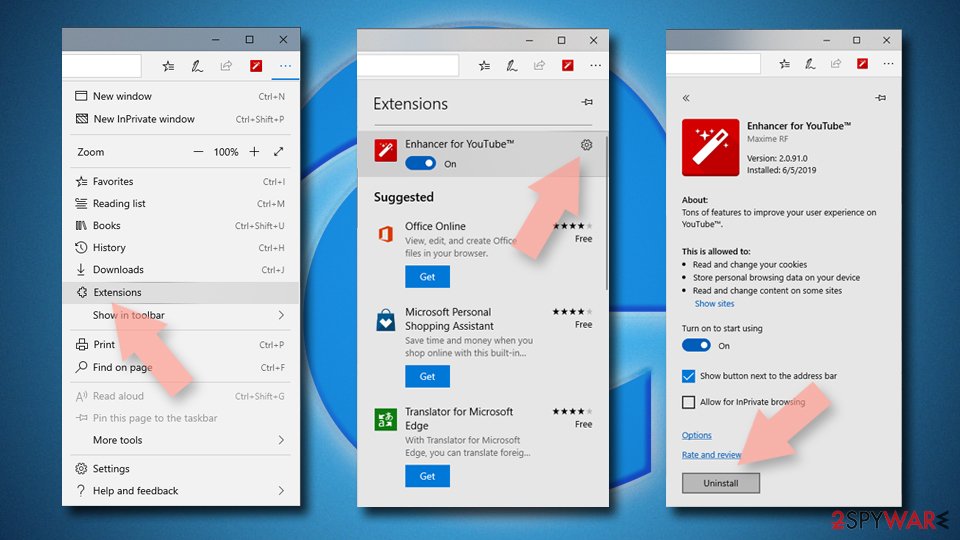
- Select Menu (three horizontal dots at the top-right of the browser window) and pick Extensions.
- From the list, pick the extension and click on the Gear icon.
- Click Remove.
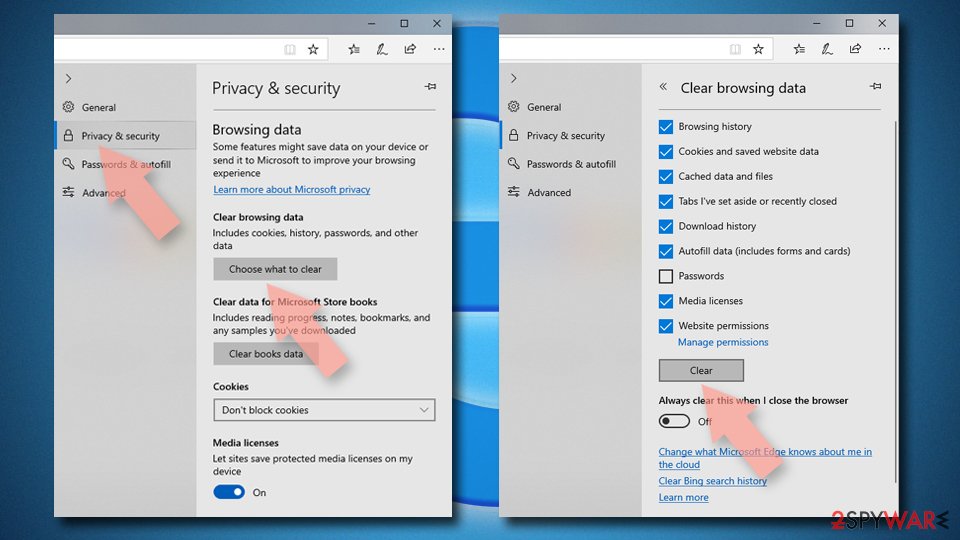
Clear cookies and other browser data:
- Click on the Menu (three horizontal dots at the top-right of the browser window) and select Settings > Privacy, search, and services..
- Under Clear browsing data, pick Choose what to clear.
- Select Cookies and other site data and Cached images and files. (apart from passwords, although you might want to include Media licenses as well, if applicable) and click on Clear.
Restore new tab and homepage settings:
- Click the menu icon and choose Settings.
- Then find On startup section.
- Click Remove next to any suspicious startup page.
Reset MS Edge if the above steps did not work:
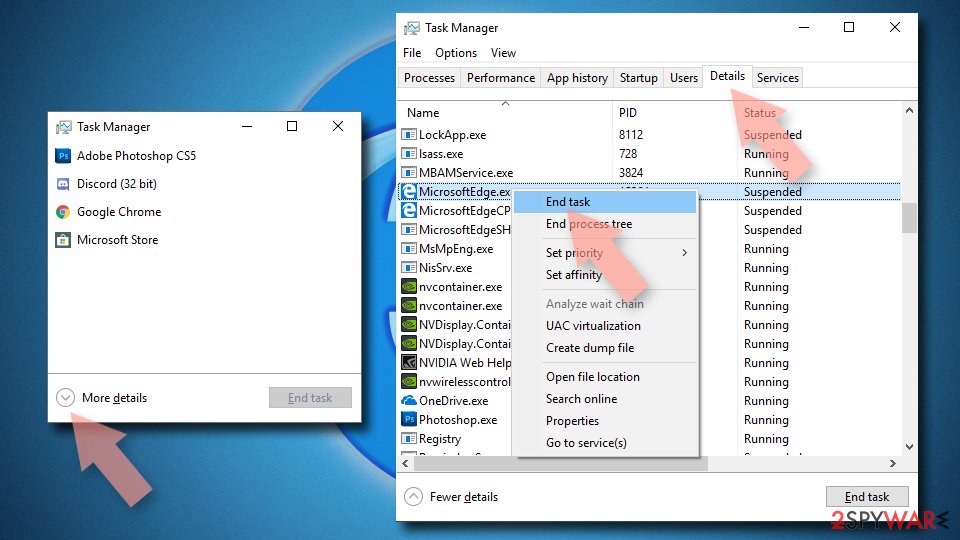
- Press on Ctrl + Shift + Esc to open Task Manager.
- Click on More details arrow at the bottom of the window.
- Select Details tab.
- Now scroll down and locate every entry with Microsoft Edge name in it. Right-click on each of them and select End Task to stop MS Edge from running.
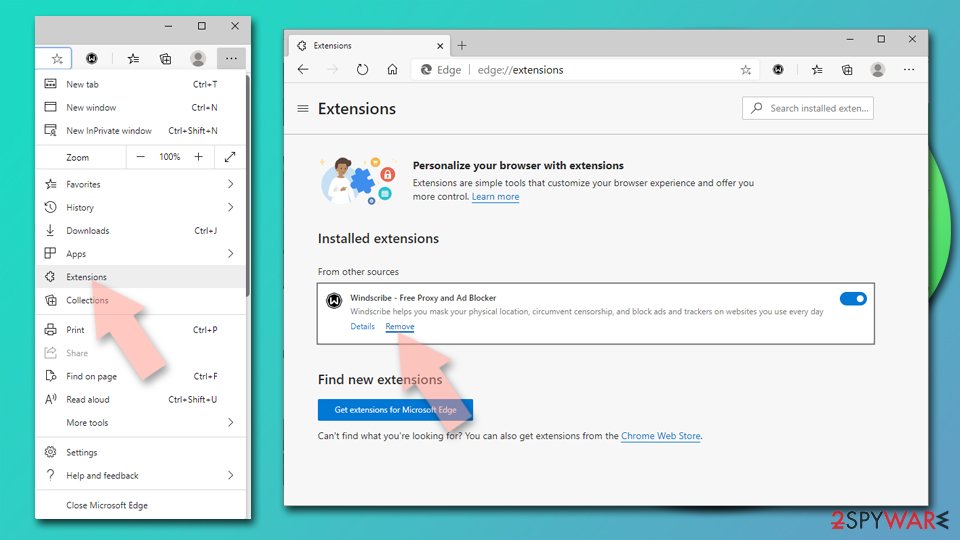
Delete extensions from MS Edge (Chromium):
- Open Edge and click select Settings > Extensions.
- Delete unwanted extensions by clicking Remove.
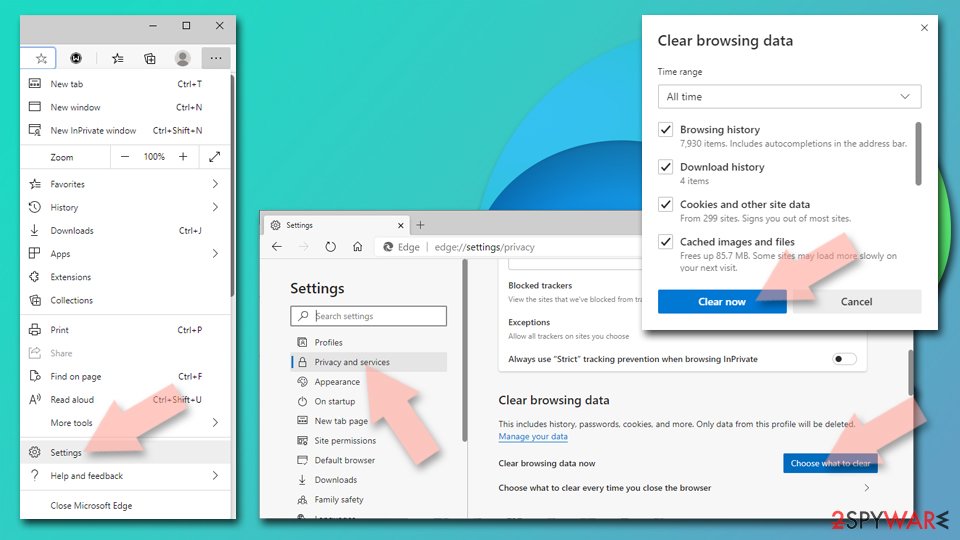
Clear cache and site data:
- Click on Menu and go to Settings.
- Select Privacy, search and services.
- Under Clear browsing data, pick Choose what to clear.
- Under Time range, pick All time.
- Select Clear now.
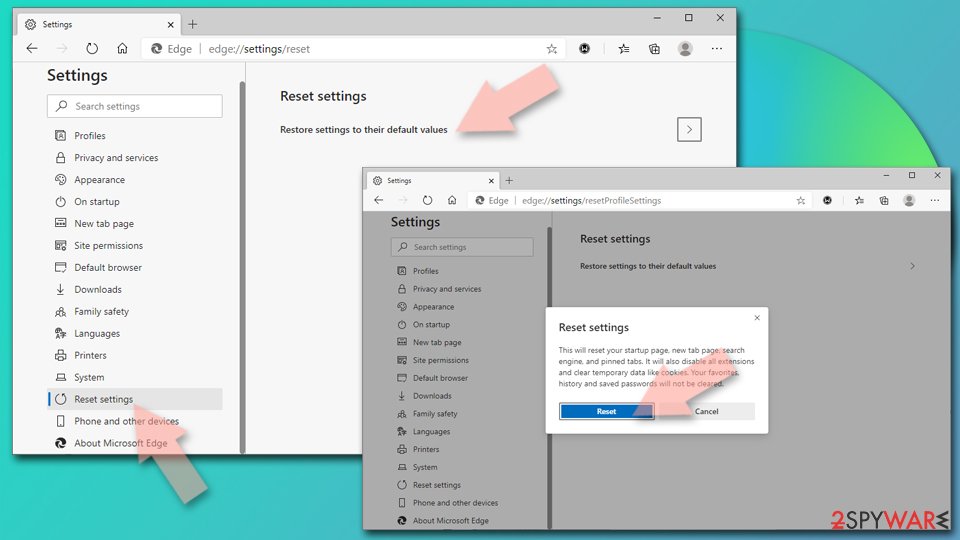
Reset Chromium-based MS Edge:
- Click on Menu and select Settings.
- On the left side, pick Reset settings.
- Select Restore settings to their default values.
- Confirm with Reset.
- This will disable extensions and reset startup pages but will not delete bookmarks, saved passwords, or browsing history.
Remove from Mozilla Firefox (FF)
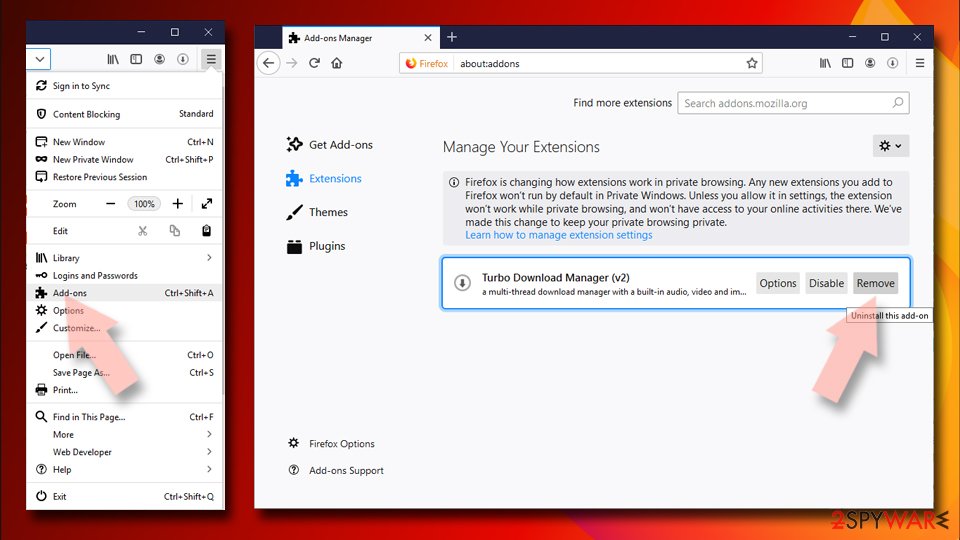
Remove dangerous extensions:
- Open Mozilla Firefox browser and click on the Menu (three horizontal lines at the top-right of the window).
- Select Add-ons.
- In here, select the unwanted extension and click Remove.
Reset the homepage:
- Click three horizontal lines at the top right corner to open the menu.
- Choose Settings.
- Under Home, set your preferred homepage and new tab settings.
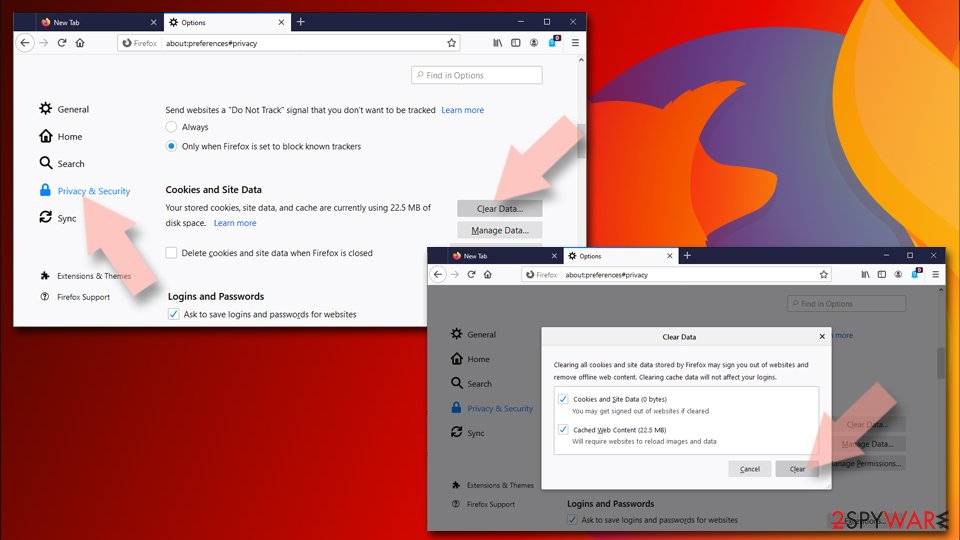
Clear cookies and site data:
- Click Menu and pick Settings.
- Go to Privacy & Security section.
- Scroll down to locate Cookies and Site Data.
- Click on Clear Data...
- Select Cookies and Site Data and Temporary cached files and pages, then click Clear.
Reset Mozilla Firefox
If clearing the browser as explained above did not help, reset Mozilla Firefox:
- Open Mozilla Firefox browser and click the Menu.
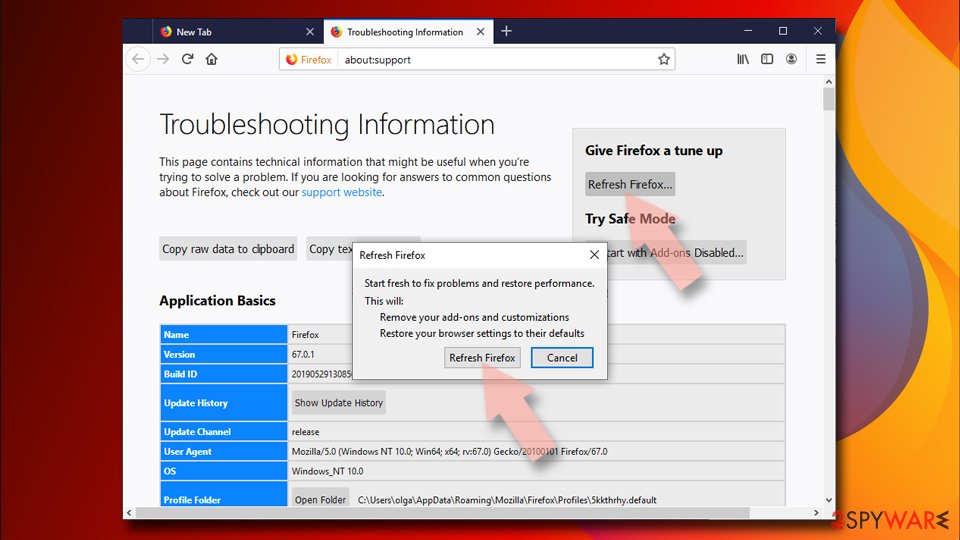
- Go to Help and then choose Troubleshooting Information.
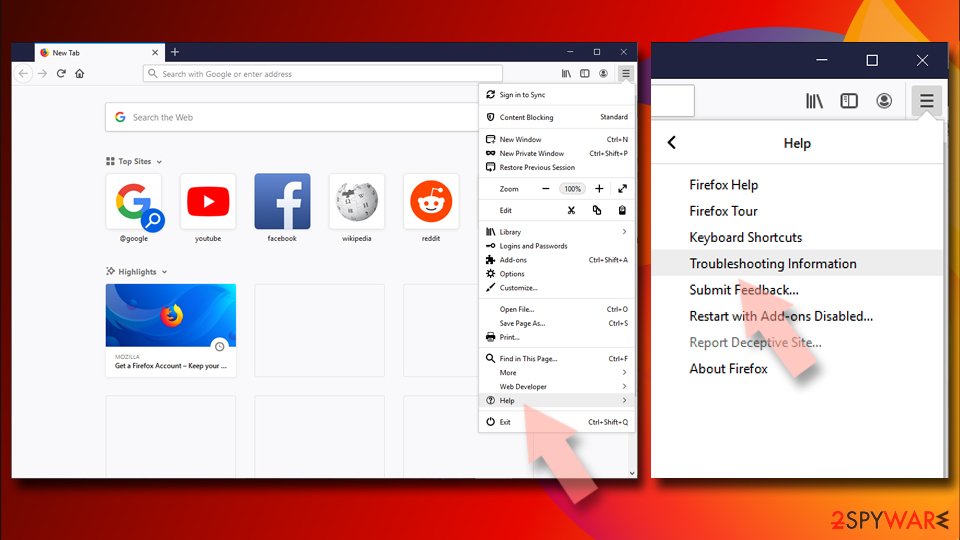
- Under Give Firefox a tune up section, click on Refresh Firefox...
- Once the pop-up shows up, confirm the action by pressing on Refresh Firefox.
Delete from Safari
Remove dangerous extensions:
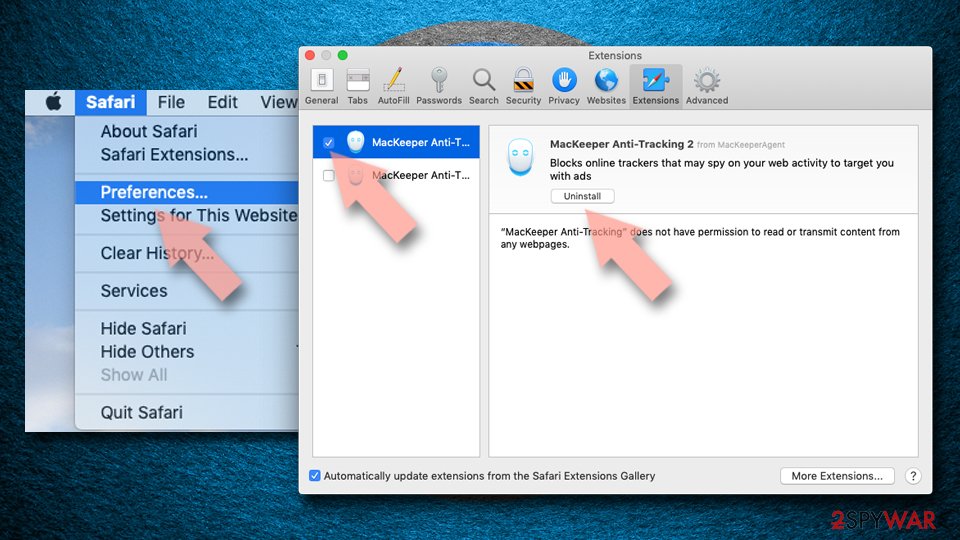
- Open Safari, click Safari in the menu at the top-left of the screen, and select Preferences.
- Go to the Extensions tab, look for any suspicious entries, and click Uninstall to remove them.
Clear history and website data:
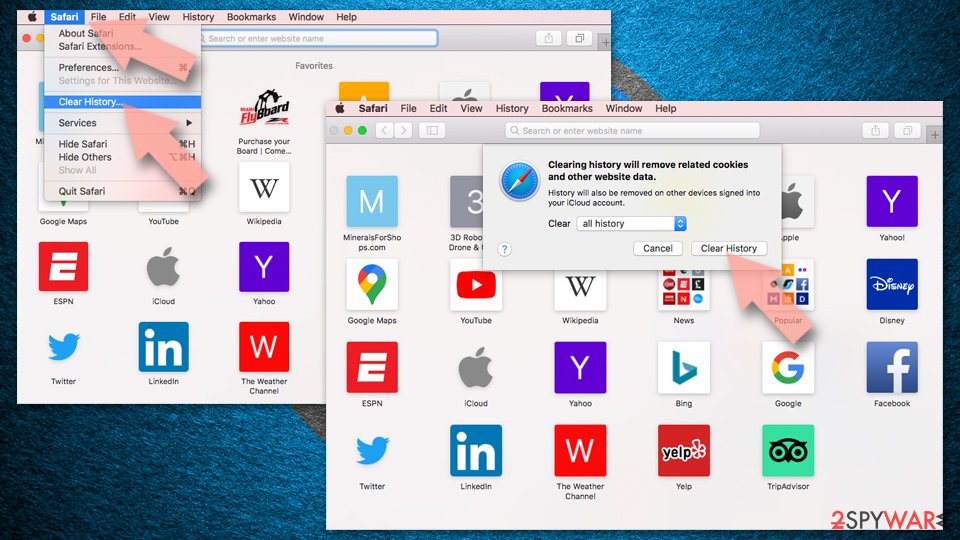
- Click Safari in the menu and pick Clear History.
- Set Clear to all history and confirm with Clear History.
Reset Safari:
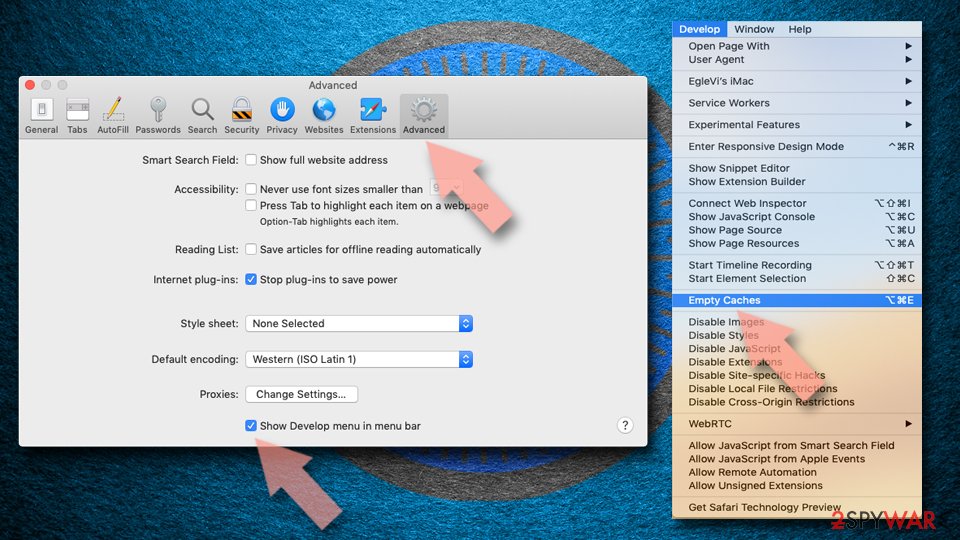
- Click Safari in the menu and select Preferences > Advanced.
- Enable Show Develop menu in menu bar.
- From the menu bar, click Develop and select Empty Caches.
Delete from macOS
Remove the unwanted application:
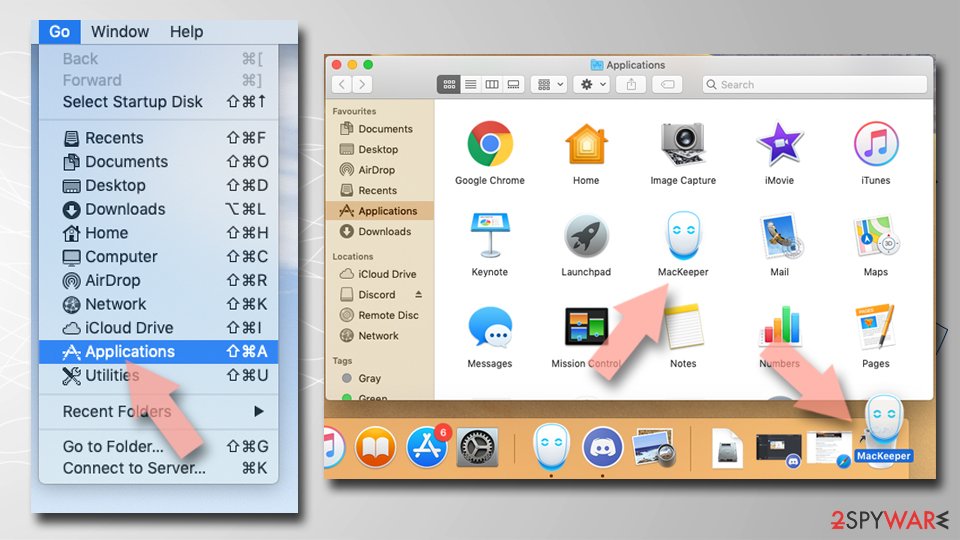
- From the menu bar, select Go > Applications.
- In the Applications folder, look for any suspicious entries, then drag them to Trash (or right-click and pick Move to Trash).
Delete leftover files and folders:
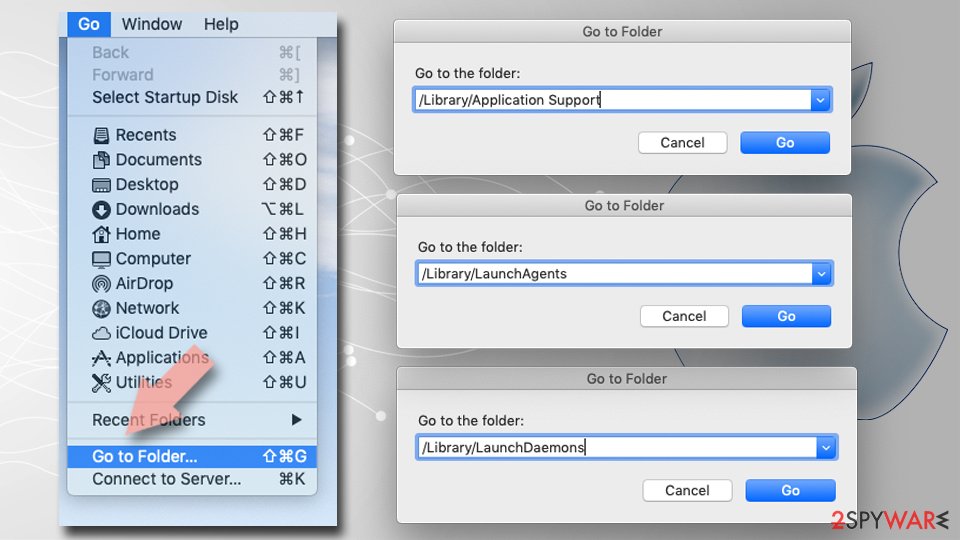
- Select Go > Go to Folder.
- Enter /Library/Application Support and remove any suspicious folders related to the unwanted program.
- Repeat the same check in the /Library/LaunchAgents and /Library/LaunchDaemons folders, deleting any suspicious entries.
- Finally, empty the Trash to permanently remove the leftovers.
Reset Internet Explorer
To eliminate all browser helper objects from your Internet Explorer web browser and reverse suspicious changes, you should complete this guide:
Remove dangerous add-ons:
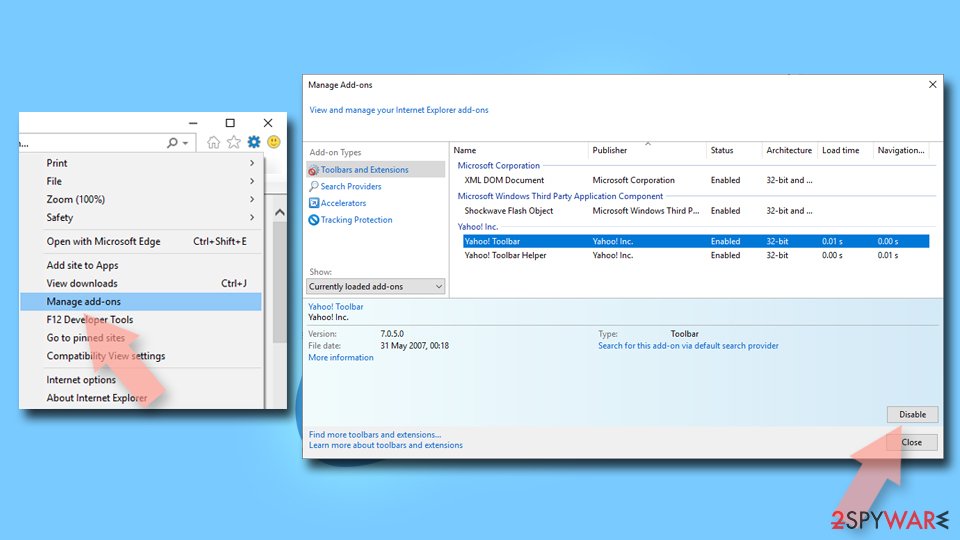
- Open Internet Explorer, click on the Gear icon (IE menu) on the top-right corner of the browser
- Pick Manage Add-ons.
- You will see a Manage Add-ons window. Here, look for suspicious plugins. Click on these entries and select Disable.
Change your homepage if it was altered:
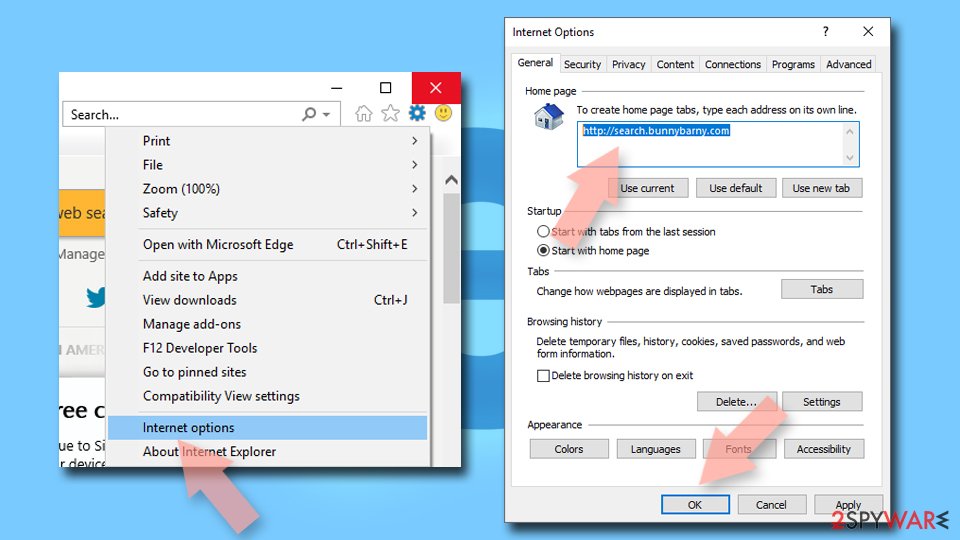
- Open IE and click on the Gear icon.
- Select Internet Options.
- In the General tab, delete the Home page address and replace it by your preferred one (for example, Google.com).
- Click Apply and then select OK.
Delete temporary files:
- Press on the Gear icon and select Internet Options.
- Under Browsing history, click Delete...
- Select relevant fields and press Delete.
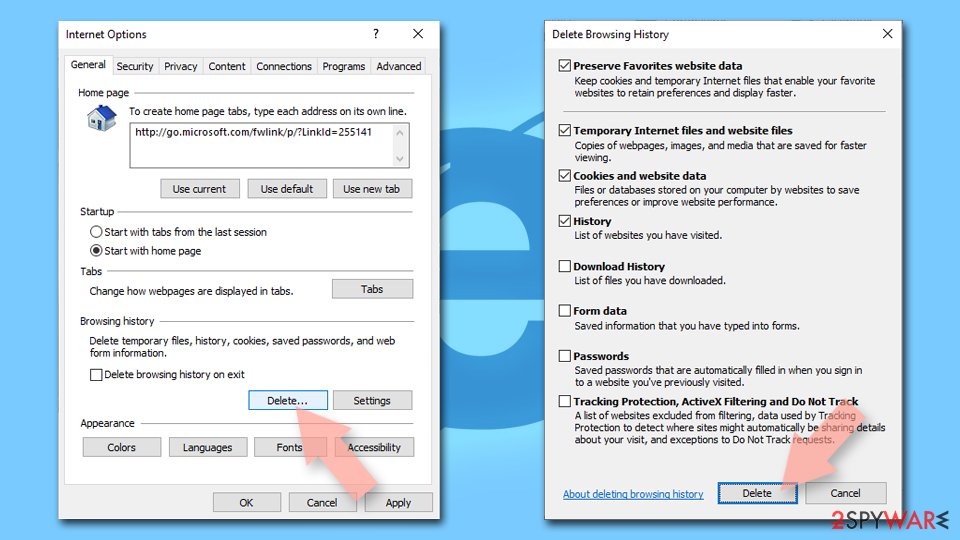
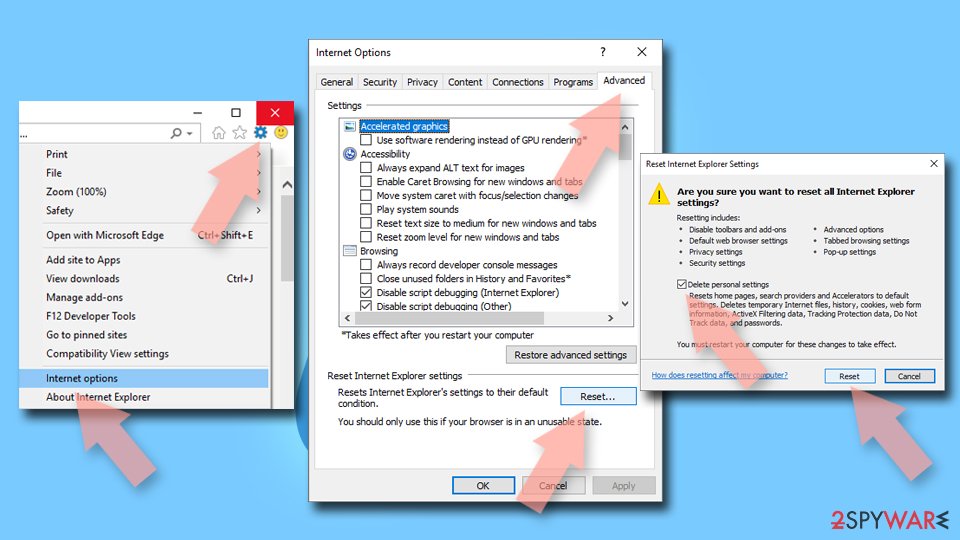
Reset Internet Explorer:
- Click on Gear icon > Internet options and select Advanced tab.
- Select Reset.
- In the new window, check Delete personal settings and select Reset.
Choose a proper web browser and improve your safety with a VPN tool
Online spying has got momentum in recent years and people are getting more and more interested in how to protect their privacy online.
One of the basic means to add a layer of security - choose the most private and secure web browser. Although web browsers can't grant full privacy protection and security, some of them are much better at sandboxing, HTTPS upgrading, active content blocking, tracking blocking, phishing protection, and similar privacy-oriented features.
However, if you want true anonymity, we suggest you employ a powerful VPN - it can encrypt all the traffic that comes and goes out of your computer, preventing tracking completely.
Lost your files? Use data recovery software
While some files located on any computer are replaceable or useless, others can be extremely valuable.
Family photos, work documents, school projects - these are types of files that we don't want to lose. Unfortunately, there are many ways how unexpected data loss can occur:
- power cuts
- Blue Screen of Death errors
- hardware failures
- crypto-malware attack
- even accidental deletion
To ensure that all the files remain intact, you should prepare regular data backups. You can choose cloud-based or physical copies you could restore from later in case of a disaster. If your backups were lost as well or you never bothered to prepare any, can be your only hope to retrieve your invaluable files.
From our report of Jan 2020 · not reviewed since
SupTab elimination guidelines for all users
In order to prevent redirects, annoying pop-up ads and slowdowns on each of your browsers, you should remove SupTab adware from your system.
For that, you can employ automatical software and run the entire scanning and eliminating process with the tool or you can continue with manual guidelines that are appended to the end of this article.
SupTab removal requires eliminating all additional components that were added during the adware infiltration process. Regarding this purpose, you should rather rely on automatical products that are capable of gathering all the suspicious products. However, if you choose to get rid of the adware yourself, do not forget to clean and refresh web browser applications such as Google Chrome, Mozilla Firefox, Internet Explorer, Microsoft Edge, and Safari.
Questions about SupTab (MiuiTab) ads
Why does my browser keep going to awesomehp.com?
Something is sending it there. On one site only, that site's ads are the cause and leaving the site ends it.
On many different sites, the usual causes are an extension you installed with something else, a site you once allowed to send notifications, or an ad-supported program in Windows that changes how the browser behaves. awesomehp.com itself is only a stop on the way: it records the visit and forwards you to whatever advertiser pays most.
Check the extensions page, then the list of sites allowed to send notifications, then Installed apps sorted by date. Removing the cause stops the redirects; blocking the domain alone usually does not, because the network moves to a new one.
Did awesomehp.com install a virus on my PC?
Very unlikely, unless you downloaded and opened something from the pages it led to. Redirect domains such as awesomehp.com sell your visit to advertisers; they do not need to install anything to make money.
What can be installed is the thing that causes the redirects in the first place, such as an extension or an ad-supported program that came with free software. That is why the checks in this guide look at extensions, notification permissions and Installed apps.
A full scan with Microsoft Defender afterwards gives you a clear answer about the rest of the PC. If the scan is clean and the redirects stop after removing the cause, you are done.
Why does SupTab (MiuiTab) show me ads?
Because that is its whole purpose. SupTab (MiuiTab) is an adware extension, and its operators are paid for every ad it displays and every click it gets. In this case the ads take the form of redirects through ad pages.
They are chosen by ad networks that accept almost any advertiser, which is why so many look like warnings or prizes. The ads are not a sign that your PC is broken or infected with something worse; they are a sign that something on it, or in the browser, has permission to advertise. Removing that permission or program stops them.
Do I have to clean every browser?
Yes, if you use more than one. We saw SupTab (MiuiTab) in Chrome, Edge and Firefox, and each browser keeps its own extensions, notification permissions and settings. Chrome and Edge share the same extension format, so one installer can add the same adware to both, while Firefox has its own add-ons.
Check every browser on the PC, including ones you rarely open. If you sync a browser with an account, clean it while signed in, so that the removal reaches your other computers rather than the adware returning from them.
How do I know the ads come from SupTab (MiuiTab)?
Look for redirects to awesomehp.com. That is the trace SupTab (MiuiTab) leaves, and it shows up as redirects through ad pages. Ads that appear on every site, including ones that never carried ads before, point to something on your PC or in the browser rather than to the sites themselves.
A quick test is a private window, where extensions are off by default: if the ads disappear there, an extension is responsible. If they appear even with the browser closed, the source is a notification permission or a program in Windows.
Why didn't my antivirus catch SupTab (MiuiTab)?
Many security products do not block adware or notification sites by default, because users often agreed to them, even through a misleading prompt. Notification spam installs nothing at all, so there is no file to detect.
In Windows 11 you can make Microsoft Defender block potentially unwanted apps: open Windows Security > App & browser control > Reputation-based protection settings and turn on Potentially unwanted app blocking. If notifications caused the pop-ups, no scanner will report them; the fix is in the browser's site settings.
Does adware steal passwords?
Ordinary adware is built to show ads, not to steal logins, and most of it never touches saved passwords. The line is blurry, though. Extensions that can read every page could capture what you type, and adware ads sometimes lead to phishing pages that ask for passwords directly.
If you entered credentials on a page reached through an ad, change that password from a clean device and turn on two-step verification. Otherwise, removing adware extension and clearing cookies is usually enough.
Can adware slow down my PC?
Yes. Adware runs in the background, loads ad scripts, opens extra tabs and contacts its servers, all of which use processor time, memory and bandwidth. Ad-heavy extensions also slow down every page, because they inspect and change it before you see it.
The effect is strongest on older PCs and when several adware programs arrived together. After removal, restart the PC and check Task Manager for anything still using a lot of resources that you do not recognise. Speed usually returns to normal once the ads stop.
I clicked on one of the ads. Am I infected?
Probably not. Clicking an ad usually only opens a page, and a page cannot install programs on an up-to-date Windows PC without your help.
You are at risk only if you then downloaded and ran a file, allowed notifications, entered card or login details, or called a phone number shown on the page. Delete any download and run a full and offline scan.
Change passwords you typed, from a clean device. Call your bank if you gave card details. If you called a number or allowed remote access, see the next question.
Will Fortect remove SupTab (MiuiTab)?
Fortect scans Windows for malware and unwanted programs and repairs the system files and settings they change, and its free scan shows what it finds on your PC before you decide anything.
For SupTab (MiuiTab), follow the plan above as well: the browser steps take back permissions and settings that no scanner treats as a threat, and uninstalling the program that brought it removes the source.
Run Microsoft Defender's full scan and, if anything was found, its offline scan as a second opinion. If the symptoms are gone after the plan and both scans are clean, there is nothing more to do.
Sources
- Wikipedia: Shareware (read October 6, 2026)
- Virusai: Virusai.lt (read October 6, 2026)
- Google Chrome Help: Use notifications to get alerts (no longer online) (read October 6, 2026)
- FTC: How to recognize, remove and avoid malware (read October 6, 2026)
- Microsoft Learn: Microsoft Defender Offline (read October 6, 2026)