

Swift Search browser hijacker is the particular application that changes settings and preferences on the browser
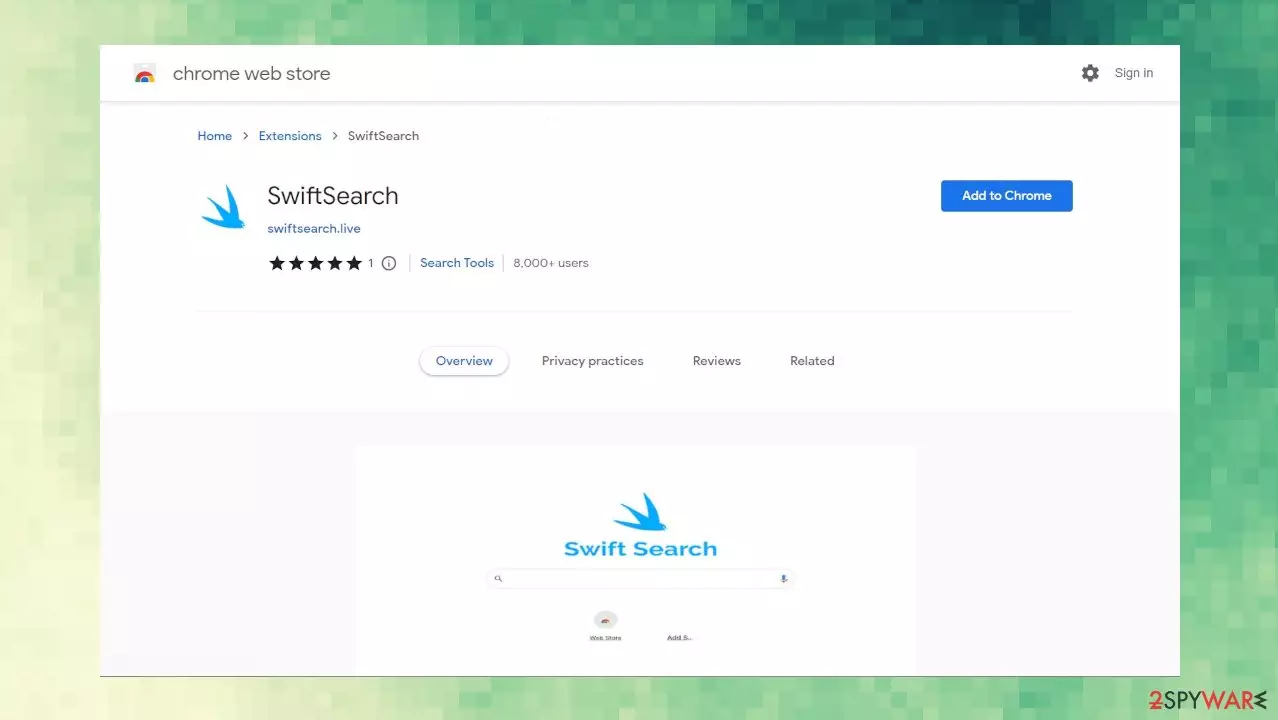
Swift Search browser hijacker injects extensions, new tabs, and toolbars on browsers that contain links to popular sites, and weather updates. The program alters the default search engine and homepage preferences, so the user is continuously exposed to sponsored pages and sites where advertisements can cause issues with the machine and security.
These changes can appear out of nowhere because the treat is delivered behind your back. However, sometimes people install a particular program and adds the Swift Search browser extension on purpose. You might fall for the proportional ads, other freeware distribution programs, and pages where these applications get distributed as additional pieces.
Software bundling is the method often used by these Potentially Unwanted Programs.[1] Also, other deceptive pages, misleading sites, and promotional material that this browser hijacker exposes people to, can be set to spread PUP automatically.
| Name | Swift Search browser hijacker |
|---|---|
| Type | Redirect, browser extension |
| Category | Potentially unwanted program |
| Issues | The program manipulates the settings of the web browser to affect online traffic and redirect users via sponsored pages |
| URL | swiftsearch.live |
| Distribution | Freeware installation sites, platforms like torrents, deceptive pages, promotional ads, and other applications |
| Removal | Threats should be removed using SpyHunterCombo Cleaner or MalwarebytesMalwarebytes to fully get rid of the PUP and issues it creates |
| Repair | You should run FortectIntego and repair issues created by the intruder |
What is this browser hijacker?
Swift Search browser hijacker is not a malicious program, but the threat should be removed as soon as possible. There is no way the program could bring value to the machine or web browsers. You can remove the toolbar or the extension that is bothering you, but sometimes issues don't stop due to additional damage.
These programs like the one that controls all the redirects and injections of other programs, can change the settings of the machine. Swift Search browser extension alters settings and preferences of the web browser, mainly Google Chrome, but there are additional changes done to the system processes and computer programs.
The program is persistent because redirects and pop-ups appear on the screen, and get injected into the search results on the browser because of the program that triggers these issues. You can see additional issues with the machine when the Swift Search redirect is controlling the processes:
- altered web browser's homepage, new tab, default search engine preferences;
- redirects to sponsored content and advertising platforms;
- other applications and browser-based programs installed.

Stopping the unwanted behavior
Swift Search redirect is the particular PUP categorized as a browser hijacker[2] that affects the experience on the internet. The particular program runs in the background and causes issues with the machine, too because PUPs can add other processes, so each reboot launches the program regardless of whether the web browser is opened or not. You need to remove the program. This is how you can eliminate useless extensions.
Google Chrome
- Open Google Chrome, click on the Menu (three vertical dots at the top-right corner) and select More tools > Extensions.
- In the newly opened window, you will see all the installed extensions. Uninstall all the suspicious plugins that might be related to the unwanted program by clicking Remove.


MS Edge:
- Select Menu (three horizontal dots at the top-right of the browser window) and pick Extensions.
- From the list, pick the extension and click on the Gear icon.
- Click on Uninstall at the bottom.


MS Edge (Chromium)
- Open Edge and click select Settings > Extensions.
- Delete unwanted extensions by clicking Remove.
Mozilla Firefox
- Open Mozilla Firefox browser and click on the Menu (three horizontal lines at the top-right of the window).
- Select Add-ons.
- In here, select unwanted plugin and click Remove.


Safari
- Click Safari > Preferences…
- In the new window, pick Extensions.
- Select the unwanted extension and select Uninstall.
Avoiding the PUP
Swift Search browser hijacker can be installed on the machine when the user is visiting PUP distribution platforms, torrent sites, deceptive pages, and promotional ads. You should note when the application indicates changes and shady functions while it is installed.
It happens when people are the ones that allow the installation of the app themselves. The distribution of the Swift Search browser hijacker often involves software bundling that experts[3] always warn users about. Tsi is why people are puzzled about where this program came from.
Make sure to get rid of the program and avoid installations of different programs by choosing program sources that are official, and related to trustworthy developers. Avoid torrent pages and pirating platforms, so these freeware applications do not damage the machine further. Swift Search browser extension can appear on various browsers, so follow these guides to clear those settings yourself.
Uninstall from Windows
Uninstall from Windows 10/8:
- Type Control Panel into the Windows search box and open the result.
- Under Programs, select Uninstall a program.


Uninstall from Windows 7/XP:
- Click on Windows Start > Control Panel (Windows XP users should click on Add/Remove Programs).
- In Control Panel, select Programs > Uninstall a program.


Remove the unwanted program:
- In the Programs and Features window, look for any recently installed suspicious entries, select them, and click Uninstall.
- If User Account Control appears, click Yes to confirm, then complete the removal.


Delete from macOS
Remove the unwanted application:
- From the menu bar, select Go > Applications.
- In the Applications folder, look for any suspicious entries, then drag them to Trash (or right-click and pick Move to Trash).


Delete leftover files and folders:
- Select Go > Go to Folder.
- Enter /Library/Application Support and remove any suspicious folders related to the unwanted program.
- Repeat the same check in the /Library/LaunchAgents and /Library/LaunchDaemons folders, deleting any suspicious entries.

- Finally, empty the Trash to permanently remove the leftovers.

Remove from Microsoft Edge
Delete unwanted extensions from MS Edge:
- Select Menu (three horizontal dots at the top-right of the browser window) and pick Extensions.
- From the list, pick the extension and click on the Gear icon.
- Click Remove.
Clear cookies and other browser data:
- Click on the Menu (three horizontal dots at the top-right of the browser window) and select Settings > Privacy, search, and services..
- Under Clear browsing data, pick Choose what to clear.
- Select Cookies and other site data and Cached images and files. (apart from passwords, although you might want to include Media licenses as well, if applicable) and click on Clear.


Restore new tab and homepage settings:
- Click the menu icon and choose Settings.
- Then find On startup section.
- Click Remove next to any suspicious startup page.
Reset MS Edge if the above steps did not work:
- Press on Ctrl + Shift + Esc to open Task Manager.
- Click on More details arrow at the bottom of the window.
- Select Details tab.
- Now scroll down and locate every entry with Microsoft Edge name in it. Right-click on each of them and select End Task to stop MS Edge from running.


Instructions for Chromium-based Edge
Delete extensions from MS Edge (Chromium):
- Open Edge and click select Settings > Extensions.
- Delete unwanted extensions by clicking Remove.


Clear cache and site data:
- Click on Menu and go to Settings.
- Select Privacy, search and services.
- Under Clear browsing data, pick Choose what to clear.
- Under Time range, pick All time.
- Select Clear now.


Reset Chromium-based MS Edge:
- Click on Menu and select Settings.
- On the left side, pick Reset settings.
- Select Restore settings to their default values.
- Confirm with Reset.
- This will disable extensions and reset startup pages but will not delete bookmarks, saved passwords, or browsing history.


Remove from Mozilla Firefox (FF)
Remove dangerous extensions:
- Open Mozilla Firefox browser and click on the Menu (three horizontal lines at the top-right of the window).
- Select Add-ons.
- In here, select the unwanted extension and click Remove.
Reset the homepage:
- Click three horizontal lines at the top right corner to open the menu.
- Choose Settings.
- Under Home, set your preferred homepage and new tab settings.
Clear cookies and site data:
- Click Menu and pick Settings.
- Go to Privacy & Security section.
- Scroll down to locate Cookies and Site Data.
- Click on Clear Data...
- Select Cookies and Site Data and Temporary cached files and pages, then click Clear.


Reset Mozilla Firefox
If clearing the browser as explained above did not help, reset Mozilla Firefox:
- Open Mozilla Firefox browser and click the Menu.
- Go to Help and then choose Troubleshooting Information.

- Under Give Firefox a tune up section, click on Refresh Firefox...
- Once the pop-up shows up, confirm the action by pressing on Refresh Firefox.



Remove from Google Chrome
Delete malicious extensions from Google Chrome:
- Open Google Chrome, click on the Menu (three vertical dots at the top-right corner) and select More tools > Extensions.
- In the newly opened window, you will see all the installed extensions. Uninstall all suspicious extensions related to the unwanted program by clicking Remove.
Clear cache and web data from Chrome:
- Click on Menu and pick Settings.
- Under Privacy and security, select Clear browsing data.
- Select Browsing history, Cookies and other site data, as well as Cached images and files.
- Click Clear data.


Change your homepage:
- Click menu and choose Settings.
- Look for a suspicious site in the On startup section.
- Click on Open a specific or set of pages and click on three dots to find the Remove option.
Reset Google Chrome:
If the previous methods did not help you, reset Google Chrome to eliminate all the unwanted components:
- Click on Menu and select Settings.
- In the Settings, scroll down and click Advanced.
- Scroll down and locate Reset and clean up section.
- Now click Restore settings to their original defaults.
- Confirm with Reset settings.


Delete from Safari
Remove dangerous extensions:
- Open Safari, click Safari in the menu at the top-left of the screen, and select Preferences.
- Go to the Extensions tab, look for any suspicious entries, and click Uninstall to remove them.


Clear history and website data:
- Click Safari in the menu and pick Clear History.
- Set Clear to all history and confirm with Clear History.


Reset Safari:
- Click Safari in the menu and select Preferences > Advanced.
- Enable Show Develop menu in menu bar.
- From the menu bar, click Develop and select Empty Caches.


Did this guide help?
Be the first to comment