

Why using Tgmgo.com search tool is not a good idea?
Tgmgo.com virus pretends to be an advantageous search engine that can replace Google or other trustworthy search engines. However, we highly recommend you to take actions to remove Tgmgo.com PUP (potentially unwanted program) as soon as it shows first signs of existence. Although it seems to be a normal search tool that cannot pose a threat to your computer system, its looks can be deceptive. Spyware and malware researchers say that this application and the search engine it promotes are untrustworthy because they are both developed only to deliver pay-per-click revenue for their authors. Naturally, it means that these tools are not designed to improve victim’s browsing quality, enhance web search experience or provide felicitous search results. In most cases, untrustworthy search engines even provide dangerous links next to organic search outcomes because they care about revenue more than they care about users’ safety. Therefore, we invite you to ignore sponsored search results that Tgmgo.com redirect virus presents and start thinking about Tgmgo.com removal. There are plenty of more precise search engines that are way more trustworthy, so there is no reason to be stuck with this one. Contrary to a popular belief, it is not that easy to get rid of browser hijackers, so to remove Tgmgo.com, you might need to use anti-spyware program (for instance, FortectIntego). However, you can try to uninstall using instructions below the article.
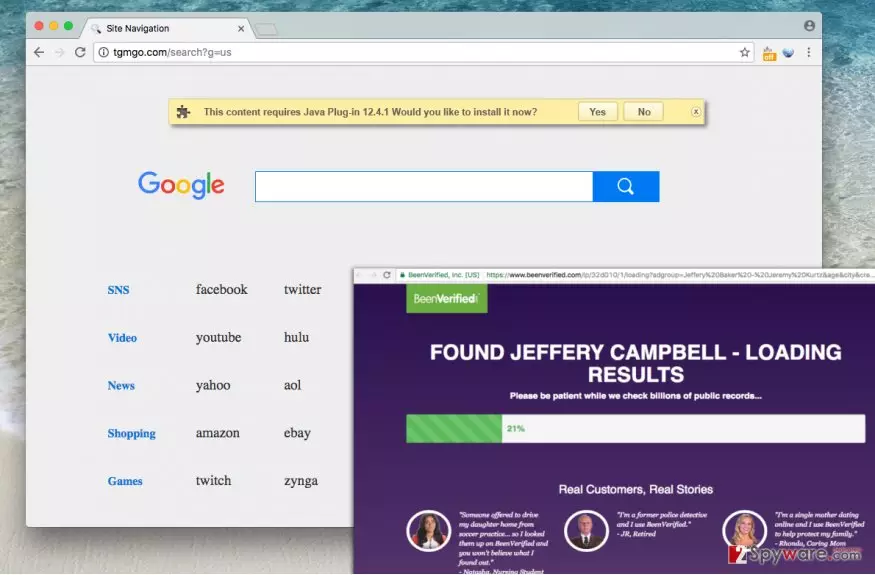
What is more, sooner or later this browser hijacker might start to deliver sponsored content in a more aggressive manner. You might receive these ads in pop-ups, banners, or find them integrated into random text spots on websites that you visit. It goes without saying that such activity cannot pass unnoticed, so don’t tolerate it and take actions to stop the activity of this potentially unwanted program.
What methods are used to distribute this potentially unwanted program?
Browser hijackers, just like other questionable third-party programs, in general, are distributed via software bundling. This technique proved to be a very efficient way of making computer users install potentially unwanted programs without even realizing it. Developers of vague software co-operate with authors of popular free programs and convince them to promote their products for a certain remuneration. Then these bundle their products with questionable third-party programs and spread them together. Sadly, all information about extra programs is typically hidden within Default or Standard settings, which software installers suggest choosing by default. You should always alter this selection and set it to either Custom or Advanced option, and then decompose the software package by deselecting items you do not want to install.
How can I remove Tgmgo.com redirect problem?
Users must comply with safe browsing rules because nowadays the Internet is full of bad content. Besides, software bundling is now used to distribute not only spyware but also malware programs. Therefore, you should always install programs the way we suggest you to do it; besides, you should not use services of programs like the discussed browser hijacker if you do not want to accidentally end up on a potentially dangerous website. It is the main reason why we recommend you to remove Tgmgo.com virus, however, you should also think about annoyance that it causes to you. When you will finally decide to implement Tgmgo.com removal, please follow instructions provided below.
Uninstall from Windows
Uninstall from Windows 10/8:
- Type Control Panel into the Windows search box and open the result.
- Under Programs, select Uninstall a program.


Uninstall from Windows 7/XP:
- Click on Windows Start > Control Panel (Windows XP users should click on Add/Remove Programs).
- In Control Panel, select Programs > Uninstall a program.


Remove the unwanted program:
- In the Programs and Features window, look for any recently installed suspicious entries, select them, and click Uninstall.
- If User Account Control appears, click Yes to confirm, then complete the removal.


Delete from macOS
Remove the unwanted application:
- From the menu bar, select Go > Applications.
- In the Applications folder, look for any suspicious entries, then drag them to Trash (or right-click and pick Move to Trash).


Delete leftover files and folders:
- Select Go > Go to Folder.
- Enter /Library/Application Support and remove any suspicious folders related to the unwanted program.
- Repeat the same check in the /Library/LaunchAgents and /Library/LaunchDaemons folders, deleting any suspicious entries.

- Finally, empty the Trash to permanently remove the leftovers.

Reset Internet Explorer
Remove dangerous add-ons:
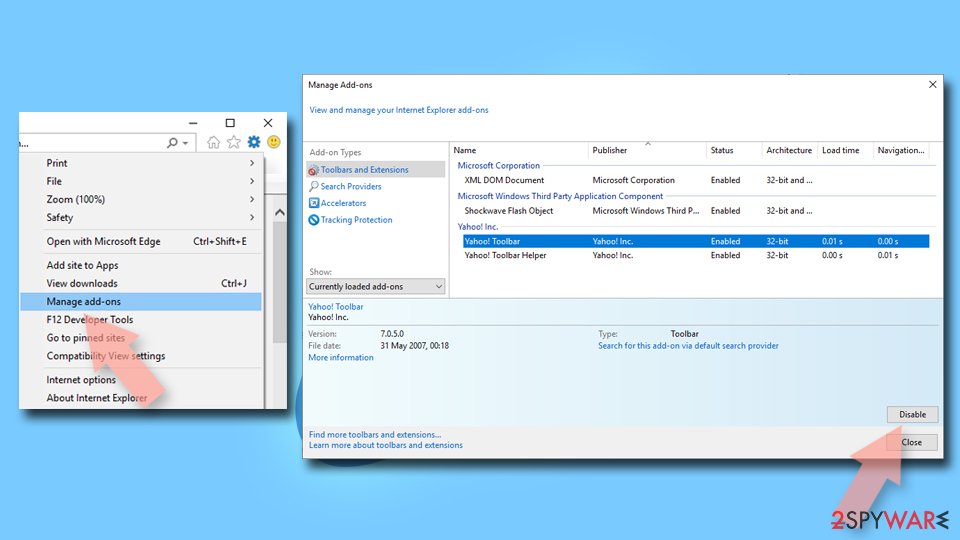
- Open Internet Explorer, click on the Gear icon (IE menu) on the top-right corner of the browser
- Pick Manage Add-ons.
- You will see a Manage Add-ons window. Here, look for suspicious plugins. Click on these entries and select Disable.

Change your homepage if it was altered:
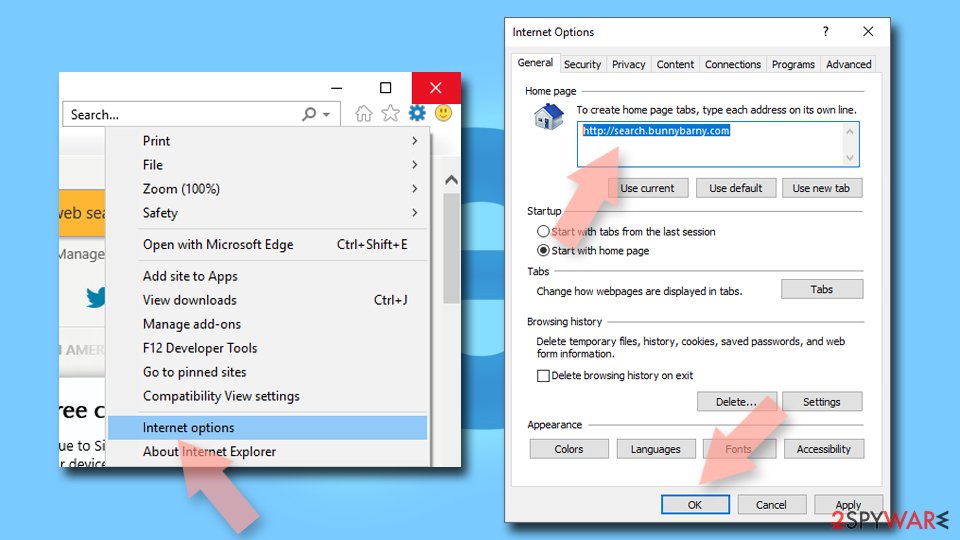
- Open IE and click on the Gear icon.
- Select Internet Options.
- In the General tab, delete the Home page address and replace it by your preferred one (for example, Google.com).
- Click Apply and then select OK.

Delete temporary files:
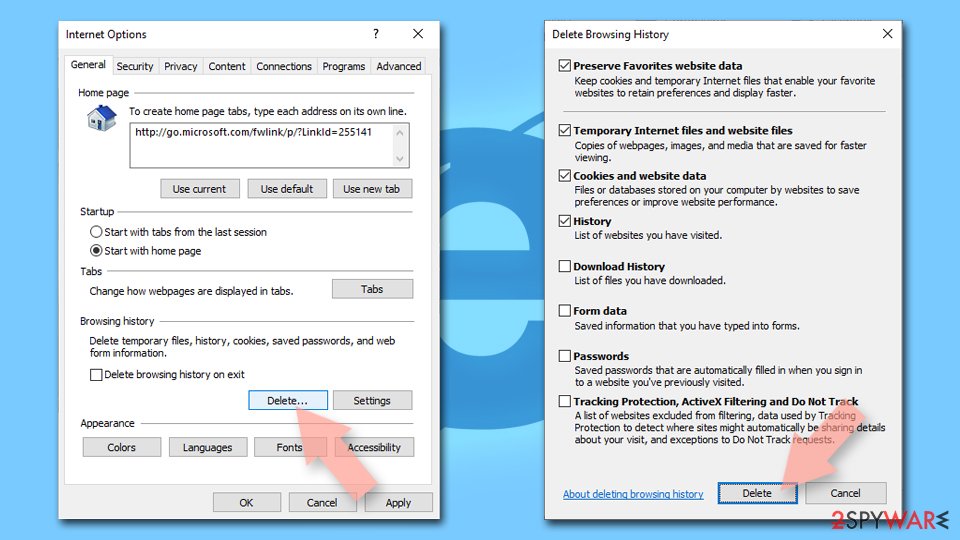
- Press on the Gear icon and select Internet Options.
- Under Browsing history, click Delete...
- Select relevant fields and press Delete.

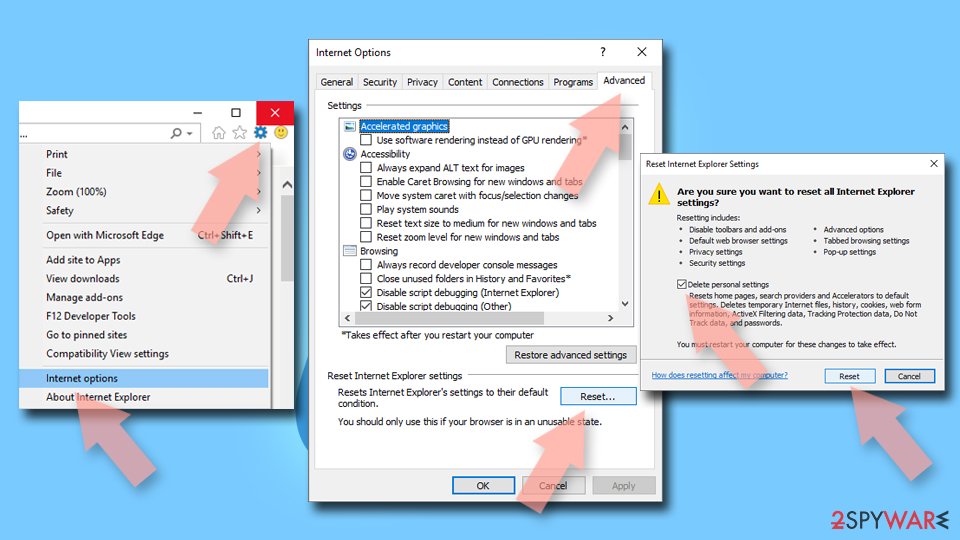
Reset Internet Explorer:
- Click on Gear icon > Internet options and select Advanced tab.
- Select Reset.
- In the new window, check Delete personal settings and select Reset.

Remove from Microsoft Edge
Delete unwanted extensions from MS Edge:
- Select Menu (three horizontal dots at the top-right of the browser window) and pick Extensions.
- From the list, pick the extension and click on the Gear icon.
- Click Remove.


Clear cookies and other browser data:
- Click on the Menu (three horizontal dots at the top-right of the browser window) and select Settings > Privacy, search, and services..
- Under Clear browsing data, pick Choose what to clear.
- Select Cookies and other site data and Cached images and files. (apart from passwords, although you might want to include Media licenses as well, if applicable) and click on Clear.


Restore new tab and homepage settings:
- Click the menu icon and choose Settings.
- Then find On startup section.
- Click Remove next to any suspicious startup page.
Reset MS Edge if the above steps did not work:
- Press on Ctrl + Shift + Esc to open Task Manager.
- Click on More details arrow at the bottom of the window.
- Select Details tab.
- Now scroll down and locate every entry with Microsoft Edge name in it. Right-click on each of them and select End Task to stop MS Edge from running.


Instructions for Chromium-based Edge
Delete extensions from MS Edge (Chromium):
- Open Edge and click select Settings > Extensions.
- Delete unwanted extensions by clicking Remove.


Clear cache and site data:
- Click on Menu and go to Settings.
- Select Privacy, search and services.
- Under Clear browsing data, pick Choose what to clear.
- Under Time range, pick All time.
- Select Clear now.


Reset Chromium-based MS Edge:
- Click on Menu and select Settings.
- On the left side, pick Reset settings.
- Select Restore settings to their default values.
- Confirm with Reset.
- This will disable extensions and reset startup pages but will not delete bookmarks, saved passwords, or browsing history.


Remove from Mozilla Firefox (FF)
Remove dangerous extensions:
- Open Mozilla Firefox browser and click on the Menu (three horizontal lines at the top-right of the window).
- Select Add-ons.
- In here, select the unwanted extension and click Remove.


Reset the homepage:
- Click three horizontal lines at the top right corner to open the menu.
- Choose Settings.
- Under Home, set your preferred homepage and new tab settings.
Clear cookies and site data:
- Click Menu and pick Settings.
- Go to Privacy & Security section.
- Scroll down to locate Cookies and Site Data.
- Click on Clear Data...
- Select Cookies and Site Data and Temporary cached files and pages, then click Clear.


Reset Mozilla Firefox
If clearing the browser as explained above did not help, reset Mozilla Firefox:
- Open Mozilla Firefox browser and click the Menu.
- Go to Help and then choose Troubleshooting Information.

- Under Give Firefox a tune up section, click on Refresh Firefox...
- Once the pop-up shows up, confirm the action by pressing on Refresh Firefox.



Remove from Google Chrome
Delete malicious extensions from Google Chrome:
- Open Google Chrome, click on the Menu (three vertical dots at the top-right corner) and select More tools > Extensions.
- In the newly opened window, you will see all the installed extensions. Uninstall all suspicious extensions related to the unwanted program by clicking Remove.


Clear cache and web data from Chrome:
- Click on Menu and pick Settings.
- Under Privacy and security, select Clear browsing data.
- Select Browsing history, Cookies and other site data, as well as Cached images and files.
- Click Clear data.


Change your homepage:
- Click menu and choose Settings.
- Look for a suspicious site in the On startup section.
- Click on Open a specific or set of pages and click on three dots to find the Remove option.
Reset Google Chrome:
If the previous methods did not help you, reset Google Chrome to eliminate all the unwanted components:
- Click on Menu and select Settings.
- In the Settings, scroll down and click Advanced.
- Scroll down and locate Reset and clean up section.
- Now click Restore settings to their original defaults.
- Confirm with Reset settings.


Delete from Safari
Remove dangerous extensions:
- Open Safari, click Safari in the menu at the top-left of the screen, and select Preferences.
- Go to the Extensions tab, look for any suspicious entries, and click Uninstall to remove them.


Clear history and website data:
- Click Safari in the menu and pick Clear History.
- Set Clear to all history and confirm with Clear History.


Reset Safari:
- Click Safari in the menu and select Preferences > Advanced.
- Enable Show Develop menu in menu bar.
- From the menu bar, click Develop and select Empty Caches.


Did this guide help?
4 comments
Alayna
This search tool is so bad. These redirects are repetitious, and they drive you insane. You just start thinking about going outside instead of surfing the web.
Furry
yes but when you have work to do... what then?
rollerskate
Just remove it with antivirus everyone has one nowadays. ;) I have two - antivirus and antispyware. not gonna mention names. just do a research before you download them. Reimage is fine, but i suggest using it along with antivirus program for best results. :)
irris
Thanks! Uninstalled this threat easily...