

Analysis of topsocialtabsearch.com virus
Have you heard of Imali Ltd? This online company has returned with new topsocialtabsearch.com virus up their sleeves. This corporate entity, which is located in Israel, has made its name prominent in the online market by creating search engines. However, they create quite aggressive search providers which are capable of invading your computer and then replace the current search engines. Likewise, virus researchers have named their products as browser hijackers. This, this PUP is no exception as well. Besides the tendency to infect your computer, it may forcefully redirect to its affiliated websites which are not often insecure. Thus, this PUP should be eliminated at once. You can remove topsocialtabsearch.com with the help of FortectIntego.
Initially, Imali Ltd seemed to have a short break since few search engines labeled under their name had emerged on the Internet. However, there has been quite a number of PUPs which had striking resemblances to their products. In any case, the company decided to renew their products. Even the privacy policy provisions have been updated. The good news is that it provides more comprehensive information about Top Social Tab Search. The bad news is that now they shake off more liability for collecting personal information. In other words, besides spying on your online activities, they might transfer this data to their partners. In addition, they disclaim any responsibility if your privacy is violated after they accidentally or deliberately transfer personal data to the online companies which exercise less strict privacy policies.
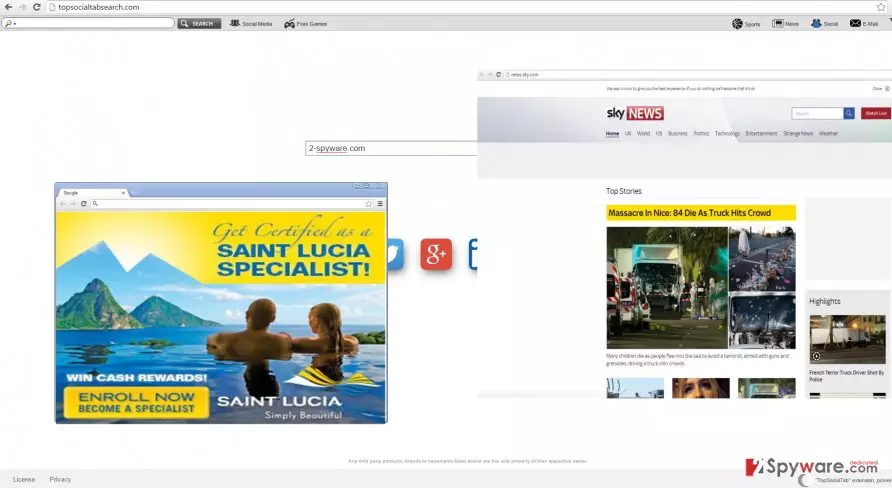
Furthermore, topsocialtabsearch.com redirect is a bothersome tendency as well. The developers of this browser hijacker wanted to appeal to as many users as possible by incorporating quick access buttons to most popular news, sports, shopping websites and social networks. Likewise, you may not only find yourself in the mentioned domains but in the websites containing highly questionable and even malevolent content. All in all, these effective may only pile up if you do not rush to start topsocialtabsearch.com removal.
When did I come across this PUP?
Usually, this kind of PUPs prefers dispersing via free applications. It disguises itself under “Basic” or “Recommended” settings. Unfortunately, few users give a second look before hitting the “Install” button. Due to this common vice, topsocialtabsearch.com or any other browser hijacker easily finds its way to a computer. In order to stop the hijack, you need to take these precautions. First of all, upon installing any application, whether it is downloaded from an official source or the secondary one, you should switch to “Custom/Advanced” settings. Afterward, carefully go through each installation mode to uncheck any add-ons which cause suspicion.
Remove topsocialtabsearch.com from the PC
There are mainly two solutions. You can quite easily delete the hijacker with the help of manual guidelines. Feel free to use the ones provided by our virus researchers. If you regard them somewhat unclear, or you dislike performing thorough work, then opt for the automatic topsocialtabsearch.com removal without any hesitations. In fact, this method might be more convenient and reliable since the anti-spyware program is apt in locating the files of malignant origin. In addition, the utility serves as an invaluable guardian of the operating system protecting from minor and major viruses.
Uninstall from Windows
Uninstall from Windows 10/8:
- Type Control Panel into the Windows search box and open the result.
- Under Programs, select Uninstall a program.


Uninstall from Windows 7/XP:
- Click on Windows Start > Control Panel (Windows XP users should click on Add/Remove Programs).
- In Control Panel, select Programs > Uninstall a program.


Remove the unwanted program:
- In the Programs and Features window, look for any recently installed suspicious entries, select them, and click Uninstall.
- If User Account Control appears, click Yes to confirm, then complete the removal.


Delete from macOS
Remove the unwanted application:
- From the menu bar, select Go > Applications.
- In the Applications folder, look for any suspicious entries, then drag them to Trash (or right-click and pick Move to Trash).


Delete leftover files and folders:
- Select Go > Go to Folder.
- Enter /Library/Application Support and remove any suspicious folders related to the unwanted program.
- Repeat the same check in the /Library/LaunchAgents and /Library/LaunchDaemons folders, deleting any suspicious entries.

- Finally, empty the Trash to permanently remove the leftovers.

Remove from Microsoft Edge
Delete unwanted extensions from MS Edge:
- Select Menu (three horizontal dots at the top-right of the browser window) and pick Extensions.
- From the list, pick the extension and click on the Gear icon.
- Click Remove.


Clear cookies and other browser data:
- Click on the Menu (three horizontal dots at the top-right of the browser window) and select Settings > Privacy, search, and services..
- Under Clear browsing data, pick Choose what to clear.
- Select Cookies and other site data and Cached images and files. (apart from passwords, although you might want to include Media licenses as well, if applicable) and click on Clear.


Restore new tab and homepage settings:
- Click the menu icon and choose Settings.
- Then find On startup section.
- Click Remove next to any suspicious startup page.
Reset MS Edge if the above steps did not work:
- Press on Ctrl + Shift + Esc to open Task Manager.
- Click on More details arrow at the bottom of the window.
- Select Details tab.
- Now scroll down and locate every entry with Microsoft Edge name in it. Right-click on each of them and select End Task to stop MS Edge from running.


Instructions for Chromium-based Edge
Delete extensions from MS Edge (Chromium):
- Open Edge and click select Settings > Extensions.
- Delete unwanted extensions by clicking Remove.


Clear cache and site data:
- Click on Menu and go to Settings.
- Select Privacy, search and services.
- Under Clear browsing data, pick Choose what to clear.
- Under Time range, pick All time.
- Select Clear now.


Reset Chromium-based MS Edge:
- Click on Menu and select Settings.
- On the left side, pick Reset settings.
- Select Restore settings to their default values.
- Confirm with Reset.
- This will disable extensions and reset startup pages but will not delete bookmarks, saved passwords, or browsing history.


Remove from Mozilla Firefox (FF)
Remove dangerous extensions:
- Open Mozilla Firefox browser and click on the Menu (three horizontal lines at the top-right of the window).
- Select Add-ons.
- In here, select the unwanted extension and click Remove.


Reset the homepage:
- Click three horizontal lines at the top right corner to open the menu.
- Choose Settings.
- Under Home, set your preferred homepage and new tab settings.
Clear cookies and site data:
- Click Menu and pick Settings.
- Go to Privacy & Security section.
- Scroll down to locate Cookies and Site Data.
- Click on Clear Data...
- Select Cookies and Site Data and Temporary cached files and pages, then click Clear.


Reset Mozilla Firefox
If clearing the browser as explained above did not help, reset Mozilla Firefox:
- Open Mozilla Firefox browser and click the Menu.
- Go to Help and then choose Troubleshooting Information.

- Under Give Firefox a tune up section, click on Refresh Firefox...
- Once the pop-up shows up, confirm the action by pressing on Refresh Firefox.



Remove from Google Chrome
Delete malicious extensions from Google Chrome:
- Open Google Chrome, click on the Menu (three vertical dots at the top-right corner) and select More tools > Extensions.
- In the newly opened window, you will see all the installed extensions. Uninstall all suspicious extensions related to the unwanted program by clicking Remove.


Clear cache and web data from Chrome:
- Click on Menu and pick Settings.
- Under Privacy and security, select Clear browsing data.
- Select Browsing history, Cookies and other site data, as well as Cached images and files.
- Click Clear data.


Change your homepage:
- Click menu and choose Settings.
- Look for a suspicious site in the On startup section.
- Click on Open a specific or set of pages and click on three dots to find the Remove option.
Reset Google Chrome:
If the previous methods did not help you, reset Google Chrome to eliminate all the unwanted components:
- Click on Menu and select Settings.
- In the Settings, scroll down and click Advanced.
- Scroll down and locate Reset and clean up section.
- Now click Restore settings to their original defaults.
- Confirm with Reset settings.


Delete from Safari
Remove dangerous extensions:
- Open Safari, click Safari in the menu at the top-left of the screen, and select Preferences.
- Go to the Extensions tab, look for any suspicious entries, and click Uninstall to remove them.


Clear history and website data:
- Click Safari in the menu and pick Clear History.
- Set Clear to all history and confirm with Clear History.


Reset Safari:
- Click Safari in the menu and select Preferences > Advanced.
- Enable Show Develop menu in menu bar.
- From the menu bar, click Develop and select Empty Caches.


Did this guide help?
2 comments
Terry
Another day full of browser hijackers...
Steve
Tons of redirects and pop-ups.