
Virus Doctor: what it is and how to remove it
Virus Doctor is another rogue anti-spyware application. Usually, this parasite is advertised by trojan viruses.
Facts checked October 6, 2026. Removal steps tested on Windows 11 (26H2) and checked against Microsoft's and the browser makers' current documentation. Sections marked as our earlier report are the original text: they describe the threat as it was then and have not been reviewed since. The 2026 status, the removal steps and the questions are current.
Automatic
Get a free scan and check if your PC is infected.
Fortect finds malware, unwanted programs and the Windows damage they leave behind, and repairs it in one pass.
Unsure whether SM.exe is safe? A free scan checks the file and what starts it.
Do it yourself · free Remove Virus Doctor yourself 5 steps, about 15 minutes, no software needed.
Start the steps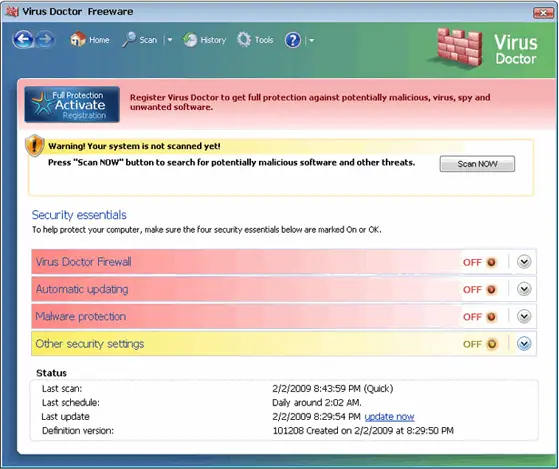
Virus Doctor: summary
| Distribution | Already installed Trojans on the system or fake online scanners on malicious websites |
|---|---|
| Damage | Installation of other malicious programs, monetary losses, personal data leak |
| Name | Virus Doctor |
| Type | Malware, fake anti-spyware, rogue |
| Detection names | No Microsoft detection name is known |
| Symptoms | An unknown process in Task Manager |
| Removal | Scan the PC with security software to find and remove the malware and anything installed with it. Fortect scans Windows for malware and repairs the system files and settings it damaged. Remove it nowTo use the full-featured product, you have to purchase a license for Fortect. The scan is free. |
Show 4 more facts
| Files and processes | SM.exe and C:\Windows\...\taskmgr.exe |
|---|---|
| Evidence | One write-up by a security site; details still limited |
| First seen | 23 April 2021 |
| Facts checked | 6 October 2026 |
Is Virus Doctor a real security program?
- Path:
C:\Windows\...\taskmgr.exe - File:
SM.exe
From our report of Apr 2021 · not reviewed since
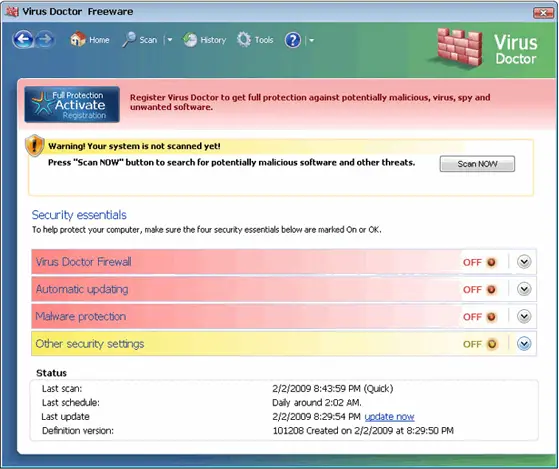
Virus Doctor is a fake security tool that tries to mimic Windows Defender interface to mislead users
Virus Doctor is another rogue anti-spyware application.
Usually, this parasite is advertised by trojan viruses. They constantly load pop-up windows with fake information about system security risks. When a user tries to close those bothersome pop-up windows, he is automatically redirected to a fake online anti-spyware scan page.
The counterfeit online scan also states that the user's system has numerous security threats that have to be removed quickly. They suggest using VirusDoctor anti-spyware as a reliable and effective spyware removal tool.
However, it is nothing but a scam that attempts to extort money from innocent users. Do not believe these claims; if you have installed this malicious program on your PC, check the details below to resolve this rather difficult situation quickly.
If users get tricked into installing this malicious rogue, they would almost immediately compromise their Windows device. Upon installation, the program is set to launch each time when Windows is booted, making its presence almost unavoidable.
Then it performs fast system scans without the user's permission and reports numerous infections. Some of the files that are "detected" are actually brought in by the rogue itself; for example, you could see the following detections:
It will also use names of already known or completely fictitious parasite names. After the scan, the fake antispyware would show various alerts and claim that users' PC is badly infected. There are also "recommendations" to protect the system and remove all the found fake threats by purchasing a fake license for the software.
In the taskbar, users will also be able to see annoying pop-ups that would provide the following bogus information:
Don't be gullible, and don't give in to this scam. A full version of this rogue won't help you to remove infections because the only infection that is present on the system is Virus Doctor itself and should be removed as soon as possible.
For that, you should download and install a real anti-malware solution, such as or , and perform a full system scan to eliminate the rogue for good. If you notice that your PC is crashing, delivering errors, or works much slower after you delete the infection, Windows system files were likely damaged.
- rundllkey.drv
- SM.exe
- kernel32.tmp
- ddv.exe, etc.
From our report of Apr 2021 · not reviewed since
Don't believe fake virus scanners
Online fraud has been around since the time that the internet became more popular worldwide.
Crooks quickly realized that showing fake notifications to users on various sites can bring them many monetary benefits. Considering that the internet was a much less safe space back in the day, malicious sites could have been encountered everywhere.
While the situation drastically improved over the years thanks to various security implementations by tech giants like Google or Microsoft, these attacks became less prominent, although there is plenty of scams around the web to this day. Therefore, you should take all the precautionary measures to reduce the possibility of getting scammed online. Here are a few tips that could help you:
- Always check the URL of the website your visit, even if it looks legitimate
- Do not try to download software cracks or pirated program installers
- Install a robust anti-malware program with web protection feature that would warn you about online scams.
From our report of Apr 2021 · not reviewed since
More from our earlier report on Virus Doctor
- Instead, perform a full system scan with security software
- If you noticed that your Windows system was damaged, fix it with an automatic solution
- An unidentified program is trying to access system process address space.
- Process Name: AllowedForm Location: C:\Windows\...\taskmgr.exe Warning!
How to remove Virus Doctor
Nothing it reports is real.
These steps remove it and undo a payment if you made one.
Step 1: Do not pay, and undo a payment if you made one
Nothing that Virus Doctor says it found needs fixing by it. Close its windows and do not enter card details.
If you bought it, contact your bank or card issuer about a dispute and cancel any renewal, keeping the receipt e-mail as evidence. Uninstalling it from Windows 11 or Windows 10 removes the program but leaves the subscription running.
Full procedure with screenshots: What to do after paying a scammer
Step 2: Uninstall programs you did not mean to install
Virus Doctor rarely comes alone: it is usually installed by, or together with, a free program. In Windows 11 open Settings > Apps > Installed apps, in Windows 10 Settings > Apps > Apps & features, and sort by install date.
Uninstall every entry from the day the trouble began that you did not install on purpose, for example a download manager, a converter or a browser you never chose.
Keep drivers and entries from Microsoft, Intel, AMD, NVIDIA or your PC's maker unless you are sure.
Full procedure with screenshots: Uninstall a program or app in Windows On uGetFix
Step 3: Remove it from startup
Press Ctrl + Shift + Esc to open Task Manager and select Startup apps (Windows 11) or the Startup tab (Windows 10). Disable entries you do not recognise, especially ones with no publisher or with a name that copies a Windows component.
Right-click an entry and choose Open file location to see where it runs from: programs in
%AppData%or%Temp%deserve a closer look. Some entries are not listed there but in the registry Run keys, which the procedure below shows how to check.Full procedure with screenshots: Stop apps from opening at startup On uGetFix
Step 4: Delete the folders left behind
Uninstalling often leaves the program's folders, and some threats reinstall themselves from them.
Press Windows + R, type
%LocalAppData%and press Enter, then do the same for%AppData%and %ProgramData%, and look for folders named after Virus Doctor, its publisher or created on the day the problem started.Delete those folders, and check
C:\Program FilesandC:\Program Files (x86)too.If Windows says a file is in use, end it in Task Manager or delete the folder after a restart in Safe Mode. The folders are the same in Windows 11 and Windows 10.
Full procedure with screenshots: Remove what malware leaves behind in Windows
Step 5: Scan the PC, then run the offline scan
A scan finds the parts of Virus Doctor that the manual steps cannot see. In Windows Security > Virus & threat protection > Scan options, start a Full scan and quarantine what it reports.
Follow it with Microsoft Defender Antivirus (offline scan) > Scan now, which restarts the PC and checks the disk while Windows and the malware are not running.
It takes about 15 minutes and works the same in Windows 11 and Windows 10. If either scan finds something, run the full scan again after removal until it comes back clean.

Windows 11: Windows Security > Virus & threat protection > Scan options. Full procedure with screenshots: Run a Microsoft Defender Offline scan
Instructions for each browser and system
The detailed steps for every browser and system this guide covers. Open the one you use.
Uninstall from Windows
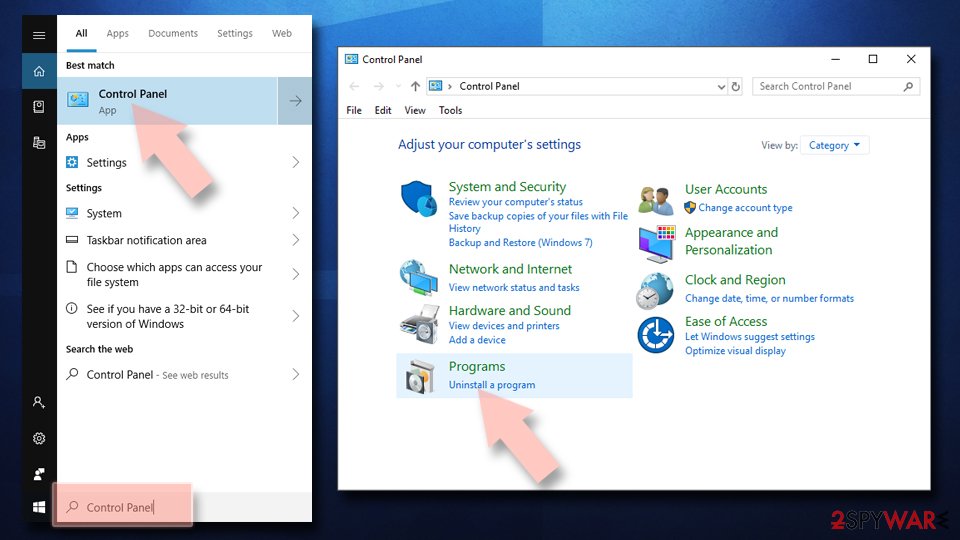
Uninstall from Windows 10/8:
- Type Control Panel into the Windows search box and open the result.
- Under Programs, select Uninstall a program.
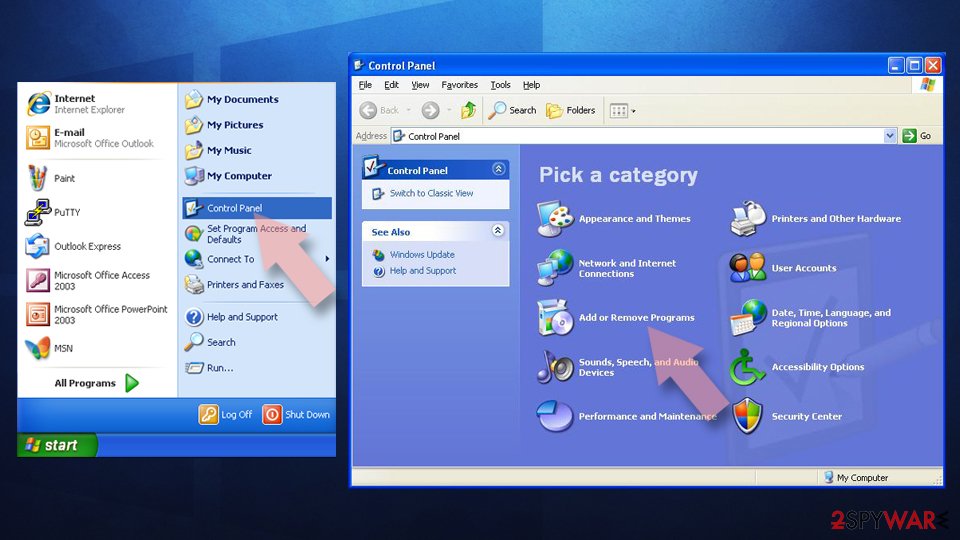
Uninstall from Windows 7/XP:
- Click on Windows Start > Control Panel (Windows XP users should click on Add/Remove Programs).
- In Control Panel, select Programs > Uninstall a program.
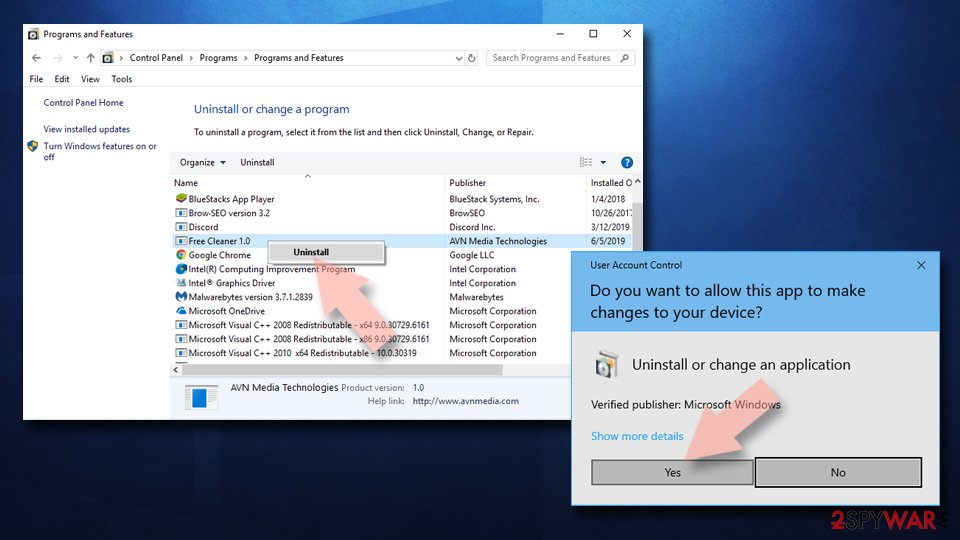
Remove the unwanted program:
- In the Programs and Features window, look for any recently installed suspicious entries, select them, and click Uninstall.
- If User Account Control appears, click Yes to confirm, then complete the removal.
Remove from Google Chrome
Delete malicious extensions from Google Chrome:
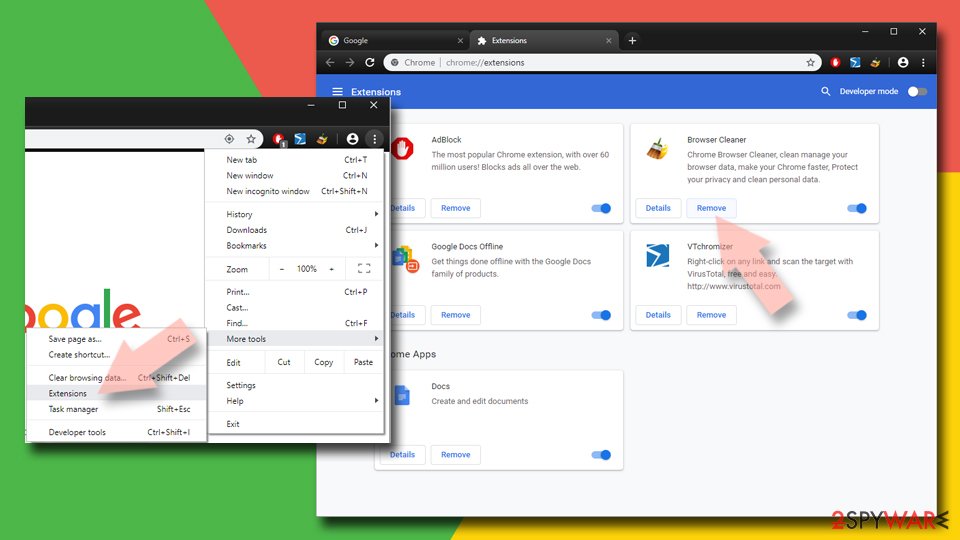
- Open Google Chrome, click on the Menu (three vertical dots at the top-right corner) and select More tools > Extensions.
- In the newly opened window, you will see all the installed extensions. Uninstall all suspicious extensions related to the unwanted program by clicking Remove.
Clear cache and web data from Chrome:
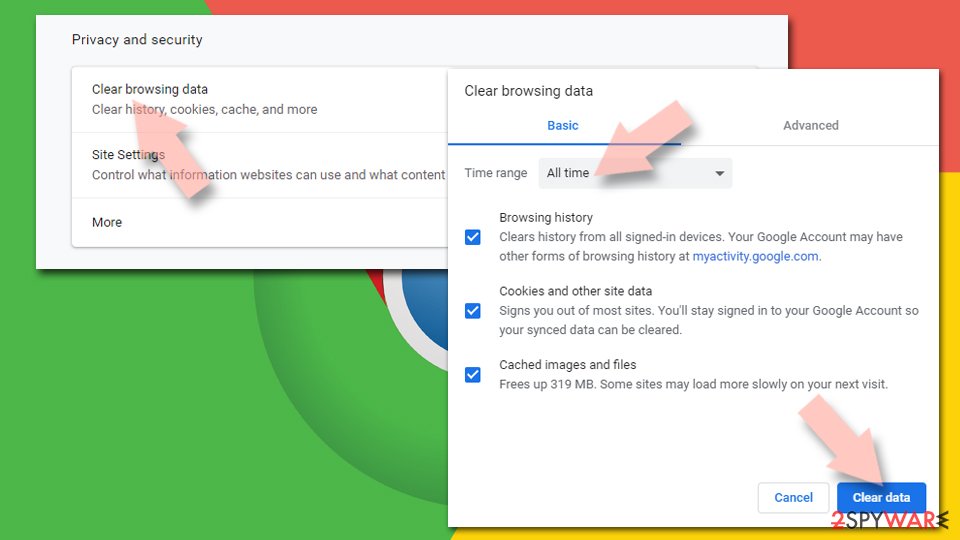
- Click on Menu and pick Settings.
- Under Privacy and security, select Clear browsing data.
- Select Browsing history, Cookies and other site data, as well as Cached images and files.
- Click Clear data.
Change your homepage:
- Click menu and choose Settings.
- Look for a suspicious site in the On startup section.
- Click on Open a specific or set of pages and click on three dots to find the Remove option.
Reset Google Chrome:
If the previous methods did not help you, reset Google Chrome to eliminate all the unwanted components:
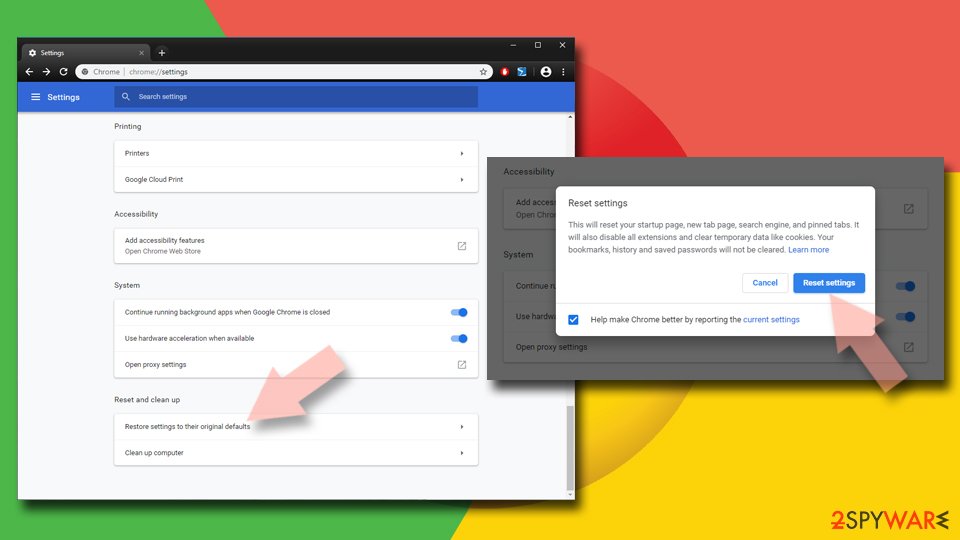
- Click on Menu and select Settings.
- In the Settings, scroll down and click Advanced.
- Scroll down and locate Reset and clean up section.
- Now click Restore settings to their original defaults.
- Confirm with Reset settings.
Remove from Microsoft Edge
Delete unwanted extensions from MS Edge:
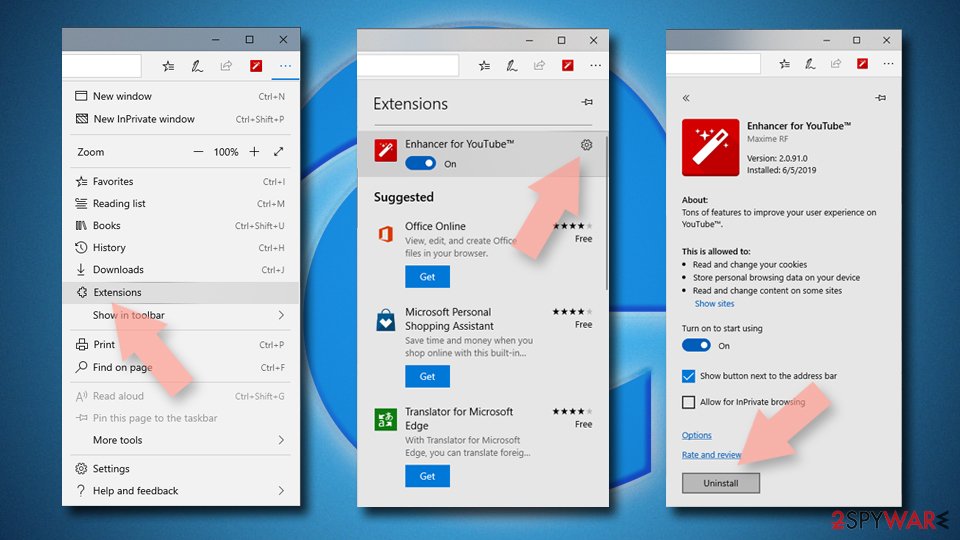
- Select Menu (three horizontal dots at the top-right of the browser window) and pick Extensions.
- From the list, pick the extension and click on the Gear icon.
- Click Remove.
Clear cookies and other browser data:
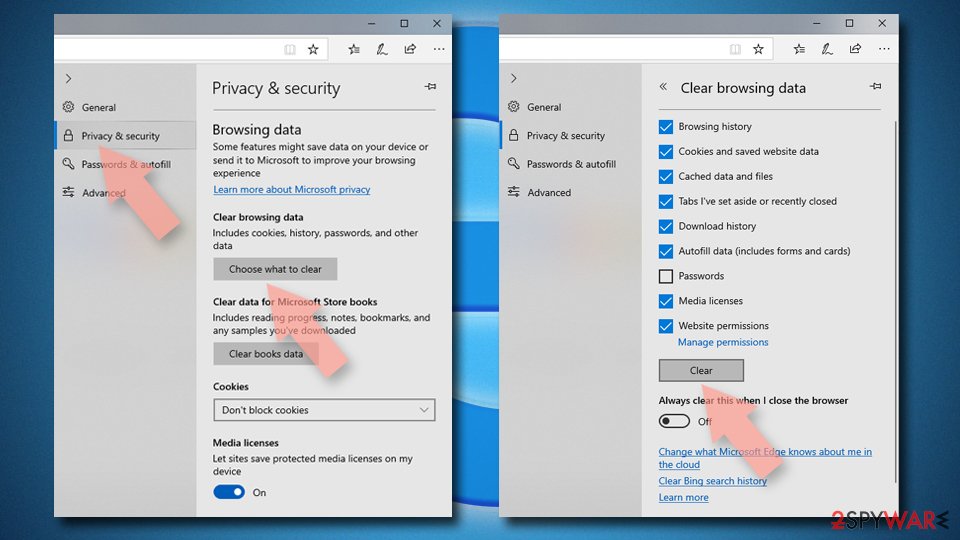
- Click on the Menu (three horizontal dots at the top-right of the browser window) and select Settings > Privacy, search, and services..
- Under Clear browsing data, pick Choose what to clear.
- Select Cookies and other site data and Cached images and files. (apart from passwords, although you might want to include Media licenses as well, if applicable) and click on Clear.
Restore new tab and homepage settings:
- Click the menu icon and choose Settings.
- Then find On startup section.
- Click Remove next to any suspicious startup page.
Reset MS Edge if the above steps did not work:
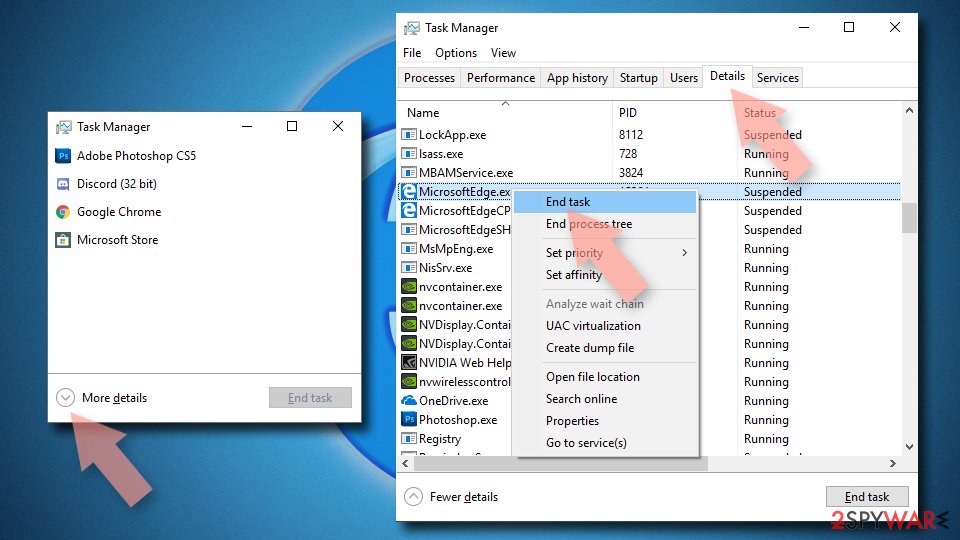
- Press on Ctrl + Shift + Esc to open Task Manager.
- Click on More details arrow at the bottom of the window.
- Select Details tab.
- Now scroll down and locate every entry with Microsoft Edge name in it. Right-click on each of them and select End Task to stop MS Edge from running.
Delete extensions from MS Edge (Chromium):
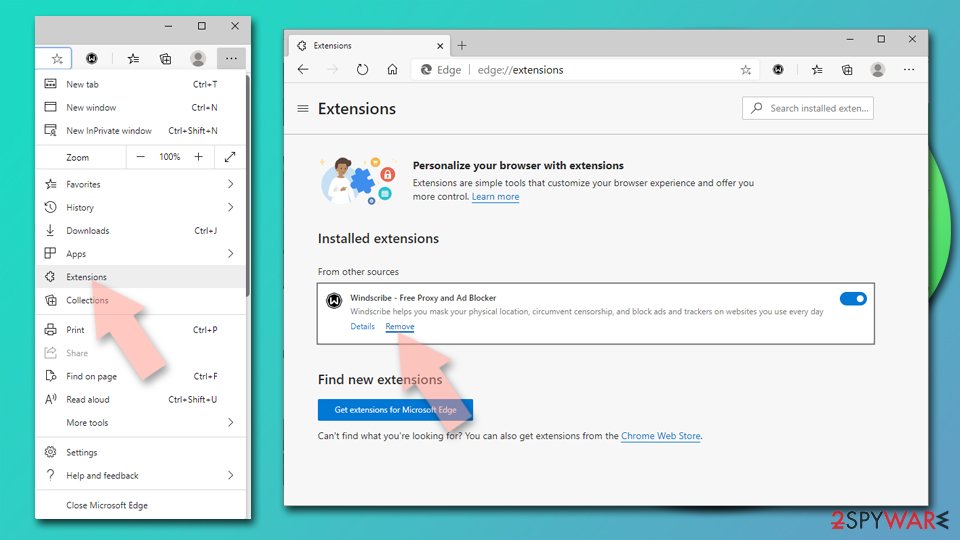
- Open Edge and click select Settings > Extensions.
- Delete unwanted extensions by clicking Remove.
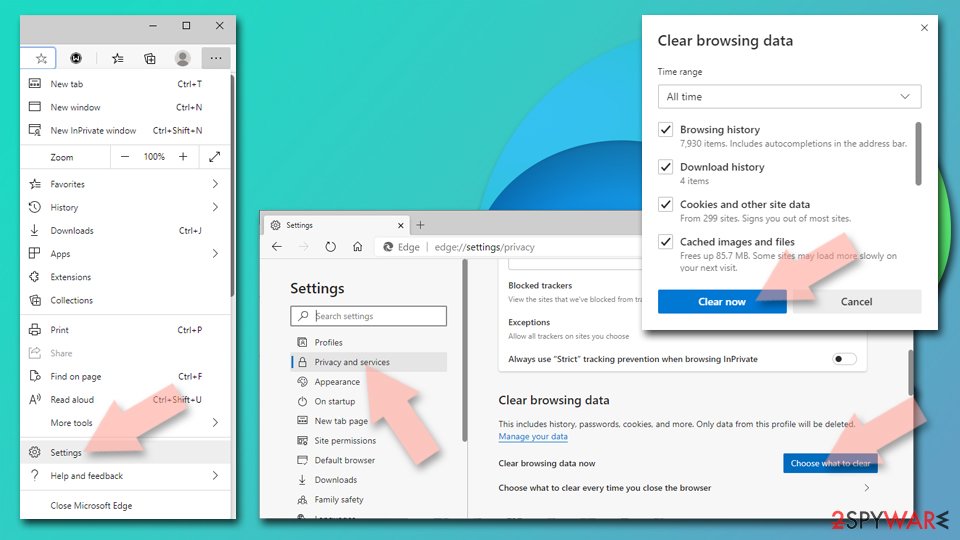
Clear cache and site data:
- Click on Menu and go to Settings.
- Select Privacy, search and services.
- Under Clear browsing data, pick Choose what to clear.
- Under Time range, pick All time.
- Select Clear now.
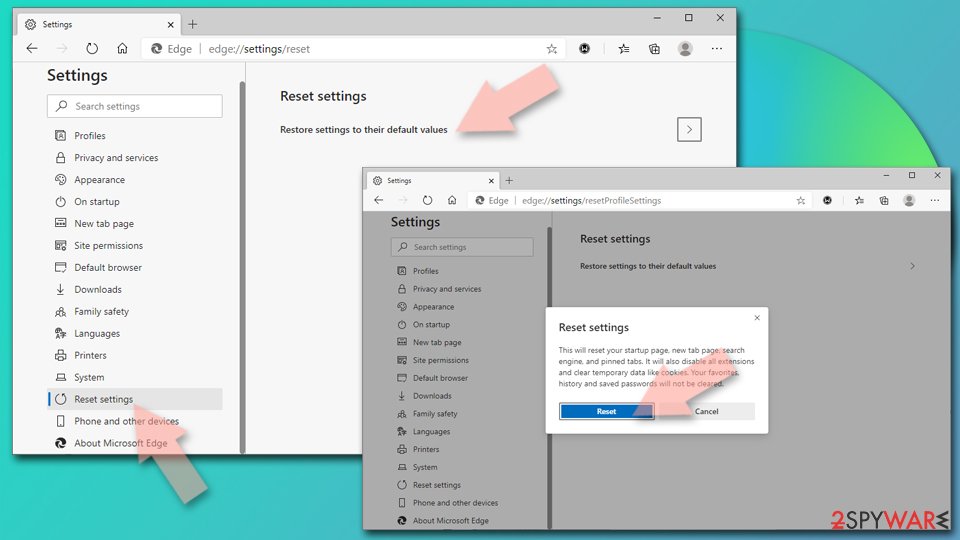
Reset Chromium-based MS Edge:
- Click on Menu and select Settings.
- On the left side, pick Reset settings.
- Select Restore settings to their default values.
- Confirm with Reset.
- This will disable extensions and reset startup pages but will not delete bookmarks, saved passwords, or browsing history.
Remove from Mozilla Firefox (FF)
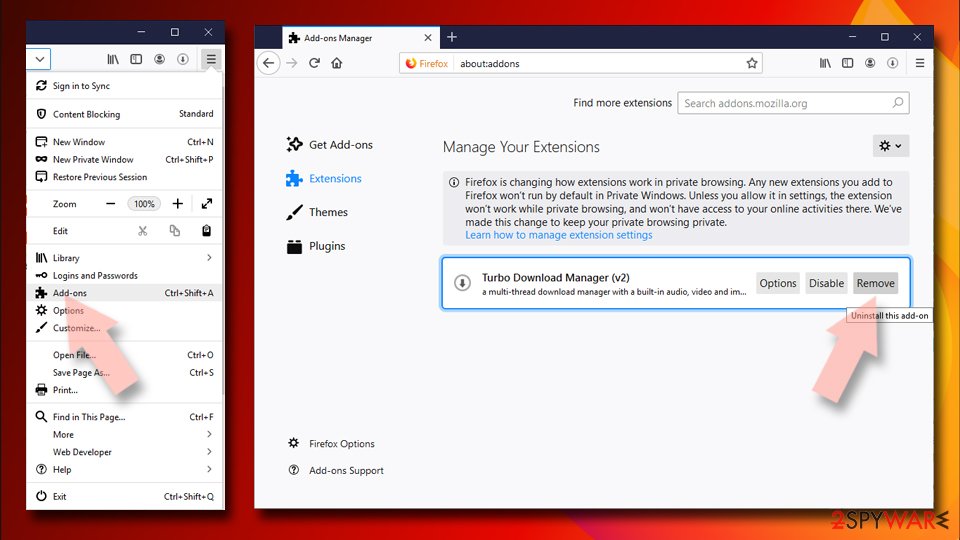
Remove dangerous extensions:
- Open Mozilla Firefox browser and click on the Menu (three horizontal lines at the top-right of the window).
- Select Add-ons.
- In here, select the unwanted extension and click Remove.
Reset the homepage:
- Click three horizontal lines at the top right corner to open the menu.
- Choose Settings.
- Under Home, set your preferred homepage and new tab settings.
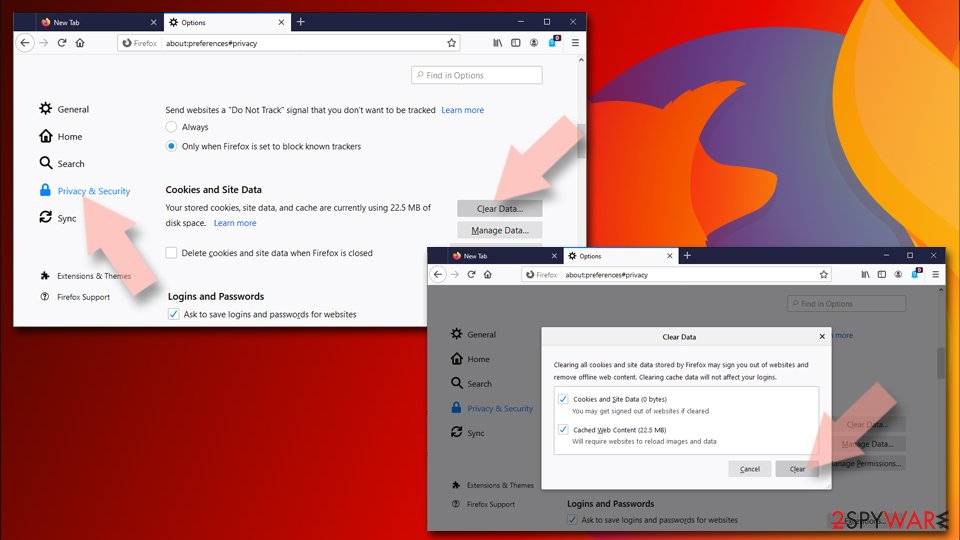
Clear cookies and site data:
- Click Menu and pick Settings.
- Go to Privacy & Security section.
- Scroll down to locate Cookies and Site Data.
- Click on Clear Data...
- Select Cookies and Site Data and Temporary cached files and pages, then click Clear.
Reset Mozilla Firefox
If clearing the browser as explained above did not help, reset Mozilla Firefox:
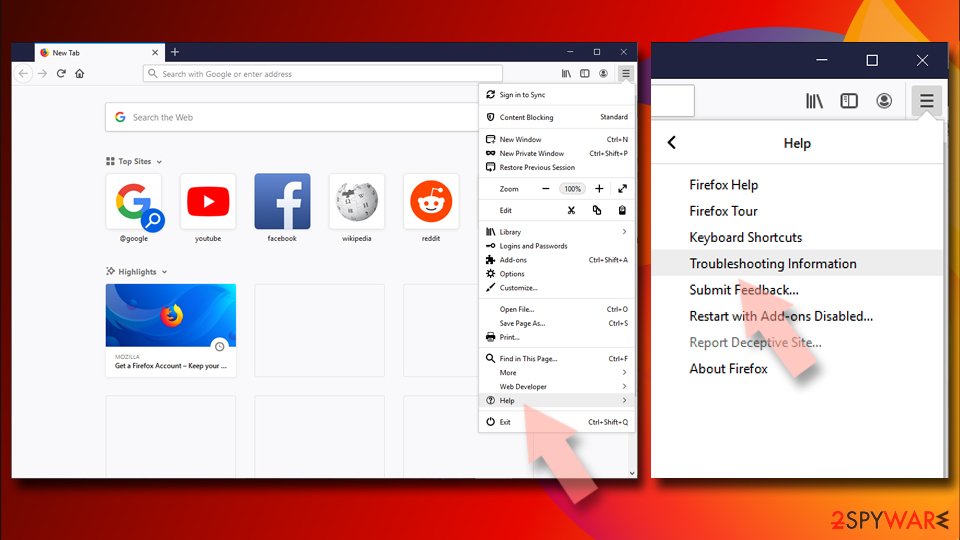
- Open Mozilla Firefox browser and click the Menu.
- Go to Help and then choose Troubleshooting Information.
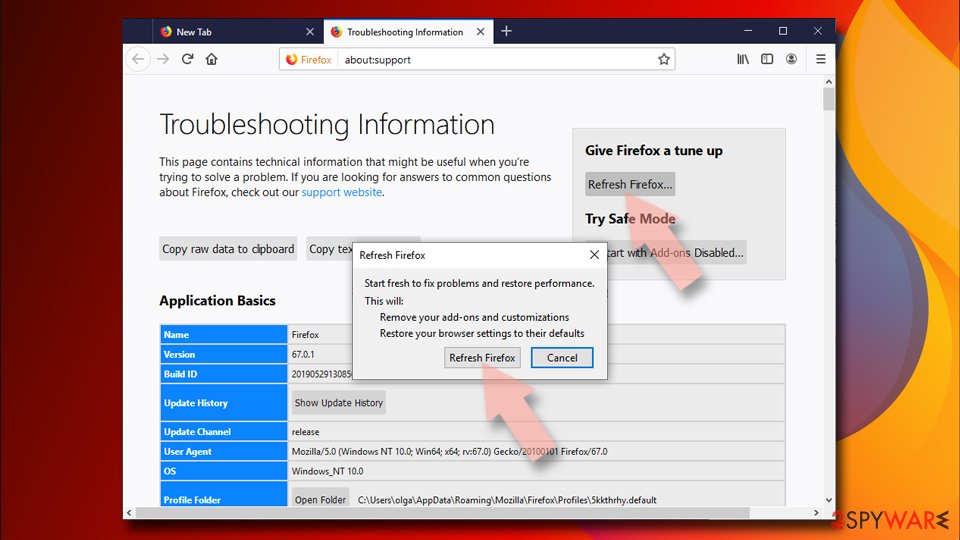
- Under Give Firefox a tune up section, click on Refresh Firefox...
- Once the pop-up shows up, confirm the action by pressing on Refresh Firefox.
Delete from Safari
Remove dangerous extensions:
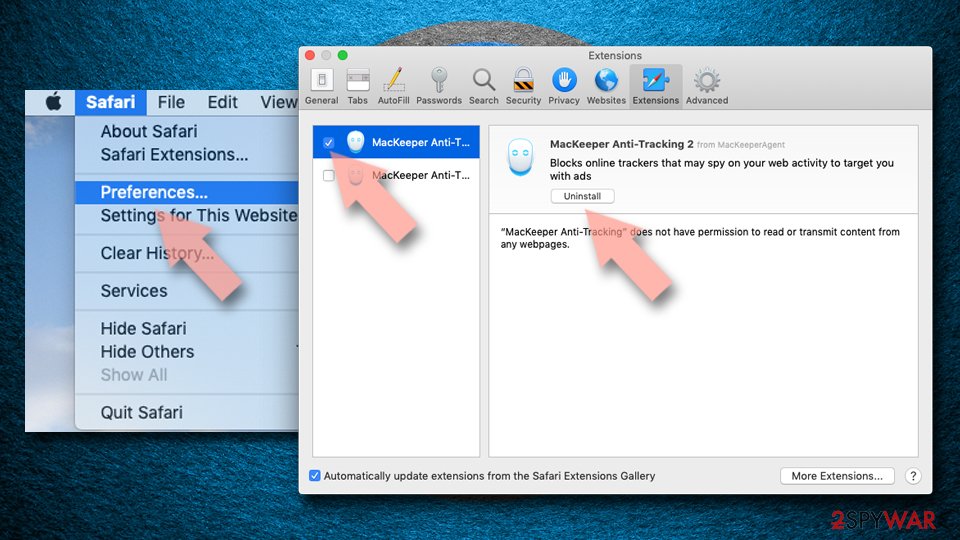
- Open Safari, click Safari in the menu at the top-left of the screen, and select Preferences.
- Go to the Extensions tab, look for any suspicious entries, and click Uninstall to remove them.
Clear history and website data:
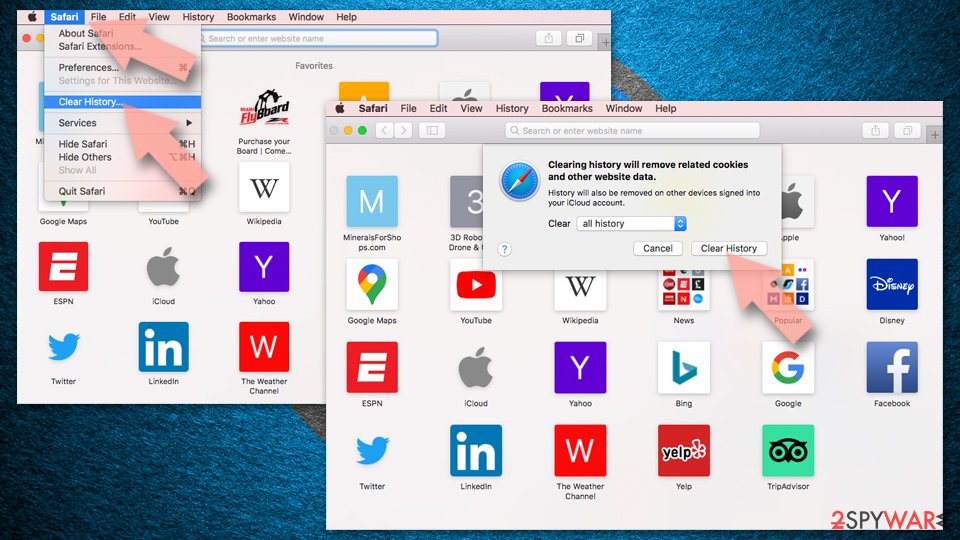
- Click Safari in the menu and pick Clear History.
- Set Clear to all history and confirm with Clear History.
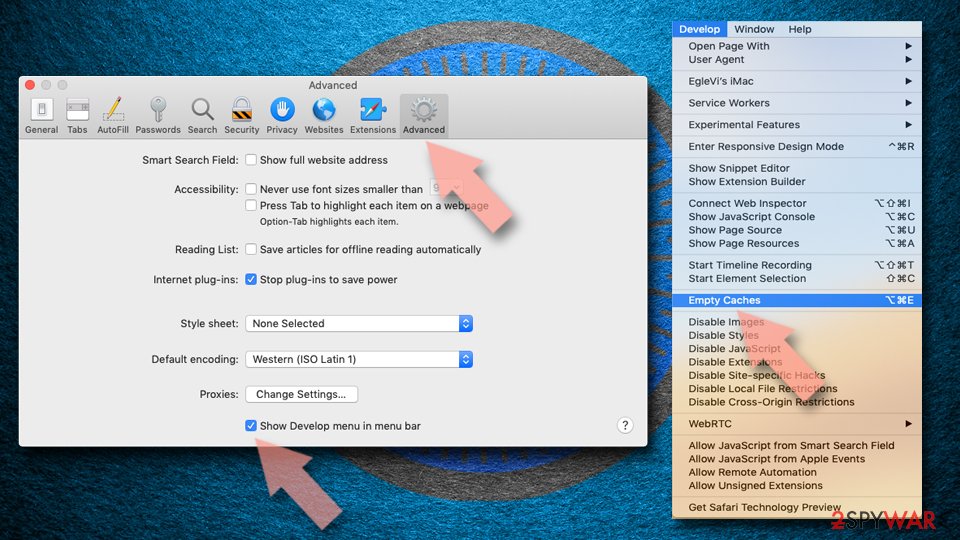
Reset Safari:
- Click Safari in the menu and select Preferences > Advanced.
- Enable Show Develop menu in menu bar.
- From the menu bar, click Develop and select Empty Caches.
Protect your privacy - employ a VPN
There are several ways how to make your online time more private - you can access an incognito tab.
However, there is no secret that even in this mode, you are tracked for advertising purposes. There is a way to add an extra layer of protection and create a completely anonymous web browsing practice with the help of VPN. This software reroutes traffic through different servers, thus leaving your IP address and geolocation in disguise.
Besides, it is based on a strict no-log policy, meaning that no data will be recorded, leaked, and available for both first and third parties. The combination of a secure web browser and VPN will let you browse the Internet without a feeling of being spied or targeted by criminals.
No backups? No problem. Use a data recovery tool
If you wonder how data loss can occur, you should not look any further for answers - human errors, malware attacks, hardware failures, power cuts, natural disasters, or even simple negligence.
In some cases, lost files are extremely important, and many straight out panic when such an unfortunate course of events happen. Due to this, you should always ensure that you prepare proper data backups on a regular basis.
If you were caught by surprise and did not have any backups to restore your files from, not everything is lost. is one of the leading file recovery solutions you can find on the market - it is likely to restore even lost emails or data located on an external device.
From our report of Apr 2021 · not reviewed since
Virus Doctor removal instructions
Rogue antispyware commonly meddles with Windows in a very intrusive manner.
These changes are meant to change the way the OS operates and prevent the removal. Due to this, many people might not know what to do and purchase the requested license, risking their security in the process.
Without a doubt, you should never waste money on this malicious software. If you have found it performing scans or delivering annoying warnings, you should remove Virus Doctor as soon as possible. Do not forget to clean your browsers, as this virus might leave some of its settings behind.
Questions about Virus Doctor
Is SM.exe safe?
It depends on where the file is and who signed it, not on the name. Open Task Manager, go to the Details tab, right-click SM.exe and choose Open file location. A file inside Program Files or System32 with a valid digital signature from a known company is usually part of a legitimate program.
A file in AppData, Temp or ProgramData with no signature, especially one that restarts itself after you end it, is suspicious. If you cannot tie the process to anything you installed, uninstall recent unfamiliar programs and run a Microsoft Defender Offline scan.
Can I end SM.exe in Task Manager?
Ending an unknown process is safe in the sense that Windows will warn you before you close anything critical, and a restart brings back whatever Windows needs. Ending SM.exe will not remove it, though: if a task or startup entry launches it, it returns at the next sign-in.
Use ending the process as a test. If something important stops working, it belonged to a program you use. If nothing changes and it comes back by itself, find and disable its starter, delete the file and scan the PC.
Is my card safe after buying Virus Doctor?
Treat it as exposed. The order page belongs to the seller of Virus Doctor, and you cannot know how the number is stored or shared. Ask your bank for a replacement card, which is usually free, and dispute the original charge as a misrepresented product.
Until the new card arrives, check your account daily for small or foreign transactions. If the bank offers alerts for every card payment, turn them on. Keep the receipt and screenshots, because they support the dispute.
What if I paid Virus Doctor?
Contact your bank or card issuer the same day, explain that the payment went to a fake security program and ask for a chargeback. Keep screenshots of an unfamiliar process called SM.exe in Task Manager, the payment receipt and any e-mails.
If you gave card details in the program, ask the bank to block and replace the card. Then uninstall the program and run a full scan in Windows Security. If you also called a number and let someone connect to your PC, uninstall the remote-access tool they used and change your passwords from another device.
Why does Virus Doctor look so official?
Because copying the design costs nothing and makes people trust it. The program behind an unfamiliar process called SM.exe in Task Manager borrows Windows colours, icons and wording, sometimes even the name of a well-known security brand. None of that gives it access to real security information.
A real alert can be checked in seconds: open Windows Security from the Start menu and look at Protection history. If nothing is listed there, the official-looking window is fake, and the program that draws it is what needs to be removed.
What could the caller do while connected to my PC?
Anything you could do. Callers working with fake alerts like Virus Doctor typically show you Windows logs as "proof", install their own remote tool for later, and steer you to online banking or a gift card purchase. Some add a password to Windows or lock the PC if you refuse to pay.
Remove every remote access program you did not install yourself, check Settings > Accounts > Other users for new accounts, and change important passwords from a clean device. If you cannot be sure what was changed, a reset of Windows is the safe choice.
Someone called offering a refund for Virus Doctor. Is it genuine?
Almost certainly not. Refund calls are a well-known second stage of scareware and tech support scams. The caller says you are owed money, asks you to install a remote access program to "process" it, then opens your online banking, makes it look as if too much was refunded and asks you to send the difference back.
Hang up. Real refunds go back to the card or PayPal account you paid with, through your bank or the payment provider, and never need remote access or a gift card.
Do I need to reinstall Windows to get rid of Virus Doctor?
Usually not. A thorough clean-up is enough when the offline scan finds nothing afterwards and you do not see an unfamiliar process called SM.exe in Task Manager again. A reset is the safer choice if an attacker had remote control, if security tools were switched off, or if detections come back after every clean-up.
Windows 11 can reset itself without a USB stick under Settings > System > Recovery > Reset this PC. Copy documents and photos out first and scan the copies. A reset does not change passwords or undo stolen data, so the account steps still apply.
Will Fortect remove Virus Doctor?
Fortect scans Windows for malware and unwanted programs and repairs the system files and settings they change, and its free scan shows what it finds on your PC before you decide anything.
For Virus Doctor, follow the plan above as well: the browser steps take back permissions and settings that no scanner treats as a threat, and uninstalling the program that brought it removes the source.
Run Microsoft Defender's full scan and, if anything was found, its offline scan as a second opinion. If the symptoms are gone after the plan and both scans are clean, there is nothing more to do.
Sources
- FTC: How to recognize, remove and avoid malware (read October 6, 2026)
- Microsoft Learn: Microsoft Defender Offline (read October 6, 2026)
- Microsoft Learn: How Microsoft names malware (read October 6, 2026)