

Watchmostquickthe-file.top is a fake website that should be ignored by those accidentally getting there
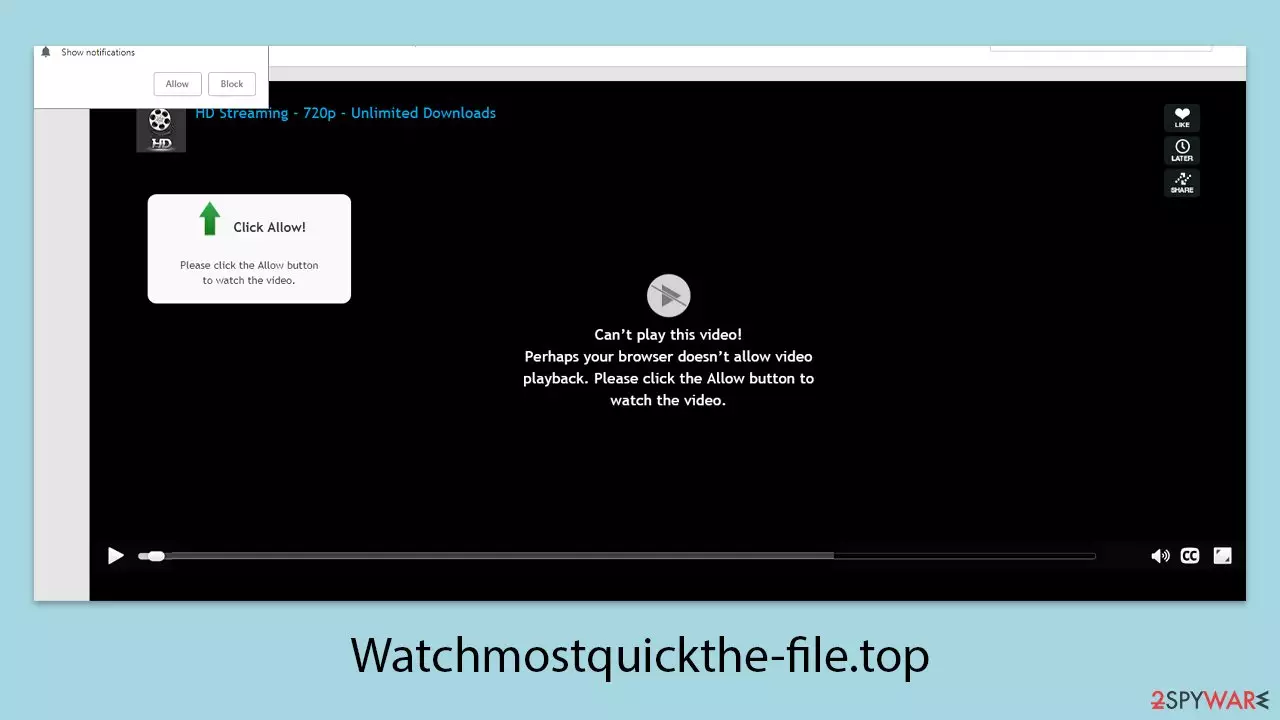
At some point, you may start noticing Watchmostquickthe-file.top ads showing up on your desktop, even when your browser isn’t active and regardless of the websites you're browsing. This can easily make you think there’s malware on your system, but that’s not always the case with such advertisements.
Seeing ads from Watchmostquickthe-file.top suggests that you’ve granted this site permission to send push notifications, which might come as a surprise. These notifications can function independently through the system, as long as your browser is running, using a browser-based feature (API). This allows malicious sites to send messages that include various links or misleading content, often without any prior notice.
Many users find themselves dealing with constant ads after unknowingly allowing push notifications. This often happens due to phishing tactics that trick users into pressing the “Allow” button. Once enabled, the ads won’t appear immediately, making it easy to forget the source. Below, we'll discuss ways to stop these unwanted notifications for good.
| Name | Watchmostquickthe-file.top |
| Type | Push notifications, ads, pop-ups, scam |
| Distribution | After users click the “Allow” button within the prompt upon site entry |
| Symptoms | Pop-ups that are shown include fake notifications and push scams. Links can also direct you to sites filled with malwar |
| Risks | Push notifications can sometimes contain misleading information and direct users to unsafe websites. Clicking on such advertisements can place your system at risk of being infiltrated by malicious software. Similarly, these untrustworthy ads can also pave the way for identity theft or potential financial losses. |
| Removal | Access browser settings to stop intrusive push notifications. After that, make sure that your system is not infected with adware or malware – scan it with SpyHunterCombo Cleaner |
| Tips | Make sure to clean your browsers of cookies and other site data and use FortectIntego to fix any damaged system files |
How does that scam work?
Unexpected redirects to push notification scam websites are a tactic frequently employed by scammers to achieve their objectives. When users are distracted, they are more likely to make errors and fall victim to these scams.
After being redirected to these fraudulent sites, users are often presented with requests to confirm they are human or verify their age, typically over 18. These verification steps seem familiar to most, as they resemble common security checks encountered online.
This sense of familiarity allows scammers to exploit social engineering tactics, making it easier to trick users into sharing personal details or clicking harmful links. It's crucial to stay cautious when facing such requests and to never share sensitive information unless you are certain the site is trustworthy.
Always verify the URL of the website asking for such information, as it can often reveal a suspicious connection. If you happened to be deceived by Watchmostquickthe-file.top or a similar scam site, there's no need to panic, as removing push notifications is usually a simple process.

Adware and other unwanted or malicious software might be related to scam sites
Users may unknowingly get redirected to phishing websites like Watchmostquickthe-file.top after clicking on links from other web pages. Torrent sites and platforms offering pirated software are notorious for triggering these redirects, leading users to potentially harmful websites. In some cases, redirections can happen automatically without any action from the user, often caused by hidden malicious scripts embedded in the website.
Similar outcomes can result from adware or other unwanted programs running silently in the background, often installed accidentally while downloading free software from unreliable third-party sites.
To safeguard your device, it’s recommended to use reliable anti-malware tools, such as SpyHunterCombo Cleaner or MalwarebytesMalwarebytes. Make sure your software is up-to-date with the latest definitions before running a full malware scan, which can typically be set for automatic updates in the settings.
After removing any detected malware, it’s a good idea to use the FortectIntego tool to clear cookies and other tracking data from your browsers. This process can also assist in repairing any damage caused to system files by the infection.
Watchmostquickthe-file.top ads removal
If you were misled into allowing push notifications from Watchmostquickthe-file.top, it’s not as serious as having your system compromised by dangerous malware, although the false alerts can still cause potential harm. As long as you avoid interacting with the links promoted through these notifications, your system should stay safe.
That said, the frequent spam from Watchmostquickthe-file.top can be very disruptive, and there’s always the risk of accidentally clicking on one of the links, which could lead to harmful sites. For this reason, it’s essential to follow the proper steps to stop these unwanted pop-ups once and for all.
Google Chrome
- Open the Google Chrome browser and go to Menu > Settings.
- Scroll down and click on Advanced.
- Locate the Privacy and security section and pick Site Settings > Notifications.
- Look at the Allow section and look for a suspicious URL.
- Click the three vertical dots next to it and pick Block. This should remove unwanted notifications from Google Chrome.


Google Chrome (Android)
- Open Google Chrome and tap on Settings (three vertical dots).
- Select Notifications.
- Scroll down to the Sites section.
- Locate the unwanted URL and toggle the button to the left (Off position).


Mozilla Firefox
- Open Mozilla Firefox and go to Menu > Options.
- Click on Privacy & Security section.
- Under Permissions, you should be able to see Notifications. Click the Settings button next to it.
- In the Settings – Notification Permissions window, click on the drop-down menu by the URL in question.
- Select Block and then click on Save Changes. This should remove unwanted notifications from Mozilla Firefox.


Safari
- Click on Safari > Preferences…
- Go to the Websites tab and, under General, select Notifications.
- Select the web address in question, click the drop-down menu and select Deny.


MS Edge
- Open Microsoft Edge, and go to Settings.
- Select Site permissions.
- Go to Notifications on the right.
- Under Allow, you will find the unwanted entry.
- Click on More actions and select Block.


Internet Explorer
- Open Internet Explorer, and click on the Gear icon at the top-right of the window.
- Select Internet options and go to the Privacy tab.
- In the Pop-up Blocker section, click on Settings.

- Locate the web address in question under Allowed sites and pick Remove.

Did this guide help?
Be the first to comment