

How does Your Video Converter Now virus work and why you should remove it?
Your Video Converter Now browser hijacker is a program that cannot be trusted. It is a potentially unwanted program (PUP), which silently hijacks web browsers and adds Your Video Converter Now extension to them. According to our research, it can infiltrate Google Chrome, Safari, and Mozilla Firefox. The mission of this application is to cause continuous redirects to Search.YourVidConverter.com and make the user search the web via it, and, as if that weren’t enough, it sets this URL as homepage and new tab page address as well. If you have noticed such changes in your browser, then you should start looking for the aforementioned browser hijacker and remove it from your computer as soon as possible, because it is not only useless but also quite dangerous. Let’s not forget the fact that this browser hijacker is a product of Safer Browser company, which has already developed many other potentially unwanted programs that all function the same way. Examples include Login Faster, Email Enhanced, Get Maps Fast and many more.
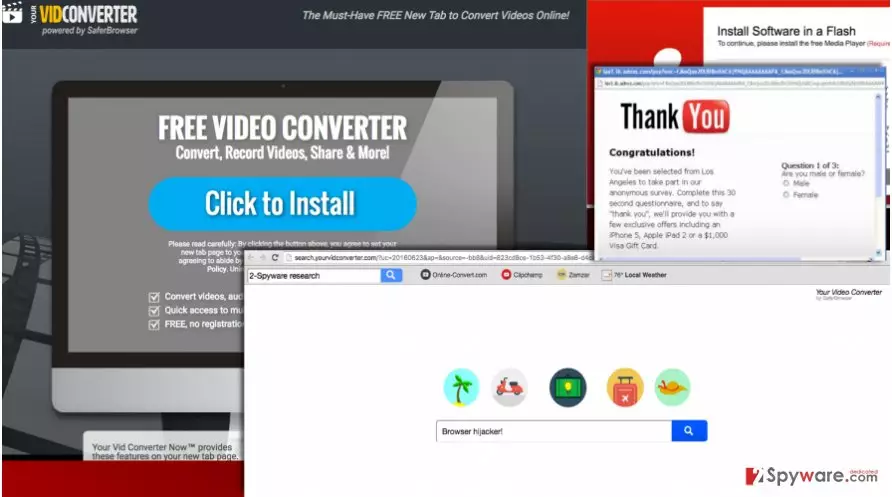
We cannot say a single good thing about this program. It makes the computer run slow, it causes interruptions and presents promotional content, but it does not help the user find the information he needs quickly. Although it claims to be an excellent tool that helps to access various online converters, it does nothing but changes browser settings to promote a dubious web search engine, which provides several shortcut buttons at the top of the page. We do not find this program useful, because if you want to access these online file converters quickly, you can just add them to your bookmarks’ list, and there is no need to change your homepage because of that.
The reason why this PUP wants you to use its search engine is that then it can make you click on its search results and then redirect you to one of the websites that it wants to promote. We assume that these Your Video Converter Now redirects are quite risky, as you can never know where they can lead you. The only aim of this hijacker is to increase advertising revenue, but not to provide you with relevant information; besides, it seems that it does not care to ensure the safety of users and their computers as it does not endorse third-party websites it advertises. In our opinion, you should not rely on such search engine and replace it with another one. However, in order to do that, you have to remove Your Video Converter Now first. You can use FortectIntego or remove it manually.
How did this app hijack your PC?
If you do not want to clutter your PC with useless ad-supported apps, browser toolbars, and other potentially unwanted programs, you just have to know one thing: PUPs like Your Video Converter Now hijack computers unnoticed when the PC user downloads a software bundle and installs it carelessly. The sad truth is that the vast of computer users tend to jump over installation steps by continuously clicking “Next” button, and as a result, they install many PUPs on their computers without even realizing it. Of course, they realize it later on, when they start to receive hundreds of annoying ads and experience web redirects to questionable websites. It might surprise you, but in fact, it is very easy to prevent PUPs from hijacking your computer. All you have to do is to switch installation settings from pre-selected ones to Advanced or Custom option and then deselect all optional components included in your download.
How to remove Your Video Converter Now?
Your Video Converter Now removal should be completed without a delay, and it can help to keep your computer stable. However, if you used to install programs using Default or Standard settings, then it is highly recommended to scan your computer system for threats because you probably have installed more than one PUP or even a critical program to your device. Of course, you can try to identify them and remove them manually, however, it can take a lot of time and effort to do that. If you do not feel like wasting your time on computer threats, then employ an anti-malware software and let it automatically remove Your Video Converter Now virus and other PUPs from your PC.
Uninstall from Windows
Uninstall from Windows 10/8:
- Type Control Panel into the Windows search box and open the result.
- Under Programs, select Uninstall a program.


Uninstall from Windows 7/XP:
- Click on Windows Start > Control Panel (Windows XP users should click on Add/Remove Programs).
- In Control Panel, select Programs > Uninstall a program.


Remove the unwanted program:
- In the Programs and Features window, look for any recently installed suspicious entries, select them, and click Uninstall.
- If User Account Control appears, click Yes to confirm, then complete the removal.


Delete from macOS
Remove the unwanted application:
- From the menu bar, select Go > Applications.
- In the Applications folder, look for any suspicious entries, then drag them to Trash (or right-click and pick Move to Trash).


Delete leftover files and folders:
- Select Go > Go to Folder.
- Enter /Library/Application Support and remove any suspicious folders related to the unwanted program.
- Repeat the same check in the /Library/LaunchAgents and /Library/LaunchDaemons folders, deleting any suspicious entries.

- Finally, empty the Trash to permanently remove the leftovers.

Remove from Microsoft Edge
Delete unwanted extensions from MS Edge:
- Select Menu (three horizontal dots at the top-right of the browser window) and pick Extensions.
- From the list, pick the extension and click on the Gear icon.
- Click Remove.


Clear cookies and other browser data:
- Click on the Menu (three horizontal dots at the top-right of the browser window) and select Settings > Privacy, search, and services..
- Under Clear browsing data, pick Choose what to clear.
- Select Cookies and other site data and Cached images and files. (apart from passwords, although you might want to include Media licenses as well, if applicable) and click on Clear.


Restore new tab and homepage settings:
- Click the menu icon and choose Settings.
- Then find On startup section.
- Click Remove next to any suspicious startup page.
Reset MS Edge if the above steps did not work:
- Press on Ctrl + Shift + Esc to open Task Manager.
- Click on More details arrow at the bottom of the window.
- Select Details tab.
- Now scroll down and locate every entry with Microsoft Edge name in it. Right-click on each of them and select End Task to stop MS Edge from running.


Instructions for Chromium-based Edge
Delete extensions from MS Edge (Chromium):
- Open Edge and click select Settings > Extensions.
- Delete unwanted extensions by clicking Remove.


Clear cache and site data:
- Click on Menu and go to Settings.
- Select Privacy, search and services.
- Under Clear browsing data, pick Choose what to clear.
- Under Time range, pick All time.
- Select Clear now.


Reset Chromium-based MS Edge:
- Click on Menu and select Settings.
- On the left side, pick Reset settings.
- Select Restore settings to their default values.
- Confirm with Reset.
- This will disable extensions and reset startup pages but will not delete bookmarks, saved passwords, or browsing history.


Remove from Mozilla Firefox (FF)
Remove dangerous extensions:
- Open Mozilla Firefox browser and click on the Menu (three horizontal lines at the top-right of the window).
- Select Add-ons.
- In here, select the unwanted extension and click Remove.


Reset the homepage:
- Click three horizontal lines at the top right corner to open the menu.
- Choose Settings.
- Under Home, set your preferred homepage and new tab settings.
Clear cookies and site data:
- Click Menu and pick Settings.
- Go to Privacy & Security section.
- Scroll down to locate Cookies and Site Data.
- Click on Clear Data...
- Select Cookies and Site Data and Temporary cached files and pages, then click Clear.


Reset Mozilla Firefox
If clearing the browser as explained above did not help, reset Mozilla Firefox:
- Open Mozilla Firefox browser and click the Menu.
- Go to Help and then choose Troubleshooting Information.

- Under Give Firefox a tune up section, click on Refresh Firefox...
- Once the pop-up shows up, confirm the action by pressing on Refresh Firefox.



Remove from Google Chrome
Delete malicious extensions from Google Chrome:
- Open Google Chrome, click on the Menu (three vertical dots at the top-right corner) and select More tools > Extensions.
- In the newly opened window, you will see all the installed extensions. Uninstall all suspicious extensions related to the unwanted program by clicking Remove.


Clear cache and web data from Chrome:
- Click on Menu and pick Settings.
- Under Privacy and security, select Clear browsing data.
- Select Browsing history, Cookies and other site data, as well as Cached images and files.
- Click Clear data.


Change your homepage:
- Click menu and choose Settings.
- Look for a suspicious site in the On startup section.
- Click on Open a specific or set of pages and click on three dots to find the Remove option.
Reset Google Chrome:
If the previous methods did not help you, reset Google Chrome to eliminate all the unwanted components:
- Click on Menu and select Settings.
- In the Settings, scroll down and click Advanced.
- Scroll down and locate Reset and clean up section.
- Now click Restore settings to their original defaults.
- Confirm with Reset settings.


Delete from Safari
Remove dangerous extensions:
- Open Safari, click Safari in the menu at the top-left of the screen, and select Preferences.
- Go to the Extensions tab, look for any suspicious entries, and click Uninstall to remove them.


Clear history and website data:
- Click Safari in the menu and pick Clear History.
- Set Clear to all history and confirm with Clear History.


Reset Safari:
- Click Safari in the menu and select Preferences > Advanced.
- Enable Show Develop menu in menu bar.
- From the menu bar, click Develop and select Empty Caches.


Did this guide help?
4 comments
Jelena
I am really scared - is my computer safe? I cannot remember installing any programs lately, and so I have no idea how did your video converter managed to infiltrate my pc...
mort
Try scanning it with antivirus, it helps. I have used an anti-spyware program to remove this, and I cannot complain!
Mandala92
The worst app ever! I dont want to use it, I am so madd that it has entered my computer without telling me first!
Pippa
Yes this happened to me too, but I have removed YourVideoConverterNow with ease. Didnt even use automatic tool for that... cause these instructions are really easy-to-follow :)