
Perl ransomware virus: what it is and how to remove it
Perl virus seems to be the third version of Bart ransomware, which follows the most recent one - Bart v2.0 ransomware. Just like its predecessor, it encrypts files with RSA-4096 cipher and adds certain file extensions, in this case - .perl file extensions, and this is where the name of this ransomware comes from.
Facts checked October 7, 2026. Removal steps tested on Windows 11 (26H2) and checked against Microsoft's and the browser makers' current documentation. Sections marked as our earlier report are the original text: they describe the threat as it was then and have not been reviewed since. The 2026 status, the removal steps and the questions are current.
Automatic
Get a free scan and check if your PC is infected.
Fortect finds malware, unwanted programs and the Windows damage they leave behind, and repairs it in one pass.
A free scan checks for the encryptor still on the PC; it does not decrypt .perl files.
Do it yourself · free Remove Perl ransomware virus yourself 6 steps, about 18 minutes, no software needed.
Start the steps
Perl ransomware virus: summary
| Detection names | No Microsoft detection name is known |
|---|---|
| Ransom note | recover.txt; the text of the note is not in our records |
| Contact | Not recorded in our earlier report |
| Encrypted file extension | .perl |
| Decryptor | No free decryptor is known for this variant; check No More Ransom (nomoreransom.org) for updates |
| Distribution | Not recorded in the old report |
| Removal | Scan the PC with security software to find and remove the malware and anything installed with it. Fortect scans Windows for malware and repairs the system files and settings it damaged. Remove it nowTo use the full-featured product, you have to purchase a license for Fortect. The scan is free. |
Show 9 more facts
| Damage | Not recorded in the old report |
|---|---|
| Name | Perl ransomware virus |
| Type | File-encrypting ransomware |
| Symptoms | Files renamed with a new extension and a ransom note left in folders |
| Evidence | One write-up by a security site; no sample analysed yet |
| Encrypted files | .perl |
| Free decryptor | No free decryptor is known (checked 7 October 2026) |
| First seen | 25 October 2016 |
| Facts checked | 7 October 2026 |
Traces of Perl ransomware virus you can check
- File extension:
.perl - Note file:
recover.txt
How Perl ransomware virus behaves
From our report of Oct 2016 · not reviewed since
Perl virus is the new Bart ransomware variant
Perl virus seems to be the third version of Bart ransomware, which follows the most recent one - Bart v2.0 ransomware.
Just like its predecessor, it encrypts files with RSA-4096 cipher and adds certain file extensions, in this case - .perl file extensions, and this is where the name of this ransomware comes from.
The entire functionality of the version hardly differs from the second ransomware version, which means that PERL virus can encrypt over 140 different file types. The ransom note it saves on the computer is called recover.txt, and it places a .bmp image file instead of previous desktop wallpaper.
The behavior and ransom notes left by this virus remind us of one of the most infamous computer viruses - Locky. This virus asks to use Tor browser to access provided URLs and go to the payment site. As we have entered that site, we saw that it suggests buying Bart Decryptor.
Unfortunately, but it seems that files encrypted by Perl ransomware cannot be decrypted without the unique decryption key.
If you have been hit by this crypto-ransomware, you probably know that it demands to pay a ransom in order to get this decryption key, but we strongly recommend you not to do so. .Perl file extension virus might be an upgraded version of Bart, but that does not mean that it is a better version of the virus.
Cyber security researchers might be able to find a decryption tool one day, so be patient. Meanwhile, remove Perl ransomware by running a system scan with anti-malware software, for instance, .
To recover the encrypted data, use a data backup, or, if you do not have it, follow data recovery instructions presented below this article. For successful Perl removal, use instructions presented below and deactivate the virus first; otherwise, it might not be possible to start the malware removal tool.

From our report of Oct 2016 · not reviewed since
How did you manage to download this virus on to the system?
Perl ransomware spreads in an indirect way.
It cannot be downloaded from the Internet freely. Typically, it aways for victims in software bundles, malicious websites or deceptive email attachments. Nowadays, ransomware can hide in a safe-looking PDF, Word or ZIP file, so viruses no longer need to be sent in the form of EXE files.
It goes without saying that it is much easier to get your computer infected with ransomware since it can hide in safe-looking files. For your safety, do not open emails that come from unknown people and do not enable Macros function in case someone sends you a document that contains a scrambled text.
The Perl ransomware virus ransom note
The note is called recover.txt.
We did not record the full text of the ransom note in our report.
How to remove Perl ransomware virus
Tools you'll need
All of these are free except where noted. Download them on a clean device if the infected PC is offline.
- A USB stick: to keep the ransom note, two or three encrypted files and screenshots off the infected PC.
- Microsoft Defender Offline: built into Windows 11 and Windows 10; scans before Windows starts, so running malware cannot hide.
- Microsoft Safety Scanner: a second, portable scanner with current signatures; each download works for 10 days.
- ID Ransomware: identifies the family from the note and one encrypted file and says whether a decryptor exists.
- No More Ransom: the free decryptors from police and security companies; check it again every few months.
- Fortect (optional): scans Windows for malware and repairs the system files and settings it damaged. The free scan is in the box above.
How to remove Perl ransomware virus and get your files back
Work in this order.
Disconnecting comes first, removal comes before any restore, and nothing here asks you to contact the attackers.
Step 1: Disconnect the PC and unplug backup drives
Perl ransomware virus encrypts everything it can reach, including drives and shares you connect later. Cut the network first: cable out, or Wi-Fi off from the taskbar.
Then unplug every USB stick and backup disk and pause cloud sync, so the encrypted versions do not replace your online copies. Do not reconnect any of them until the ransomware is removed from the Windows 11 or Windows 10 PC.
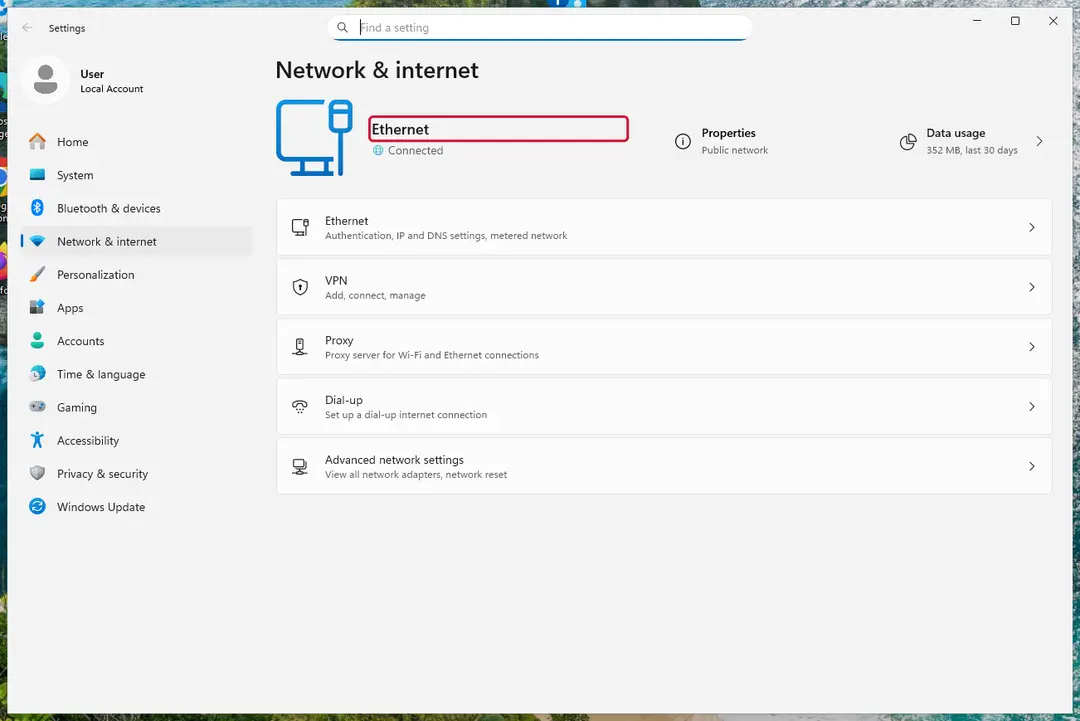
Windows 11: turn off Wi-Fi to take the PC offline. Full procedure with screenshots: Ransomware: first steps, finding a decryptor and recovering files
Step 2: Save the ransom note and confirm the family
Copy
recover.txtand one or two files ending in.perlto a USB stick, and leave the originals where they are.From another device, upload the note and a sample file to ID Ransomware or No More Ransom's Crypto Sheriff, which name the family from the note, the extension and the file structure.
Write down the contact address and your personal ID from the note, because a decryptor or the police may ask for them.
Warning: Never contact the attackers from the infected Windows 11 or Windows 10 PC.
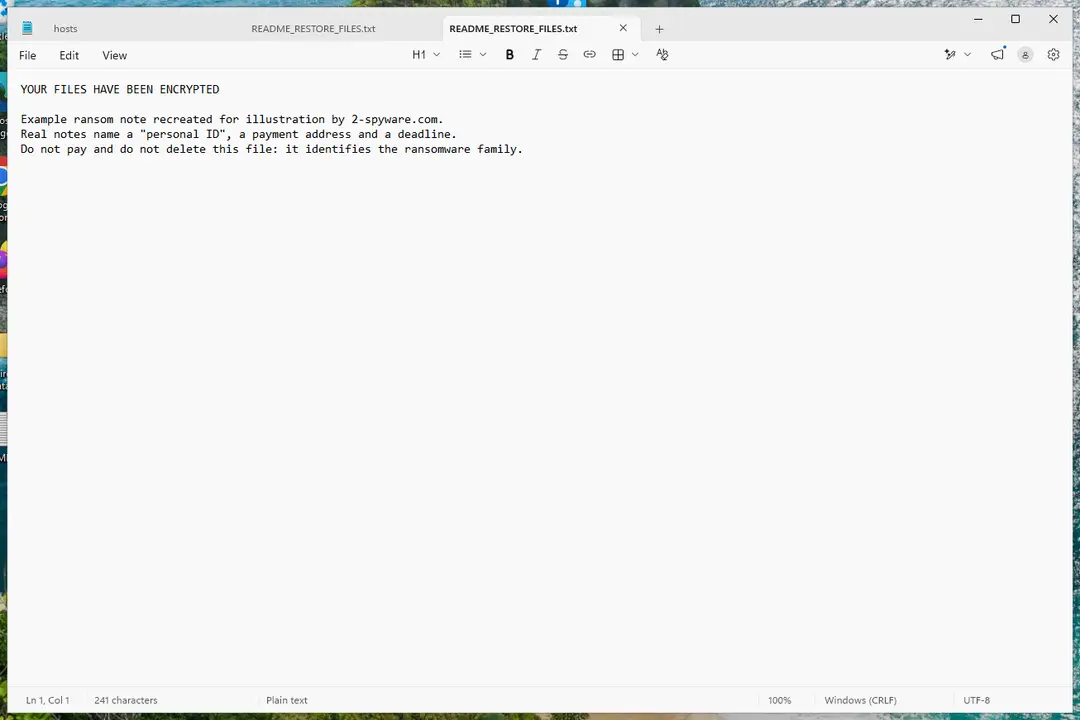
Windows 11: the ransom note and encrypted files to copy for identification. Full procedure with screenshots: Ransomware: first steps, finding a decryptor and recovering files
Step 3: Check for a free decryptor
For Perl ransomware virus, no free decryptor is known (checked 7 October 2026). Search the family name in the No More Ransom decryption tools list and in the free decryptors of Emsisoft, Avast and Kaspersky, because new tools appear years after an attack.
Important: Keep the encrypted files even if nothing works today, and do not pay before every free option is ruled out: payment does not guarantee a working key.
Decryptors run on Windows 11 and Windows 10, but only after the ransomware itself is removed.
Full procedure with screenshots: Ransomware: first steps, finding a decryptor and recovering files
Step 4: Remove the ransomware before you restore or decrypt
Restoring or decrypting files while Perl ransomware virus still runs lets it encrypt them again. Run a Full scan in Windows Security > Virus & threat protection > Scan options, then the Microsoft Defender Antivirus (offline scan).
If the ransomware blocks Windows Security, start Safe Mode with Networking and scan from there. Some families install a password stealer as well, so let both scans finish on Windows 11 or Windows 10.

Windows 11: Windows Security > Virus & threat protection > Scan options. Full procedure with screenshots: Run a Microsoft Defender Offline scan
Step 5: Look for shadow copies of the files
Open Command Prompt as administrator and run
vssadmin list shadows. If it lists copies dated before the attack, right-click a folder with encrypted files in File Explorer, choose Properties > Previous Versions, and open or restore a version from before that date.ShadowExplorer, a free tool, shows the same copies when the tab is empty or hidden. Most current families delete shadow copies, so an empty list is normal, but the check takes two minutes on Windows 11 or Windows 10.
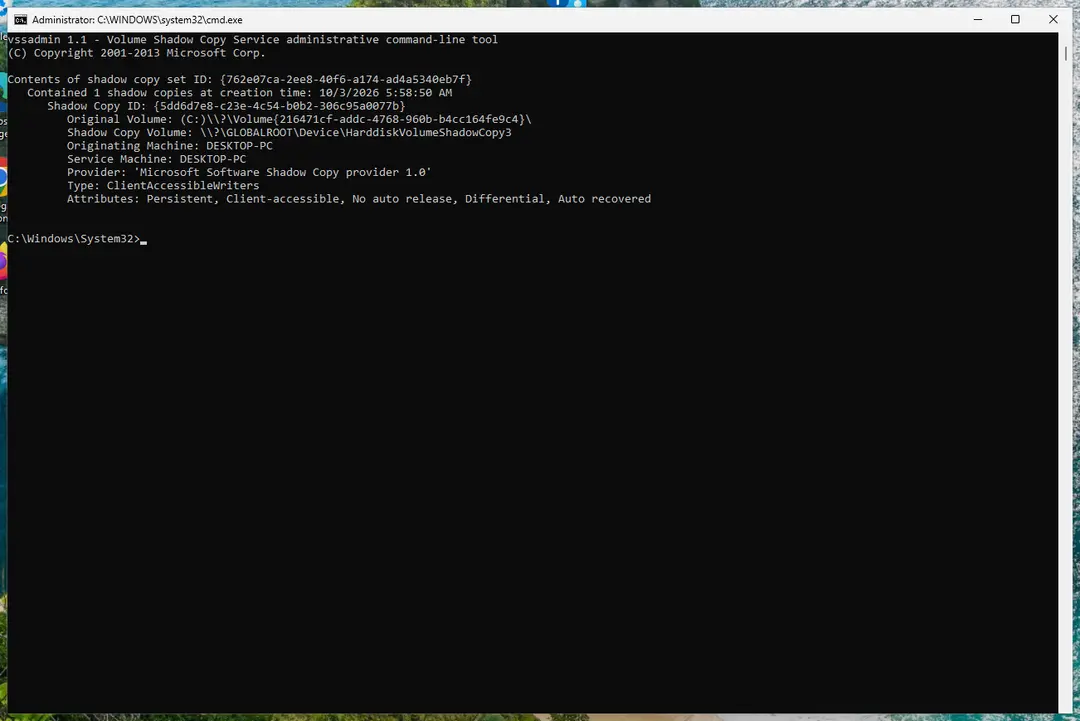
Windows 11: vssadmin list shadows shows whether shadow copies exist. Full procedure with screenshots: Ransomware: first steps, finding a decryptor and recovering files
Step 6: Restore the files from a backup or recover deleted originals
Restore from an external backup, File History or OneDrive's version history, choosing a date before the attack. Connect the backup drive only after the scans are clean, or the ransomware encrypts it too.
If there is no backup, file recovery software can sometimes find the deleted originals, because some ransomware writes an encrypted copy and deletes the original file.
Stop writing to the drive and try recovery on Windows 11 or Windows 10 before new files overwrite the space.
Full procedure with screenshots: Recover deleted files (Recycle Bin, backups, OneDrive) On uGetFix
Instructions for each browser and system
The detailed steps for every browser and system this guide covers. Open the one you use.
Manual removal using Safe Mode
Important! →
Manual removal guide might be too complicated for regular computer users. It requires advanced IT knowledge to be performed correctly (if vital system files are removed or damaged, it might result in full Windows compromise), and it also might take hours to complete. Therefore, we highly advise using the automatic method provided above instead.
Step 1. Access Safe Mode with Networking
Manual malware removal should be best performed in the Safe Mode environment.
Windows 7 / Vista / XP
- Click Start > Shutdown > Restart > OK.
- When your computer becomes active, start pressing F8 button (if that does not work, try F2, F12, Del, etc. - it all depends on your motherboard model) multiple times until you see the Advanced Boot Options window.
- Select Safe Mode with Networking from the list.
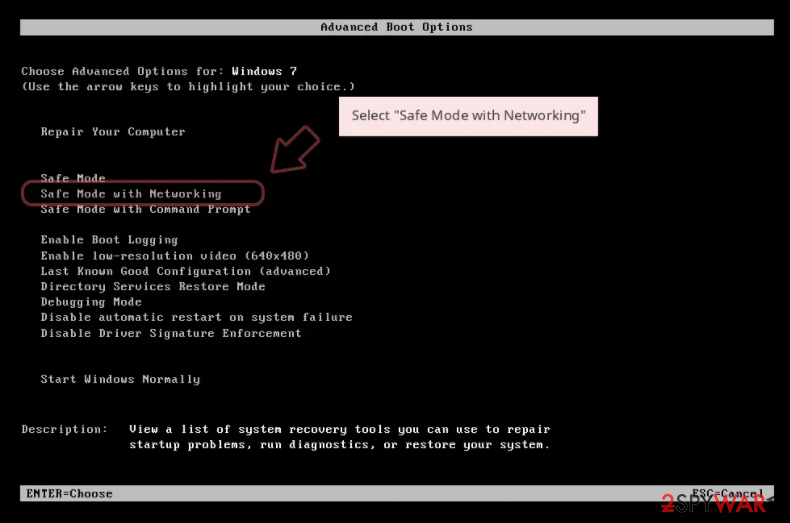
Windows 10 / Windows 8
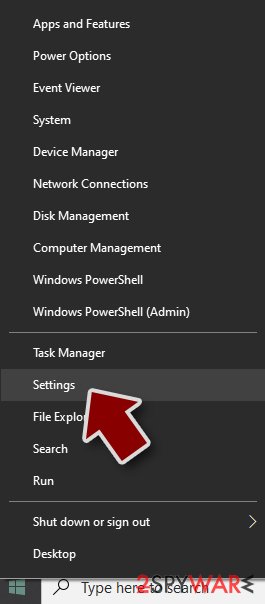
- Right-click on Start button and select Settings.
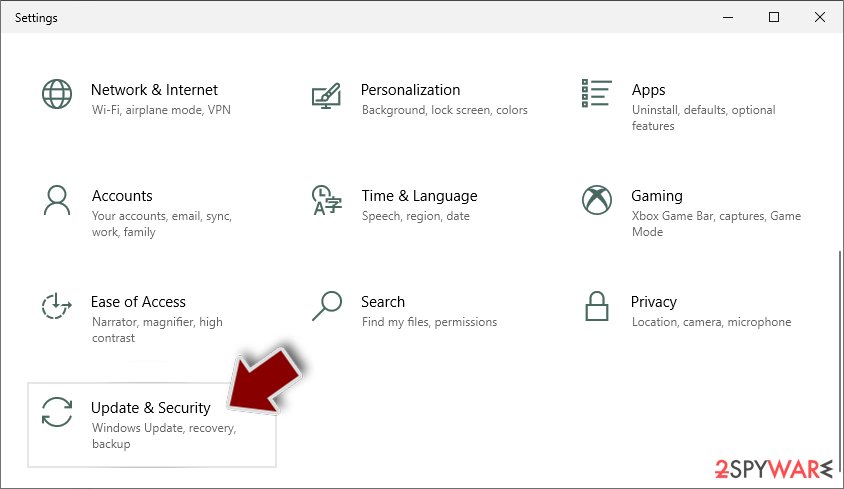
- Scroll down to pick Update & Security.
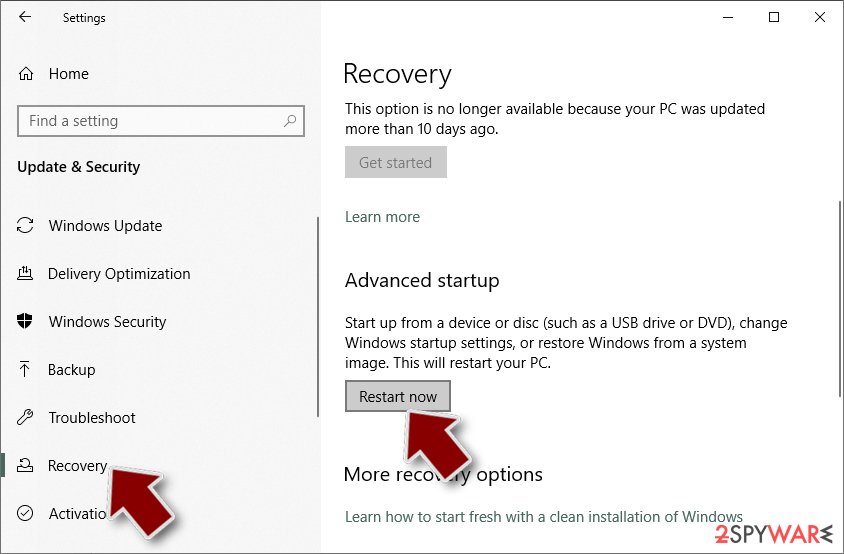
- On the left side of the window, pick Recovery.
- Now scroll down to find Advanced Startup section.
- Click Restart now.
- Select Troubleshoot.
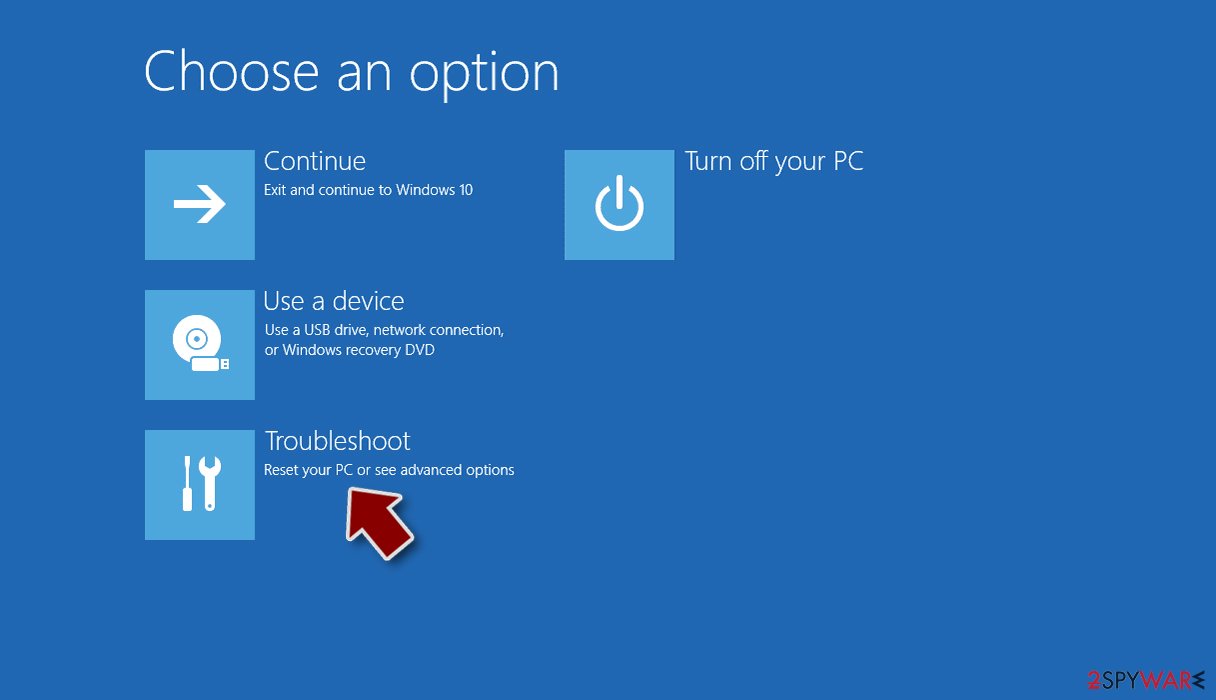
- Go to Advanced options.
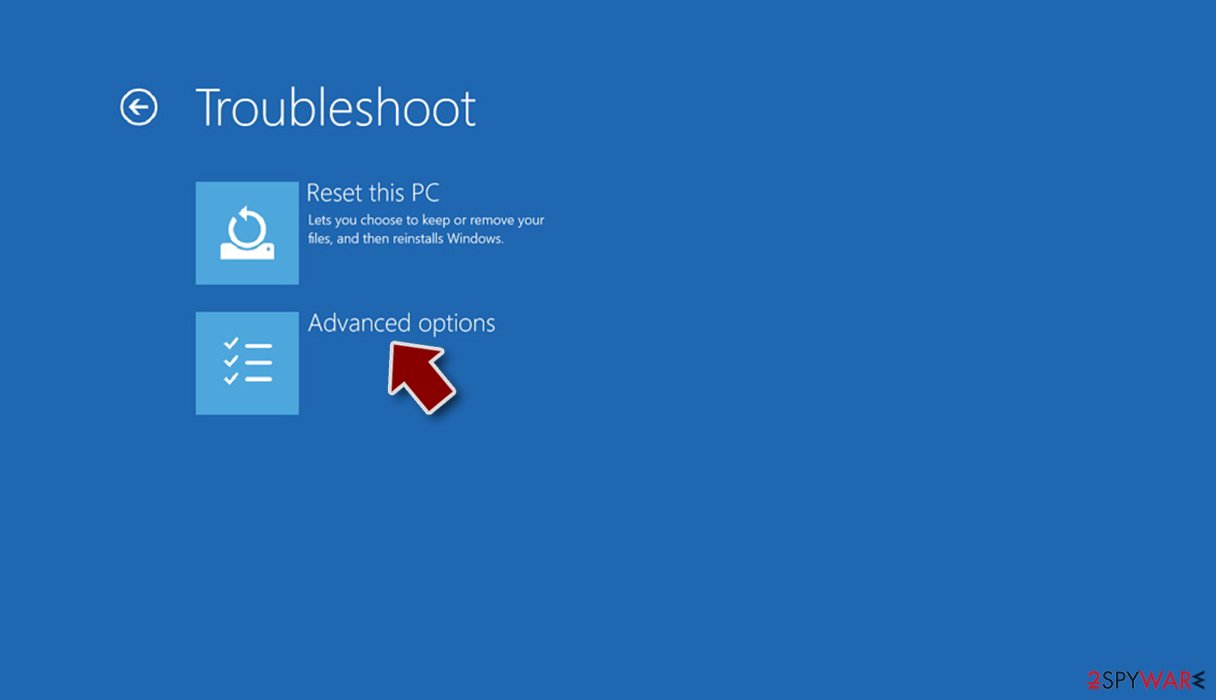
- Select Startup Settings.
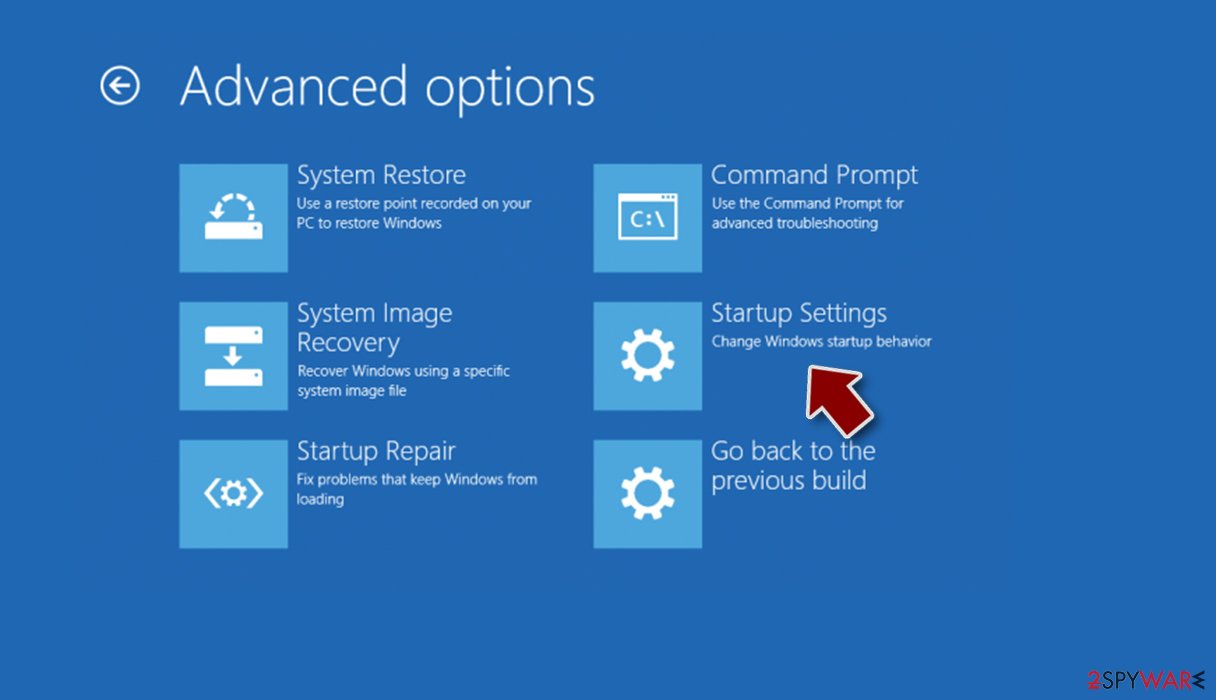
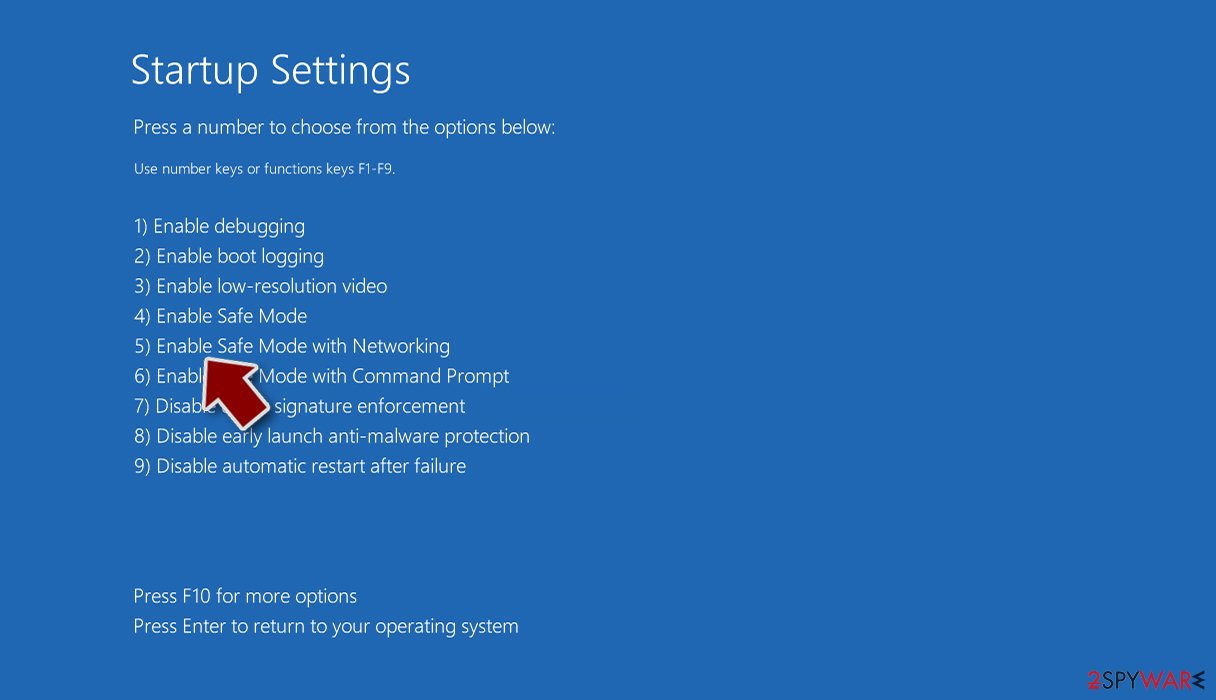
- Press Restart.
- Now press 5 or click 5) Enable Safe Mode with Networking.
Step 2. Shut down suspicious processes
Windows Task Manager is a useful tool that shows all the processes running in the background. If malware is running a process, you need to shut it down:
- Press Ctrl + Shift + Esc on your keyboard to open Windows Task Manager.
- Click on More details.
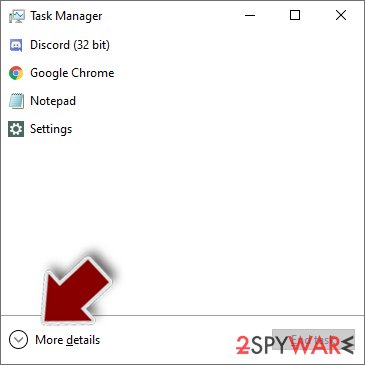
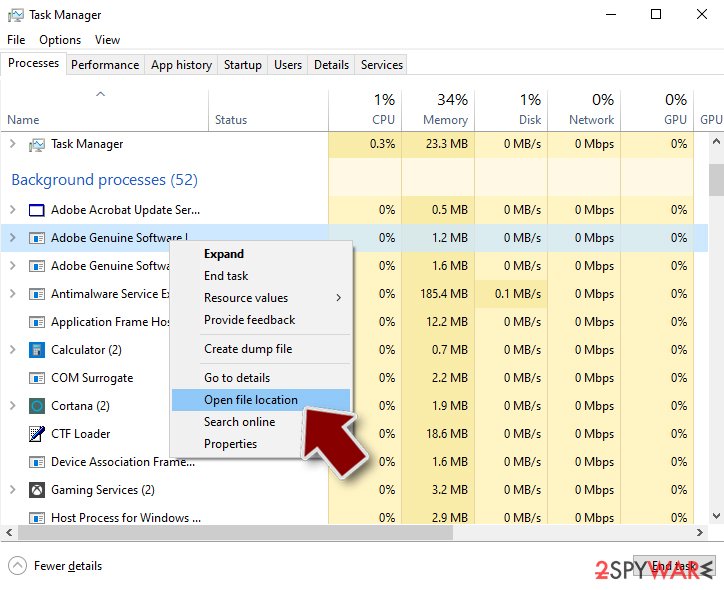
- Scroll down to Background processes section, and look for anything suspicious.
- Right-click and select Open file location.
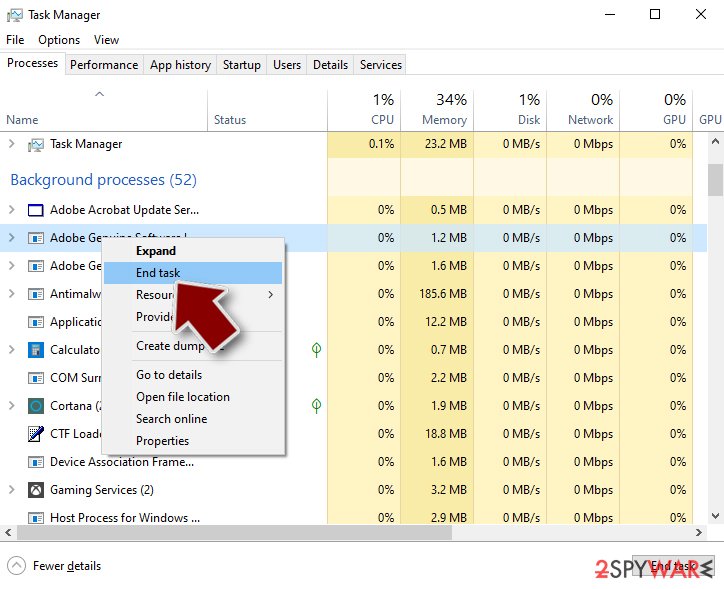
- Go back to the process, right-click and pick End Task.
- Delete the contents of the malicious folder.
Step 3. Check program Startup
- Press Ctrl + Shift + Esc on your keyboard to open Windows Task Manager.
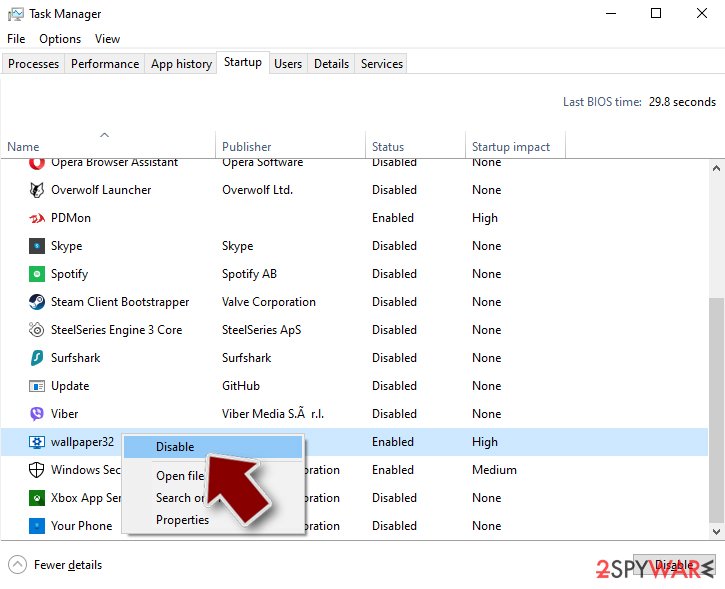
- Go to Startup tab.
- Right-click on the suspicious program and pick Disable.
Step 4. Delete virus files
Malware-related files can be found in various places within your computer. Here are instructions that could help you find them:
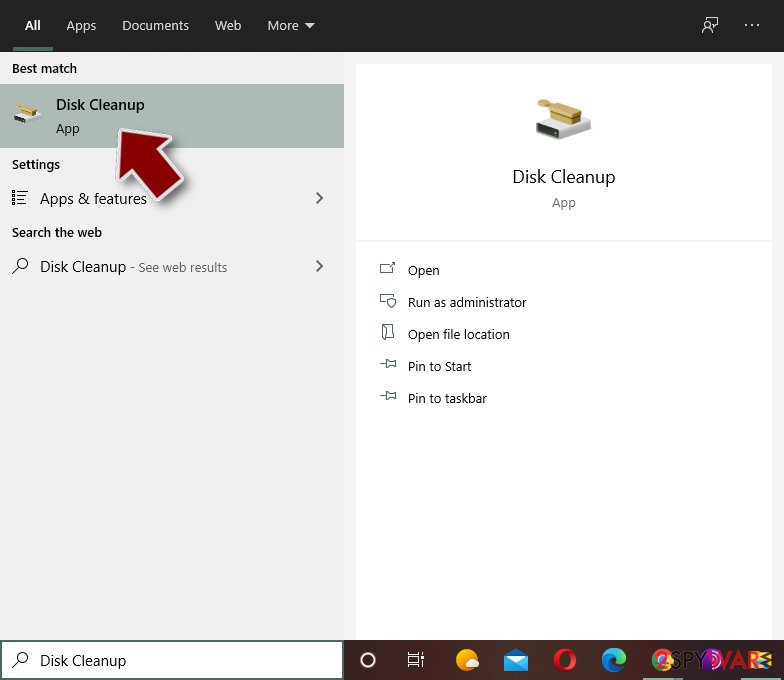
- Type in Disk Cleanup in Windows search and press Enter.
- Select the drive you want to clean (C: is your main drive by default and is likely to be the one that has malicious files in).
- Scroll through the Files to delete list and select the following:
Temporary Internet Files
Downloads
Recycle Bin
Temporary files - Pick Clean up system files.
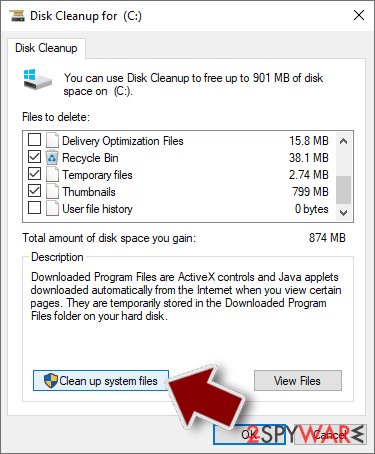
- You can also look for other malicious files hidden in the following folders (type these entries in Windows Search and press Enter):
%AppData%
%LocalAppData%
%ProgramData%
%WinDir%
After you are finished, reboot the PC in normal mode.
From our report of Oct 2016 · not reviewed since
Ways to remove Perl ransomware
If your PC has been affected by this virus, do not let it stay on the system.
Since files cannot be recovered, you should remove Perl virus as soon as possible (of course, unless you plan to pay the ransom). We strongly recommend you not to give your money to cyber criminals, because they might not help you to recover data.
Besides, if you have a data backup, you can recover them for free. Just complete Perl removal and then plug in the backup drive into the computer.
At the moment, there is no way to decrypt .perl files for free. If you choose so, you can buy the decryption software from cyber criminals; however, we highly recommend you not to do so.
It is unlikely that crooks are willing to provide the decryption software to you, so we believe that it is better to keep your money to yourself. If you do not have data backup to restore your files, you can try these tools:
Files infected with Bart 3? If this tool cannot decrypt your files now, it might be able to do that in the future. Don't lose your patience and try later on again!
Report it and recover your files
Report it
Report the attack even if you do not expect the files back: insurers and banks ask for the report number, and police use the contacts in the note to link cases.
- United States
- FBI IC3 · FTC ReportFraud
- United Kingdom
- Report Fraud (formerly Action Fraud) · NCSC
- Australia
- ReportCyber (ASD)
- EU countries
- Europol: national reporting sites
Give the victim ID, the note and the date the files were encrypted. A business that holds personal data may also have to notify its data protection authority, in the EU within 72 hours.
Backups: the 3-2-1 rule
Keep three copies of files that matter, on two kinds of storage, with one copy offline or off-site.
A disk that stays plugged in is reached by malware like Perl ransomware virus together with the PC; one you connect only for the backup is not.
On Windows 11, File History keeps versions on an external drive, and OneDrive keeps earlier versions of synced files. Before restoring anything, make sure the PC no longer shows files that end in .perl and no longer open.
Setting it up step by step: 3-2-1 backups on Windows 11 and 10.
Choose a proper web browser and improve your safety with a VPN tool
Online spying has got momentum in recent years and people are getting more and more interested in how to protect their privacy online.
One of the basic means to add a layer of security - choose the most private and secure web browser. Although web browsers can't grant full privacy protection and security, some of them are much better at sandboxing, HTTPS upgrading, active content blocking, tracking blocking, phishing protection, and similar privacy-oriented features.
However, if you want true anonymity, we suggest you employ a powerful VPN - it can encrypt all the traffic that comes and goes out of your computer, preventing tracking completely.
Lost your files? Use data recovery software
While some files located on any computer are replaceable or useless, others can be extremely valuable.
Family photos, work documents, school projects - these are types of files that we don't want to lose. Unfortunately, there are many ways how unexpected data loss can occur:
- power cuts
- Blue Screen of Death errors
- hardware failures
- crypto-malware attack
- even accidental deletion
To ensure that all the files remain intact, you should prepare regular data backups. You can choose cloud-based or physical copies you could restore from later in case of a disaster. If your backups were lost as well or you never bothered to prepare any, can be your only hope to retrieve your invaluable files.
Questions about Perl ransomware virus
Should I pay the ransom in recover.txt?
Not before you have tried everything else. Identify the family from recover.txt and one encrypted file, check No More Ransom for a free decryptor, and look for clean copies in OneDrive, backups and Previous Versions.
Paying funds further attacks, may be illegal if the group is sanctioned, and is no promise of a working key: many victims get partial or broken decryption. If you consider paying for business-critical data, involve the police and a professional incident responder first, and never pay through intermediaries who promise their own decryption.
How do I open .perl files?
You cannot open them by renaming or by choosing another program. The .perl ending shows that Perl ransomware virus encrypted the content, and only the matching key can reverse it. Renaming a file back to .docx or .jpg changes nothing except the icon, and it can confuse a future decryptor, so leave the names as they are.
To get the content back, use a backup, an unencrypted copy elsewhere, or a decryptor listed on No More Ransom if one exists for Perl ransomware virus. Store the encrypted files on an external disk until then.
Did Perl ransomware virus steal my files or passwords?
We do not know yet. Nothing published so far shows data theft by Perl ransomware virus, but the only confirmed sign is files that end in .perl and no longer open, which says nothing about what happened before. Many current ransomware attacks copy files or run a password stealer first, so it is wise to act as if they did.
From a clean device, change the passwords that were saved in the browsers on this PC, starting with e-mail and banking, sign out of all sessions and turn on two-step verification. Watch bank statements and account activity for the next few weeks.
How did Perl ransomware virus get on my computer?
The way Perl ransomware virus spreads has not been documented yet, so look at your own recent activity. On home PCs, ransomware most often comes with cracked programs, game cheats, key generators and fake updates, or with an e-mail attachment that was opened. On business networks, attackers usually log in through Remote Desktop with a stolen or guessed password.
Think back to what was downloaded or installed in the days before files that end in .perl and no longer open, and check the Downloads folder and Installed apps sorted by date. Keep anything suspicious for your report, but do not run it again.
Is there a free Perl ransomware virus decryptor?
We last checked on 7 October 2026, and for Perl ransomware virus no free decryptor is known. We check No More Ransom, which collects free tools from police and security companies, and the decryptor pages of the major antivirus vendors. A working decryptor exists only when the encryption has a flaw or the keys were leaked or seized.
Ignore sites and videos that offer a "Perl ransomware virus decryptor" for download or for a fee: these are usually scams or malware. Real decryptors are free and come from known security companies or law enforcement. Keep the encrypted files in case a tool appears later.
Can a data-recovery company decrypt my files for a fee?
Only if a decryptor already exists or the company pays the attackers for you. Some "ransomware recovery" services advertise that they can decrypt families with no known flaw; in practice they negotiate with the attackers and add their own fee. Others use the same free tools listed on No More Ransom.
Before you hire anyone, ask in writing how they will recover the files, whether they will contact the attackers and what happens if they fail. A legitimate service answers clearly. If a free decryptor exists for your family, you can run it yourself.
Is Perl ransomware virus the same as other ransomware with a similar name?
Not necessarily. Ransomware names come from the file extension, the note or a word in the code, so unrelated families often end up with similar names, and one family can appear under several names. The difference matters: a decryptor or advice for one family does not fit another and can damage files.
Compare the ending added to your files and the exact name of the note with the summary table at the top of this guide, then upload the note and one encrypted file to ID Ransomware from a clean device. If the result names another family, follow the guide for that family instead.
Can I just remove .perl from the file names?
You can try it on a copy, but for real ransomware it will not help. The .perl extension is only a label; the file content has been scrambled with a key the attackers hold.
If a renamed copy opens normally, the malware only renamed files, which happens with some fake ransomware, and you can rename the rest back. If it does not open, leave the files as they are. Renaming encrypted files can confuse a decryptor later, so always work on copies.
Should I open recover.txt?
Reading it is fine if you open it in Notepad. A plain text recover.txt cannot harm the PC. Be careful with notes in HTA or HTML format: double-clicking those runs them in a window that can contain scripts, so right-click and choose Open with > Notepad instead.
The note tells you the contact addresses, the claimed amount and the deadline. Do not visit links or write to the addresses from this PC. Use the note to identify the family and check for a free decryptor first.
Will Fortect remove Perl ransomware virus?
Fortect scans Windows for malware and unwanted programs and repairs the system files and settings they change, and its free scan shows what it finds on your PC before you decide anything.
For Perl ransomware virus, follow the plan above as well: the browser steps take back permissions and settings that no scanner treats as a threat, and uninstalling the program that brought it removes the source.
Run Microsoft Defender's full scan and, if anything was found, its offline scan as a second opinion. If the symptoms are gone after the plan and both scans are clean, there is nothing more to do.
Sources
- CISA: StopRansomware (read October 7, 2026)
- No More Ransom (read October 7, 2026)
- FTC: How to recognize, remove and avoid malware (read October 7, 2026)
- Microsoft Learn: Microsoft Defender Offline (read October 7, 2026)
- Microsoft Learn: How Microsoft names malware (read October 7, 2026)