

LauncherLocator is a dangerous Mac virus that might steal your personal data
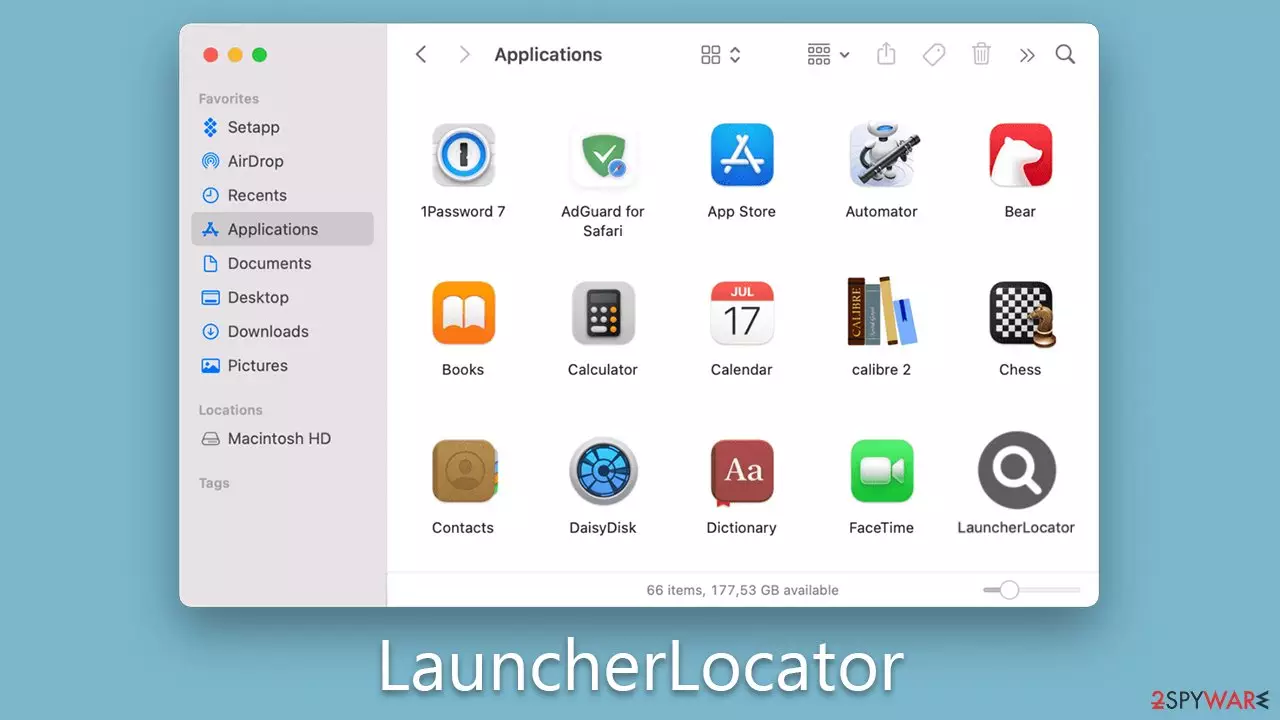
LauncherLocator is malicious software that falls under the Adload family of adware, specifically designed for Mac computers. It is notorious for gaining unauthorized access to users' devices through deceptive tactics, such as presenting a counterfeit Flash Player update or exploiting the use of unofficial software installers sourced from illicit websites. As soon as users authenticate the installation with their Apple ID, the malware takes root.
Once LauncherLocator infiltrates the system, it proceeds to create an extension on Safari or any other browser. This extension serves as the control center for the adware's core operations. For instance, it might alter the default homepage of the browser, replacing the usual search provider with an unfamiliar one, such as Safe Finder or Yahoo. In addition to these adjustments, the affected users would encounter a significant increase in intrusive advertisements during their browsing sessions. Most of these ads are of subpar quality, and some could even lead to more severe security risks.
Furthermore, this malware can pose a significant threat to users' privacy, as it may collect personal data. LauncherLocator could also deploy additional versions of Adload or even other malevolent software in certain scenarios. Therefore, if you suspect your device has been compromised by the LauncherLocator Mac virus, you must act swiftly to eliminate it. We provide the necessary information to facilitate this process below.
| Name | LauncherLocator |
| Type | Mac virus, adware, browser hijacker |
| Malware family | Adload |
| Distribution | Users typically get infected after being tricked by a fake Flash Player update, although repacked installers from torrent sites can also be the cause of infection |
| Symptoms | A new extension and application are installed on the system; search and browser preferences are changed to use a different search engine; new user profiles and login items are created on the account; intrusive advertisements and redirects |
| Risks | Installation of PUPs or malware, sensitive information disclosure, financial losses |
| Removal | The easiest way to remove Mac malware is to perform a full system scan with SpyHunterCombo Cleaner security software. We also provide a manual guide below |
| Other tips | Third parties can employ cookies to continue tracking your online activities, so we recommended clearing browser caches with FortectIntego |
Adload is a never-ending threat
Adload is a notorious adware family primarily targeting Mac operating systems. It is a persistent cybersecurity threat that has spawned numerous variants, including LauncherLocator. The main objective of Adload and its derivatives is to infiltrate users' systems, initiate unwanted changes, and barrage users with intrusive advertisements, thereby creating a conducive environment for potential cyber threats.
Adload often sneaks into systems through duplicitous means such as fake software updates, primarily Flash Player, or through illegitimate software installers sourced from pirated websites. The unsuspecting users are tricked into authorizing the adware's installation with their Apple ID, which leads to the unwanted software gaining a foothold in the system.
Once successfully installed, Adload promptly sets about its disruptive activities. It creates extensions on browsers, including Safari, which serve as its primary control hubs. From here, it modifies the browser's settings, like changing the default homepage and search provider. These alterations can lead to an unfamiliar browsing environment that is, unfortunately, filled with intrusive, low-quality ads.
In addition to the deluge of advertisements, Adload is equipped with tracking capabilities. This allows it to collect personal user data, posing a severe privacy risk. Moreover, it can also install more of its versions or even other malevolent software, escalating the threat level for the affected device.
In the face of an Adload infection, quick action is critical. Users need to remove the adware from their systems promptly to mitigate its effects and potential damage. The steps necessary to do so will be discussed in the following sections.

Dangers of the LauncherLocator virus
LauncherLocator, while frequently classified as adware due to its tendency to flood the user's browser with advertisements, goes beyond the typical adware traits. It possesses capabilities far exceeding those of a standard adware application, which makes it a potent malware, as per security researchers and programs.
Indeed, the primary mission of this virus is to display a plethora of ads and generate revenue through a pay-per-click model. However, the adware's hazardous nature lies not just in its advertisement propagation but also in the various auxiliary functions that it leverages. For instance, the adware's manipulation of AppleScript allows it to stealthily bypass Mac's inbuilt security defenses, such as XProtext and Gatekeeper. This level of evasion capability is worrisome, as it can result in prolonged, undetected infections.
Such an unobtrusive presence on the system underscores the importance of additional security layers on top of those natively provided by Mac. With malware like LauncherLocator capable of skirting the defenses built into the system, relying solely on those defenses can be insufficient. The adware's stealth and persistence make it a significant threat to the user's cybersecurity, as well as their privacy, given its potential for data collection.
Moreover, it can lay the groundwork for further malware installations, multiplying the risks for the compromised system. The sum of these hazards underlines the necessity to take prompt action against the LauncherLocator adware, bolstering your system's security to keep such threats at bay.
Removal process explained
LauncherLocator poses a significant challenge in terms of removal due to its ability to operate with escalated privileges within a system. It employs a multi-faceted approach involving the distribution of numerous files, creation of fresh profiles, and the addition of new login items. Further, it exploits AppleScript, which allows it to circumvent Mac's inherent defense mechanisms. Consequently, the malware remains active even after its primary application or extension has been eliminated.
Due to these complexities, we recommend opting for automatic removal of the infection using trusted security software such as MalwarebytesMalwarebytes or SpyHunterCombo Cleaner. Regardless of your chosen method for deletion, it is prudent to clear your web browser caches afterward. This will aid in preventing any residual issues from cropping up later on.
If you wish to undertake the task of eradicating the infection manually, bear in mind that background processes linked to LauncherLocator could potentially obstruct your efforts. As a proactive measure, initiate the Activity Monitor and terminate these processes before proceeding with the manual removal:
- Open Applications folder
- Select Utilities
- Double-click Activity Monitor
- Here, look for suspicious processes and use the Force Quit command to shut them down
- Go back to the Applications folder
- Find the malicious entry and place it in Trash.


Login items are used to make apps start as soon as the computer is turned on, and Profiles help manage different account settings. You can get rid of these malicious components by following these steps:
- Go to Preferences and pick Accounts.
- Click Login items and delete everything suspicious.
- Next, pick System Preferences > Users & Groups.
- Find Profiles and remove unwanted profiles from the list.
PLIST files, or “Property List” files, are compact configuration files that store a variety of user preferences and data about specific applications. To effectively eliminate the virus, it's crucial to identify and eradicate the associated PLIST files. Here's how you can proceed:
- Select Go > Go to Folder.
- Enter /Library/Application Support and click Go or press Enter.
- In the Application Support folder, look for any dubious entries and then delete them.
- Now enter /Library/LaunchAgents and /Library/LaunchDaemons folders the same way and terminate all the related .plist files.


To take care of the browsers, please check the instructions below.
Remove from Microsoft Edge
Delete unwanted extensions from MS Edge:
- Select Menu (three horizontal dots at the top-right of the browser window) and pick Extensions.
- From the list, pick the extension and click on the Gear icon.
- Click Remove.


Clear cookies and other browser data:
- Click on the Menu (three horizontal dots at the top-right of the browser window) and select Settings > Privacy, search, and services..
- Under Clear browsing data, pick Choose what to clear.
- Select Cookies and other site data and Cached images and files. (apart from passwords, although you might want to include Media licenses as well, if applicable) and click on Clear.


Restore new tab and homepage settings:
- Click the menu icon and choose Settings.
- Then find On startup section.
- Click Remove next to any suspicious startup page.
Reset MS Edge if the above steps did not work:
- Press on Ctrl + Shift + Esc to open Task Manager.
- Click on More details arrow at the bottom of the window.
- Select Details tab.
- Now scroll down and locate every entry with Microsoft Edge name in it. Right-click on each of them and select End Task to stop MS Edge from running.


Instructions for Chromium-based Edge
Delete extensions from MS Edge (Chromium):
- Open Edge and click select Settings > Extensions.
- Delete unwanted extensions by clicking Remove.


Clear cache and site data:
- Click on Menu and go to Settings.
- Select Privacy, search and services.
- Under Clear browsing data, pick Choose what to clear.
- Under Time range, pick All time.
- Select Clear now.


Reset Chromium-based MS Edge:
- Click on Menu and select Settings.
- On the left side, pick Reset settings.
- Select Restore settings to their default values.
- Confirm with Reset.
- This will disable extensions and reset startup pages but will not delete bookmarks, saved passwords, or browsing history.


Remove from Mozilla Firefox (FF)
Remove dangerous extensions:
- Open Mozilla Firefox browser and click on the Menu (three horizontal lines at the top-right of the window).
- Select Add-ons.
- In here, select the unwanted extension and click Remove.


Reset the homepage:
- Click three horizontal lines at the top right corner to open the menu.
- Choose Settings.
- Under Home, set your preferred homepage and new tab settings.
Clear cookies and site data:
- Click Menu and pick Settings.
- Go to Privacy & Security section.
- Scroll down to locate Cookies and Site Data.
- Click on Clear Data...
- Select Cookies and Site Data and Temporary cached files and pages, then click Clear.


Reset Mozilla Firefox
If clearing the browser as explained above did not help, reset Mozilla Firefox:
- Open Mozilla Firefox browser and click the Menu.
- Go to Help and then choose Troubleshooting Information.

- Under Give Firefox a tune up section, click on Refresh Firefox...
- Once the pop-up shows up, confirm the action by pressing on Refresh Firefox.



Remove from Google Chrome
Delete malicious extensions from Google Chrome:
- Open Google Chrome, click on the Menu (three vertical dots at the top-right corner) and select More tools > Extensions.
- In the newly opened window, you will see all the installed extensions. Uninstall all suspicious extensions related to the unwanted program by clicking Remove.


Clear cache and web data from Chrome:
- Click on Menu and pick Settings.
- Under Privacy and security, select Clear browsing data.
- Select Browsing history, Cookies and other site data, as well as Cached images and files.
- Click Clear data.


Change your homepage:
- Click menu and choose Settings.
- Look for a suspicious site in the On startup section.
- Click on Open a specific or set of pages and click on three dots to find the Remove option.
Reset Google Chrome:
If the previous methods did not help you, reset Google Chrome to eliminate all the unwanted components:
- Click on Menu and select Settings.
- In the Settings, scroll down and click Advanced.
- Scroll down and locate Reset and clean up section.
- Now click Restore settings to their original defaults.
- Confirm with Reset settings.


Delete from Safari
Remove dangerous extensions:
- Open Safari, click Safari in the menu at the top-left of the screen, and select Preferences.
- Go to the Extensions tab, look for any suspicious entries, and click Uninstall to remove them.


Clear history and website data:
- Click Safari in the menu and pick Clear History.
- Set Clear to all history and confirm with Clear History.


Reset Safari:
- Click Safari in the menu and select Preferences > Advanced.
- Enable Show Develop menu in menu bar.
- From the menu bar, click Develop and select Empty Caches.


Did this guide help?
Be the first to comment