

AstralMetrus is a browser hijacker that injects ads and can be difficult to remove
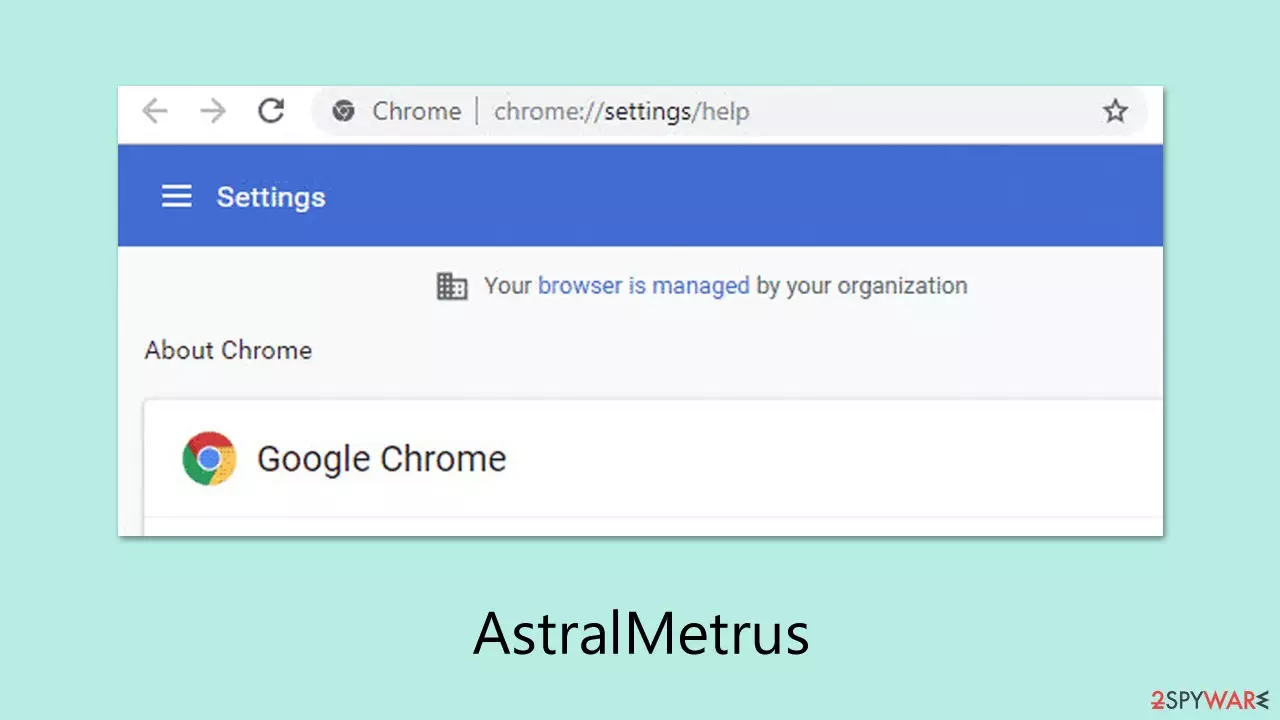
AstralMetrus is a deceptive browser extension that quietly embeds itself into your web browser, hijacking settings without clear consent. Once installed, it injects unwanted advertisements directly into the pages you visit and alters your new-tab page to display sponsored content. What makes AstralMetrus especially insidious is its use of the browser’s “Managed by your organization” feature, which prevents typical removal methods and leaves users feeling locked in.
This extension often arrives bundled with other software or via misleading download buttons on untrustworthy sites. You may think you’re installing a helpful utility or a media codec, only to find that AstralMetrus has taken over. Because it leverages legitimate browser management protocols, you won’t see the usual “Remove” option – instead, you’ll notice a message indicating that your settings are centrally controlled, even if you’re using a personal computer.
The result is a constant stream of pop-under ads, sponsored search results, and occasional redirects to affiliate pages – all designed to generate revenue for its operators. In the sections that follow, we’ll explain how AstralMetrus virus typically gains access, outline the risks it poses, and walk you through safe ways to reclaim your browser from its grip.
| Name | Qtr Search browser hijacker |
| Type | Browser hijacker, potentially unwanted browser extension |
| Distribution | Software bundles, deceptive ads, fake update prompts |
| Symptoms | A browser extension or an application installed on the device; homepage and new tab address set to search.swiftsearcher.com; ads and sponsored links in search results and elsewhere; promotes other potentially unwanted apps |
| Risks | Installation of additional potentially unwanted software/malware, unauthorized sharing of information with unfamiliar entities, and financial losses |
| Removal | You can remove the browser extension by navigating to your browser's settings. Additionally, it's advisable to perform a scan using robust security software SpyHunterCombo Cleaner |
| Other tips | After removing all browser hijackers and other PUPs from your computer, clean your web browsers and repair any damaged system files. You may accomplish this automatically with FortectIntego |
Avtivities of the hijacker once it gets on your system
AstralMetrus disguises itself as a harmless browser add-on but operates more like a stealthy intruder. Once installed, it takes over key browser settings, such as your default search engine, new-tab page, and homepage, without asking for clear permission. You’ll often find that your search results suddenly include sponsored links or that every new tab shows a branded dashboard filled with advertisements.
Under the surface, AstralMetrus can inject various types of ads directly into the content of web pages you visit. These might appear as pop-under windows, banner overlays, or even text-link ads embedded within articles. Because it uses the browser’s “Managed by your organization” policy, you won’t see the normal option to uninstall it – your settings are locked down, and removal options are greyed out or hidden.
Once active, AstralMetrus hijacker introduces a variety of unwanted behaviors, including:
- Forced modification of homepage and new-tab URL
- Injection of pop-under ads, in-page banners, and sponsored search results
- Use of the “Managed by your organization” banner to mask its presence
- Background processes that monitor browsing habits for targeted advertising
Beyond simple annoyance, AstralMetrus poses privacy and security concerns. It collects data on your browsing patterns (such as sites visited, search queries, and clicks) and sends this information back to its operators. Over time, this can lead to intrusive, highly targeted ad campaigns or even more malicious redirects to phishing or malware-laden pages.
Understanding the “Managed by your organization” feature
Modern browsers like Chrome and Edge include an enterprise management system that lets administrators enforce specific settings, such as default search engine, homepage, or update policies, across all devices in a network. When these policies are active, you’ll see a “Managed by your organization” label in the browser’s settings menu or toolbar. This notification is meant to inform users that IT has configured the browser for security or compliance, but it is also a warning that a few of these settings can be locked down and cannot be adjusted.
AstralMetrus abuses this legitimate function by silently placing its own policies of management into your browser. Applied, these policies hide the standard delete buttons and grey out necessary settings, so the extension appears as if installed by your company's IT department. As a result, you can no longer just click “Remove” or reset default settings – hijacker took control by the back door.
As AstralMetrus is sophisticated enough to modify browser policies, its presence generally means other unwanted or malicious programs might be installed on your system. They can be adware trackers, potentially unwanted programs (PUPs), or more malicious malware components.
Removing AstralMetrus and restoring your browser
AstralMetrus poses more than just a nuisance with its endless ads – it can quietly harvest your browsing data and may signal the presence of other hidden threats on your computer. Because it hijacks critical browser settings and prevents normal removal, it’s important to act quickly to protect your privacy and security.
Follow these steps to remove AstralMetrus and regain control of your browser:
Step 1. Uninstall suspicious programs
- Open Control Panel (Windows) or Applications (Mac).
- Look for any unfamiliar or suspicious programs, particularly those installed recently.
- Select the program and click Uninstall or Move to Trash.
Step 2. Reset browser settings
Google Chrome
- Click on Menu and select Settings.
- In the Settings, scroll down and click Advanced.
- Scroll down and locate Reset and clean up section.
- Now click Restore settings to their original defaults.
- Confirm with Reset settings.


Mozilla Firefox
If clearing the browser as explained above did not help, reset Mozilla Firefox:
- Open Mozilla Firefox browser and click the Menu.
- Go to Help and then choose Troubleshooting Information.
- Under Give Firefox a tune up section, click on Refresh Firefox…
- Once the pop-up shows up, confirm the action by pressing on Refresh Firefox.


Safari
- Click Safari > Preferences…
- Go to Advanced tab.
- Tick the Show Develop menu in menu bar.
- From the menu bar, click Develop, and then select Empty Caches.


Microsoft Edge
- Click on Menu and select Settings.
- On the left side, pick Reset settings.
- Select Restore settings to their default values.
- Confirm with Reset.


Step 3. Address “Managed by your organization” restrictions
- Press Windows + R, type regedit, and press Enter to open the Registry Editor.
Google Chrome
- Navigate to:
- HKEY_LOCAL_MACHINE\SOFTWARE\Policies\Google\Chrome
- HKEY_CURRENT_USER\SOFTWARE\Policies\Google\Chrome
- Delete entries related to BlazeSearch or other suspicious policies.
Mozilla Firefox
- Navigate to:
- HKEY_LOCAL_MACHINE\SOFTWARE\Policies\Mozilla\Firefox
- HKEY_CURRENT_USER\SOFTWARE\Policies\Mozilla\Firefox
- Delete unwanted entries or reset them to their default values.
Microsoft Edge
- Navigate to:
- HKEY_LOCAL_MACHINE\SOFTWARE\Policies\Microsoft\Edge
- HKEY_CURRENT_USER\SOFTWARE\Policies\Microsoft\Edge
- Remove suspicious configurations or policies related to BlazeSearch.
- Restart your system and check if the “Managed by your organization” message has disappeared.
Step 4.: Scan the system with security software
Manual removal might leave residual files or undetected modifications. To ensure all components are removed:
- To check for malware and harmful apps on your system, use SpyHunterCombo Cleaner or MalwarebytesMalwarebytes security software. By identifying and eliminating stubborn infections, these technologies can return your system to a healthy state.
- To fix system damage, we recommend scanning it with the FortectIntego repair app.
Did this guide help?
Be the first to comment