

FunWebProducts – a set of various potentially unwanted programs that focus on delivering users ads
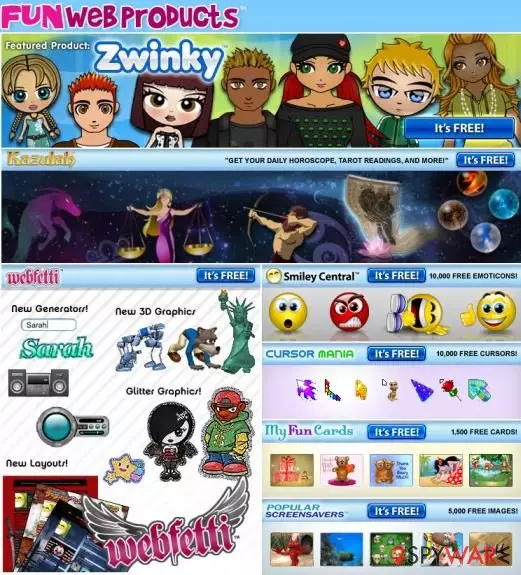
FunWebProducts is a company that promotes various freeware programs. However, you should be careful with each of its products because they are usually bundled with questionable add-ons, extensions, plugins, toolbars, or search engines.
These apps often appear on users' devices without permission, as they are commonly spread via a widespread distribution technique known as software bundling. If you want to avoid them, you should always pay attention to the installation process of new programs you download from the internet.
If you checked what is said in its End User's License Agreement, you would see that bundling is clearly mentioned:
All of our applications come with the MyWebSearch browser plugin – a customizable browser toolbar which provides end users with easy access to search results from the best search engines on the Internet in just one click and enhances your browser experience by providing relevant links and results in response to misspelled or incorrectly formatted browser address requests.
If you have never been affected by MyWebSearch, you should check How to remove mywebsearch.com?. It can clearly show you that this search engine is nothing else but a potentially unwanted program (PUP) that has to be avoided.
In fact, there are lots of other programs that were developed by FunWebProducts and have been added to the PUP category. You should be careful with such applications as:
- Zwinky Toolbar
- Webfetti Toolbar
- Cursor Mania
- MyFunCards toolbar, and other programs that belong to this company.
Please, check these descriptions before downloading them to your computer. If you still have doubts, you should remember this sentence from the Privacy Policy of Fun Web Products:
We may collect personal information that can identify you, such as your name and email address, and other information that does not identify you. When you provide personal information through any of the FWP Products, the information may be sent to servers located in the United States and other countries around the world.
If any of FunWebProducts adware has infiltrated your computer behind your back, you should waste no time and remove it with the help of SpyHunterCombo Cleaner or another reputable anti-malware. If the scan reveals that your system is affected by other, more malicious parasites, we recommend you also use FortectIntego to fix virus damage automatically.
Various unwanted programs are typically spread via software bundles
FunWebProducts can infiltrate your computer either with or without your approval. That's because it has been actively promoted with the help of bundling. No matter that technically, these programs are not considered harmful, they may alter your system settings and may start showing you misleading content during your browsing.
If you want to avoid this, you have to start monitoring the installation of the freeware. You can do that by selecting Custom or Advanced installation of the freeware and then unchecking pre-checked check marks that claim that you want to install optional components on your computer.
If Fun Web Products toolbar has started bombarding you with tons of annoying popups, you should use a guide below and get rid of every browser hijacker, adware, and similar PUP.
Recently, the developer of this program contacted us asking us to remove this post from the 2-spyware.com website. We believe that we shouldn't do that as long as our instructions help users to remove FunWebProducts from their systems if they desire to do so.
Nevertheless, we have recently decided to make a revision of this and other posts that are related to this developer. We claim that all of them are described properly.
Remove FunWebProducts by using these instructions
If you have been convinced that Fun Web Products seeks to improve your browsing on the web by giving you the ability to use funny mouse cursors, emoticons for your instant messenger and email, now you should know that it is actually dedicated to generating commercial pop-ups.
It is also capable of modifying web browser’s settings and redirecting people to suspicious websites. If you want to remove FunWebProducts from your computer, use the guide below.
Uninstall potentially unwanted programs from your computer:
- Click Start → Control Panel → Uninstall a Program.
- When in the Add/Remove Programs/Uninstall a Program, look for FunWebProducts and other programs that are unknown to you.
- Click 'Uninstall' and then OK to save the changes.
- Reset your web browser:
Google Chrome
- Open Google Chrome, click on the menu icon (top right corner) and select 'More Tools' -> 'Extensions'.
- Here, select unfamiliar plugins (FunWebProducts, MyWay, MyWebSearch, etc.) and select trash icon to delete these entries.
- In order to change your homepage, click on menu icon, choose 'Settings' -> 'On startup' section -> 'set pages'.
- Here, eliminate myway.com by clicking on the “X” and enter your preferred website.
- In order to change your default search engine, click on the menu icon -> 'Settings' -> 'Search' section.
- Here, click 'Manage Search Engines…' and add your preferred domain name.
Uninstall from Windows
Uninstall from Windows 10/8:
- Type Control Panel into the Windows search box and open the result.
- Under Programs, select Uninstall a program.


Uninstall from Windows 7/XP:
- Click on Windows Start > Control Panel (Windows XP users should click on Add/Remove Programs).
- In Control Panel, select Programs > Uninstall a program.


Remove the unwanted program:
- In the Programs and Features window, look for any recently installed suspicious entries, select them, and click Uninstall.
- If User Account Control appears, click Yes to confirm, then complete the removal.


Delete from macOS
Remove the unwanted application:
- From the menu bar, select Go > Applications.
- In the Applications folder, look for any suspicious entries, then drag them to Trash (or right-click and pick Move to Trash).


Delete leftover files and folders:
- Select Go > Go to Folder.
- Enter /Library/Application Support and remove any suspicious folders related to the unwanted program.
- Repeat the same check in the /Library/LaunchAgents and /Library/LaunchDaemons folders, deleting any suspicious entries.

- Finally, empty the Trash to permanently remove the leftovers.

Remove from Microsoft Edge
Delete unwanted extensions from MS Edge:
- Select Menu (three horizontal dots at the top-right of the browser window) and pick Extensions.
- From the list, pick the extension and click on the Gear icon.
- Click Remove.


Clear cookies and other browser data:
- Click on the Menu (three horizontal dots at the top-right of the browser window) and select Settings > Privacy, search, and services..
- Under Clear browsing data, pick Choose what to clear.
- Select Cookies and other site data and Cached images and files. (apart from passwords, although you might want to include Media licenses as well, if applicable) and click on Clear.


Restore new tab and homepage settings:
- Click the menu icon and choose Settings.
- Then find On startup section.
- Click Remove next to any suspicious startup page.
Reset MS Edge if the above steps did not work:
- Press on Ctrl + Shift + Esc to open Task Manager.
- Click on More details arrow at the bottom of the window.
- Select Details tab.
- Now scroll down and locate every entry with Microsoft Edge name in it. Right-click on each of them and select End Task to stop MS Edge from running.


Instructions for Chromium-based Edge
Delete extensions from MS Edge (Chromium):
- Open Edge and click select Settings > Extensions.
- Delete unwanted extensions by clicking Remove.


Clear cache and site data:
- Click on Menu and go to Settings.
- Select Privacy, search and services.
- Under Clear browsing data, pick Choose what to clear.
- Under Time range, pick All time.
- Select Clear now.


Reset Chromium-based MS Edge:
- Click on Menu and select Settings.
- On the left side, pick Reset settings.
- Select Restore settings to their default values.
- Confirm with Reset.
- This will disable extensions and reset startup pages but will not delete bookmarks, saved passwords, or browsing history.


Remove from Mozilla Firefox (FF)
Remove dangerous extensions:
- Open Mozilla Firefox browser and click on the Menu (three horizontal lines at the top-right of the window).
- Select Add-ons.
- In here, select the unwanted extension and click Remove.


Reset the homepage:
- Click three horizontal lines at the top right corner to open the menu.
- Choose Settings.
- Under Home, set your preferred homepage and new tab settings.
Clear cookies and site data:
- Click Menu and pick Settings.
- Go to Privacy & Security section.
- Scroll down to locate Cookies and Site Data.
- Click on Clear Data...
- Select Cookies and Site Data and Temporary cached files and pages, then click Clear.


Reset Mozilla Firefox
If clearing the browser as explained above did not help, reset Mozilla Firefox:
- Open Mozilla Firefox browser and click the Menu.
- Go to Help and then choose Troubleshooting Information.

- Under Give Firefox a tune up section, click on Refresh Firefox...
- Once the pop-up shows up, confirm the action by pressing on Refresh Firefox.



Remove from Google Chrome
Delete malicious extensions from Google Chrome:
- Open Google Chrome, click on the Menu (three vertical dots at the top-right corner) and select More tools > Extensions.
- In the newly opened window, you will see all the installed extensions. Uninstall all suspicious extensions related to the unwanted program by clicking Remove.


Clear cache and web data from Chrome:
- Click on Menu and pick Settings.
- Under Privacy and security, select Clear browsing data.
- Select Browsing history, Cookies and other site data, as well as Cached images and files.
- Click Clear data.


Change your homepage:
- Click menu and choose Settings.
- Look for a suspicious site in the On startup section.
- Click on Open a specific or set of pages and click on three dots to find the Remove option.
Reset Google Chrome:
If the previous methods did not help you, reset Google Chrome to eliminate all the unwanted components:
- Click on Menu and select Settings.
- In the Settings, scroll down and click Advanced.
- Scroll down and locate Reset and clean up section.
- Now click Restore settings to their original defaults.
- Confirm with Reset settings.


Delete from Safari
Remove dangerous extensions:
- Open Safari, click Safari in the menu at the top-left of the screen, and select Preferences.
- Go to the Extensions tab, look for any suspicious entries, and click Uninstall to remove them.


Clear history and website data:
- Click Safari in the menu and pick Clear History.
- Set Clear to all history and confirm with Clear History.


Reset Safari:
- Click Safari in the menu and select Preferences > Advanced.
- Enable Show Develop menu in menu bar.
- From the menu bar, click Develop and select Empty Caches.


Did this guide help?
2 comments
Guest
io non trovo niente di quello che tu hai scritto!!!
Steve
Tried it. Did nothing at all. Probably giving this site more info on me.