

Snapdo is promoted as a useful extension but is more likely to be called a potentially unwanted program or even a browser hijacker
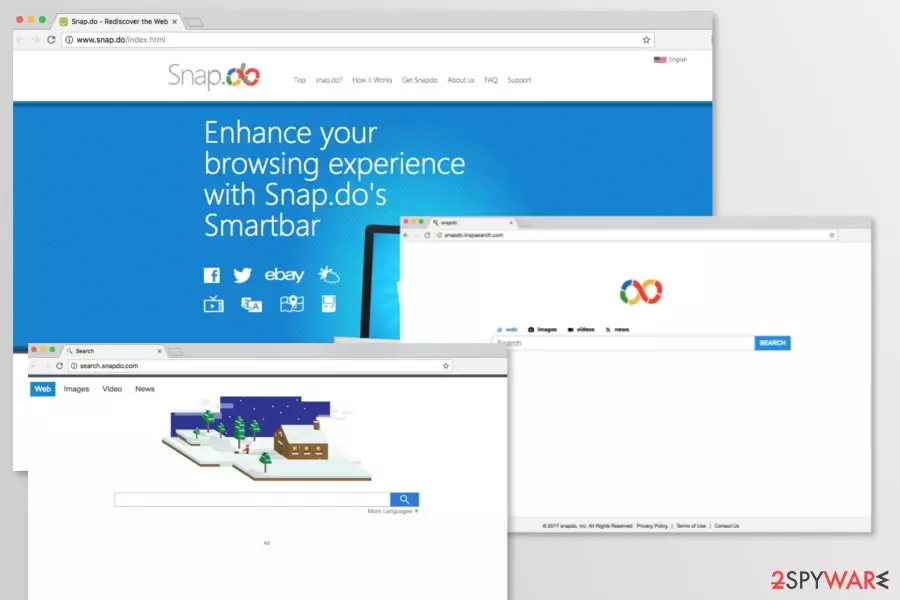
Snap.do is a browser extension by Resoft Ltd. that promises to enhance browsing experience by providing useful features, such as snapping browser’s screen or getting quick access to social networks. However, security experts note that it’s a potentially unwanted program (PUP)[1] and a browser hijacker.[2]
The add-on has an official website. However, Snapdo is also actively spreading freeware and shareware packages. Thus, it might enter the system unnoticed and cause unwanted changes on Google Chrome, Mozilla Firefox, and Internet Explorer. After the hijack, it might:
- modify or create new Windows Registry entries;
- alter the browser’s settings;
- set search.snap.do or similar domain as the default homepage, search engine, and new tab URL;
- provide altered search results;
- trigger redirects to promotional websites;
- display aggressive or misleading ads;[3]
- track information about users.
The most obvious sign that Snap.do virus affected your browser is search redirects to http://search.snap.do/?a=ThAM4wVlRt and similar pages. The hijacker might change your default and built-in search engines in order to control user’s behavior and redirect them to affiliate websites. Please, take into account that this search site can easily redirect you to an insecure website filled with malicious links
If you noticed snap.do redirect problem during your search sessions, you should check your PC with reliable anti-spyware because it's one of the most obvious signs showing that your PC was hijacked. Security experts from Bedynet.ru[4] also remind staying away from commercial content displayed by the hijacker to avoid the installation of malicious content and suffering from phishing attempts.
Just like any other browser hijacker, Snapdo virus may start tracking your browsing habits. Here's what the developers of this program claim about it:
Statistical Information we collect (……) including, inter alia, advertisements viewed, pages browsed, search inquiries, offers and services that interest you, the type of browser you are using, your IP address, the URL you have come from and the time spent at that URL, cookies and your domain type and server.
Therefore, you should not delay Snapdo removal. Once this shady domain appears on the screen, you have to scan the system with an anti-malware to terminate all hijacker-related entries from the system. FortectIntego is the quickest method to get rid of all changes that were made by the PUP.
You can also remove Snap.do manually by following our prepared guide below. However, you should be attentive and delete all files, programs, and browser hijackers that may have installed to the hijacker or were installed with it.

Applications related to Snap.do virus
Snapdo.inspsearch.com is one of the search engines that might be set as default after the Snap.do hijack. This questionable application might redirect to sponsored websites directly from the search results link. While some of them are absolutely legit and safe to open, others might belong to cybercriminals that might want to obtain sensitive information or infect your PC with malware.
Search.snapdo.com is another domain that users might found after the installation of Snapdo extension. Just like the previous search tool, this one also is known for being capable of delivering altered search results and pushing commercial content to the users. The problem is that some of the links or ads might be misleading or malware-laden.
IToolBox Toolbar is a browser extension that has been known for spreading Snapdo and setting one of its search engines as an affected web browser’s homepage or default search engine. Additionally, it might also install a bunch of other PUPs that might cause other browsing-related issues, such as redirects, aggressive pop-ups, etc.
Thus, if you have installed this toolbar and found replaced search engine, you have to uninstall it in order to remove Snapdo search services as well. If you want to keep this extension, you will have to use this search engine. None of this is recommended.
Browse for the Cause extension is another highly suspicious application. Its functionality is questioned by security experts. The add-on claims to donate money to charities. However, it operates as a browser hijacker and promotes Snap.do services. Therefore, keeping it installed is not recommended.
Shopping Helper Smartbar is a potentially unwanted program that is capable of hijacking popular web browsers and hijacking their homepage or default search engine. The research has shown, that it typically sets snap.do instead of the default browser’s startup page.
However, it’s not the only feature why users are advised to stay away from this shopping assistant. It might also display misleading ads, fake shopping offers, or find other ways to obtain personal user’s information.
Software bundling is the main distribution method of the browser hijacker
You may easily install this program on your computer in a bundle with free programs. In order to avoid that, you should avoid illegal programs because they may be filled with malicious components.
Of course, we must also recommend you to be very careful when downloading freeware[5] and shareware. If you think that you really need one or another program, you should select the Custom or Advanced installation process because it will help you to see what “optional” components are hiding inside.
Uninstall the Search.snap.do and Snap.do toolbar once you see them working on your computer without your consent
We highly recommend opting for automatic Snapdo removal. This application spreads bundled and might bring other PUPs into the system. They might be hard to find and identify. As a result, you might be spending ages with locating and terminating hijacker-related components from the system.
However, if running a system scan with reputable anti-malware software does not seem right for you, we suggest checking the manual removal guide below. In order to remove Snapdo entirely, you have to uninstall suspicious programs from the computer, unknown extensions from each of the browsers, and reset them.
Uninstall from Windows
Uninstall from Windows 10/8:
- Type Control Panel into the Windows search box and open the result.
- Under Programs, select Uninstall a program.


Uninstall from Windows 7/XP:
- Click on Windows Start > Control Panel (Windows XP users should click on Add/Remove Programs).
- In Control Panel, select Programs > Uninstall a program.


Remove the unwanted program:
- In the Programs and Features window, look for any recently installed suspicious entries, select them, and click Uninstall.
- If User Account Control appears, click Yes to confirm, then complete the removal.


Delete from macOS
Remove the unwanted application:
- From the menu bar, select Go > Applications.
- In the Applications folder, look for any suspicious entries, then drag them to Trash (or right-click and pick Move to Trash).


Delete leftover files and folders:
- Select Go > Go to Folder.
- Enter /Library/Application Support and remove any suspicious folders related to the unwanted program.
- Repeat the same check in the /Library/LaunchAgents and /Library/LaunchDaemons folders, deleting any suspicious entries.

- Finally, empty the Trash to permanently remove the leftovers.

Reset Internet Explorer
Remove dangerous add-ons:
- Open Internet Explorer, click on the Gear icon (IE menu) on the top-right corner of the browser
- Pick Manage Add-ons.
- You will see a Manage Add-ons window. Here, look for suspicious plugins. Click on these entries and select Disable.


Change your homepage if it was altered:
- Open IE and click on the Gear icon.
- Select Internet Options.
- In the General tab, delete the Home page address and replace it by your preferred one (for example, Google.com).
- Click Apply and then select OK.


Delete temporary files:
- Press on the Gear icon and select Internet Options.
- Under Browsing history, click Delete...
- Select relevant fields and press Delete.


Reset Internet Explorer:
- Click on Gear icon > Internet options and select Advanced tab.
- Select Reset.
- In the new window, check Delete personal settings and select Reset.


Remove from Mozilla Firefox (FF)
Remove dangerous extensions:
- Open Mozilla Firefox browser and click on the Menu (three horizontal lines at the top-right of the window).
- Select Add-ons.
- In here, select the unwanted extension and click Remove.


Reset the homepage:
- Click three horizontal lines at the top right corner to open the menu.
- Choose Settings.
- Under Home, set your preferred homepage and new tab settings.
Clear cookies and site data:
- Click Menu and pick Settings.
- Go to Privacy & Security section.
- Scroll down to locate Cookies and Site Data.
- Click on Clear Data...
- Select Cookies and Site Data and Temporary cached files and pages, then click Clear.


Reset Mozilla Firefox
If clearing the browser as explained above did not help, reset Mozilla Firefox:
- Open Mozilla Firefox browser and click the Menu.
- Go to Help and then choose Troubleshooting Information.

- Under Give Firefox a tune up section, click on Refresh Firefox...
- Once the pop-up shows up, confirm the action by pressing on Refresh Firefox.



Remove from Google Chrome
Delete malicious extensions from Google Chrome:
- Open Google Chrome, click on the Menu (three vertical dots at the top-right corner) and select More tools > Extensions.
- In the newly opened window, you will see all the installed extensions. Uninstall all suspicious extensions related to the unwanted program by clicking Remove.


Clear cache and web data from Chrome:
- Click on Menu and pick Settings.
- Under Privacy and security, select Clear browsing data.
- Select Browsing history, Cookies and other site data, as well as Cached images and files.
- Click Clear data.


Change your homepage:
- Click menu and choose Settings.
- Look for a suspicious site in the On startup section.
- Click on Open a specific or set of pages and click on three dots to find the Remove option.
Reset Google Chrome:
If the previous methods did not help you, reset Google Chrome to eliminate all the unwanted components:
- Click on Menu and select Settings.
- In the Settings, scroll down and click Advanced.
- Scroll down and locate Reset and clean up section.
- Now click Restore settings to their original defaults.
- Confirm with Reset settings.


Delete from Safari
Remove dangerous extensions:
- Open Safari, click Safari in the menu at the top-left of the screen, and select Preferences.
- Go to the Extensions tab, look for any suspicious entries, and click Uninstall to remove them.


Clear history and website data:
- Click Safari in the menu and pick Clear History.
- Set Clear to all history and confirm with Clear History.


Reset Safari:
- Click Safari in the menu and select Preferences > Advanced.
- Enable Show Develop menu in menu bar.
- From the menu bar, click Develop and select Empty Caches.


Did this guide help?
22 comments
os pica
obrigado pelo removedor tankyou
Joseph
After I clicked on the download for the remover, it said that I had to register to get Snap.do off my computer, I made sure to do the trial version.
harry
didnt know it was a virus :/ Im scared
snap.do hater
I tried to delete it through the control panel and clicking un-install programs but it wouldnt un-install.
ThePwnageChicken
Holy Website, I didnt know SNAP.DO was a virus.
ThePwnageChicken
Sorry, but I only speak English
Benjamin Fournier
(Apologies for the intro but bear with it and get a guaranteed 10 minute fix for snap.do) A friend asked me to fix his pc. While I had never personally seen the snap.do issue before I was suddenly faced with attempting to remedy the issue. After nearly 3 hours of researching and attempting to apply "so called" fixes on a popular search engine I discovered something. I had spent nearly 3 hours of my time sifting through a completely new scam beyond snap.do. Whoever researches this fix will quickly run into templated responses that recommend certain "free" downloads that require you to ultimately pay for a product to remove snap.do. After that there are long extensive "manual fixes" that almost pushes you into saying screw it and I’ll pay for the previous search engine finds until I finally found the actual-non-profit making solution. I apologize now for not linking my source as I am writing this well after the fact and can no longer find the impetus for this post but credit is due for the fix I finally found and I thank you for the catalyst. Yes I did.
In order to fix the snap.do issue simply boot up your pc and wait for all the spam/error messages to cycle threw. Do not open your internet browser. Simply go to control panel (from start menu) and select programs. (Depending on windows version this may differ slightly but there is an option with "programs" in the name of the category and that’s the one you need to click. Once your list is completely loaded look for snap.do. Either right click or double left click to get to the uninstall option. (Be sure to write down the date associated with snap.do first!!))Then click uninstall and minimize all windows except the one that appears after you choose to uninstall.
[This is where snap.do catches everyone and tempts them into buying a product to assist] There should normally be a message here asking if you are sure or if you want to proceed with the uninstall.....instead the uninstall window just sits there for eternity. snap.dos biggest trick is that they hide the option to accept or continue with the uninstall so your pc appears to do nothing. At this point simply click somewhere neutral inside the apparent stuck window a few times. Do not select cancel or attempt to X out of this window. Click outside and back inside this window if you have to until you get a non-looking windows pop up that asks you to proceed. (This window may sneak onto your main toolbar) Then simply proceed with the uninstall using the non-windows looking option to do so.
Now back to why I had you write the date associated with snap.do. You need to find and uninstall every program that shares the date matching snap.do (also recommend uninstalling anything post this date) as most "if not all" of these programs are part of the snap.do issue. Youll find 8-12 of these as being toolbars youve never heard of before. While you’re there go ahead uninstall anything that sounds like a 3rd party program (shame on you for having them in the first place) that is not a game you intentionally downloaded or shares a date with the software that may have come with the purchase of your pc or is obviously listed as a Microsoft program. Do not agree to any option that asks you to restart your pc at this point. This last part is something I stumbled on as a temporary fix before finding the true fix for snap.do. Im not sure that it is necessary but while I have your attention it cant hurt. Open internet browser, find tools/settings then internet options (if u do not see this tab in IE right click in a dead space just below the address bar and check menu bar) then go to tool>internet options and click on the advanced tab and click "reset" everything to its defaults. (4/5ths down the page from top on right side)
I also took track of what my friend was running for free antivirus and it almost seemed to feed into the issue. Instead of naming this free antivirus I will simply tell you the ones I use and have so far have not been an issue with this fix. I simply use Microsoft Security Essentials and Avira (free version) which I installed after removing any other antivirus on the pc. (This is the time to install both of them while uninstalling any other anti virus first...again do not choose to restart when given the option.) While one will ask you to remove the other before installation I have found ignoring this prompt has caused no issues and the two work fine together. No need to run them after install and feel free to interrupt them from running initial scan as we have already fixed snap.do. Regular PC maintenance can be done at this time. Such as cleaning up disk space.
Restart your pc at this time or shut down if Microsoft updates are pending. Upon restart give your pc time to adjust to what just happened and the changes made as a lot of RAM space has been used. After logging in take 5-10 minutes worth of a break and pat yourself on the back for defeating snap.do and its attempt to make you spend money on programs suggested to fix the issue but are more likely to have funded the issue. Then open IE. Set up your default pages. Close it out and reopen it a few times to assure yourself that snap.do is gone. Hell restart again if you have to but I assure you snap.do is gone. During all the chaos of this walkthrough you have also automatically created a restore point due to the traffic of changes made. (It may be a restore point minus the last program uninstalled)
Now that youve fixed snap.com please copy and paste this post as a response to every fix you may have tried before this one. No link to mine is asked for and I do not require any type of credit for posting this. The people who wasted your time with the first set of paid for posts will most likely also pay to blackball this this easy (while lengthy to read) fix.
Biagio
This is how I removed Snap.do for a customers Vista PC:
Several attempts to uninstall from the control panel failed. I ran MS Security Essentials, Adaware, Malwarebytes. Although they successfully removed a lot of junk, malware, a Trojan, and numerous infected files, Snap.do was still there.
I followed the suggestions to remove it from Google Chrome extensions and Internet Explorer add-ons and changed the home pages of both. That was successful. Snap.do no longer came up as the homepage. As far as I could tell, there were no other symptoms. However, It still remained on the computer. Inspired by Benjamin above, I gave it another shot.
First, I opened the configuration utility, (from Start Search, type msconfig ). At the start-up tab, I took note of what had a check mark, then unchecked/disabled everything except Microsoft OS. I restarted the PC in safe mode, opened the Control Panel, and successfully uninstalled Snap.do. I received only one prompt - a request to close browsers - to which I answered yes. Snap.do is gone. Of course, now the items in start-up need to be checked again, except for those you really do not want (you can search each item with your favorite search engine if not sure which to keep checked). I have rebooted several times - no sign of the creepy virus.
I
Did any one think that the real virus could be the removal software offered by 2-spyware? Just one possibility... I am not taking the risk of installing a new software just in case...
Lene
I have now done the reset of IE og chrome, changed homepage etc.. And I have uninatalled all programs with the same installation date as snap do. I also tried the msconfig solution with the safe mode. I disabled everthing except Intel-files and MS OS. I was afraid that the pc would not start without the Intel-files.
Still I could not uninstall snap do in the control panel, it looks like its uninstalling, but after the uninstall process, snap do is still in the list of programs in control panel.
Should i have disabled the intelfiles also?
Any other solutions?
Help!
miniguy51
Sometimes snap.do is disguised in one of those installer download advertisements in any case try finding an unwanted tool bar instead of snap.do in Benjamins first paragraph
Whitney
I had the same issues with uninstalling. When you get to a screen that says "Hide from Internet Explorer or Google Chrome" choose the button on the far left that says custom. You will get a new menu that has an uninstall button. When you click this it will actually uninstall.
annie
Help, somehow snap do got on my windows 7 computer, I cant seen to get it off unless i purchase a removal program,im usually told this at the end of a "Free Scan" that can take some time! It took over explorer and chrome! Help! can I get this off myself without paying to have it removed? I cant afford a removal tool.
missy
how can you knowsnap.do is completely off your computer,i no longer have it in the control panel,at first when I uninstalled it from the control panel,it was still hiding somewhere,although it didnt show on the control panel,it continued to interfere with my internet explorer,when I click on internet explorer,snap .do comes up,i went online and found some steps to uninstall this problem,now snap.do does not pop up when I use internet explorer.my problem is ,is snap.go completely off my computer,or it could be hiding somewhere?
balzar
Has anyone found the developers and BEATEN them, with sticks if necessary
Lalas
He said : "thank you for the removing assistance, thanks"
Theo
something that makes my computer slow. basically before Snap.do appearance. and when i found that Snap.do is a virus no wonder my computer is so slow.
Larry
While inside "internet options" under IEs tool bar, note that the home page has been changed to something like "feed2 snap.do.com" (it goes on for about a thousand characters). Until you delete all that it goes straight to Snap.Dos online website and starts messing with you again! Im in Windows 7 home, BTW, if that makes a difference. Now Im trying to figure out how too get IE itself to start working again, it seems to have been disabled, and "reset" from the "advanced" menu did not fix it. Good grief.
Rosean
The same thing happened to me
Patrick
I have found the only way to be SURE snap.dp is gone is to competely reinstall windows from scratch on a new hard drive. Then reinstall all your usual programs. This is a pain but 100% sure. After this comes the tricky bit - before you use any personal data stored on yourold computer such as documents, pictures etc you need to scan each one individually with a trusted antimalware/antivirus program. Wich one you trust is up to you. If you dont do this you could be reinstalling snap.do when you copy it to your new disk.
Gene Goss
Remove anything in app data Local and Local low that says >Smartbar< Smartbar is the application that controls snapdo
Lance forrest
None of these work at removing the new snap.do... think again...