

Super Driver Updater – a potentially unwanted program with hidden intentions
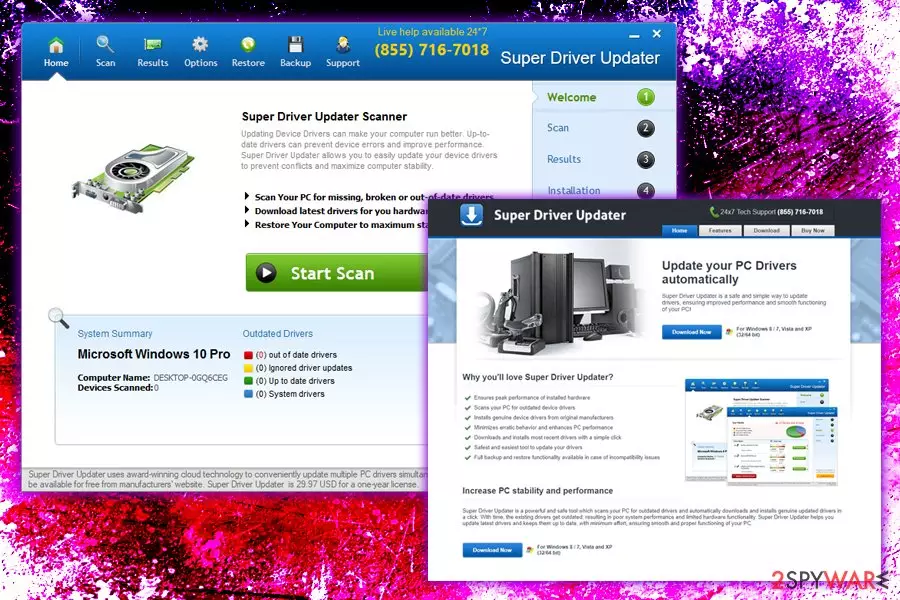
Super Driver Updater is a deceptive software for Windows operating systems which belongs to the category of potentially unwanted programs.[1] These applications are typically injected in users' machines without their permission – usually using deceptive marketing like software bundling or misleading advertisement.
The app promises to get rid of outdated drivers, update them and make the machine run faster and increase the overall performance. Unfortunately, that is not the primary purpose of Super Driver Updater. The program's developers hope to gain revenue by displaying pop-up ads, banners, coupons, deals and similar advertisement on Google Chrome, Internet Explorer, Mozilla Firefox or other browsers.
Additionally, the application may collect certain information about users, as well as show bogus scan results and prompt them to buy a licensed version.
| Summary | |
| Name | Super Driver Updater |
| Type | Potentially Unwanted Program |
| Infiltration | Software bundling or online advertisement |
| Main dangers | System file corruption due to bad driver installation |
| Effects | Fake scan results, intrusive advertisement |
| Fix | Use FortectIntego to fix the broken Windows Registry |
Drivers are essential for your computer and should be updated regularly in order to keep your device up and running. However, some optimization tools that promise a lot of benefits typically have ulterior motives. Frequent pop-up ads, fake scan results and quite excessive information gathering might make some users call it Super Driver Updater virus. While it isn't malware, bogus optimization tools are something users should stay away from. Besides, online scanning tools like Virus total recognize[2] the app as malicious.
Once installed, it changes Windows Registry. This allows the application to start with every Windows bootup. Therefore, frequent scans that occur without users' initiation might appear out of nowhere and inform them of the alleged threats. This is very typical behavior of scareware, and many deceptive apps use this technique (for example, Win Tonic, Smart PC Mechanic, and many more). Therefore, instead of trusting the claims that computer needs repair, you should ignore these messages.
One of the worst features of system optimizers is that they are usually not created by the field experts and can often harm the computer. For example, it is unknown what sources the application uses to get the alleged updates. Therefore, installing questionable drivers might stop the Windows machine to stop working entirely or mess it up badly.
Those who agree to purchase a licensed version will have to provide credit card details and other personal information. Security experts[3] warn that users should think twice before doing so, as personal data is extremely valuable for cybercriminals, so it could be stolen if the information is not sufficiently protected. Therefore, do not purchase Super Driver Updater, there are several legitimate tools that can keep your drivers up to date.
Additionally, users who use the app might be constantly monitored, and their browsing habits are carefully compiled in order to provide targeted adverts. The data collected may include:
- IP address;
- Browsing history;
- Sites visited;
- Bookmarks;
- Links clicked;
- Etc.
To conclude, we recommend you to take care of Super Driver Updater removal if it got into your machine – you can find the instructions below. Because the app could have messed up the Windows Registry, we suggest you use FortectIntego to fix the damage done.

Potentially unwanted programs sneak in without users noticing
The application can be downloaded on the official website. However, it is highly unlikely that users would seek to download such an unreliable tool themselves. Besides, those less computer-savvy individuals might not even know what drivers are and what is the purpose of it. Thus, once driver updater software is installed, it is much easier to convince unsuspecting users that the purchase of the full version is needed.
To achieve that, deceptive software developers use software bundling to spread the application to as many computers as possible. The infiltration happens when users download free apps from the internet and install them without paying much attention to the process. Wile legal software bundling is extremely deceptive and tries to hide full terms and conditions from the user.
Therefore, it is vital to read the full installation instructions and never click the “Next” button several times. Most importantly, users should always go for Advanced or Custom installation mode because that is where potentially unwanted programs are hidden. It is not surprising that Recommended option is pre-clicked, as it makes users think that it is the best choice for the installation. Thus, do not get tricked and watch out for additional components inside the installers.
Delete Super Driver Updater and use reliable software instead
App removal should not be too complicated for most users. However, users might have problems with other programs that might have slipped in without them noticing. Those deceptive apps might be lacking the uninstallation executable, and deleting them might be problematic. Therefore, it is always advisable to perform a full system scan using reputable security software. In case your system starts crashing or suffering from other issues, we recommend using FortectIntego.
Alternatively, you can rely on manual elimination instructions. You will find full instructions on how to eliminate the threat and clear all browsers below. Please make sure you follow the guide correctly, as wrong actions might fail to eliminate unwanted programs.
Uninstall from Windows
Uninstall from Windows 10/8:
- Type Control Panel into the Windows search box and open the result.
- Under Programs, select Uninstall a program.


Uninstall from Windows 7/XP:
- Click on Windows Start > Control Panel (Windows XP users should click on Add/Remove Programs).
- In Control Panel, select Programs > Uninstall a program.


Remove the unwanted program:
- In the Programs and Features window, look for any recently installed suspicious entries, select them, and click Uninstall.
- If User Account Control appears, click Yes to confirm, then complete the removal.


Remove from Microsoft Edge
Delete unwanted extensions from MS Edge:
- Select Menu (three horizontal dots at the top-right of the browser window) and pick Extensions.
- From the list, pick the extension and click on the Gear icon.
- Click Remove.


Clear cookies and other browser data:
- Click on the Menu (three horizontal dots at the top-right of the browser window) and select Settings > Privacy, search, and services..
- Under Clear browsing data, pick Choose what to clear.
- Select Cookies and other site data and Cached images and files. (apart from passwords, although you might want to include Media licenses as well, if applicable) and click on Clear.


Restore new tab and homepage settings:
- Click the menu icon and choose Settings.
- Then find On startup section.
- Click Remove next to any suspicious startup page.
Reset MS Edge if the above steps did not work:
- Press on Ctrl + Shift + Esc to open Task Manager.
- Click on More details arrow at the bottom of the window.
- Select Details tab.
- Now scroll down and locate every entry with Microsoft Edge name in it. Right-click on each of them and select End Task to stop MS Edge from running.


Instructions for Chromium-based Edge
Delete extensions from MS Edge (Chromium):
- Open Edge and click select Settings > Extensions.
- Delete unwanted extensions by clicking Remove.


Clear cache and site data:
- Click on Menu and go to Settings.
- Select Privacy, search and services.
- Under Clear browsing data, pick Choose what to clear.
- Under Time range, pick All time.
- Select Clear now.


Reset Chromium-based MS Edge:
- Click on Menu and select Settings.
- On the left side, pick Reset settings.
- Select Restore settings to their default values.
- Confirm with Reset.
- This will disable extensions and reset startup pages but will not delete bookmarks, saved passwords, or browsing history.


Remove from Mozilla Firefox (FF)
Remove dangerous extensions:
- Open Mozilla Firefox browser and click on the Menu (three horizontal lines at the top-right of the window).
- Select Add-ons.
- In here, select the unwanted extension and click Remove.


Reset the homepage:
- Click three horizontal lines at the top right corner to open the menu.
- Choose Settings.
- Under Home, set your preferred homepage and new tab settings.
Clear cookies and site data:
- Click Menu and pick Settings.
- Go to Privacy & Security section.
- Scroll down to locate Cookies and Site Data.
- Click on Clear Data...
- Select Cookies and Site Data and Temporary cached files and pages, then click Clear.


Reset Mozilla Firefox
If clearing the browser as explained above did not help, reset Mozilla Firefox:
- Open Mozilla Firefox browser and click the Menu.
- Go to Help and then choose Troubleshooting Information.

- Under Give Firefox a tune up section, click on Refresh Firefox...
- Once the pop-up shows up, confirm the action by pressing on Refresh Firefox.



Remove from Google Chrome
Delete malicious extensions from Google Chrome:
- Open Google Chrome, click on the Menu (three vertical dots at the top-right corner) and select More tools > Extensions.
- In the newly opened window, you will see all the installed extensions. Uninstall all suspicious extensions related to the unwanted program by clicking Remove.


Clear cache and web data from Chrome:
- Click on Menu and pick Settings.
- Under Privacy and security, select Clear browsing data.
- Select Browsing history, Cookies and other site data, as well as Cached images and files.
- Click Clear data.


Change your homepage:
- Click menu and choose Settings.
- Look for a suspicious site in the On startup section.
- Click on Open a specific or set of pages and click on three dots to find the Remove option.
Reset Google Chrome:
If the previous methods did not help you, reset Google Chrome to eliminate all the unwanted components:
- Click on Menu and select Settings.
- In the Settings, scroll down and click Advanced.
- Scroll down and locate Reset and clean up section.
- Now click Restore settings to their original defaults.
- Confirm with Reset settings.


Delete from Safari
Remove dangerous extensions:
- Open Safari, click Safari in the menu at the top-left of the screen, and select Preferences.
- Go to the Extensions tab, look for any suspicious entries, and click Uninstall to remove them.


Clear history and website data:
- Click Safari in the menu and pick Clear History.
- Set Clear to all history and confirm with Clear History.


Reset Safari:
- Click Safari in the menu and select Preferences > Advanced.
- Enable Show Develop menu in menu bar.
- From the menu bar, click Develop and select Empty Caches.


Did this guide help?
Be the first to comment