

Reasons to stay away from Search.findwide.com virus
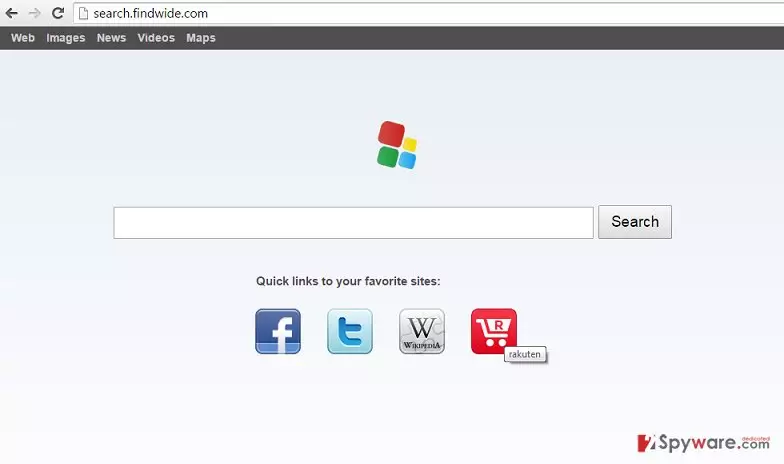
Search.findwide.com can seem like a regular search tool for people who have never encountered a browser hijacker in their life. Sadly, this vague search tool is actively promoted with a help of a potentially unwanted program (PUP) that is often called Search.findwide.com virus. This PUP is also known under Findwide, FindWide.com Toolbar, and Findwide Search names. When someone installs this program on the system, it quickly alters some browser settings and sets the aforementioned URL as browser’s default start page. Unfortunately, this computer parasite can infiltrate the most popular web browsers – Google Chrome, Mozilla Firefox, and Internet Explorer. Once this trio gets affected, some symptoms of Search.findwide.com hijack can be spotted immediately. Just like we have said, the victim might notice that the browser launches the indicated URL on the startup and then displays the FindWide search engine. On top of that, the hijacker changes the default new tab page preferences, and this change can be noticed easily, too. However, there are some changes that cannot be spotted that easily. This hijacker adds tracking cookies into infected web browser to collect information about user’s browsing sessions and learn more about his or hers browsing activities and personal interests. These non-personal details about the user are used to deliver targeted advertisements, which can appear in pop-up windows or just be hidden between the organic search results powered by the questionable search engine that this hijacker presents.
Even though Find Wide search may appear to be reliable at first, you should better not trust its search results. Be aware that this hijacker has solely been developed for monetization purposes, which means that its main objective is to promote third-party websites, increase their rank in search results, collect users’ clicks, and so on. Therefore, whenever you initiate a search using that site, you may experience redirects to suspicious websites of its affiliates. Sites advertised this way often prove to be unreliable; therefore, by exploring such results, you risk exposing your computer to various cyber threats and ending up with a spyware or malware variant on your PC. Thus, to say at least, Search.findwide.com redirect virus is a useless application that we do not recommend using. The quickest and easiest way to remove Search.findwide.com is to perform a full system scan with a reputable and updated anti-malware, such as FortectIntego.
How can this program hijack my computer?
Search.findwide.com hijack can happen when the user recklessly installing another freeware or shareware example. Programs that contain other third-party software are known as software packages, or software bundles. Such software bundles are mostly promoted both on corrupted/suspicious websites and reliable download sources, such as Download, Cnet, Soft32, Softonic, and so on. There are hundreds of free programs that contain installers of various add-ons, plug-ins, toolbars, and apps and that in order to opt them out you have to check every free program that you are going to install. For that, we recommend reading users’ reports, EULA, Privacy Policy and other relevant information. Besides, we recommend to choosing Advanced or Custom installation option because such preference should disclose all ‘additional components’ added to your download and allow deselecting them. If you detect a notification saying that you agree to set search.findwide.com as your default start page, search provider, and a new tab, you should opt out of such propositions without any delay. Already missed doing so? Don’t worry, we have already prepared search.findwide.com removal guide that can be found below.
Search.findwide.com removal tutorial
Do not waste your time expecting Search.findwide.com virus to get better. You should follow Search.findwide.com removal instructions provided below and delete this pest from the system without any worries. If you cannot remove Search.findwide.com virus manually, send us a question or delete it with automatic malware removal tool.
Uninstall from Windows
Uninstall from Windows 10/8:
- Type Control Panel into the Windows search box and open the result.
- Under Programs, select Uninstall a program.


Uninstall from Windows 7/XP:
- Click on Windows Start > Control Panel (Windows XP users should click on Add/Remove Programs).
- In Control Panel, select Programs > Uninstall a program.


Remove the unwanted program:
- In the Programs and Features window, look for any recently installed suspicious entries, select them, and click Uninstall.
- If User Account Control appears, click Yes to confirm, then complete the removal.


Delete from macOS
Remove the unwanted application:
- From the menu bar, select Go > Applications.
- In the Applications folder, look for any suspicious entries, then drag them to Trash (or right-click and pick Move to Trash).


Delete leftover files and folders:
- Select Go > Go to Folder.
- Enter /Library/Application Support and remove any suspicious folders related to the unwanted program.
- Repeat the same check in the /Library/LaunchAgents and /Library/LaunchDaemons folders, deleting any suspicious entries.

- Finally, empty the Trash to permanently remove the leftovers.

Reset Internet Explorer
Remove dangerous add-ons:
- Open Internet Explorer, click on the Gear icon (IE menu) on the top-right corner of the browser
- Pick Manage Add-ons.
- You will see a Manage Add-ons window. Here, look for suspicious plugins. Click on these entries and select Disable.


Change your homepage if it was altered:
- Open IE and click on the Gear icon.
- Select Internet Options.
- In the General tab, delete the Home page address and replace it by your preferred one (for example, Google.com).
- Click Apply and then select OK.


Delete temporary files:
- Press on the Gear icon and select Internet Options.
- Under Browsing history, click Delete...
- Select relevant fields and press Delete.


Reset Internet Explorer:
- Click on Gear icon > Internet options and select Advanced tab.
- Select Reset.
- In the new window, check Delete personal settings and select Reset.


Remove from Mozilla Firefox (FF)
Remove dangerous extensions:
- Open Mozilla Firefox browser and click on the Menu (three horizontal lines at the top-right of the window).
- Select Add-ons.
- In here, select the unwanted extension and click Remove.


Reset the homepage:
- Click three horizontal lines at the top right corner to open the menu.
- Choose Settings.
- Under Home, set your preferred homepage and new tab settings.
Clear cookies and site data:
- Click Menu and pick Settings.
- Go to Privacy & Security section.
- Scroll down to locate Cookies and Site Data.
- Click on Clear Data...
- Select Cookies and Site Data and Temporary cached files and pages, then click Clear.


Reset Mozilla Firefox
If clearing the browser as explained above did not help, reset Mozilla Firefox:
- Open Mozilla Firefox browser and click the Menu.
- Go to Help and then choose Troubleshooting Information.

- Under Give Firefox a tune up section, click on Refresh Firefox...
- Once the pop-up shows up, confirm the action by pressing on Refresh Firefox.



Remove from Google Chrome
Delete malicious extensions from Google Chrome:
- Open Google Chrome, click on the Menu (three vertical dots at the top-right corner) and select More tools > Extensions.
- In the newly opened window, you will see all the installed extensions. Uninstall all suspicious extensions related to the unwanted program by clicking Remove.


Clear cache and web data from Chrome:
- Click on Menu and pick Settings.
- Under Privacy and security, select Clear browsing data.
- Select Browsing history, Cookies and other site data, as well as Cached images and files.
- Click Clear data.


Change your homepage:
- Click menu and choose Settings.
- Look for a suspicious site in the On startup section.
- Click on Open a specific or set of pages and click on three dots to find the Remove option.
Reset Google Chrome:
If the previous methods did not help you, reset Google Chrome to eliminate all the unwanted components:
- Click on Menu and select Settings.
- In the Settings, scroll down and click Advanced.
- Scroll down and locate Reset and clean up section.
- Now click Restore settings to their original defaults.
- Confirm with Reset settings.


Did this guide help?
3 comments
Romena
Thanks - these guidelines helped me to remove the hijacker!!! Im so happy :3
VivaLaFiesta
thanks so much for the help!!!!
Phoebe38
Really helpful - I hardly understand anything thats related to computer settings, but these instructions were very clear and I have managed to delete this virus on my own. Cant hide it - Im quite proud of myself. Thank you for your help!