

Ads by Addonjet might not be reliable
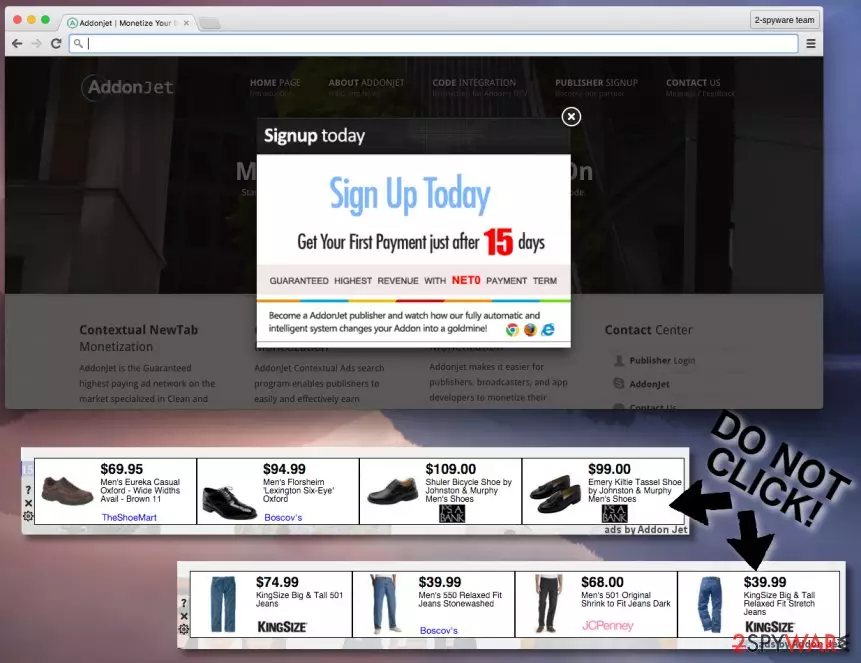
Addon Jet is an adware that spreads bundled with freeware or shareware. After the hijack, it might modify browser’s settings to display an excessive amount of commercial content. This potentially unwanted program (PUP) mostly targets Chrome web browser on both, Mac[1] and Windows, devices. However, other browsers are not immune to this cyber threat as well.
The online advertising platform belongs to the Sierra Labs company. Developers try to present the service attractively:
We perform better than all other ad companies because we do not advertise any Third party ads, Mostly they inject malware and also involved other harmful activities. You will earn Awesome revenue every day.
The program also claims to help computer users to monetize their browser extensions, add-ons, toolbars, and other additions that they have created. It is said that users can earn money by adding a snippet of code. However, in reality, it just floods web browsers with suspicious ads and causes browsing-related problems.
Due to the excessive amount of commercial content, the affected web browser might crash and freeze repeatedly. However, shady Addon Jet redirect tendencies are the main reason why users are advised to stay away from this service and get rid of the adware ASAP.
Clicking on some ads might lead to potentially dangerous websites. Thus, if you want to avoid cyber threats or privacy-related issues, you should remove Addon Jet with FortectIntego or another anti-malware as soon as the first ads appear on your browser.
The dangers that might be hidden under the app
The description of the Addon Jet services tells about various types of sponsored content displayed on web pages when users browse the web:
AddonJet monetizes your users by targeted Coupon ads, display ads, Contextual NewTab, Contextual Search, Video Ads, In-Text Ads and Data Analysis with full INDUSTRY COMPLIANCE.
Unfortunately, pop-ups, banners and other advertisements labeled as “Ads by Addon Jet” or similarly might redirect to questionable third-party websites.
Of course, we have no right to claim that every single advertisement this add-on provides is dangerous or contains malware. However, some of these ads might route you to harmful websites. Keep in mind that third-party companies are unpredictable, so redirects caused on your web browser may lead you to such web sources:
- Some unpopular domains that belong to the sponsors;
- Sites that contain malware[2] and are deemed as unsafe.

Adware might trigger redirects to risky websites and promote questionable software for Mac devices
Additionally, AddonJet X (one of adware's versions) is also capable of redirecting users to suspicious websites while their browse the web. The PUP might open your browser’s new tab and force to visit online casino sites[3] or participate in fake lotteries.[4]
It seems that the most affected country is France.[5] Users report that ad-supported program redirects to illegal mp3 download website. We want to point out that downloading music or other files from suspicious sites might lead to the installation of malware. Thus, you should never do it!
Furthermore, another adware campaign targets Mac computer users. The program might redirect to misleading websites that offer to download MacKeeper which is a well known optimization application for Macs.
However, users report that AddonJet removal from Chrome web browser and Mac OS is complicated. Security experts tell that the best way to get rid of adware and all its changes it caused to the web browser is using anti-malware/anti-spyware program. However, after system scan, users have to reset web browsers too.
It’s recommended not only reset Google Chrome, but other browser installed on the computer too. It might be necessary to get rid of all adware-related entries that might be responsible for re-installing adware.
Addon Jet data analysis service – an innocent name for data tracking
Addon Jet offers its users a data analysis service. Although the company promises to protect user’s privacy, it seems to gather information like:
- search terms that user uses,
- pages that user views,
- data entered in them,
- clicks,
- email address,
- IP address,
- approximate PC geolocation,
- software information,
- etc.
Many Internet users are not fond of disclosing such information to third parties since they may start receiving tons of personalized and catchy ads. Thus, the longer you keep this adware installed, the more data will be leaked to third parties.
Distribution of the ad-supported application
The program has an official website addonjet.com. However, the application that is responsible for flooding browsers with ads usually spreads in the form of the add-on with the help of freeware or shareware.
While the majority of users do not notice when and how it manages to enter and settle down its add-on on web browsers, there is a way to spot and prevent its infiltration. To spot whether you are about to install a software package, you have to select “Advanced” or “Custom” installation mode and opt out the free additional components suggested for you.
Removal of the Addonjet X
To remove Addon Jet virus, you have to find it on Add/Remove Programs list and eliminate it from there. After that, carefully investigate the list and try to find out if more unfamiliar apps have been installed alongside with it. We have provided a detailed step-by-step guide how to do this below the article.
However, there is another AddonJet removal option. Fortunately, you can use a more advanced technique – make a full system scan with anti-malware software. It ensures removal of all possible computer infections.
Uninstall from Windows
Uninstall from Windows 10/8:
- Type Control Panel into the Windows search box and open the result.
- Under Programs, select Uninstall a program.


Uninstall from Windows 7/XP:
- Click on Windows Start > Control Panel (Windows XP users should click on Add/Remove Programs).
- In Control Panel, select Programs > Uninstall a program.


Remove the unwanted program:
- In the Programs and Features window, look for any recently installed suspicious entries, select them, and click Uninstall.
- If User Account Control appears, click Yes to confirm, then complete the removal.


Delete from macOS
Remove the unwanted application:
- From the menu bar, select Go > Applications.
- In the Applications folder, look for any suspicious entries, then drag them to Trash (or right-click and pick Move to Trash).


Delete leftover files and folders:
- Select Go > Go to Folder.
- Enter /Library/Application Support and remove any suspicious folders related to the unwanted program.
- Repeat the same check in the /Library/LaunchAgents and /Library/LaunchDaemons folders, deleting any suspicious entries.

- Finally, empty the Trash to permanently remove the leftovers.

Reset Internet Explorer
Remove dangerous add-ons:
- Open Internet Explorer, click on the Gear icon (IE menu) on the top-right corner of the browser
- Pick Manage Add-ons.
- You will see a Manage Add-ons window. Here, look for suspicious plugins. Click on these entries and select Disable.


Change your homepage if it was altered:
- Open IE and click on the Gear icon.
- Select Internet Options.
- In the General tab, delete the Home page address and replace it by your preferred one (for example, Google.com).
- Click Apply and then select OK.


Delete temporary files:
- Press on the Gear icon and select Internet Options.
- Under Browsing history, click Delete...
- Select relevant fields and press Delete.


Reset Internet Explorer:
- Click on Gear icon > Internet options and select Advanced tab.
- Select Reset.
- In the new window, check Delete personal settings and select Reset.


Remove from Microsoft Edge
Delete unwanted extensions from MS Edge:
- Select Menu (three horizontal dots at the top-right of the browser window) and pick Extensions.
- From the list, pick the extension and click on the Gear icon.
- Click Remove.


Clear cookies and other browser data:
- Click on the Menu (three horizontal dots at the top-right of the browser window) and select Settings > Privacy, search, and services..
- Under Clear browsing data, pick Choose what to clear.
- Select Cookies and other site data and Cached images and files. (apart from passwords, although you might want to include Media licenses as well, if applicable) and click on Clear.


Restore new tab and homepage settings:
- Click the menu icon and choose Settings.
- Then find On startup section.
- Click Remove next to any suspicious startup page.
Reset MS Edge if the above steps did not work:
- Press on Ctrl + Shift + Esc to open Task Manager.
- Click on More details arrow at the bottom of the window.
- Select Details tab.
- Now scroll down and locate every entry with Microsoft Edge name in it. Right-click on each of them and select End Task to stop MS Edge from running.


Instructions for Chromium-based Edge
Delete extensions from MS Edge (Chromium):
- Open Edge and click select Settings > Extensions.
- Delete unwanted extensions by clicking Remove.


Clear cache and site data:
- Click on Menu and go to Settings.
- Select Privacy, search and services.
- Under Clear browsing data, pick Choose what to clear.
- Under Time range, pick All time.
- Select Clear now.


Reset Chromium-based MS Edge:
- Click on Menu and select Settings.
- On the left side, pick Reset settings.
- Select Restore settings to their default values.
- Confirm with Reset.
- This will disable extensions and reset startup pages but will not delete bookmarks, saved passwords, or browsing history.


Remove from Mozilla Firefox (FF)
Remove dangerous extensions:
- Open Mozilla Firefox browser and click on the Menu (three horizontal lines at the top-right of the window).
- Select Add-ons.
- In here, select the unwanted extension and click Remove.


Reset the homepage:
- Click three horizontal lines at the top right corner to open the menu.
- Choose Settings.
- Under Home, set your preferred homepage and new tab settings.
Clear cookies and site data:
- Click Menu and pick Settings.
- Go to Privacy & Security section.
- Scroll down to locate Cookies and Site Data.
- Click on Clear Data...
- Select Cookies and Site Data and Temporary cached files and pages, then click Clear.


Reset Mozilla Firefox
If clearing the browser as explained above did not help, reset Mozilla Firefox:
- Open Mozilla Firefox browser and click the Menu.
- Go to Help and then choose Troubleshooting Information.

- Under Give Firefox a tune up section, click on Refresh Firefox...
- Once the pop-up shows up, confirm the action by pressing on Refresh Firefox.



Remove from Google Chrome
Delete malicious extensions from Google Chrome:
- Open Google Chrome, click on the Menu (three vertical dots at the top-right corner) and select More tools > Extensions.
- In the newly opened window, you will see all the installed extensions. Uninstall all suspicious extensions related to the unwanted program by clicking Remove.


Clear cache and web data from Chrome:
- Click on Menu and pick Settings.
- Under Privacy and security, select Clear browsing data.
- Select Browsing history, Cookies and other site data, as well as Cached images and files.
- Click Clear data.


Change your homepage:
- Click menu and choose Settings.
- Look for a suspicious site in the On startup section.
- Click on Open a specific or set of pages and click on three dots to find the Remove option.
Reset Google Chrome:
If the previous methods did not help you, reset Google Chrome to eliminate all the unwanted components:
- Click on Menu and select Settings.
- In the Settings, scroll down and click Advanced.
- Scroll down and locate Reset and clean up section.
- Now click Restore settings to their original defaults.
- Confirm with Reset settings.


Delete from Safari
Remove dangerous extensions:
- Open Safari, click Safari in the menu at the top-left of the screen, and select Preferences.
- Go to the Extensions tab, look for any suspicious entries, and click Uninstall to remove them.


Clear history and website data:
- Click Safari in the menu and pick Clear History.
- Set Clear to all history and confirm with Clear History.


Reset Safari:
- Click Safari in the menu and select Preferences > Advanced.
- Enable Show Develop menu in menu bar.
- From the menu bar, click Develop and select Empty Caches.


Did this guide help?
3 comments
MichaelABarber
Hi! Is there a difference which anti-spyware Im going to use for Addon Jet removal? Manual removal of cyber threats is not my best side, so I consider installing anti-spyware software. Did anyone try to get rid of this adware automatically?
Magnet1989
Hey. I believe that all anti-spyware programs promoted in this website are capable of detecting Addon Jet virus and removing it. Im personally using SpyHunter for many years and have always been happy about it.
Kirsten Markus
Addon Jet ads have been torturing me for about a month until I understood that I have an adware on my computer. My PC runs Windows 8 and Im using Firefox most of the time. Lucky me because Ive managed to remove Addon jet without installing anti-malware. But that took a lot of time, in fact.