

Search.mykotlerino.com virus changes browser settings by force
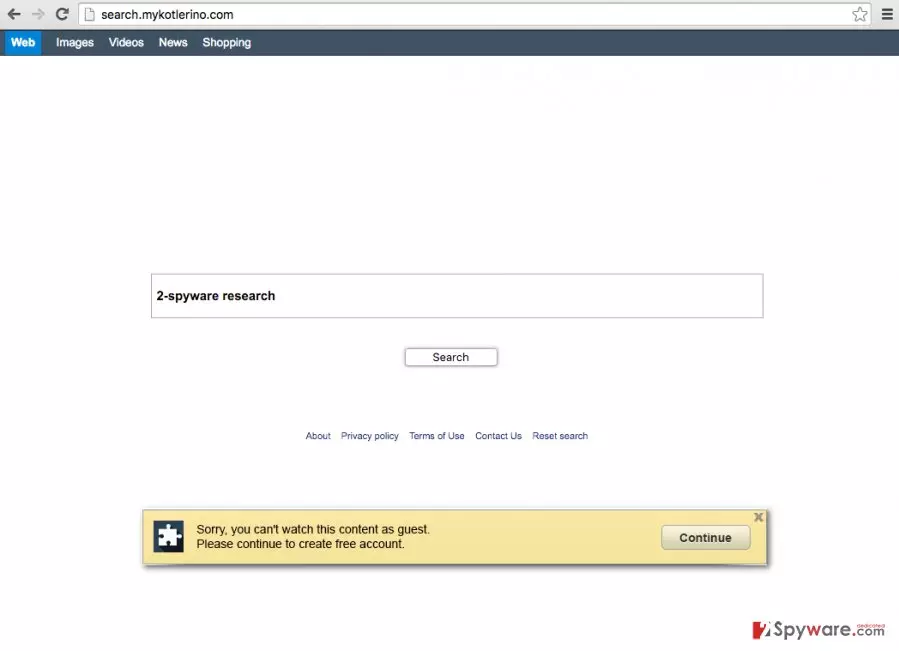
Search.mykotlerino.com might give you an impression of a simple search engine[1]. However, it is an untrustworthy web search provider that you should get rid of without a hesitation. If the described search engine appears in your browser automatically, it means that your web browser was hijacked[2] by MyKotlerino virus already.
It is worth mentioning that the indicated browser hijacker attacks Mac OS X only, therefore MyKotlerino search engine will bother you only if you are a user of this operating system.
In other words, the website mentioned earlier can be set as your homepage without your knowledge in case you accidentally install Search.mykotlerino.com redirect virus. It is a low-level computer threat, which computer security experts name as potentially unwanted program (PUP). Below, you can see a short explanation on how it infects a Mac computer and for what purpose.
- This PUP[3] commonly sneaks into victims’ computers alongside other free programs and locates all Internet browsers.
- MyKotlerino is designed to affect their homepage, default new tab, and primary search engine settings and set hxxp://Search.mykotlerino.com/ by default.
- It collects browsing-related data to insert sponsored search results (ads) and causes redirects to external websites to earn pay-per-click revenue.
Despite the fact that Search.mykotlerino search engine looks like any other search engine, searching the web via it can pose a significant threat to your computer. You should remember that it supplements its search results with deceptive hyperlinks that are meant to redirect the victim to questionable web sources.
These links are believed to be brought by Genieo Search, because the search engine serves “Genieo Yahoo search results.” We have a feeling that these distorted search results are filled with questionable links you wouldn't want to activate. Therefore, we do not suggest clicking on the vague search results.
The redirect virus supposedly gains revenue by driving web traffic to third-party websites that are Mykotlerino search engine's affiliates. Unfortunately, this search engine is not liable for the content published on such websites.
Sadly, while some websites promoted via this search engine may be secure, some of MyKotlerino redirects can lead you to malicious[4] web pages. For this reason, you should stop using this unreliable search engine and opt for a better one.
However, you must remove Search.mykotlerino.com from your computer before changing your browser’s homepage and default search engine settings. We recommend using FortectIntego anti-spyware[5] program to uninstall the discussed browser hijacker from your system.

Prevent MyKotlerino from hijacking your computer
If this is your first time dealing with potentially unwanted programs, you probably do not know how they spread. Their distribution method is quite simple, yet effective. The developers of PUPs use bundling technique to distribute their products silently.
To be more specific, they attach their programs to other programs, usually free and well-known ones, and build software packages, also known as software bundles. Installing one landed MyKotlerino on your system. Software bundles can be downloaded from untrustworthy download websites or P2P file sharing systems, so you should avoid downloading software from such sources and always obtain software from websites owned by the official developer of the software.
You can decompose software bundles. Simply select Advanced or Custom option during their installation and opt-out suspicious components. Take note that programs presented as “recommended downloads” often appear to be PUPs.
Now, if your browser is already affected by Search.mykotlerino, you probably want to uninstall it without a delay. As we have already stated, you can do that with a help of anti-spyware, but if you would rather opt for a manual Search.mykotlerino.com removal option, see instructions provided below.
FAQ about the browser hijacker:
Question: How can I replace my homepage? It is now set to Search.mykotlerino.com. I want to change it, but I don’t know how to do it….
Answer: The research has shown that MyKotlerino browser hijacker installs processes that keep changing browser’s settings and setting Search.mykotlerino.com as homepage each time the victim attempts to change the homepage. Therefore, before you try to configure homepage settings you must firstly uninstall Search.mykotlerino.com hijacker from your computer.
Question: I can't fully remove Search.mykotlerino.com. I have cleaned the browser from suspicious extensions, uninstalled unwanted programs, but the search engine still appears in my browser whenever I open it. What is the problem?
Answer: You should check a couple more Mac folders. The browser hijacker might have added some of its components there. You must delete them. A full tutorial on how to eliminate these files is given below the article.
Delete Search.mykotlerino.com from Chrome, Safari and other browsers
If you are looking for a way to remove Search.mykotlerino.com virus from your computer, you should know a few things. First of all, there are two different ways how you can eliminate this PUP from your system. You can choose between automatic and manual Search.mykotlerino.com removal options.
It depends whether you just want to remove this particular threat, or if you want to check entire PC for spyware/malware and also secure it from similar threats. Therefore, if you want to opt for the manual removal option, follow the instructions given below and uninstall Search.mykotlerino redirect virus manually. To remove it automatically and to protect your computer, consider installing one of the anti-spyware programs we recommended.
Delete from macOS
Remove the unwanted application:
- From the menu bar, select Go > Applications.
- In the Applications folder, look for any suspicious entries, then drag them to Trash (or right-click and pick Move to Trash).


Delete leftover files and folders:
- Select Go > Go to Folder.
- Enter /Library/Application Support and remove any suspicious folders related to the unwanted program.
- Repeat the same check in the /Library/LaunchAgents and /Library/LaunchDaemons folders, deleting any suspicious entries.

- Finally, empty the Trash to permanently remove the leftovers.

Reset Internet Explorer
Remove dangerous add-ons:
- Open Internet Explorer, click on the Gear icon (IE menu) on the top-right corner of the browser
- Pick Manage Add-ons.
- You will see a Manage Add-ons window. Here, look for suspicious plugins. Click on these entries and select Disable.


Change your homepage if it was altered:
- Open IE and click on the Gear icon.
- Select Internet Options.
- In the General tab, delete the Home page address and replace it by your preferred one (for example, Google.com).
- Click Apply and then select OK.


Delete temporary files:
- Press on the Gear icon and select Internet Options.
- Under Browsing history, click Delete...
- Select relevant fields and press Delete.


Reset Internet Explorer:
- Click on Gear icon > Internet options and select Advanced tab.
- Select Reset.
- In the new window, check Delete personal settings and select Reset.


Remove from Microsoft Edge
Delete unwanted extensions from MS Edge:
- Select Menu (three horizontal dots at the top-right of the browser window) and pick Extensions.
- From the list, pick the extension and click on the Gear icon.
- Click Remove.


Clear cookies and other browser data:
- Click on the Menu (three horizontal dots at the top-right of the browser window) and select Settings > Privacy, search, and services..
- Under Clear browsing data, pick Choose what to clear.
- Select Cookies and other site data and Cached images and files. (apart from passwords, although you might want to include Media licenses as well, if applicable) and click on Clear.


Restore new tab and homepage settings:
- Click the menu icon and choose Settings.
- Then find On startup section.
- Click Remove next to any suspicious startup page.
Reset MS Edge if the above steps did not work:
- Press on Ctrl + Shift + Esc to open Task Manager.
- Click on More details arrow at the bottom of the window.
- Select Details tab.
- Now scroll down and locate every entry with Microsoft Edge name in it. Right-click on each of them and select End Task to stop MS Edge from running.


Instructions for Chromium-based Edge
Delete extensions from MS Edge (Chromium):
- Open Edge and click select Settings > Extensions.
- Delete unwanted extensions by clicking Remove.


Clear cache and site data:
- Click on Menu and go to Settings.
- Select Privacy, search and services.
- Under Clear browsing data, pick Choose what to clear.
- Under Time range, pick All time.
- Select Clear now.


Reset Chromium-based MS Edge:
- Click on Menu and select Settings.
- On the left side, pick Reset settings.
- Select Restore settings to their default values.
- Confirm with Reset.
- This will disable extensions and reset startup pages but will not delete bookmarks, saved passwords, or browsing history.


Remove from Mozilla Firefox (FF)
Remove dangerous extensions:
- Open Mozilla Firefox browser and click on the Menu (three horizontal lines at the top-right of the window).
- Select Add-ons.
- In here, select the unwanted extension and click Remove.


Reset the homepage:
- Click three horizontal lines at the top right corner to open the menu.
- Choose Settings.
- Under Home, set your preferred homepage and new tab settings.
Clear cookies and site data:
- Click Menu and pick Settings.
- Go to Privacy & Security section.
- Scroll down to locate Cookies and Site Data.
- Click on Clear Data...
- Select Cookies and Site Data and Temporary cached files and pages, then click Clear.


Reset Mozilla Firefox
If clearing the browser as explained above did not help, reset Mozilla Firefox:
- Open Mozilla Firefox browser and click the Menu.
- Go to Help and then choose Troubleshooting Information.

- Under Give Firefox a tune up section, click on Refresh Firefox...
- Once the pop-up shows up, confirm the action by pressing on Refresh Firefox.



Remove from Google Chrome
Delete malicious extensions from Google Chrome:
- Open Google Chrome, click on the Menu (three vertical dots at the top-right corner) and select More tools > Extensions.
- In the newly opened window, you will see all the installed extensions. Uninstall all suspicious extensions related to the unwanted program by clicking Remove.


Clear cache and web data from Chrome:
- Click on Menu and pick Settings.
- Under Privacy and security, select Clear browsing data.
- Select Browsing history, Cookies and other site data, as well as Cached images and files.
- Click Clear data.


Change your homepage:
- Click menu and choose Settings.
- Look for a suspicious site in the On startup section.
- Click on Open a specific or set of pages and click on three dots to find the Remove option.
Reset Google Chrome:
If the previous methods did not help you, reset Google Chrome to eliminate all the unwanted components:
- Click on Menu and select Settings.
- In the Settings, scroll down and click Advanced.
- Scroll down and locate Reset and clean up section.
- Now click Restore settings to their original defaults.
- Confirm with Reset settings.


Delete from Safari
Remove dangerous extensions:
- Open Safari, click Safari in the menu at the top-left of the screen, and select Preferences.
- Go to the Extensions tab, look for any suspicious entries, and click Uninstall to remove them.


Clear history and website data:
- Click Safari in the menu and pick Clear History.
- Set Clear to all history and confirm with Clear History.


Reset Safari:
- Click Safari in the menu and select Preferences > Advanced.
- Enable Show Develop menu in menu bar.
- From the menu bar, click Develop and select Empty Caches.


Did this guide help?
4 comments
Rockero
I do not recommend using this search engine! It is very bad! it redirects you to random pages and they look suspicious. definitely a virus..
Wai27
Finally I have deleted it! thanks for useful information :)
lavenda
How did it enter my computer system??
hereritenow
noxious threat. provides useless search engine.