

Can eversearches.com virus cause a lot of trouble?
The most interesting peculiarity of this search engine is that, instead of its main web page, eversearches.com virus redirects users to a Chinese website baidu.com. It seems that the owners of their questionable browsing tool intended to use the English URL address domain as a disguise. Nonetheless, it does not change the fact that eversearches or baidu.com is classified as a browser hijacker. Do not expect this PUP to deliver relevant and objective search results. Instead, prepare for the attack of a stream of highly questionable and potentially malignant redirects and commercial offers. What is more, this browser hijacker is directly related to hao123 which also happens to be a sample of the same group of PUP. In any case, remove eversearches.com right away. FortectIntego will assist you in this task.
In general, a browser hijacker exists for the purposes to sneakily invade computers and occupy the replace present search engines. After that, they redirect either to their own sponsored websites or to the domains of their partners – third-parties. However, taking into account the notorious history of hao123 hijack and that baidu.com is likely to be no less aggressive hijacker, the phenomenon of the hijack should not be ignored. What is more, the longer this PUP keeps control of your search engine, the more likely you will be misled to the websites which are possibly infected with serious viruses. The least outcome of such assault might be malfunctioning programs. In any case, eversearches.com redirect tendency might cause quite a deal of irritating consequences.
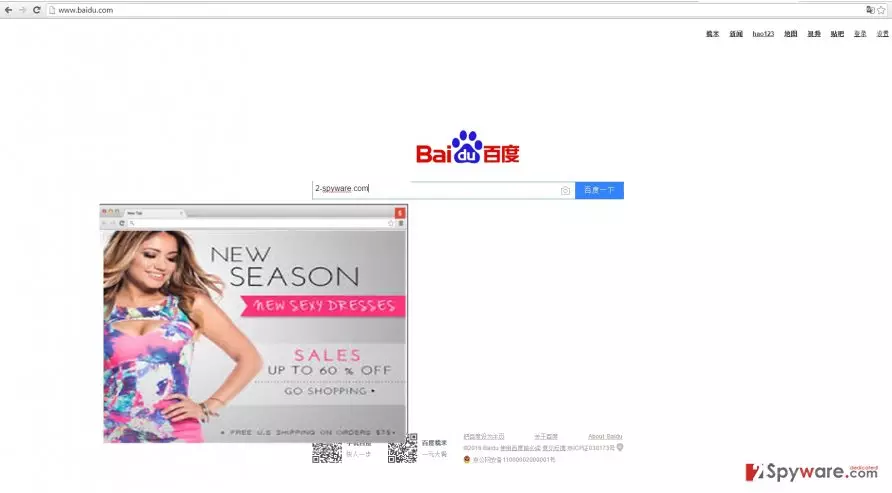
In addition, you should be aware that the hijacker spies on your every step you make in the virtual world. Since eversearches.com employs tracking technologies, cookies, and compiles data about your visited websites, keep in mind that, after a while, your browser might be stuffed with customized advertisements which match your interests and preferences. Thus, some users do not enjoy being under constant watch. If you are one of them, then there are more than enough reasons to initiate eversearches.com removal.
The distribution of the hijacker
Since this PUP is a peculiar one for its feature to disguise the Chinese website, most likely, this hijacker got into your computer, when you installed a new application. “How?” you might ask. You see, there is a common vice to skip through the installation instructions. Furthermore, few users even consider the possibility that there might be additional, and often, unwanted, programs, waiting to get installed along with the primary one. When the “Install” button is clicked, the adware, a browser hijacker or another PUP invades the operating system without any bigger obstacles. Similarly, eversearches.com took over your PC as well. If you would like to avoid similar hijack in the future, follow these recommendations. First of all, upon installing new software, select “Custom” settings. After that, carefully switch to each stage and watch for any add-ons which raise any suspicion. In that case, unmark their checkboxes.
Eversearches.com removal instructions
Despite if this hijacker leads to a Chinese or the website of another language, its elimination remains practically the same. In case, meddling with the PUP is not an appealing idea, install an anti-spyware program right away. You can no longer worry and browse safely because the program will ensure that no files related to eversearches.com are left. In addition, you can decrease the risk of an infection, if you pay more attention while performing the installation and taking a look occasionally at privacy policy. Likewise, you might avoid not only such minor PUPs as this one but more serious viruses as well. Lastly, you can remove eversearches.com manually. Our IT professionals already provided the instructions below.
Uninstall from Windows
Uninstall from Windows 10/8:
- Type Control Panel into the Windows search box and open the result.
- Under Programs, select Uninstall a program.


Uninstall from Windows 7/XP:
- Click on Windows Start > Control Panel (Windows XP users should click on Add/Remove Programs).
- In Control Panel, select Programs > Uninstall a program.


Remove the unwanted program:
- In the Programs and Features window, look for any recently installed suspicious entries, select them, and click Uninstall.
- If User Account Control appears, click Yes to confirm, then complete the removal.


Delete from macOS
Remove the unwanted application:
- From the menu bar, select Go > Applications.
- In the Applications folder, look for any suspicious entries, then drag them to Trash (or right-click and pick Move to Trash).


Delete leftover files and folders:
- Select Go > Go to Folder.
- Enter /Library/Application Support and remove any suspicious folders related to the unwanted program.
- Repeat the same check in the /Library/LaunchAgents and /Library/LaunchDaemons folders, deleting any suspicious entries.

- Finally, empty the Trash to permanently remove the leftovers.

Remove from Microsoft Edge
Delete unwanted extensions from MS Edge:
- Select Menu (three horizontal dots at the top-right of the browser window) and pick Extensions.
- From the list, pick the extension and click on the Gear icon.
- Click Remove.


Clear cookies and other browser data:
- Click on the Menu (three horizontal dots at the top-right of the browser window) and select Settings > Privacy, search, and services..
- Under Clear browsing data, pick Choose what to clear.
- Select Cookies and other site data and Cached images and files. (apart from passwords, although you might want to include Media licenses as well, if applicable) and click on Clear.


Restore new tab and homepage settings:
- Click the menu icon and choose Settings.
- Then find On startup section.
- Click Remove next to any suspicious startup page.
Reset MS Edge if the above steps did not work:
- Press on Ctrl + Shift + Esc to open Task Manager.
- Click on More details arrow at the bottom of the window.
- Select Details tab.
- Now scroll down and locate every entry with Microsoft Edge name in it. Right-click on each of them and select End Task to stop MS Edge from running.


Instructions for Chromium-based Edge
Delete extensions from MS Edge (Chromium):
- Open Edge and click select Settings > Extensions.
- Delete unwanted extensions by clicking Remove.


Clear cache and site data:
- Click on Menu and go to Settings.
- Select Privacy, search and services.
- Under Clear browsing data, pick Choose what to clear.
- Under Time range, pick All time.
- Select Clear now.


Reset Chromium-based MS Edge:
- Click on Menu and select Settings.
- On the left side, pick Reset settings.
- Select Restore settings to their default values.
- Confirm with Reset.
- This will disable extensions and reset startup pages but will not delete bookmarks, saved passwords, or browsing history.


Remove from Mozilla Firefox (FF)
Remove dangerous extensions:
- Open Mozilla Firefox browser and click on the Menu (three horizontal lines at the top-right of the window).
- Select Add-ons.
- In here, select the unwanted extension and click Remove.


Reset the homepage:
- Click three horizontal lines at the top right corner to open the menu.
- Choose Settings.
- Under Home, set your preferred homepage and new tab settings.
Clear cookies and site data:
- Click Menu and pick Settings.
- Go to Privacy & Security section.
- Scroll down to locate Cookies and Site Data.
- Click on Clear Data...
- Select Cookies and Site Data and Temporary cached files and pages, then click Clear.


Reset Mozilla Firefox
If clearing the browser as explained above did not help, reset Mozilla Firefox:
- Open Mozilla Firefox browser and click the Menu.
- Go to Help and then choose Troubleshooting Information.

- Under Give Firefox a tune up section, click on Refresh Firefox...
- Once the pop-up shows up, confirm the action by pressing on Refresh Firefox.



Remove from Google Chrome
Delete malicious extensions from Google Chrome:
- Open Google Chrome, click on the Menu (three vertical dots at the top-right corner) and select More tools > Extensions.
- In the newly opened window, you will see all the installed extensions. Uninstall all suspicious extensions related to the unwanted program by clicking Remove.


Clear cache and web data from Chrome:
- Click on Menu and pick Settings.
- Under Privacy and security, select Clear browsing data.
- Select Browsing history, Cookies and other site data, as well as Cached images and files.
- Click Clear data.


Change your homepage:
- Click menu and choose Settings.
- Look for a suspicious site in the On startup section.
- Click on Open a specific or set of pages and click on three dots to find the Remove option.
Reset Google Chrome:
If the previous methods did not help you, reset Google Chrome to eliminate all the unwanted components:
- Click on Menu and select Settings.
- In the Settings, scroll down and click Advanced.
- Scroll down and locate Reset and clean up section.
- Now click Restore settings to their original defaults.
- Confirm with Reset settings.


Delete from Safari
Remove dangerous extensions:
- Open Safari, click Safari in the menu at the top-left of the screen, and select Preferences.
- Go to the Extensions tab, look for any suspicious entries, and click Uninstall to remove them.


Clear history and website data:
- Click Safari in the menu and pick Clear History.
- Set Clear to all history and confirm with Clear History.


Reset Safari:
- Click Safari in the menu and select Preferences > Advanced.
- Enable Show Develop menu in menu bar.
- From the menu bar, click Develop and select Empty Caches.


Did this guide help?
3 comments
Ula
So what I am going to do with this website if I dont know a word in Chinese?
LindaMoore
The anti-spyware program worked like a charm.
Caleb
Time to put an end to these redirects. Ive got sick ofem.