

Review of search.safefinder.biz virus
In the realm of the Internet, there is a wide choice of search engines. Therefore, there are multiple browsing tools, like Search.safefinder.biz virus, which wander around. The latter search engine should not be ignored if it managed to infiltrate your computer and change the homepage. For these qualities, IT experts have granted this tool the title of a browser hijacker. Besides forcefully managing your browser settings, it is able to redirect you to the domains which pose a direct threat to the security of the PC. Moreover, it is likely to be linked with the series of Safe Finder browser hijackers. Therefore, do not waste time and proceed to search.safefinder.biz removal. For that purpose, FortectIntego comes in handy.
Though the PUP imitates the design of Google search provider, it does not conceal its other highly annoying peculiarities. One of them is a tendency to mislead to potentially infected domains. Search.safefinder.biz shares the support of multiple unknown third-parties. In exchange for that, the hijacker permits them to display their advertising content when you browse the Web. What is more, they also let them employ various tracking technologies. As a result, not only this browser hijacker spies on your browsing habits, but its partners as well. Such behavior results in generating pay-per-click ads which are modeled specifically according to your own preferences. Consequently, the increasing amount of commercial offers and banners might become unbearable. Occasionally, you might be blown away to a website which is not only stuffed with ads but with infected hyperlinks as well. Make sure not to click on any suspicious “download” buttons, but exit such domain as soon as possible. In this manner, search.safefinder.biz redirect might become a big burden.
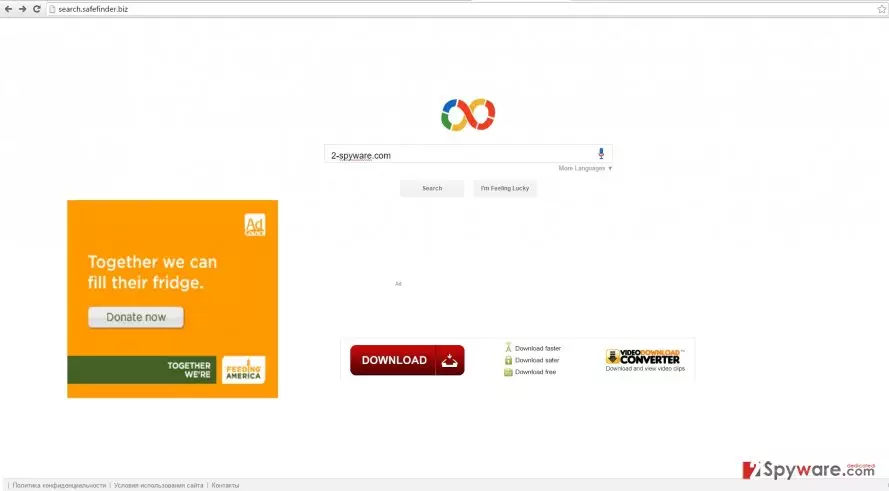
Taking a look at privacy policy might be useful as well. Thus, according to the provisions of its privacy policy, it is known that the PUP happens to be the property of Resoft Ltd. Unfortunately, this corporate entity is the creator of another notorious browser hijacker – Snap.do. In addition, do not get astonished if you get redirected to Feed.Helperbar.com as well. Obviously, the latter is a futile search provider. Lastly, safefinder.biz hijacker disables any security plug-ins. Some anti-virus applications provide a highly beneficial browser extension which helps you avoid potentially malicious domains. However, when you use thsi browser hijacker as your main search engine, you are deprived of the probability to use such extension. These peculiarities should encourage you to remove search.safefinder.biz right away.
The transmission of the hijacker
Like other sorts of the same PUPs, this hijacker tends to spread using freeware as a disguise. You may be surprised that you installed the hijacker yourself. It occurred when you intended to perform the installation of a new audio editor or video player. When you chose “Recommended” settings, you overlook a small attachment of search.safefinder.biz. As a result, after the installation was complete, the PUP settled on the device as well. In order not to repeat the same mistake, change the habits of installing new applications. Firstly, opt for “Custom” settings. This action will let you notice any optional applications. After you unmark the attachments, which seem unnecessary, start installing the primary program.
Search.safefinder.biz removal methods
There are two of them. You can quite easily eradicate the PUP using manual guidelines. Our virus researchers already delivered them for your convenience below in this page. However, if thorough activities are not your strength and you do want to waste time on a browser hijacker, opt for the automatic solution. Install an anti-spyware program. After that, run the scan. The program is more apt in detecting files of malicious origin, so it will successfully remove search.safefinder.biz and all its secondary files within a moment.
Uninstall from Windows
Uninstall from Windows 10/8:
- Type Control Panel into the Windows search box and open the result.
- Under Programs, select Uninstall a program.


Uninstall from Windows 7/XP:
- Click on Windows Start > Control Panel (Windows XP users should click on Add/Remove Programs).
- In Control Panel, select Programs > Uninstall a program.


Remove the unwanted program:
- In the Programs and Features window, look for any recently installed suspicious entries, select them, and click Uninstall.
- If User Account Control appears, click Yes to confirm, then complete the removal.


Delete from macOS
Remove the unwanted application:
- From the menu bar, select Go > Applications.
- In the Applications folder, look for any suspicious entries, then drag them to Trash (or right-click and pick Move to Trash).


Delete leftover files and folders:
- Select Go > Go to Folder.
- Enter /Library/Application Support and remove any suspicious folders related to the unwanted program.
- Repeat the same check in the /Library/LaunchAgents and /Library/LaunchDaemons folders, deleting any suspicious entries.

- Finally, empty the Trash to permanently remove the leftovers.

Remove from Microsoft Edge
Delete unwanted extensions from MS Edge:
- Select Menu (three horizontal dots at the top-right of the browser window) and pick Extensions.
- From the list, pick the extension and click on the Gear icon.
- Click Remove.


Clear cookies and other browser data:
- Click on the Menu (three horizontal dots at the top-right of the browser window) and select Settings > Privacy, search, and services..
- Under Clear browsing data, pick Choose what to clear.
- Select Cookies and other site data and Cached images and files. (apart from passwords, although you might want to include Media licenses as well, if applicable) and click on Clear.


Restore new tab and homepage settings:
- Click the menu icon and choose Settings.
- Then find On startup section.
- Click Remove next to any suspicious startup page.
Reset MS Edge if the above steps did not work:
- Press on Ctrl + Shift + Esc to open Task Manager.
- Click on More details arrow at the bottom of the window.
- Select Details tab.
- Now scroll down and locate every entry with Microsoft Edge name in it. Right-click on each of them and select End Task to stop MS Edge from running.


Instructions for Chromium-based Edge
Delete extensions from MS Edge (Chromium):
- Open Edge and click select Settings > Extensions.
- Delete unwanted extensions by clicking Remove.


Clear cache and site data:
- Click on Menu and go to Settings.
- Select Privacy, search and services.
- Under Clear browsing data, pick Choose what to clear.
- Under Time range, pick All time.
- Select Clear now.


Reset Chromium-based MS Edge:
- Click on Menu and select Settings.
- On the left side, pick Reset settings.
- Select Restore settings to their default values.
- Confirm with Reset.
- This will disable extensions and reset startup pages but will not delete bookmarks, saved passwords, or browsing history.


Remove from Mozilla Firefox (FF)
Remove dangerous extensions:
- Open Mozilla Firefox browser and click on the Menu (three horizontal lines at the top-right of the window).
- Select Add-ons.
- In here, select the unwanted extension and click Remove.


Reset the homepage:
- Click three horizontal lines at the top right corner to open the menu.
- Choose Settings.
- Under Home, set your preferred homepage and new tab settings.
Clear cookies and site data:
- Click Menu and pick Settings.
- Go to Privacy & Security section.
- Scroll down to locate Cookies and Site Data.
- Click on Clear Data...
- Select Cookies and Site Data and Temporary cached files and pages, then click Clear.


Reset Mozilla Firefox
If clearing the browser as explained above did not help, reset Mozilla Firefox:
- Open Mozilla Firefox browser and click the Menu.
- Go to Help and then choose Troubleshooting Information.

- Under Give Firefox a tune up section, click on Refresh Firefox...
- Once the pop-up shows up, confirm the action by pressing on Refresh Firefox.



Remove from Google Chrome
Delete malicious extensions from Google Chrome:
- Open Google Chrome, click on the Menu (three vertical dots at the top-right corner) and select More tools > Extensions.
- In the newly opened window, you will see all the installed extensions. Uninstall all suspicious extensions related to the unwanted program by clicking Remove.


Clear cache and web data from Chrome:
- Click on Menu and pick Settings.
- Under Privacy and security, select Clear browsing data.
- Select Browsing history, Cookies and other site data, as well as Cached images and files.
- Click Clear data.


Change your homepage:
- Click menu and choose Settings.
- Look for a suspicious site in the On startup section.
- Click on Open a specific or set of pages and click on three dots to find the Remove option.
Reset Google Chrome:
If the previous methods did not help you, reset Google Chrome to eliminate all the unwanted components:
- Click on Menu and select Settings.
- In the Settings, scroll down and click Advanced.
- Scroll down and locate Reset and clean up section.
- Now click Restore settings to their original defaults.
- Confirm with Reset settings.


Delete from Safari
Remove dangerous extensions:
- Open Safari, click Safari in the menu at the top-left of the screen, and select Preferences.
- Go to the Extensions tab, look for any suspicious entries, and click Uninstall to remove them.


Clear history and website data:
- Click Safari in the menu and pick Clear History.
- Set Clear to all history and confirm with Clear History.


Reset Safari:
- Click Safari in the menu and select Preferences > Advanced.
- Enable Show Develop menu in menu bar.
- From the menu bar, click Develop and select Empty Caches.


Did this guide help?
3 comments
Matt
The never ending loop of browser hijackers...
Betty
Fortunately, it is not a major threat.
Rod
This one is quite a bothersome PUP.