

Online.io is a rogue application that infiltrates the system without permission and manifests strange behavior
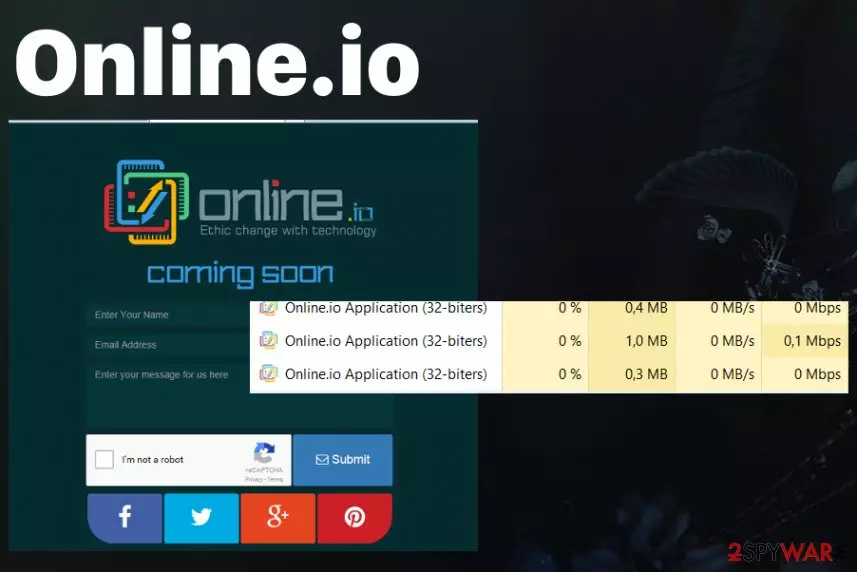
Online.io virus is a traffic exchange software or adware that injects webpages you visit with tons of commercial content. Those advertisements display content that promotes other software and often has Ads by Online.io on the pop-up or banner. This is the first indication that your machine is at risk or already has a PUP infection. This intruder continuously monitors your Internet browsing activity from the first minute of cyber infiltration. Since this is the ad-supported site it gathers such data for the later malvertising use.
Unfortunately, this potentially unwanted program even is associated with technical support scams, in particular, Microsoft Security Essentials Alert. The adware Online.io displays these fake alerts about security issues and pretends to offer a solution for the error. The message also tricks people into calling the fake technical support via the phone number that redirects the victims to criminals and scammers instead.
| Name | Online.io virus |
|---|---|
| Type | Adware |
| Category | Potentially unwanted program |
| Symptoms | Displays advertisements, creates traffic redirects to ad-supported pages and causes alerts, fake error messages. technical support scams campaigns |
| Distribution | Freeware infiltrations, software bundling |
| Causes | Microsoft Security Essentials Alert |
| Elimination | Use FortectIntego for Online.io removal |
Online.io adware functions as a shady website[1] with the sign-up form. Even though there is a punchline “Ethic change with technology,” the website does not indicate any privacy policy nor terms of use – obligatory elements of a reliable site. It has been on the web already since last year. Despite its promise “coming soon,” there was no change. Since then it has been labeled as adware.
However, due to its odd behavior, virus researchers suspect it might be related to a tech support scam. You might be redirected a browser-based scam site which alarms you with supposedly infected system. In order to remove the virus, you may be asked to call +1-888-496-5150 or alternative number. Exit the window and clean the browser from its web scripts.
Other than the scam message there is nothing wrong with your machine and the fake alert only focuses on tricking you into revealing personal information, paying for suspicious service or visiting a more questionable site that promotes shady software.
Users also complain about additional issues regarding this PUP:
- redirects to shady pages;
- advertisements injected on commonly found pages;
- suspicious processes running in the background;
- installed programs and tools.

Nonetheless, if you have been bothered by constant redirects to this adware[2], you can proceed to the elimination steps. For the Online.io removal process, you need to focus on automatic tools like an anti-malware program. This is the best solution for any potentially unwanted program because a full system check indicates various issues including such intruders.
The functions of Online.io adware
The most prevalent property of this PUP comes as the display of annoying advertisements. What is more, you might notice that additional toolbars and browser plug-ins are attached. In general, an adware program should not be present in any user’s computer. Thus, hurry up with online.io removal.
It seems that the owners of this website are still preparing to launch the official website. If you enter it, you see the front page saying that the domain is not active yet and, in the case of inquiry, you can enter your contact information. In addition, the web page is protected by certain technology to evade spam emails.
Though this quality might suggest the reliability of the web page, the adware still successfully operates in a background. Since it travels in sneaky ways, you might not suspect that the PUP resides on the operating system.
Nonetheless, you might consider excessive advertising as the sign of the adware. The pop-ups contain almost invisible “Online.io ads” labeling[3]. You might notice enormous entity of ads varying from banners of suggesting to install new security applications to commercial offers recommending the newest game.
If you are not careful and click on those ads you might be misled to the websites not only with advertising content but to the domains which might be infected with high-level viruses [4]. In this manner, online.io redirect tendency might even bring damaging effects.
In addition, we would like to encourage you to restrain from downloading any applications or updating the software from the domains promoted by the adware. Before your PC performance deteriorates, remove Online.io virus. You can do it faster with automatic antivirus tools.

Adware distribution tendencies
Often, the adware exploits the chance to infiltrate the system when users install other free programs. There is a common tendency to rush through the installation instructions and click “Next’ without the awareness of other possible programs.
“Basic” settings often hid the optional attachments which cover online.io or another adware-type software. In order to spot them before they get installed along with the primarily downloaded application, opt for “Custom” mode.
Likewise, you will be able to detect all unnecessary applications. When you make sure that none suspicious programs sneak into the OS, install the wanted software. Such cautiousness will help you escape the hijack of other PUPs in the future [5].
Get rid of online.io quickly and clean the machine fully
You can try two methods to remove Online.io. The manual instructions are necessary for the elimination of the PUP the usual way can be found below. Do not forget that you will need to pay utmost attention while going through all the stages. If this option does not seem convenient, opt for automatic online.io removal. Install the anti-spyware program.
After that, run the system scan. You can be sure that the security software will deal with the adware in no time. In addition, it is an invaluable guarantor of computer safety. Online.io virus removal is needed especially because of the reason that this program tracks and collects various information about your online behavior. Remember that adware installs other applications with the purpose of creating more redirects and keeping the machine infected.
Uninstall from Windows
Uninstall from Windows 10/8:
- Type Control Panel into the Windows search box and open the result.
- Under Programs, select Uninstall a program.


Uninstall from Windows 7/XP:
- Click on Windows Start > Control Panel (Windows XP users should click on Add/Remove Programs).
- In Control Panel, select Programs > Uninstall a program.


Remove the unwanted program:
- In the Programs and Features window, look for any recently installed suspicious entries, select them, and click Uninstall.
- If User Account Control appears, click Yes to confirm, then complete the removal.


Delete from macOS
Remove the unwanted application:
- From the menu bar, select Go > Applications.
- In the Applications folder, look for any suspicious entries, then drag them to Trash (or right-click and pick Move to Trash).


Delete leftover files and folders:
- Select Go > Go to Folder.
- Enter /Library/Application Support and remove any suspicious folders related to the unwanted program.
- Repeat the same check in the /Library/LaunchAgents and /Library/LaunchDaemons folders, deleting any suspicious entries.

- Finally, empty the Trash to permanently remove the leftovers.

Reset Internet Explorer
Remove dangerous add-ons:
- Open Internet Explorer, click on the Gear icon (IE menu) on the top-right corner of the browser
- Pick Manage Add-ons.
- You will see a Manage Add-ons window. Here, look for suspicious plugins. Click on these entries and select Disable.


Change your homepage if it was altered:
- Open IE and click on the Gear icon.
- Select Internet Options.
- In the General tab, delete the Home page address and replace it by your preferred one (for example, Google.com).
- Click Apply and then select OK.


Delete temporary files:
- Press on the Gear icon and select Internet Options.
- Under Browsing history, click Delete...
- Select relevant fields and press Delete.


Reset Internet Explorer:
- Click on Gear icon > Internet options and select Advanced tab.
- Select Reset.
- In the new window, check Delete personal settings and select Reset.


Remove from Microsoft Edge
Delete unwanted extensions from MS Edge:
- Select Menu (three horizontal dots at the top-right of the browser window) and pick Extensions.
- From the list, pick the extension and click on the Gear icon.
- Click Remove.


Clear cookies and other browser data:
- Click on the Menu (three horizontal dots at the top-right of the browser window) and select Settings > Privacy, search, and services..
- Under Clear browsing data, pick Choose what to clear.
- Select Cookies and other site data and Cached images and files. (apart from passwords, although you might want to include Media licenses as well, if applicable) and click on Clear.


Restore new tab and homepage settings:
- Click the menu icon and choose Settings.
- Then find On startup section.
- Click Remove next to any suspicious startup page.
Reset MS Edge if the above steps did not work:
- Press on Ctrl + Shift + Esc to open Task Manager.
- Click on More details arrow at the bottom of the window.
- Select Details tab.
- Now scroll down and locate every entry with Microsoft Edge name in it. Right-click on each of them and select End Task to stop MS Edge from running.


Instructions for Chromium-based Edge
Delete extensions from MS Edge (Chromium):
- Open Edge and click select Settings > Extensions.
- Delete unwanted extensions by clicking Remove.


Clear cache and site data:
- Click on Menu and go to Settings.
- Select Privacy, search and services.
- Under Clear browsing data, pick Choose what to clear.
- Under Time range, pick All time.
- Select Clear now.


Reset Chromium-based MS Edge:
- Click on Menu and select Settings.
- On the left side, pick Reset settings.
- Select Restore settings to their default values.
- Confirm with Reset.
- This will disable extensions and reset startup pages but will not delete bookmarks, saved passwords, or browsing history.


Remove from Mozilla Firefox (FF)
Remove dangerous extensions:
- Open Mozilla Firefox browser and click on the Menu (three horizontal lines at the top-right of the window).
- Select Add-ons.
- In here, select the unwanted extension and click Remove.


Reset the homepage:
- Click three horizontal lines at the top right corner to open the menu.
- Choose Settings.
- Under Home, set your preferred homepage and new tab settings.
Clear cookies and site data:
- Click Menu and pick Settings.
- Go to Privacy & Security section.
- Scroll down to locate Cookies and Site Data.
- Click on Clear Data...
- Select Cookies and Site Data and Temporary cached files and pages, then click Clear.


Reset Mozilla Firefox
If clearing the browser as explained above did not help, reset Mozilla Firefox:
- Open Mozilla Firefox browser and click the Menu.
- Go to Help and then choose Troubleshooting Information.

- Under Give Firefox a tune up section, click on Refresh Firefox...
- Once the pop-up shows up, confirm the action by pressing on Refresh Firefox.



Remove from Google Chrome
Delete malicious extensions from Google Chrome:
- Open Google Chrome, click on the Menu (three vertical dots at the top-right corner) and select More tools > Extensions.
- In the newly opened window, you will see all the installed extensions. Uninstall all suspicious extensions related to the unwanted program by clicking Remove.


Clear cache and web data from Chrome:
- Click on Menu and pick Settings.
- Under Privacy and security, select Clear browsing data.
- Select Browsing history, Cookies and other site data, as well as Cached images and files.
- Click Clear data.


Change your homepage:
- Click menu and choose Settings.
- Look for a suspicious site in the On startup section.
- Click on Open a specific or set of pages and click on three dots to find the Remove option.
Reset Google Chrome:
If the previous methods did not help you, reset Google Chrome to eliminate all the unwanted components:
- Click on Menu and select Settings.
- In the Settings, scroll down and click Advanced.
- Scroll down and locate Reset and clean up section.
- Now click Restore settings to their original defaults.
- Confirm with Reset settings.


Delete from Safari
Remove dangerous extensions:
- Open Safari, click Safari in the menu at the top-left of the screen, and select Preferences.
- Go to the Extensions tab, look for any suspicious entries, and click Uninstall to remove them.


Clear history and website data:
- Click Safari in the menu and pick Clear History.
- Set Clear to all history and confirm with Clear History.


Reset Safari:
- Click Safari in the menu and select Preferences > Advanced.
- Enable Show Develop menu in menu bar.
- From the menu bar, click Develop and select Empty Caches.


Did this guide help?
2 comments
David
It even doesnt work officially but it still manages to cause great disturbance.
Luna45
Thank you for the instructions.