

Easy Television Access – a potentially unwanted application that hijacks your searches
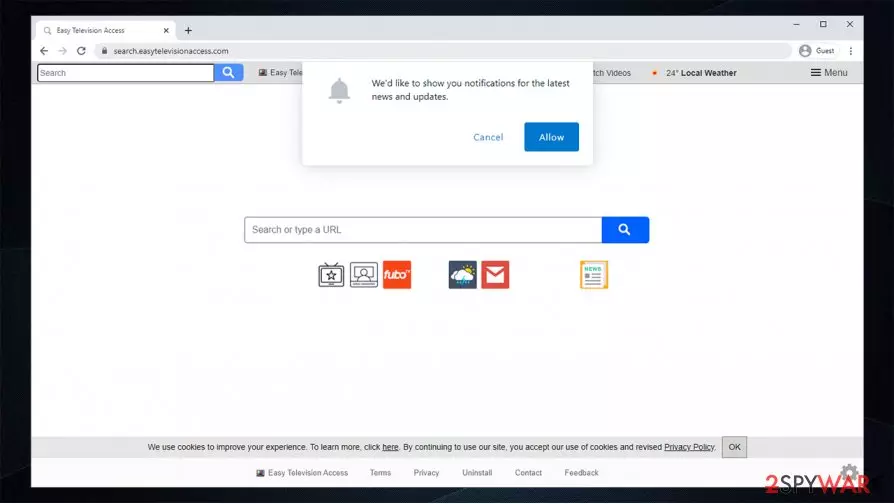
Search.easytelevisionaccess.com is a browser hijacker that functions as a search tool offering supposed access to restricted media streaming sites. It is created by Polarity Technologies Ltd, the company which earned notorious popularity as the company creating PUP-like search tools. In most cases, the browser hijacking is caused by Easy Television Access extension, which is usually downloaded along freeware.
Though the addon is not malicious, it does not contain HTTPS protocol, which is regarded as an indicator of a reliable site. Furthermore, some of the alternative search tools manifested relation to the bothersome SafeBrowser hijacker.
| Name | Search.easytelevisionaccess.com |
| Type | Potentially unwanted program, browser hijacker |
| Distribution | Software bundles, deceptive ads |
| Symptoms | Increased number of advertisements, Easy Television Access extension installed on the web browser, search results filled with sponsored links |
| Elimination | You can uninstall the app manually or employ security software for the job |
| System fix | Potentially unwanted programs can cause issues for your operating system, so it it starts crashing and returning errors, attempt to fix virus damage with FortectIntego |
They feature a pleasant design and offer an enhanced search experience but, in reality, fail to deliver the service. The truth is, the developers of these search sites are not even trying to keep their clients happy. All they are interested is the pay-per-click revenue[1].
Due to this fact, you might notice occasional Easytelevisionaccess redirect tendency. However, third-party websites are not always properly protected. Thus, you might find yourself in domains, which risk being hacked and compromised with malware. This is one of the reasons to remove search.easytelevisionaccess.com.
Furthermore, in contrast to the claims to provide you access to movie streaming sites and sources, this search engine fails to keep such promise. If you prefer browsing the web only to read news articles, you might get distracted by RevContent ads. Though they are generated by legitimate advertising platform[2], within a while, they might get annoying.
Such corrupted search results are the core of the Easytelevisionaccess redirect issue. It is no wonder that so many users are desperate to remove Search.easytelevisionaccess.com from their browsers. SpyHunterCombo Cleaner, MalwarebytesMalwarebytes, or other trusted anti-malware utility should be able to find the virus vulnerabilities and remove them. Besides, FortectIntego can help with system tune-up after the infection is eliminated.
We suggest looking for a more reliable search site instead. Moreover, it is unlikely that any software or website promoted by a browser hijacker is worth trusting. And since this virus makes advertising its primary purpose, it is better to eliminate the risk of obtaining adware content and delete this dubious search engine from your computer. All the relevant information about the search.easytelevisionaccess.com removal is presented at the end of this article.

PUP transmission methods
Yes, there are a few things you should remember if your computer’s security is important to you. First, don’t visit suspicious sites. Nobody would willingly step into a room full of alligators, neither should you. Obscure sites are often filled with a bunch of malware, so the possibility to get infected with Search.easytelevisionaccess.com is rather high.
Naturally, if you end up on a suspicious domain, you should not download software, software updates or any other content and better leave the site immediately. Finally, even if you trust the source you are downloading your software from, always check whether no additional components are attached to the app you plan to install on your computer.
If there are some options you want to opt out – do it. You will always have the ability to download the software you actually need on official websites and download pages.
Get rid of search.easytelevisionaccess.com
If you wish to remove Search.easytelevisionaccess.com successfully, you first need to know how to approach it. In our article, we’ve already mentioned the automatic method. This method frees the user from all the responsibility and leaves the matter for the automatic antivirus utilities to take care of.
What you need for this process to be successful is an updated antivirus utility and a few minutes of your time. If you have some more time on your hands, you might try out manual Search.easytelevisionaccess.com removal. The elimination steps and suggestions are presented below this article. Note that this search tool might be promoted not only on English but on German[3] or Japanese sites as well.
Uninstall from Windows
Uninstall from Windows 10/8:
- Type Control Panel into the Windows search box and open the result.
- Under Programs, select Uninstall a program.


Uninstall from Windows 7/XP:
- Click on Windows Start > Control Panel (Windows XP users should click on Add/Remove Programs).
- In Control Panel, select Programs > Uninstall a program.


Remove the unwanted program:
- In the Programs and Features window, look for any recently installed suspicious entries, select them, and click Uninstall.
- If User Account Control appears, click Yes to confirm, then complete the removal.


Delete from macOS
Remove the unwanted application:
- From the menu bar, select Go > Applications.
- In the Applications folder, look for any suspicious entries, then drag them to Trash (or right-click and pick Move to Trash).


Delete leftover files and folders:
- Select Go > Go to Folder.
- Enter /Library/Application Support and remove any suspicious folders related to the unwanted program.
- Repeat the same check in the /Library/LaunchAgents and /Library/LaunchDaemons folders, deleting any suspicious entries.

- Finally, empty the Trash to permanently remove the leftovers.

Reset Internet Explorer
Remove dangerous add-ons:
- Open Internet Explorer, click on the Gear icon (IE menu) on the top-right corner of the browser
- Pick Manage Add-ons.
- You will see a Manage Add-ons window. Here, look for suspicious plugins. Click on these entries and select Disable.


Change your homepage if it was altered:
- Open IE and click on the Gear icon.
- Select Internet Options.
- In the General tab, delete the Home page address and replace it by your preferred one (for example, Google.com).
- Click Apply and then select OK.


Delete temporary files:
- Press on the Gear icon and select Internet Options.
- Under Browsing history, click Delete...
- Select relevant fields and press Delete.


Reset Internet Explorer:
- Click on Gear icon > Internet options and select Advanced tab.
- Select Reset.
- In the new window, check Delete personal settings and select Reset.


Remove from Microsoft Edge
Delete unwanted extensions from MS Edge:
- Select Menu (three horizontal dots at the top-right of the browser window) and pick Extensions.
- From the list, pick the extension and click on the Gear icon.
- Click Remove.


Clear cookies and other browser data:
- Click on the Menu (three horizontal dots at the top-right of the browser window) and select Settings > Privacy, search, and services..
- Under Clear browsing data, pick Choose what to clear.
- Select Cookies and other site data and Cached images and files. (apart from passwords, although you might want to include Media licenses as well, if applicable) and click on Clear.


Restore new tab and homepage settings:
- Click the menu icon and choose Settings.
- Then find On startup section.
- Click Remove next to any suspicious startup page.
Reset MS Edge if the above steps did not work:
- Press on Ctrl + Shift + Esc to open Task Manager.
- Click on More details arrow at the bottom of the window.
- Select Details tab.
- Now scroll down and locate every entry with Microsoft Edge name in it. Right-click on each of them and select End Task to stop MS Edge from running.


Instructions for Chromium-based Edge
Delete extensions from MS Edge (Chromium):
- Open Edge and click select Settings > Extensions.
- Delete unwanted extensions by clicking Remove.


Clear cache and site data:
- Click on Menu and go to Settings.
- Select Privacy, search and services.
- Under Clear browsing data, pick Choose what to clear.
- Under Time range, pick All time.
- Select Clear now.


Reset Chromium-based MS Edge:
- Click on Menu and select Settings.
- On the left side, pick Reset settings.
- Select Restore settings to their default values.
- Confirm with Reset.
- This will disable extensions and reset startup pages but will not delete bookmarks, saved passwords, or browsing history.


Remove from Mozilla Firefox (FF)
Remove dangerous extensions:
- Open Mozilla Firefox browser and click on the Menu (three horizontal lines at the top-right of the window).
- Select Add-ons.
- In here, select the unwanted extension and click Remove.


Reset the homepage:
- Click three horizontal lines at the top right corner to open the menu.
- Choose Settings.
- Under Home, set your preferred homepage and new tab settings.
Clear cookies and site data:
- Click Menu and pick Settings.
- Go to Privacy & Security section.
- Scroll down to locate Cookies and Site Data.
- Click on Clear Data...
- Select Cookies and Site Data and Temporary cached files and pages, then click Clear.


Reset Mozilla Firefox
If clearing the browser as explained above did not help, reset Mozilla Firefox:
- Open Mozilla Firefox browser and click the Menu.
- Go to Help and then choose Troubleshooting Information.

- Under Give Firefox a tune up section, click on Refresh Firefox...
- Once the pop-up shows up, confirm the action by pressing on Refresh Firefox.



Remove from Google Chrome
Delete malicious extensions from Google Chrome:
- Open Google Chrome, click on the Menu (three vertical dots at the top-right corner) and select More tools > Extensions.
- In the newly opened window, you will see all the installed extensions. Uninstall all suspicious extensions related to the unwanted program by clicking Remove.


Clear cache and web data from Chrome:
- Click on Menu and pick Settings.
- Under Privacy and security, select Clear browsing data.
- Select Browsing history, Cookies and other site data, as well as Cached images and files.
- Click Clear data.


Change your homepage:
- Click menu and choose Settings.
- Look for a suspicious site in the On startup section.
- Click on Open a specific or set of pages and click on three dots to find the Remove option.
Reset Google Chrome:
If the previous methods did not help you, reset Google Chrome to eliminate all the unwanted components:
- Click on Menu and select Settings.
- In the Settings, scroll down and click Advanced.
- Scroll down and locate Reset and clean up section.
- Now click Restore settings to their original defaults.
- Confirm with Reset settings.


Delete from Safari
Remove dangerous extensions:
- Open Safari, click Safari in the menu at the top-left of the screen, and select Preferences.
- Go to the Extensions tab, look for any suspicious entries, and click Uninstall to remove them.


Clear history and website data:
- Click Safari in the menu and pick Clear History.
- Set Clear to all history and confirm with Clear History.


Reset Safari:
- Click Safari in the menu and select Preferences > Advanced.
- Enable Show Develop menu in menu bar.
- From the menu bar, click Develop and select Empty Caches.


Did this guide help?
1 comment
Igor
Who need television anyway, they are dropping the wrong lure