

Gaming Assassin Toolbar – a suspicious browser extension that might bring too many ads
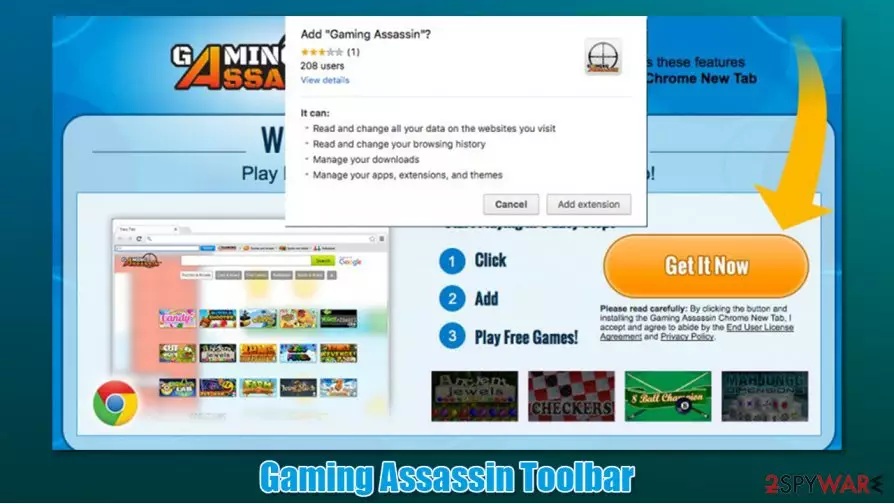
Gaming Assassin Toolbar virus – that is how some computer users call this application. However, we can assure you that it is not malicious, and comes as a browser extension for Google Chrome, Mozilla Firefox, MS Edge, or other web browsers. Initially, the app is advertised as an extension that could help users find and play engaging games online. Despite this, there are plenty of aspects to this app that can be considered potentially unwanted, as one of its main features is browser hijacking.[1]
Another deceptive feature of the app is its distribution practices. Since software bundling[2] is commonly used, it ends up on users' computers without their knowledge or consent. Once installed, the Gaming Assassin Toolbar hijack becomes visible immediately. The homepage and new tab address is set to hp.myway.com, and search results are injected with multiple ads. In the background, the browser hijacker would gather a variety of information about users' web browsing activities, which might result in some privacy risks.
| Name | Gaming Assassin Toolbar |
| Type | Potentially unwanted program, browser hijacker |
| Distribution | Software bundles, deceptive ads, third-party websites |
| Dangers | Installation of other unwanted software, monetary loss due to misleading advertisements, privacy risks |
| Symptoms |
|
| Elimination | Follow the instructions we provide at the bottom section of this article |
| System fix | If you have found other potentially unwanted programs or malware on your system, we also recommend fixing virus damage with FortectIntego |
There are some reasons why computer users leave negative comments about it online, but we have noticed that they typically claim that this program has hijacked their computers, that they cannot remove Gaming Assassin Toolbar, and so on. Below we provide comprehensive instructions on eliminating this unwanted program, how it works, and why computer security experts have decided to add it to the potentially unwanted programs (PUPs) list.
As we have stated before, the word “malicious” should not be mentioned when speaking about this program. It is a browser extension that can be added to your browser, and it can be easily removed as well. It is also worth mentioning that it cannot get inside the computer’s system without the permission of the owner; therefore, it would be wrong to claim that it hijacks the computer system.
This program suggests using the MyWay search engine, so it sets it on the homepage, new tab page, and of course, makes it a default search engine as well. We have tested this search engine to see what kind of results it delivers, and we have noticed that it serves a lot of sponsored links. It injects ads at the beginning of the result page and shows “related links” on the side. Such an amount of ads might not be acceptable to every computer user because it seems that regular and most likely relevant search results are pushed to the bottom of the results page.
Another suspicious detail that dragged our attention is that Gaming Assassin Toolbar inserts tracking cookies and uses similar data tracking technologies[3] to collect and store information whenever you use the extension and browse the Internet. The developer claims that it stores certain information to provide targeted advertisements to the user and might share the collected information with “businesses with which we partner to offer you those products, services, promotions, contests and/or sweepstakes.”

However, you should remember that all these sites have their own policies and that the developer of Gaming Assassin Toolbar is not responsible for anything that can happen on these sites. In other words, you can browse sites accessible via sponsored links at your own risk. The developer of this toolbar “does not endorse advertising, product, or other materials on or available on such sites and resources,” so browse carefully.
We advise you to stay away from offers to install unknown software products, updates, and other files from sites that do not look trustworthy. Remember that you can also go for the Gaming Assassin Toolbar removal option and stop this application from tracking you, and replace the discussed search engine with another one.
Note: if you found this app on your system seemingly out of nowhere, there could be other PUPs installed on your system. Check it with SpyHunterCombo Cleaner or another security software and, if something was found, tune-up and remediate your OS with FortectIntego repair tool.
Potentially unwanted programs are usually distributed via software bundling
Some computer users get surprised when they discover PUPs on their computers and claim that they cannot remember installing them. They should know that today users do not need to go to certain websites to install unknown third-party programs; it is enough just to be a little careless during the installation of other free applications because they often distribute PUPs like Gaming Assassin Toolbar.
To refuse to install optional applications with your preferred software, it is a must to switch the installation mode from Default/Standard to Custom or Advanced one and deselect all checkboxes next to agreements to add browser extensions, apps, and other suspicious files to the computer system.
You can remove Gaming Assassin Toolbar easily
Gaming Assassin Toolbar removal should not be a difficult task, as all you have to do is find the extension on your web browser's settings. If you are not familiar with such a process and never installed add-ons before, we provide detailed step-by-step instructions for this process below. It is also recommended to clean web browser data such as cookies and other leftovers.
Resetting the web browser is another way to remove Gaming Assassin Toolbar. This process will eliminate all the settings that might have been applied by the browser hijacker. Besides, there might be other extensions that you installed unintentionally – these might be the cause of the changed homepage and an increased number of ads.
Uninstall from Windows
Uninstall from Windows 10/8:
- Type Control Panel into the Windows search box and open the result.
- Under Programs, select Uninstall a program.


Uninstall from Windows 7/XP:
- Click on Windows Start > Control Panel (Windows XP users should click on Add/Remove Programs).
- In Control Panel, select Programs > Uninstall a program.


Remove the unwanted program:
- In the Programs and Features window, look for any recently installed suspicious entries, select them, and click Uninstall.
- If User Account Control appears, click Yes to confirm, then complete the removal.


Delete from macOS
Remove the unwanted application:
- From the menu bar, select Go > Applications.
- In the Applications folder, look for any suspicious entries, then drag them to Trash (or right-click and pick Move to Trash).


Delete leftover files and folders:
- Select Go > Go to Folder.
- Enter /Library/Application Support and remove any suspicious folders related to the unwanted program.
- Repeat the same check in the /Library/LaunchAgents and /Library/LaunchDaemons folders, deleting any suspicious entries.

- Finally, empty the Trash to permanently remove the leftovers.

Reset Internet Explorer
Remove dangerous add-ons:
- Open Internet Explorer, click on the Gear icon (IE menu) on the top-right corner of the browser
- Pick Manage Add-ons.
- You will see a Manage Add-ons window. Here, look for suspicious plugins. Click on these entries and select Disable.


Change your homepage if it was altered:
- Open IE and click on the Gear icon.
- Select Internet Options.
- In the General tab, delete the Home page address and replace it by your preferred one (for example, Google.com).
- Click Apply and then select OK.


Delete temporary files:
- Press on the Gear icon and select Internet Options.
- Under Browsing history, click Delete...
- Select relevant fields and press Delete.


Reset Internet Explorer:
- Click on Gear icon > Internet options and select Advanced tab.
- Select Reset.
- In the new window, check Delete personal settings and select Reset.


Remove from Mozilla Firefox (FF)
Remove dangerous extensions:
- Open Mozilla Firefox browser and click on the Menu (three horizontal lines at the top-right of the window).
- Select Add-ons.
- In here, select the unwanted extension and click Remove.


Reset the homepage:
- Click three horizontal lines at the top right corner to open the menu.
- Choose Settings.
- Under Home, set your preferred homepage and new tab settings.
Clear cookies and site data:
- Click Menu and pick Settings.
- Go to Privacy & Security section.
- Scroll down to locate Cookies and Site Data.
- Click on Clear Data...
- Select Cookies and Site Data and Temporary cached files and pages, then click Clear.


Reset Mozilla Firefox
If clearing the browser as explained above did not help, reset Mozilla Firefox:
- Open Mozilla Firefox browser and click the Menu.
- Go to Help and then choose Troubleshooting Information.

- Under Give Firefox a tune up section, click on Refresh Firefox...
- Once the pop-up shows up, confirm the action by pressing on Refresh Firefox.



Remove from Google Chrome
Delete malicious extensions from Google Chrome:
- Open Google Chrome, click on the Menu (three vertical dots at the top-right corner) and select More tools > Extensions.
- In the newly opened window, you will see all the installed extensions. Uninstall all suspicious extensions related to the unwanted program by clicking Remove.


Clear cache and web data from Chrome:
- Click on Menu and pick Settings.
- Under Privacy and security, select Clear browsing data.
- Select Browsing history, Cookies and other site data, as well as Cached images and files.
- Click Clear data.


Change your homepage:
- Click menu and choose Settings.
- Look for a suspicious site in the On startup section.
- Click on Open a specific or set of pages and click on three dots to find the Remove option.
Reset Google Chrome:
If the previous methods did not help you, reset Google Chrome to eliminate all the unwanted components:
- Click on Menu and select Settings.
- In the Settings, scroll down and click Advanced.
- Scroll down and locate Reset and clean up section.
- Now click Restore settings to their original defaults.
- Confirm with Reset settings.


Delete from Safari
Remove dangerous extensions:
- Open Safari, click Safari in the menu at the top-left of the screen, and select Preferences.
- Go to the Extensions tab, look for any suspicious entries, and click Uninstall to remove them.


Clear history and website data:
- Click Safari in the menu and pick Clear History.
- Set Clear to all history and confirm with Clear History.


Reset Safari:
- Click Safari in the menu and select Preferences > Advanced.
- Enable Show Develop menu in menu bar.
- From the menu bar, click Develop and select Empty Caches.


Did this guide help?
4 comments
margot
I didnt like this toolbar at all...
yVES133
I wouldnt recommend using this toolbar. It acts way too suspicious to me
Kyg0
this toolbar wasnt useful and i am mad because i could not find instructions how to remove it anywhere! finally i found them. this toolbar was stuck on my browser, that was so annoying...
rolland
How can I protect my computer from these toolbars