

Should you rely on Search.wikicraftpro.com search results?
Search.wikicraftpro.com virus is a wrong term typically used to describe a browser hijacker, which spreads alongside other free programs. It can be added to the computer system after installing a free game, download manager, audio or video player, or a similar program. Once installed, this browser hijacker changes some settings in Google Chrome browser and sets Search.wikicraftpro.com URL as the homepage and default new tab page address. At the moment, this hijacker can only affect this particular Internet browser.
The intended URL appears to be a web search engine, which looks like a typical website of this kind. It provides a search box in the middle of the webpage, and you can choose what search engine do you want to use (Bing, Yahoo! Or Google). However, be aware of these search results are not the original ones and can be ALTERED! The user can use regular search, or choose to search the minecraft.gamepedia.com site. However, there are some reasons why you should not trust this search engine or even start thinking about Search.wikicraftpro.com removal, so let us list them for you.
- Search.wikicraftpro.com redirect issue. You might notice that some of the search results do not take you to desired web pages once you click them. You might experience redirects to strange-looking Internet sites, so we suggest you to be very careful while using this search engine!
- Browser crashes and system slowdowns. Do not be surprised that after installing this hijacker your browser starts to perform slower than it usually does. Your browser might start not to respond or even crash from time to time. These problems can also initiate system slowdowns and an overall decrease of computer’s performance.
- Lots of sponsored search results. It seems that this additional system application “may include and/or enable you to add Content to them.” This content might show up in a form of links to third-party advertisements, websites, buttons, gadgets, apps, and so on. Beware that such content might be insecure!
- Data collection. This browser extension is capable of collecting certain data about the computer user, including search queries made through Search.wikicraftpro.com, user’s browsing history, interaction with advertisements and so on. This data might be shared with unknown third parties afterward.
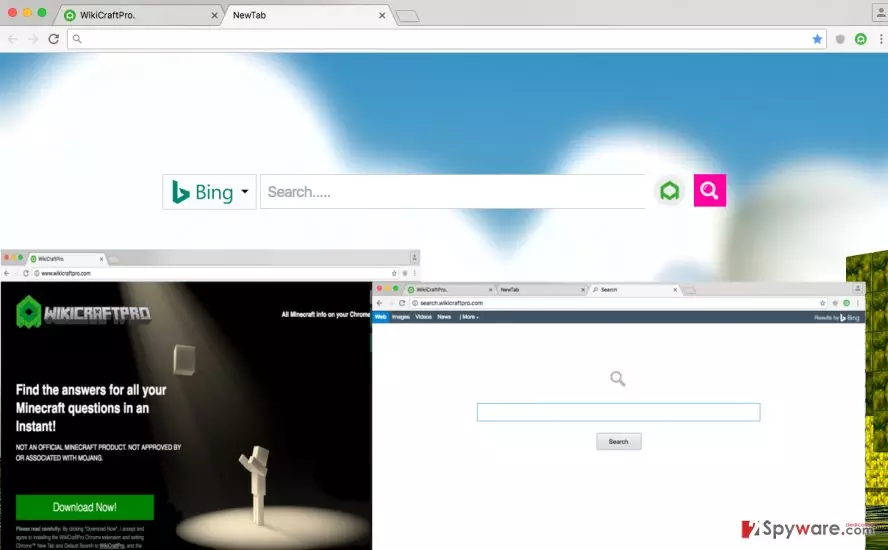
Another suspicious fact that makes us wonder about the reliability of this search engine is that it has been developed by a company (ClientConnect Ltd.) that has created infamous browser redirect viruses such as Trovi.com. We strongly recommend you to think whether you wish to use such application and the indicated search engine that it provides. If you don’t, remove Search.wikicraftpro.com using anti-malware software like FortectIntego.
How does this program spread?
Search.wikicraftpro.com hijack can happen if the computer user tends to be careless or rush to install new computer programs. Keep in mind that almost all free programs recommend installing additional programs alongside them, and if the user does not manually deselect agreements to install them, they end up being set up on user’s operating system without even notifying the computer user. To avoid that, the user just needs to adjust installation settings and set them to Custom or Advanced mode. Then, the user has to deselect all optional elements, for instance, browser toolbars, extensions, apps, and other suggested components to avoid installing them.
How to remove Search.wikicraftpro.com?
To remove Search.wikicraftpro.com virus, the user can use the anti-malware software. If one does not have it, then he/she can download one of the recommended ones that are provided below. In case the user wants to carry out manual Search.wikicraftpro.com removal, the instructions provided below might come in handy.
Uninstall from Windows
Uninstall from Windows 10/8:
- Type Control Panel into the Windows search box and open the result.
- Under Programs, select Uninstall a program.


Uninstall from Windows 7/XP:
- Click on Windows Start > Control Panel (Windows XP users should click on Add/Remove Programs).
- In Control Panel, select Programs > Uninstall a program.


Remove the unwanted program:
- In the Programs and Features window, look for any recently installed suspicious entries, select them, and click Uninstall.
- If User Account Control appears, click Yes to confirm, then complete the removal.


Delete from macOS
Remove the unwanted application:
- From the menu bar, select Go > Applications.
- In the Applications folder, look for any suspicious entries, then drag them to Trash (or right-click and pick Move to Trash).


Delete leftover files and folders:
- Select Go > Go to Folder.
- Enter /Library/Application Support and remove any suspicious folders related to the unwanted program.
- Repeat the same check in the /Library/LaunchAgents and /Library/LaunchDaemons folders, deleting any suspicious entries.

- Finally, empty the Trash to permanently remove the leftovers.

Remove from Google Chrome
Delete malicious extensions from Google Chrome:
- Open Google Chrome, click on the Menu (three vertical dots at the top-right corner) and select More tools > Extensions.
- In the newly opened window, you will see all the installed extensions. Uninstall all suspicious extensions related to the unwanted program by clicking Remove.


Clear cache and web data from Chrome:
- Click on Menu and pick Settings.
- Under Privacy and security, select Clear browsing data.
- Select Browsing history, Cookies and other site data, as well as Cached images and files.
- Click Clear data.


Change your homepage:
- Click menu and choose Settings.
- Look for a suspicious site in the On startup section.
- Click on Open a specific or set of pages and click on three dots to find the Remove option.
Reset Google Chrome:
If the previous methods did not help you, reset Google Chrome to eliminate all the unwanted components:
- Click on Menu and select Settings.
- In the Settings, scroll down and click Advanced.
- Scroll down and locate Reset and clean up section.
- Now click Restore settings to their original defaults.
- Confirm with Reset settings.


Did this guide help?
4 comments
Stewie
Thanks for the help, guys!
Zigme
Honestly, I didnt even notice when Search.wikicraftpro.com hijacked my browser. I dont think that I ever used it, but I kept it on my computer for a while. Therefore, I want to scan it for threats now.
Fiori
That is all that i needed to know. Thanks so much!
Ore0s
deez redirects were driving me crazeeee man, thanx for ze help! :P