

Reasons to not take MaxPerforma Optimizer claims seriously
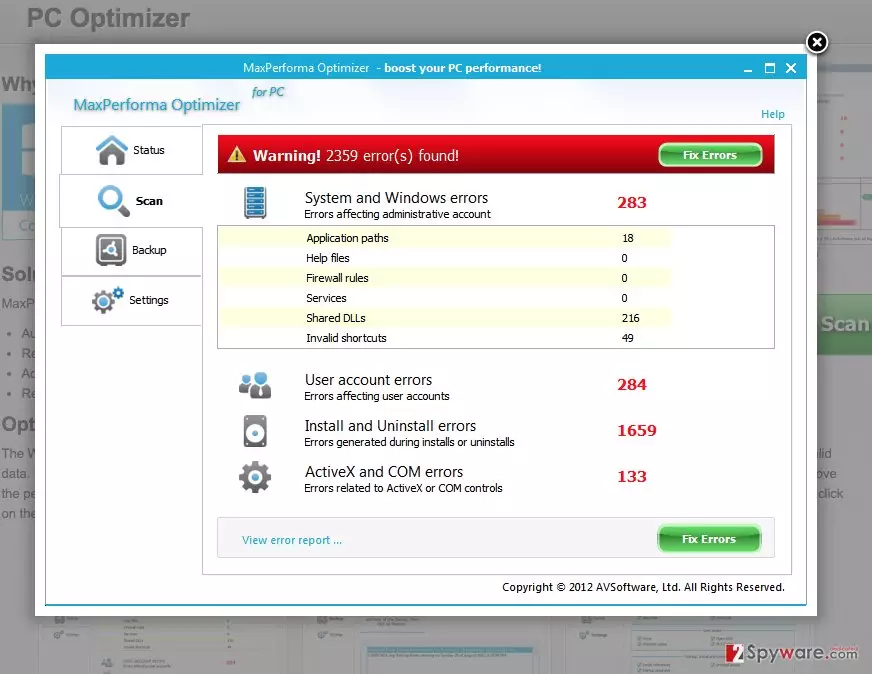
If you are looking for a PC optimizer, make sure you do not download MaxPerforma virus by chance. It is not a severe computer infection, but rather the potentially unwanted program (PUP), which attempts to make an impression that user’s computer is messed up. Once installed, this program starts to pretend that it seeks to find and fix computer problems, such as slow performance, startup issues, and invalid registry entries. It implements a bogus system scan and then displays thousands of errors that were supposedly detected. You should know that the majority of these scan results are likely to be false-positives; therefore, it would be wrong to rely on them. This system tool might also start displaying MaxPerforma ads, urging to solve computer issues immediately.
If the user believes that the computer needs to be fixed, he faces another problem – MaxPerforma Optimizer asks to purchase the full version of it to apply fixes. However, beware of this program, and think twice before wasting your money on its full version license. Most likely it cannot do anything beneficial to your computer, although its official website states different information. It promises that this PC optimizer can optimize registry settings, speed up the PC, remove unneeded or corrupted shortcuts and modify a variety of computer’s settings to improve overall computer’s performance. Even if these claims lure you to try this optimization tool, don’t. If you are still not convinced, we recommend looking for users’ feedbacks on various Internet forums first. To sum up, you should decide whether you want to use such shady application, especially if it has been installed on your PC without your knowledge. If you want to remove MaxPerforma Optimizer, you should install a spyware removal tool of your choice. We recommend using FortectIntego or SpyHunterCombo Cleaner, but you can use any other program that you want. You might also want to take a look at Software page. If you do not want to use any automatic spyware removal tool, you can try to remove MaxPerforma manually using instructions given at the end of this post.
How is this program distributed?
This program is available to download at its official web page. Beware that this program promotes another potentially unwanted program – SafeSearch Toolbar, which changes browser settings and sets SafeSearch.net as homepage address. These suspicious programs can be placed on your computer without your knowledge as well, but surprisingly, in a legitimate way. It is so because most of the time, this rogue PC optimizer spread via software bundles. To avoid installing it, you have to handle software installation process at all times, no matter what program you are trying to install. Make sure you choose Advanced or Custom settings for the installation and then look what “recommended” programs are listed there. Uncheck offers to install browser toolbars, search tools, and other suspicious applications because most likely they are useless ad-supported programs.
MaxPerforma removal instructions
If you do not want to keep this program on your PC, just delete it from your system. You can use MaxPerforma removal instructions provided below, but if you find it hard to remove this system tool on your own, ask for help from a friend or send a question to our support team. Also, you have the option to remove it automatically. If you do not have a spyware removal program, download one of our recommended ones and run a system scan with it to remove MaxPerforma virus. You should definitely not let MaxPerforma hijack establish itself in your computer system, so do not ignore it and take actions to uninstall it.
Uninstall from Windows
Uninstall from Windows 10/8:
- Type Control Panel into the Windows search box and open the result.
- Under Programs, select Uninstall a program.


Uninstall from Windows 7/XP:
- Click on Windows Start > Control Panel (Windows XP users should click on Add/Remove Programs).
- In Control Panel, select Programs > Uninstall a program.


Remove the unwanted program:
- In the Programs and Features window, look for any recently installed suspicious entries, select them, and click Uninstall.
- If User Account Control appears, click Yes to confirm, then complete the removal.


Did this guide help?
4 comments
Thompson
Thanks for explaining how to remove this. I dint want this program, had no idea how did it end up being on my computer system... weird...
Darrel
I wouldnt rely on MaxPerforma Optimizer. Its scan results seems suspicious to me.
Wayne
Ya I gotta a feeling that it is lying to us. MaxPerforma reports too many problems that doesnt sound realistic bro
rolling
that is all I needed to know. Ty.